
1. Problem Statement
How to quickly and batch create or modify collection variables?Since early versions, PLC-Recorder has had import and export functions that allow batch operations via .CSV format. Starting from version 3, a simple copy and paste feature was added to facilitate variable operations. Below is a description of the operation process:
2. Operation Steps
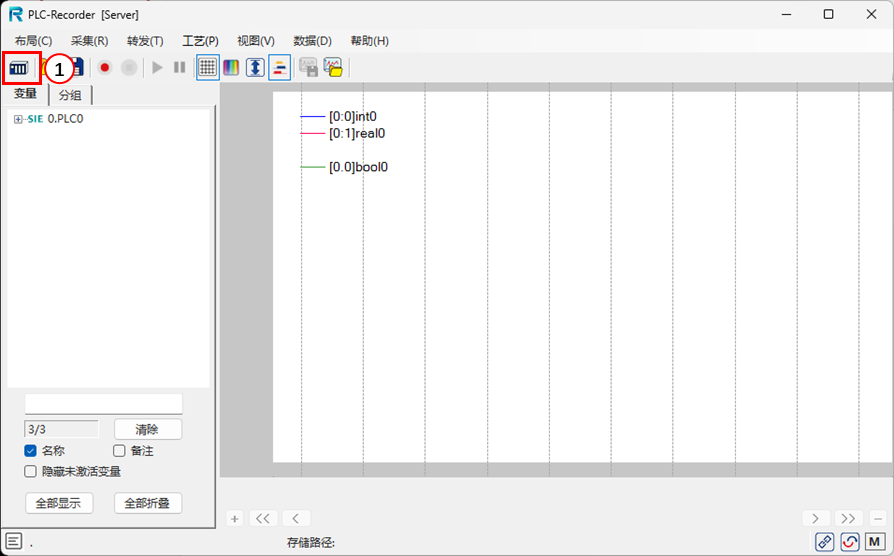
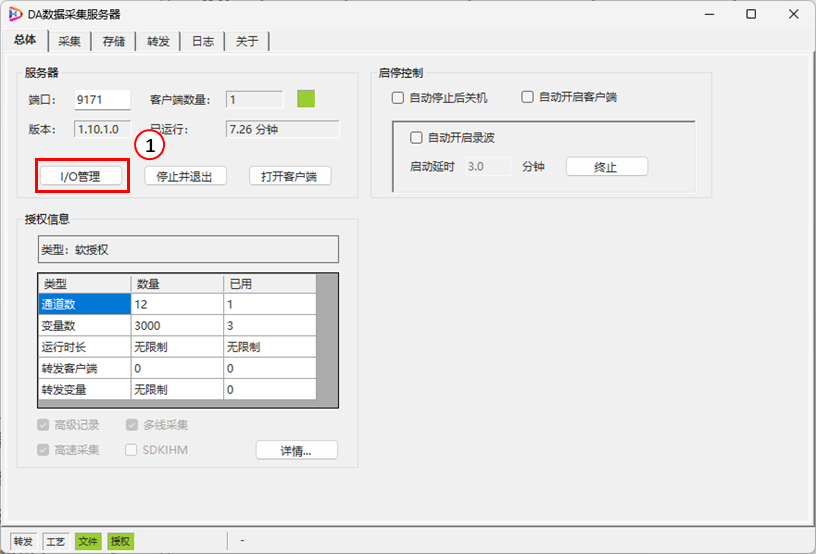
1. Open the I/O management interface of PLC-Recorder
Method 1: Start from the clientI/O Management
Method 2: Start I/O management from the server

 2. Open the Variable TableInput -> Select Channel -> Numeric Variable/Switch Variable/String Variable (taking numeric variable as an example)
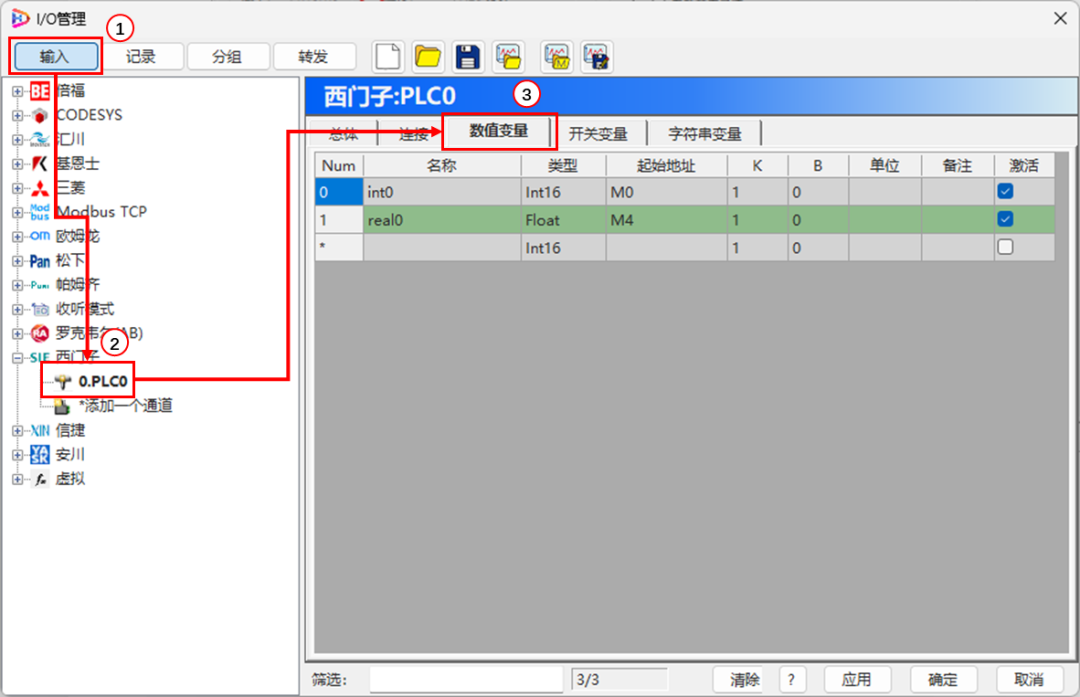 3. Create a TemplateSelect rows 1 and 2 (only select the columns you need to edit), right-click
 select “Copy Cells (with Column Titles)” to copy the content to the Windows clipboard: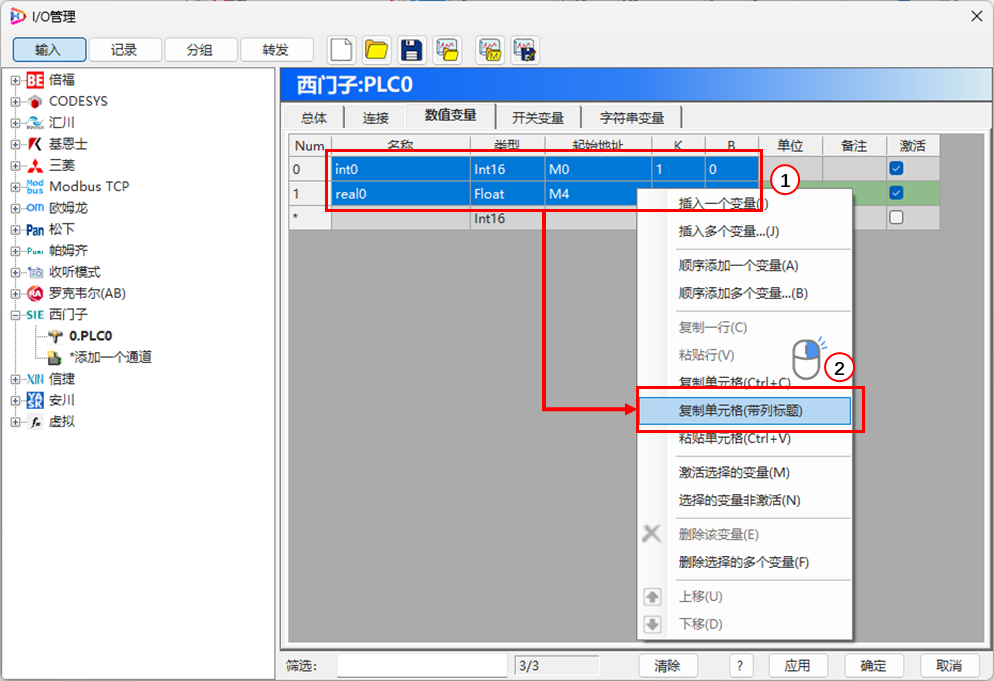
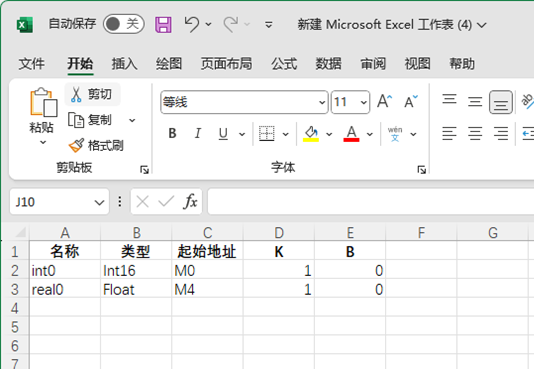
4. Paste into Spreadsheet Editing Software
Create and open an EXCEL spreadsheet file (editing software can also be WORD, text editor, etc.), select the paste command to paste with titles:
 5. After Batch Editing, Select and Copy the Content to be Processed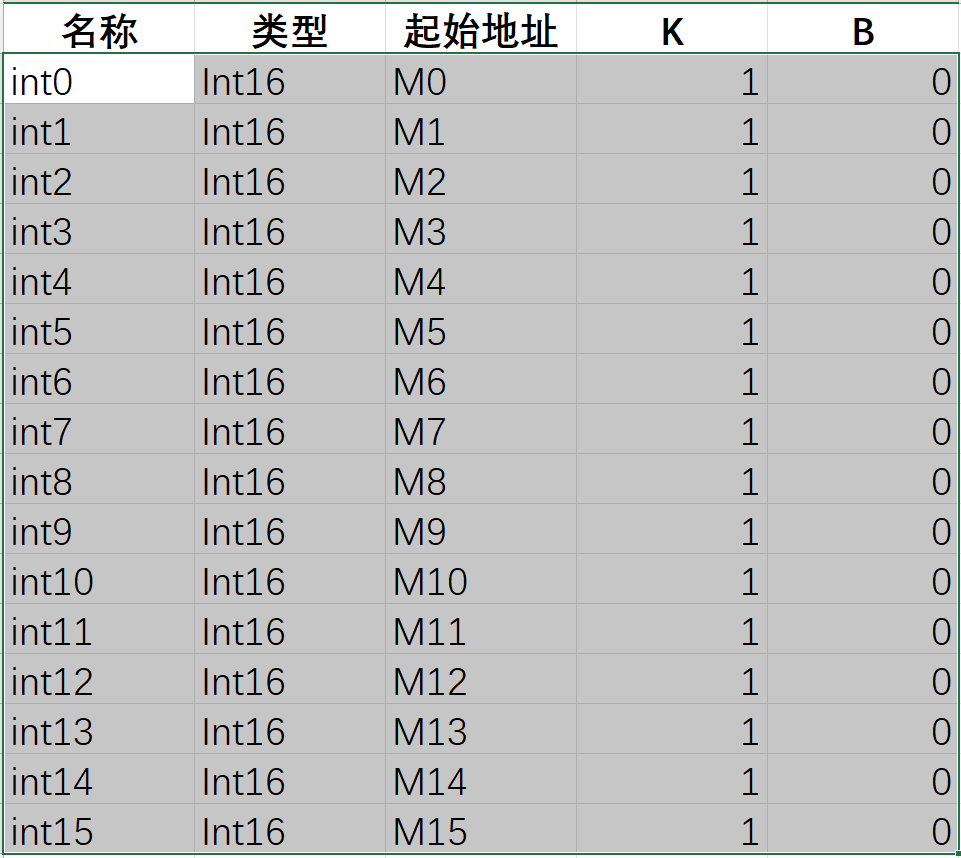
6. Paste in I/O Management
Click on the starting cell of the target area, right-click, and select “Paste Cells” or (shortcut Ctrl+V), which will automatically create new variables and perform various format and syntax checks (Note: If the target area overlaps the original variable range, it will also overwrite the original variables).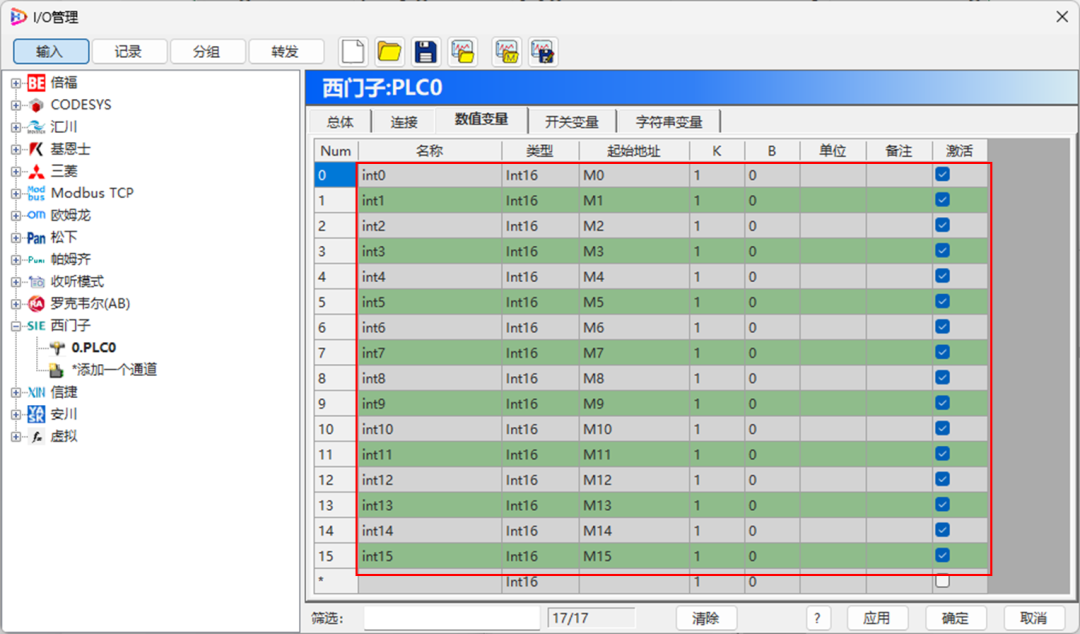

3. Summary
The above demonstrates the most basic operations, which can also include pasting without titles, copying and pasting partial areas, etc.Without leaving the software, various quick operations such as copying, pasting, and batch adding can be completed.With a few more attempts, you can discover the rules and find powerful functions to conveniently complete multi-variable operations.



 Extended Knowledge: PLC-Recorder Professional Data Collection and Analysis Software, supports the entire series of Siemens and major brand PLC data collection, maintaining our commitment to simplicity, convenience, and efficiency..