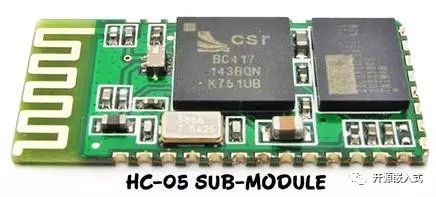
HC-05
The Bluetooth module BT-HC05 is a high-performance Bluetooth serial module. 1. It can be paired with various smart terminals with Bluetooth capabilities, such as computers, Bluetooth hosts, mobile phones, PDAs, PSPs, etc. 2. It has a wide baud rate range of 4800~1382400 and is compatible with microcontroller systems. 3. After two Bluetooth modules in master-slave mode are successfully paired, it can be easily changed to wireless Bluetooth, making your device or product more advanced and stylish. 4. You can easily use the provided Bluetooth mobile software.
What is the Purpose of the Bluetooth Module?
First, it is essential to clarify an important question: what is the purpose of a Bluetooth module? What is it used for?
The Bluetooth module, also known as the Bluetooth serial communication module, is related to serial communication. We all know about serial ports, for example, I usually use USB-ISP to program microcontrollers, which uses a serial port. But this connects the microcontroller and the download module with wires, while the Bluetooth module serves the purpose of replacing that wire.
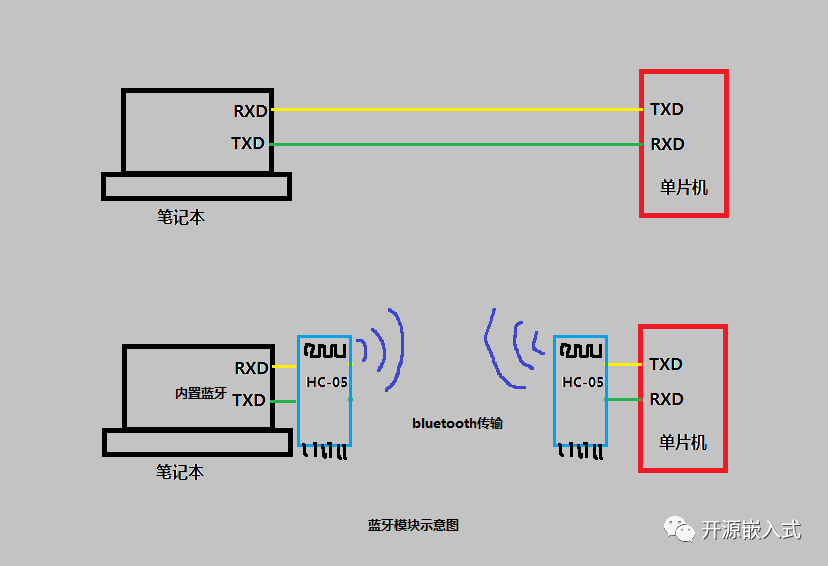
The data sent by the sender does not go directly to the receiver but first goes to the module, is relayed through the module, and then reaches the receiver. It can be seen that the segment from the sender to the module uses wireless Bluetooth transmission (which is exactly what we need), while the segment from the module to the receiver uses wired connection (essentially just plugging the module in), with the Bluetooth module acting as a “messenger”.
Working Modes
HC-05 has two working modes, officially referred to as command response working mode and automatic connection working mode, which we can understand as “parameter setting mode” and “normal working mode.” In parameter setting mode, users can set common parameters of the Bluetooth module using AT commands, such as name, connection password, etc. The normal working mode operates according to the parameters set by the user, pairing and sending/receiving data.
Setting Module Parameters in Parameter Setting Mode
Entering Parameter Setting Mode
In this mode, parameters can be set for the module. The module defaults to normal working mode upon power-up, so it must first enter parameter setting mode. The manual states:
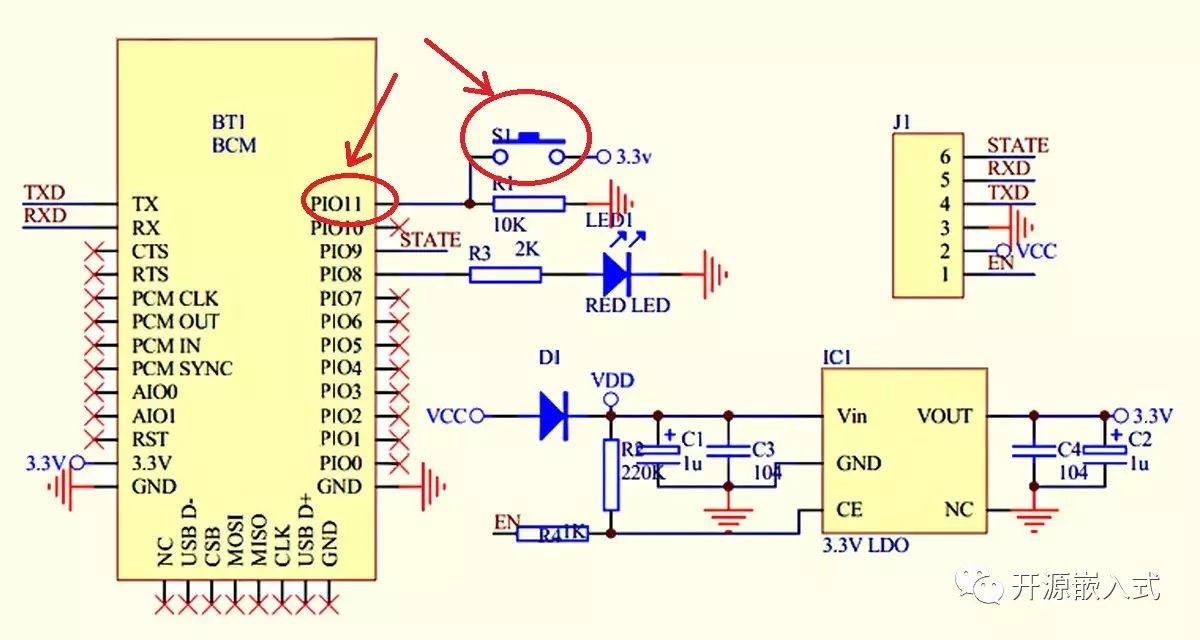
The working state of the module can be dynamically switched by controlling the external pin (PIO11) input level.
PIO11 is the module state switching pin; high level -> AT command response working state, low level or floating -> Bluetooth normal working state.
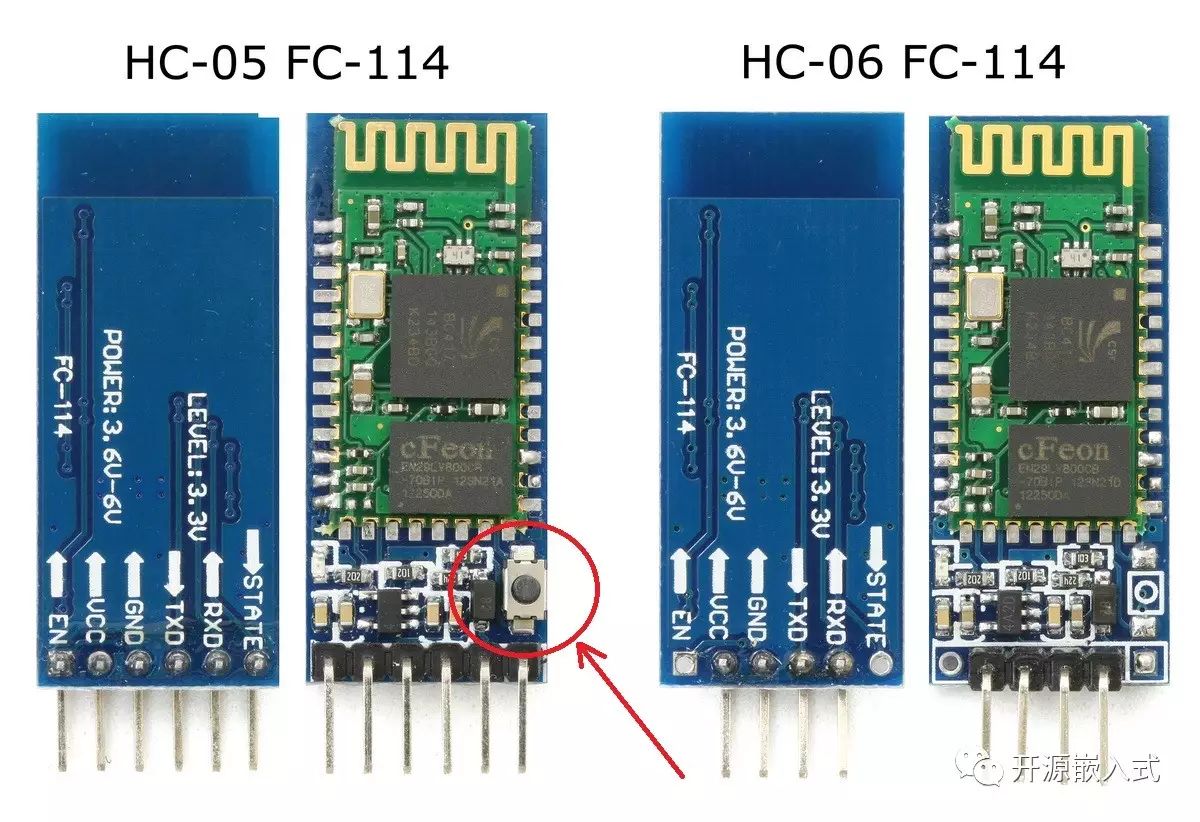
So what is this PIO11? Poor me, I didn’t understand at the time and connected the module pins randomly, almost burning the module. In fact, PIO11 is a pin of the internal chip of the module, and it has already been connected to a small button in series with VCC on the module (some modules do not have a button, which is why the manual uniformly refers to the pin). Thus, we just need to hold down this small button and power it on to enter parameter setting mode~~~
Setting Module Parameters via Serial Port (Key Point)
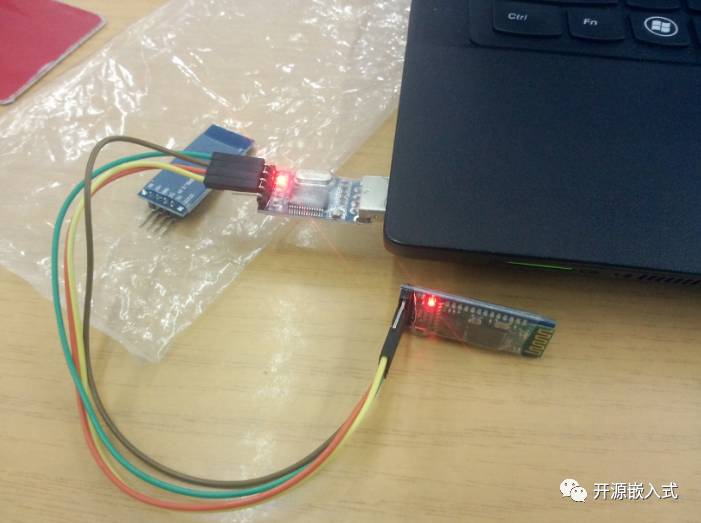
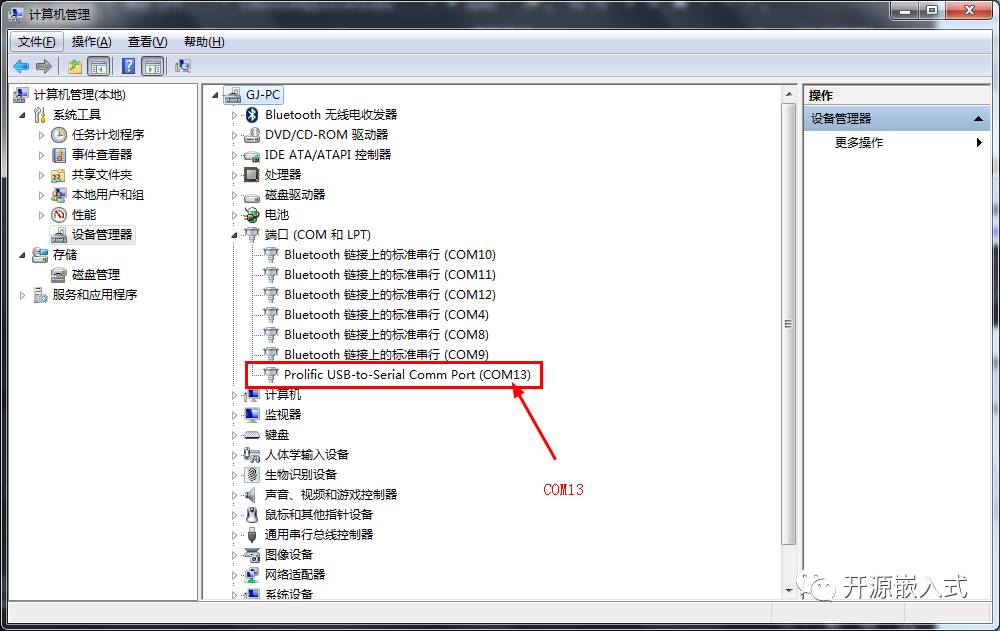
Parameter settings require using the AT command set, but here we will use a more convenient software setting method. As usual, first connect the Bluetooth module to the USB to serial module, remembering the serial port number. Note that parameter settings can only be done via wired connection, which is different from the Bluetooth pairing in normal working mode. Hold down the small button, and finally plug the USB module into the computer. After powering on, the module’s LED blinks slowly, indicating that it is in parameter setting mode.
1. Open Serial Port
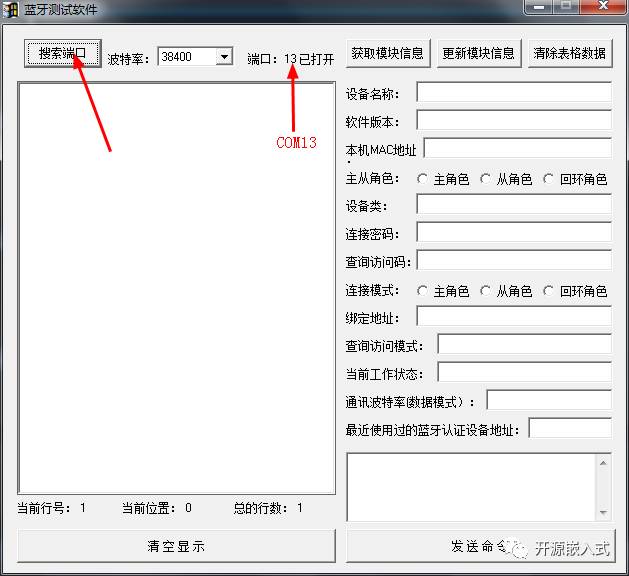
Open the Bluetooth testing software and click the “Search Port” button. A successful serial port opening will prompt a message beside it; click the button multiple times to switch the serial port number:
2. Test Connection
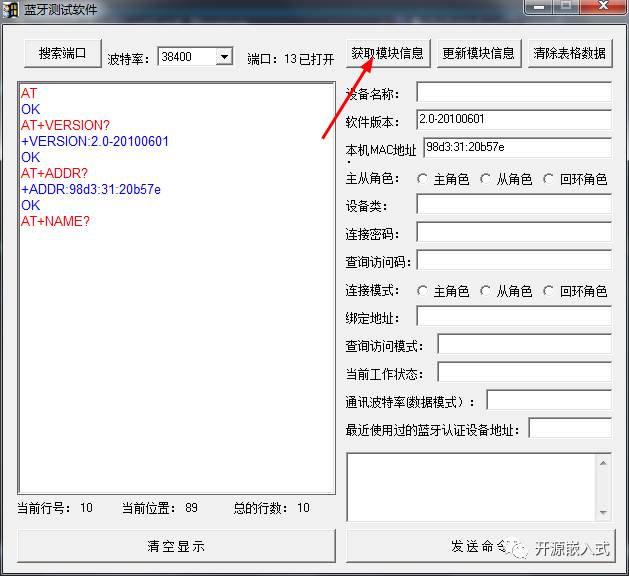
You can click the “Get Module Information” button to test, but the information will be incomplete and stuck at the “Name?” prompt, which can be ignored for now:
3. Parameter Settings
Next, fill in the parameters to be set in the table on the right, commonly used settings: 1. Device name 2. Connection password 3. Master-slave role 4. Baud rate, then click the “Update Module Information” button to receive the module feedback result; “OK” indicates success, while “ERRO:(0)” indicates failure:
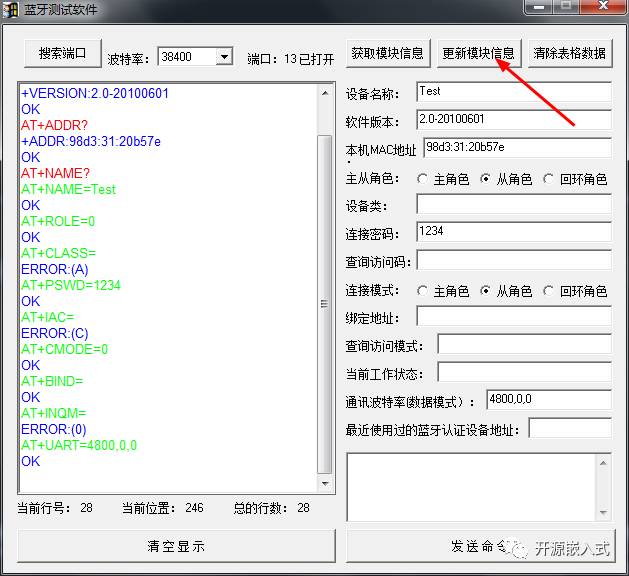
Pay special attention to the baud rate setting; it must be filled in the format specified in the manual “4800,0,0”. Just writing “4800” will cause failure; I have personally encountered this issue…
After successful setting, power the module again to enter normal working mode and test if it can pair with a mobile phone.
Two Baud Rates
The Bluetooth module has two baud rates: one for parameter setting mode and one for normal working mode. These two baud rates are not the same. The baud rate in parameter setting mode is fixed at 38400, while the default baud rate in normal working mode is 9600, which can be set to other values (corresponding to the communication partner).
It is said that using a serial port assistant (baud rate—38400 bits/s; stop bit: 1; parity bit: none) can also send AT commands to set parameters?
Testing and Usage
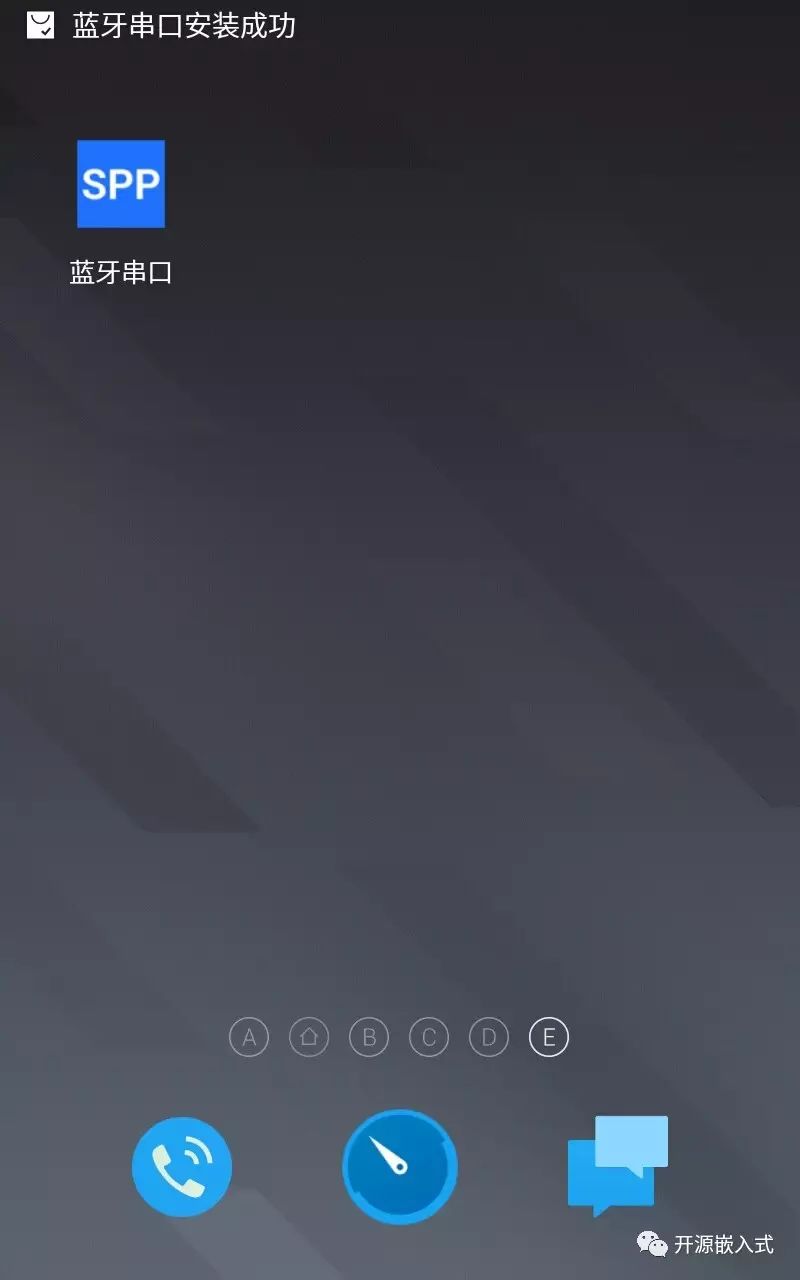
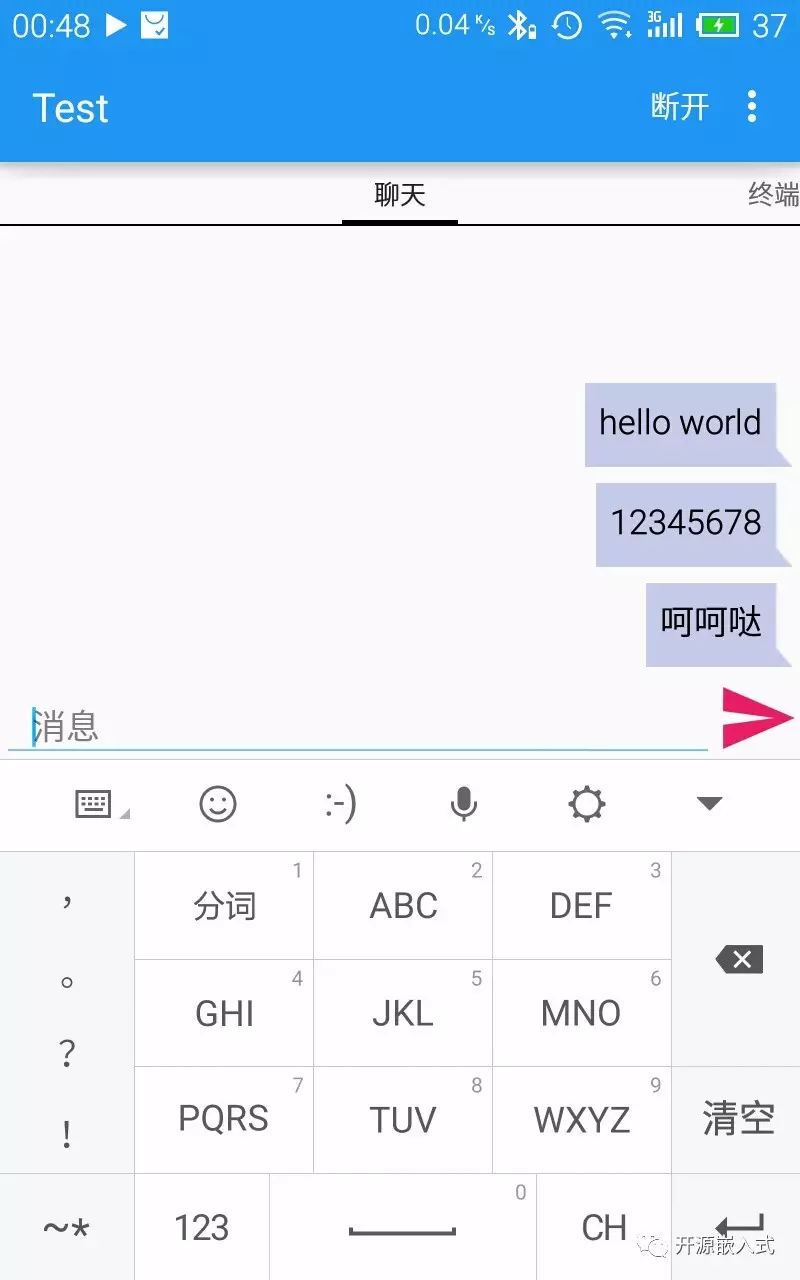
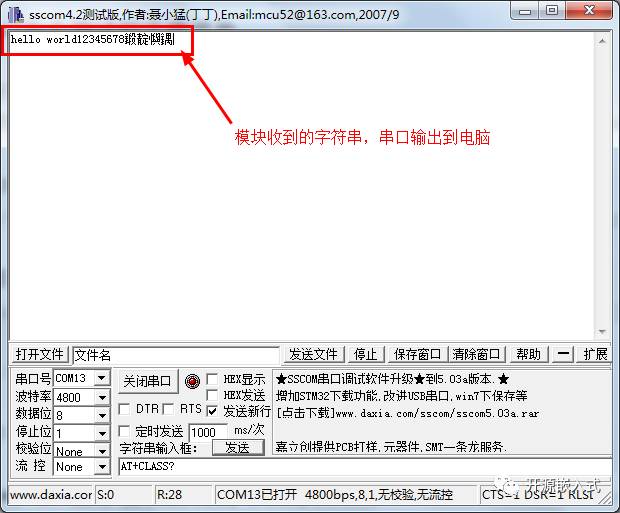
After completing the settings, power the module again to enter normal working mode, connect the USB serial to the computer, open SSCOM (or “Serial Assistant”) on the computer, set the baud rate and other information to match the module parameters, and open the serial port. Download the “Bluetooth Serial” app on your mobile phone, pair and connect, then send a string, and you will see the corresponding string received on the computer’s SSCOM. If the Bluetooth module is connected to the microcontroller’s serial port, the microcontroller will receive the data sent from the mobile phone and process it accordingly, which is the core principle of mobile phone Bluetooth remote control.
The Truth About This Article
You might think this is the end, but this is not what I intended to write at all! To be honest, I initially failed to set the baud rate because I only filled in “4800,” then fiddled with commands until I succeeded in setting it. I wanted to record the method of setting using commands, but unexpectedly, while writing this article, I suddenly remembered to supplement the format to “4800, 0, 0” and tried it, and it actually succeeded… But I still want to say, when using commands in the software, pay attention to the format!
Using AT Commands in Bluetooth Testing Software Format Issues
The data manual contains many examples of AT commands, such as “at+addr?\r\n”. Do you think you can just copy and execute it directly in the software? Haha, you are mistaken…
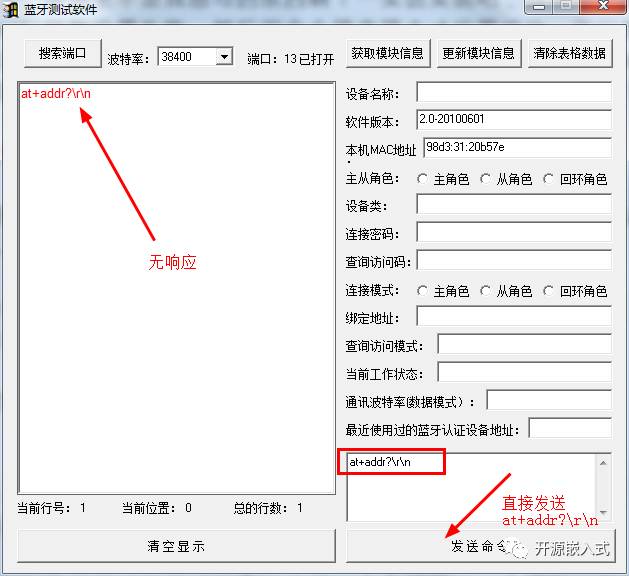
So the correct way to open AT is to… remove the “\r\n” and replace it with “press the enter key once”, and then execute it:
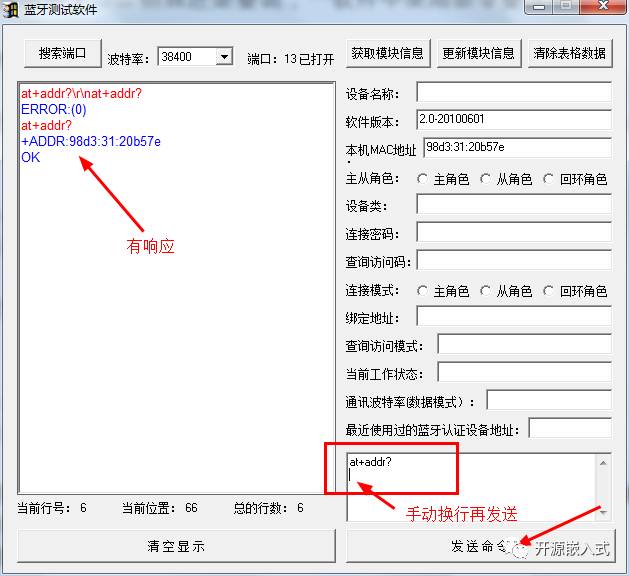
After testing, when directly using AT commands in the “Bluetooth Testing Software,” a carriage return must be added; otherwise, there will be no module response. However, some commands do not get a response from the module, such as “AT+NAME?” and “AT+CLASS?”; this is not your problem.
The Correct Approach to Debugging AT Commands
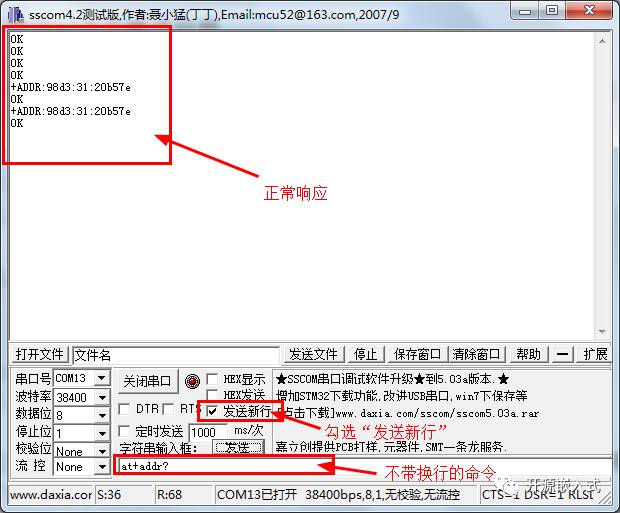
Bluetooth modules, Wi-Fi modules, and other commonly used devices are mostly configured via AT commands. So what is the correct approach to debugging AT commands? Actually, just download SSCOM, check “Send New Line,” and send AT commands…

Reference Article
Debugging and Usage of HC-05 Bluetooth Module HC-05 Embedded Bluetooth Serial Communication Module AT Command Set
Special thanks to the netizen International Brother for providing the technical article.
Our official QQ group 1: 281549832
Our official QQ group 2: 386393398
Special thanks for the strong support from netizens.
Our open-source team is constantly expanding, and we hope everyone will join us soon.
Here, I still want to thank everyone for their strong support!

Everyone, please pay attention!