Click the blue text to follow us
1
Introduction


Last week, while I was happily playing games on Sunday, a client urgently reported: “The virtual server we created cannot be accessed via Remote Desktop!” My dedicated DNA instantly awakened, and I quickly began troubleshooting!
2
Network Topology
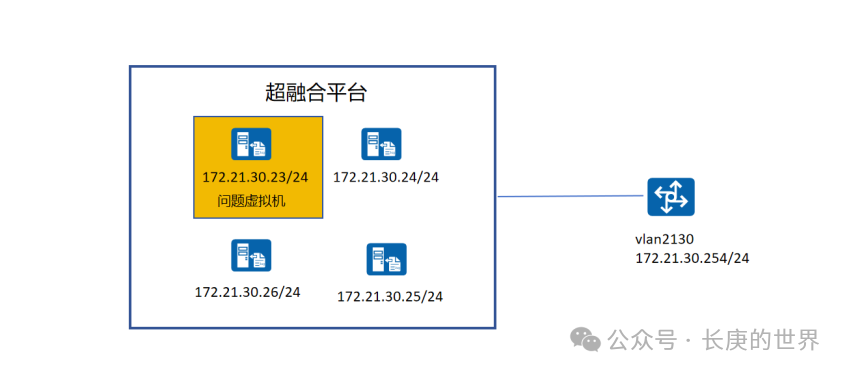
The hyper-converged platform and gateway device are directly connected via Ethernet, with only a two-layer aggregation switch in between, which is not reflected in the above topology.
3
Troubleshooting
Step 1: Ping it, and it goes “silent”
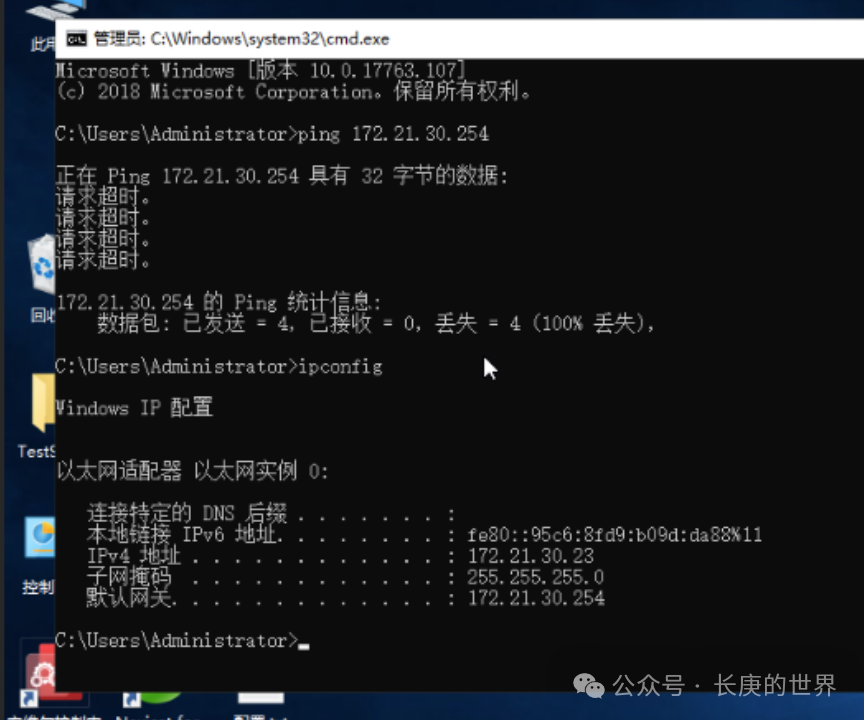
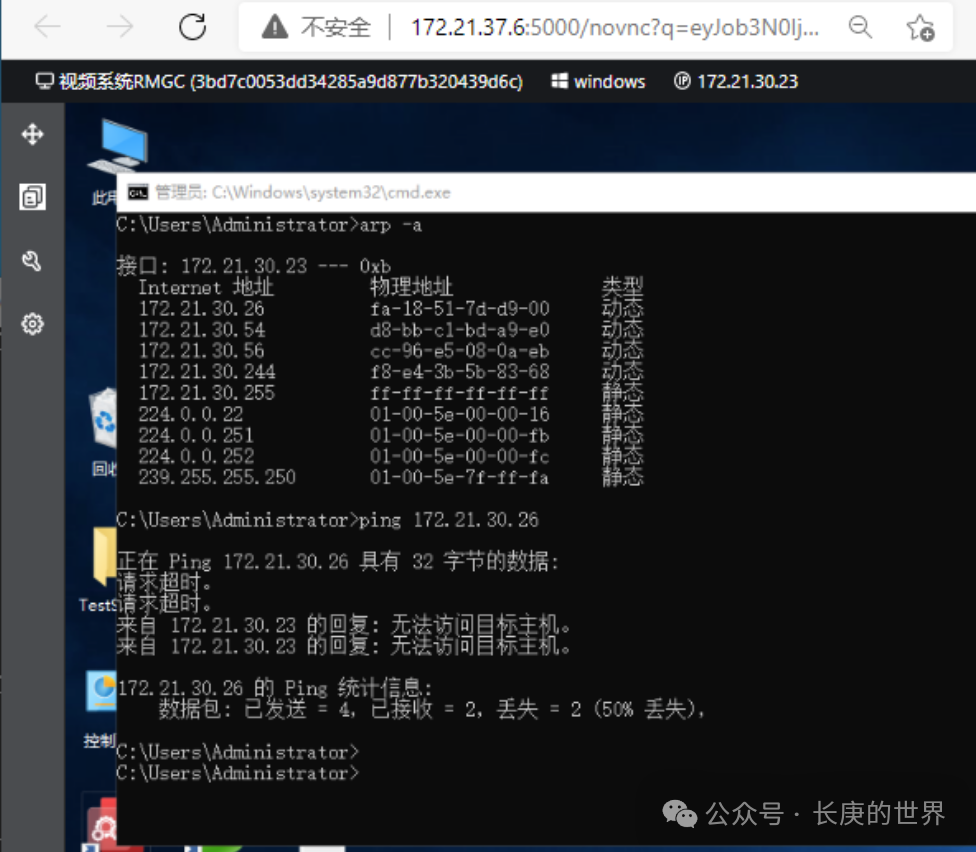
Forget what the client is saying; let’s proceed with professional operations! Unable to ping the server? It’s like trying to “call” the server and no one answers! Logging into the virtualization platform, I checked the virtual machine locally: the IP and gateway configurations seem normal, so why is it “cut off from the world”? Even more astonishing, this server cannot ping its own gateway or other servers in the same subnet, giving a clear sense of being a “lonely soul”!
Step 2: The classic reboot method, a brief “resurrection”
Since this server is a test server, with the client’s consent, I first applied the classic “reboot therapy”! After rebooting, the client cheered: “It’s working now!” I secretly blamed the “software acting up,” but the next day the client came back: “It’s not working again!” Upon logging in, I found the familiar “network disconnection script” replaying!

Step 3: The moment of truth, the cause is the vmtools tool.
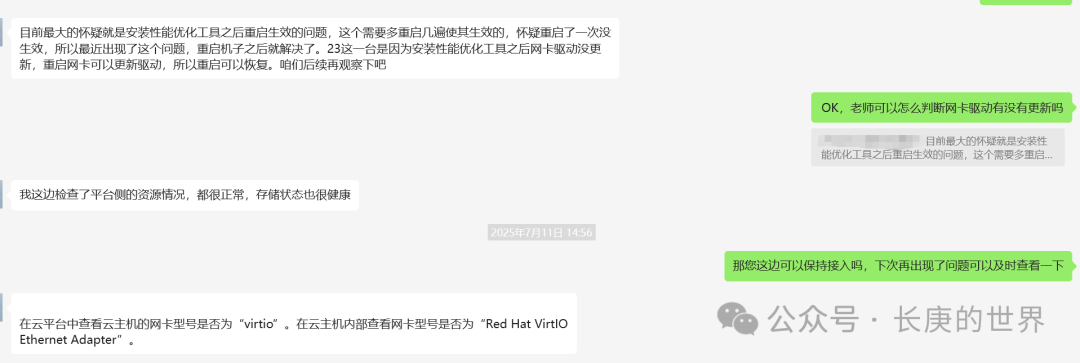
This time I conducted a thorough investigation: first ruling out IP conflicts and gateway device failures. I sequentially shut down the software running on the server platform, but the issue remained unresolved. Then I disabled and restarted the network card, and the fault disappeared.
I then contacted the hyper-converged manufacturer directly. For their platform, the Windows operating system must have the vmtools tool installed; otherwise, the aforementioned issues will occur.
4
Conclusion
In this case, the core reason for the server’s frequent disconnections and inability to ping is that the Windows virtual machine did not install the dedicated virtualization auxiliary tools (such as vmtools in this case) as required by the hyper-converged vendor.In a virtualization environment, such tools are not “optional plugins” but are the “bridge” responsible for coordinating communication between the virtual machine and the host, as well as the network layer: they optimize network adapters, avoid virtual network card driver conflicts, and ensure stable network configuration. If missing, it can lead to abnormal operation of the virtual network card—manifesting as intermittent network connections or even complete disconnections, with rebooting providing only a temporary fix (resetting the network card state), which is highly misleading.
To summarize this incident, I have outlined three points to avoid similar blunders in the future.
1. Strictly follow vendor deployment specifications, without skipping “basic steps”.
2. Establish a troubleshooting mindset that prioritizes the “virtualization layer,” such as checking whether vmtools is correctly installed and whether the virtual network card is configured as required.
3. Let professionals handle professional matters (such as having the manufacturer explain the precautions for deploying virtual servers in advance).