The M300, like most embedded systems, uses BusyBox as an embedded toolbox, providing various basic functionalities ranging from shell to ifconfig. When preparing to add some commands to BusyBox, it is found that the BusyBox on the M300 is a deeply customized version based on version 1.36.1 by Junzheng, and it has been patched. The configuration interface has been removed from Buildroot, so it is not possible to start the graphical configuration directly by executing make busybox-menuconfig in the SDK root directory. If you manually edit the configuration in busybox.config, it is easy to make mistakes due to the large number of commands supported by BusyBox. This article introduces an alternative solution for users to consider.Note: The method described in this article is based on SDK v7 with kernel 5.10.186, and all operations are performed after a complete compilation of the SDK.Graphical Configuration MethodSince Junzheng has removed the BusyBox configuration interface from the SDK root directory, when you want to add commands to BusyBox, you cannot configure it through the graphical interface of menuconfig. At this point, you can modify the configuration in BusyBox after compilation, then copy the completed options file back to the package to overwrite it, and recompile to generate BusyBox, achieving the desired functionality.Enter the SDK root directory:out/product/gewu.v10_nand_5.10-eng/obj/buildroot-intermediate/build/busybox-1.36.1/, and execute make menuconfig: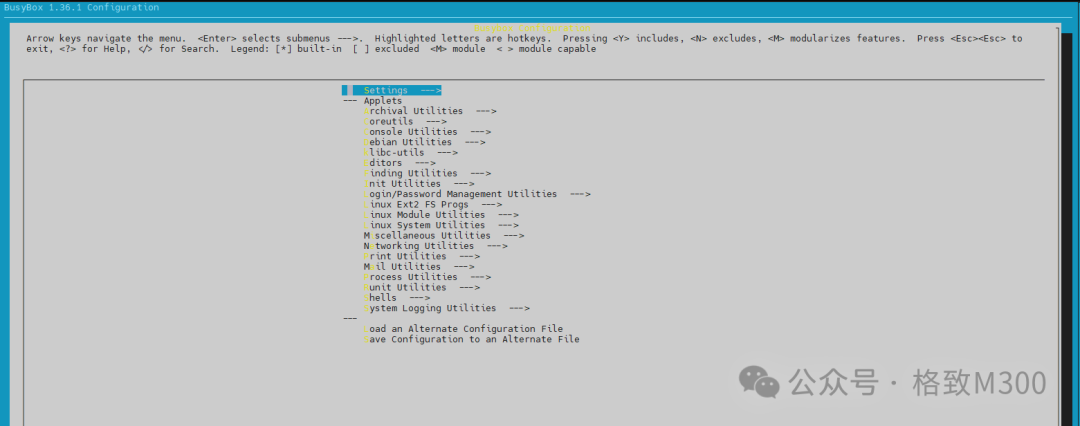 You can observe that the graphical interface can be used normally in the compiled BusyBox directory. Here we demonstrate selecting the
 taskset command under Linux System Utilities —>, and check: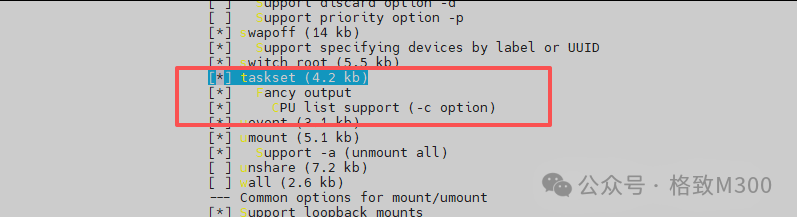 This adds the built-in command
 taskset to BusyBox, which can be used to specify the CPU core for process execution. After completing the selection, exit and save the configuration.Use diff to compare the generated configuration file with the original busybox.config file: You can observe that the configuration has been generated; if configured manually, it is easy to be unsure about multiple options.Next, copy the configuration file and execute in:
out/product/gewu.v10_nand_5.10-eng/obj/buildroot-intermediate/build/busybox-1.36.1/:
cp .config ~/ingenic-linux-kernel5.10-m300-v7.0-20240301/buildroot/package/busybox/busybox.config

This overwrites the original BusyBox configuration. Note: After modifying and saving the configuration, you cannot compile directly; you need to copy .config to the original BusyBox package directory; otherwise, the BusyBox generated in the next compilation will not change.
Compilation VerificationIn the SDK root directory, execute in sequence:make buildroot-busybox-dircleanmake
 After recompiling and generating the image file, flash it to the development board.TestingConnect the development board using USB, log in with serial software, and execute:
 You can observe that the built-in command
 taskset has taken effect.