MATLAB Basic Practices

- 1. Basic Operations in MATLAB
- 1.1 MATLAB Interface
- 1.2 Common MATLAB Commands
- 1.3 Numerical, Comparison, and Logical Operations
- 1.4 M-files
- 1.5 Live Scripts and Live Editor
- 1.6 Step Signals and Impulse Signals
- 2. MATLAB Plotting
- 2.1 Basic Plotting
- 2.2 Handle Graphics
- 2.3 Interactive Plotting
- some topics
- 3. Time Domain Analysis of Continuous-Time Systems
- 3.1 Introduction
- 3.2 Establishing and Solving Differential Equations
1. Basic Operations in MATLAB
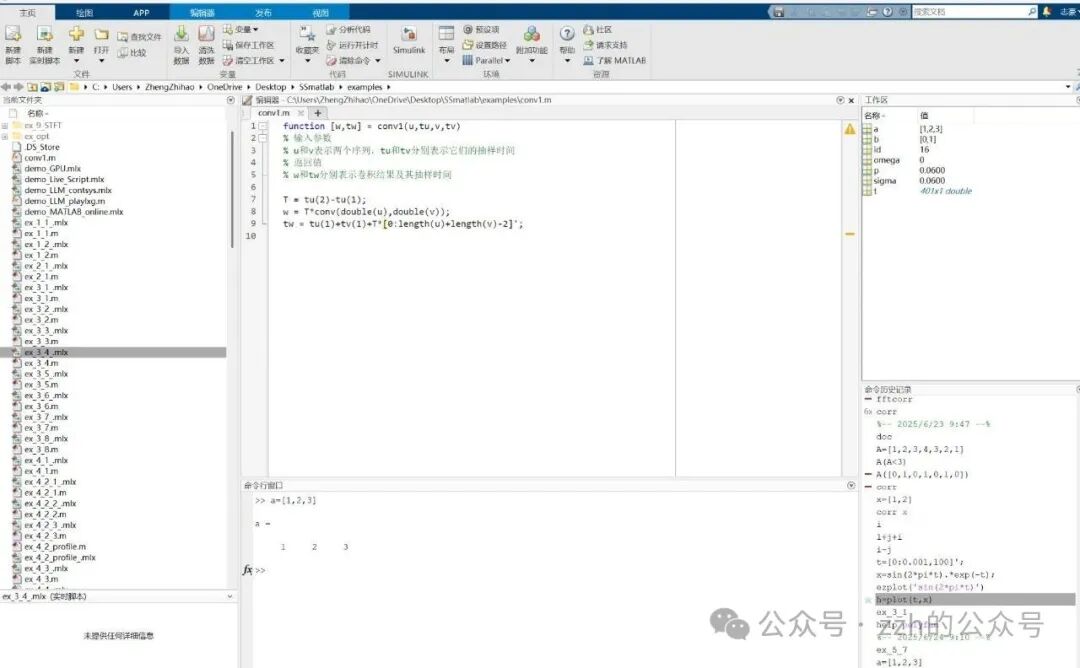
1.1 MATLAB Interface
- Command Window
- Command History
- Workspace
- Editor/Debbuger Window
- Plot Window
- Set Current Path
- Current Path Window
1.2 Common MATLAB Commands
| Command | Function | Command | Function |
|---|---|---|---|
| cd | Display or change the working directory | clc | Clear the command window |
| clear | Clear memory variables | clf | Clear the graphics window |
| copyfile | Copy files | delete | Delete files or graphic objects |
| demos | Run example programs | dir, ls | Display files in the current directory |
| disp | Display variable content | echo | Command window information display switch |
| load | Load data from a file | movefile | Move files |
| open | Open a file for editing | pack | Organize memory fragments |
| pwd | Display the current working path | save | Save variables to a file |
| type | Display file content | who | Display variables in current memory |
Format:
- Query variables: who, whos a*, exist(‘x’)
- Clear variables: clear, clear x, clear a*
- Save and load variables: save, save filename, save filename a, load, load filename
1.3 Numerical, Comparison, and Logical Operations
Using matrices or arrays as basic units
Numerical Operations
| Name | Description | Name | Description |
|---|---|---|---|
| + – | Matrix addition, matrix subtraction | * | Matrix multiplication |
| / |Matrix right division, matrix left division | ^ | Matrix exponentiation | |
| .* .^ | Array multiplication, array exponentiation | ./ .|Array right division, array left division | |
| ‘ .’ | Conjugate transpose, transpose | = | Assignment |
Comparison and Logic
| Name | Description | Name | Description |
|---|---|---|---|
| == | Equal | ~= | Not equal |
| > >= | Greater than, greater than or equal to | < <= | Less than, less than or equal to |
| & | And | | | Or |
| ~ | Not | xor(a,b) | XOR of a and b |
| any(a) | True if any element in a is non-zero | all(a) | True if all elements in a are non-zero |
Numerical Representation and Calculation of Signals
- Numerical representation: represented as a vector in the form of sampled signals
- Numerical computation: description and processing of signals achieved through definitions and operations on vectors and matrices
Example 1.1

% Define time range and step signal
t0=[-5:0.05,5]';% Define time vector
u0=double(t0>0);% Define step signal
%% Define original signal
x0=sin(2*pi*t).*u0;% Define $x(t)=	ext{sin}(2	ext{pi} t)u(t)$
y0=exp(-t0).*u0;% Define $y(t)=e^{-t}u(t)$
tLim=[-1,2]% Set target time interval $[-1,2]$
%% Extract target interval signal
idx=(t0>=tLim(1)&&t0<=tLim(2));% Filter time points in $[-1,2]$
t=t0(idx);% Target time vector
x=x0(idx);
y=y0(idx);% Target interval $x(t),y(t)$
%% Calculate signal operation results
z1=2*x;
z4=x+y;
z5=x.*y;
%% Calculate time-shifted signal $z_2(t)=x(t-0.5)$
t2=t0+0.5;% Shift time axis right by 0.5s
idx=(t2>tLim(1)&&t2<tLim(2));% Filter target interval (shifted left by 0.5s)
t2=t2(idx);% Time vector after shift
z2=x0(idx);% Signal after shift
%% Calculate scale-transformed signal $z_3(t)=x(2t)$
t3=t0/2;
idx=(t3>tLim(1)&&t3<tLim(2));% Filter target interval, number of sampling points increased

t3=t3(idx);% Time vector after scale transformation
z3=x0(idx);% Signal after scale transformation
Symbolic Computation
- Define symbolic variables using var=sym(str) or syms var1 var2…
- Symbolic computation is almost identical to numerical computation
- Conversion from symbolic expressions to numerical variables can be done using subs(f,x,y), meaning replace x in the expression with y
Example 1.2 Redo Example 1.1 using symbolic computation
%% Define symbolic variables and signals
syms t x y z1 z2 z3 z4 z5
x=sin(2*pi*t).*heaviside(t);
y=exp(-1*t).*heaviside(t);
%% Calculate signal operation results
z1=2*x;
z2=subs(x,t,t-0.5);
z3=subs(x,t,2.*t);
z4=x+y;
z5=x.*y;
1.4 M-files
Scripts and Functions
Function files can have return values, making them more complex than script files. The first line of a function file declares it as a function file and specifies the function name, parameters, and return values,
function rvalue=functionname(param1,...)
Generally, the function name and the file name of the function file are the same
Program Control Commands
- Sequential execution
- Branching
- if-else-else-end
- switch-case-otherwise-end
- Looping
- for-continue-break-end
- while-continue-break-end
- Error event capture
- try-catch-end
1.5 Live Scripts and Live Editor
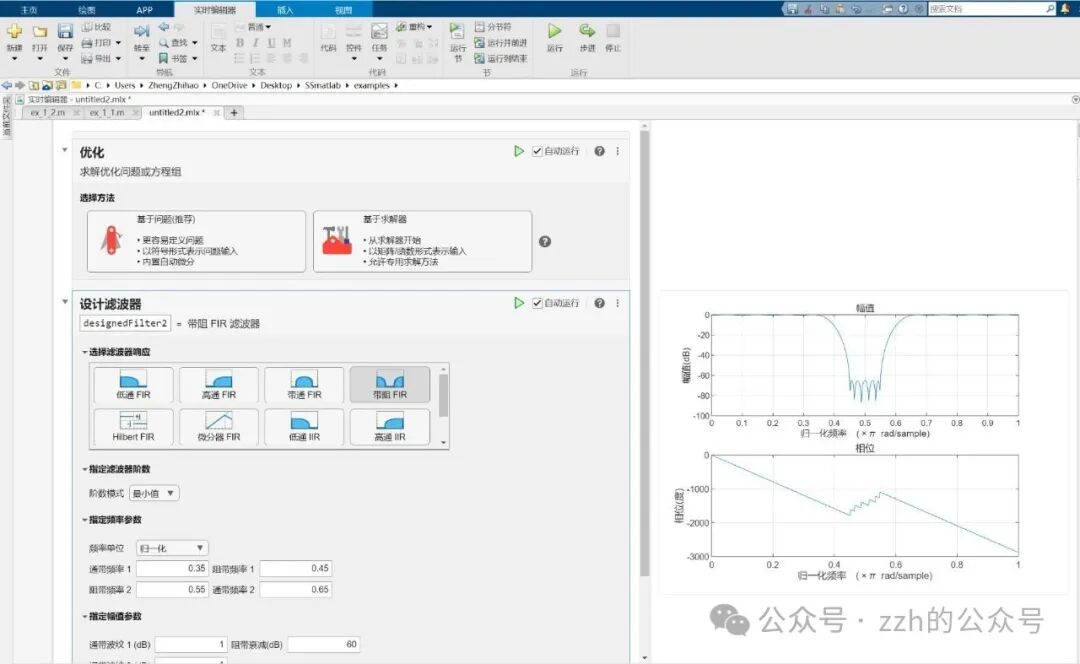
- Live Scripts (.mlx) files are MATLAB’s modern programming environment, integrating code, output results, and rich text in one document.
- Advantages over traditional M-files
- Code, results, and explanatory text displayed in the same environment
- Supports mathematical formulas, images, and hyperlinks
- Interactive controls can be added to dynamically adjust parameters
- Supports modular Live Editor Tasks to simplify workflows
- Can be exported in various formats such as PDF, HTML, LaTeX, etc.
- Live Editor Tasks
- Complex operations can be completed without writing code
- Visual parameter adjustments with real-time result viewing
- Automatically generates underlying MATLAB code
- Supports various tasks such as signal processing, data analysis, machine learning, etc.
- Interactive applications embedded in Live Scripts
1.6 Step Signals and Impulse Signals
- heaviside
- dirac
Important Constants and Special Variables in MATLAB
| Name | Description | Name | Description |
|---|---|---|---|
| ans | Default variable name for saving results | pi | Pi |
| eps | Relative error of floating-point numbers | inf | Infinity |
| NaN,nan | Not a number | i,j | Imaginary unit |
| realmin,realmax | Minimum/maximum floating-point number | bitmax | Maximum positive integer |
2. MATLAB Plotting
- Basic Plotting
- Handle Graphics
- Interactive Plotting
2.1 Basic Plotting
- figure generates a new figure window
- plot, subplot for plotting, plotting in subplots
- hold on/off to turn hold mode on/off
- title to display title
- xlabel, ylabel to display axis labels
- legend to generate legends
| Character | Type | Meaning |
|---|---|---|
| b/g/r/c/m/y/k | Color | Blue/Green/Red/Cyan/Magenta/Yellow/Black |
| ./x/+/*/s/d/v/^/</>/p/o | Marker Type | Point/X/+/Star/Square/Diamond/Down Triangle/Up Triangle/Left Triangle/Right Triangle/Pentagon/Circle |
| -/:/-./– | Line Type | Solid Line/Dotted Line/Dash-Dotted Line/Dashed Line |
- Plot discrete-time signals using stem
- Plot symbolic functions
- First use the subs function to calculate sampled values at sampling moments, then use the plot function to plot
- A simpler method: ezplot
2.2 Handle Graphics
- Get and modify handle properties
- gcf, gca, gco, gcbf, gcbo to get current… handles
- get, set to access handle properties
- Example
- get(gca)
- set(gca,’XLim’,[0,100])
- get(gca,’XLim’)
| Function | Target Object | Typical Application Scenario |
|---|---|---|
<span>gcf</span> |
Current figure window | Modify window title, size, color, etc. |
<span>gca</span> |
Current axes | Adjust axes limits, ticks, labels, etc. |
<span>gco</span> |
Most recently clicked graphic object | Interactively edit graphic elements (e.g., lines). |
<span>gcbf</span> |
Window that triggered the callback | Locate the source window in GUI development. |
<span>gcbo</span> |
Graphic object that triggered the callback | Identify the source control in GUI development. |
2.3 Interactive Plotting
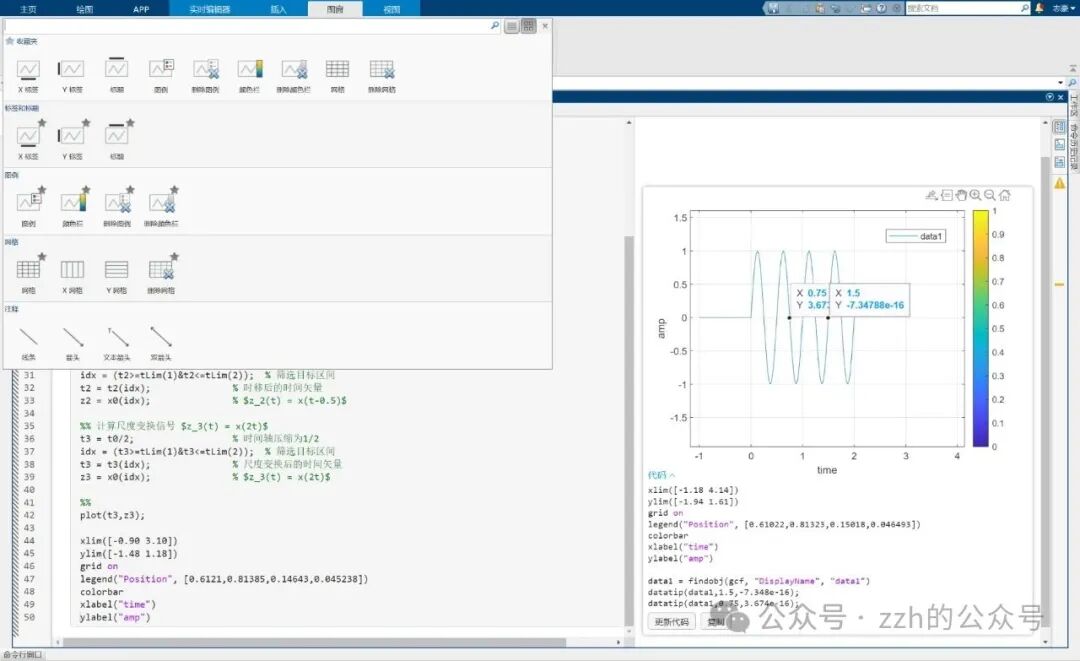
- Under the View menu
- Figure Toolbar, Camera Toolbar, Plot Edit Toolbar
- Figure Palette, Plot Browser, Property Editor
- Directly manipulate data in the Workspace
- Output graphics
- Copy Figure
- Save as
- Generate Code
some topics
- Control System Demonstration
- GPU Accelerated Computing
- Cloud Computing and Parallel Computing
- MATLAB vs Python
- LLM-assisted MATLAB Programming
3. Time Domain Analysis of Continuous-Time Systems
3.1 Introduction
- Input-Output Method
- LTI systems can be described using a single high-order differential equation
Example 3.1 Describe the following system

% Define coefficients of the left side of the differential equation (from high to low, fill in missing terms with zero)
a=[1,7,0,12];
% Define coefficients of the right side of the differential equation
b=1;
% Establish continuous-time system transfer function model
sys=tf(b,a);
%b is the numerator polynomial coefficients arranged in descending order of s;
%a is the denominator polynomial coefficients arranged in descending order of s;
%sys is the generated transfer function object (tf type)
- State Variable Description Method
- A single high-order differential equation can be transformed into a system of two multivariable first-order differential equations: state equation and output equation
Example 3.2 Describe the following system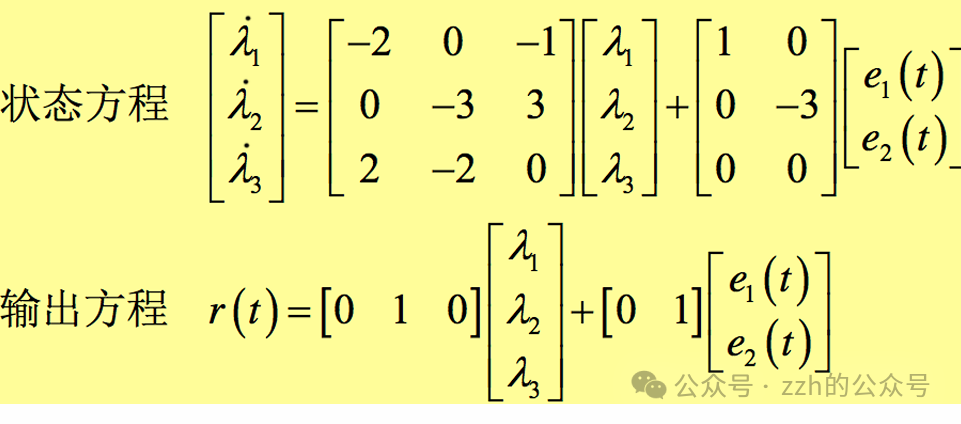
% Define matrices A,B,C,D
A=[-2,0,-1;0,-3,3;2,-2,0];
B=[1,0;0,-3;0,0];
C=[0,1,0];
D=[0,1];
% Establish state equation model
sys=ss(A,B,C,D);
3.2 Establishing and Solving Differential Equations
- The solution of a differential equation includes both the homogeneous solution and the particular solution
- The homogeneous solution is the root of the system characteristic equation, calculated using the roots function.
Example 3.3

% Define characteristic polynomial coefficients
a=[1,7,16,12];
% Find characteristic roots
b=roots(a);
- The particular solution is the output of the system under given signal excitation. Simulated using lsim.
Example 3.4

% Representation of the differential equation
a=[1,2,3];
b=[1,2];
% Establish transfer function model
sys=tf(b,a);
% Set simulation time
t0=[0:0.1:10];
% Define excitation signal 1
e1=t0.*t0;
% Simulate system response
r1=lsim(sys,e1,t0);
% lsim(transfer function, excitation, time)

% Define excitation signal 2
e2=exp(t0);
r2=lsim(sys,e2,t0);

% Plot input-output signals
figure;
% Input
subplot(1,2,1),hold on,box on;
plot(t0,e1,"k-",t0,e2,"k-.");
set(gca,"YScale","log");
set(gca,'Fontsize',16);
legend("e1","e2");
xlabel("Time");
ylabel("Input Signal");

% Output
subplot(1,2,2),hold on,box on;
plot(t0,r1,"k-",t0,r2,"k-.");
set(gca,"YScale","log");
set(gca,'Fontsize',16);
legend("r1","r2");
xlabel("Time");
ylabel("Output Signal");
Knowledge Point 1: Polynomials
| polyfun | function |
|---|---|
| roots | Find the roots of a polynomial |
| poly | Generate the characteristic polynomial of a matrix or generate polynomial coefficients from polynomial roots |
| polyval | Return the value of the polynomial at given points |
| polyvalm | Calculate the value of matrix polynomials |
| residue | Return the partial fraction expansion of the transfer function, returning values as [residues, poles, direct terms] |
| polyfit | Least squares polynomial fitting |
| polyder | Differentiate a polynomial or the product or quotient of two polynomials |
| polyint | Polynomial integration |
| conv | Polynomial multiplication |
| deconv | Polynomial division |