Download Software
1. Software Name:Proteus
2. Software Version: 8.133. Software Size: 449 MB4. System Requirements: Windows 7/Windows 10/Windows 11 (64-bit system)
5.Download link from Quark Cloud Disk:
https://pan.quark.cn/s/e72f8befd7ad
Access Quark on mobile to get 1TB of free space
It is recommended to save the resources first and then download. This prevents data loss and reminds you not to extract files directly online.
Software IntroductionProteus is a high-performance Electronic Design Automation (EDA) software, primarily known for its simulation capabilities for microcontrollers and related components. The software integrates various functions including schematic drawing, circuit simulation, printed circuit board (PCB) design, and microcontroller simulation. It is compatible with multiple processors and compilers and comes with a vast library of components and virtual instruments, widely used in electronic design, education, and research.Installation Steps
Important Note
The computer must have decompression software installed (e.g., RAR/7-Zip, etc.)
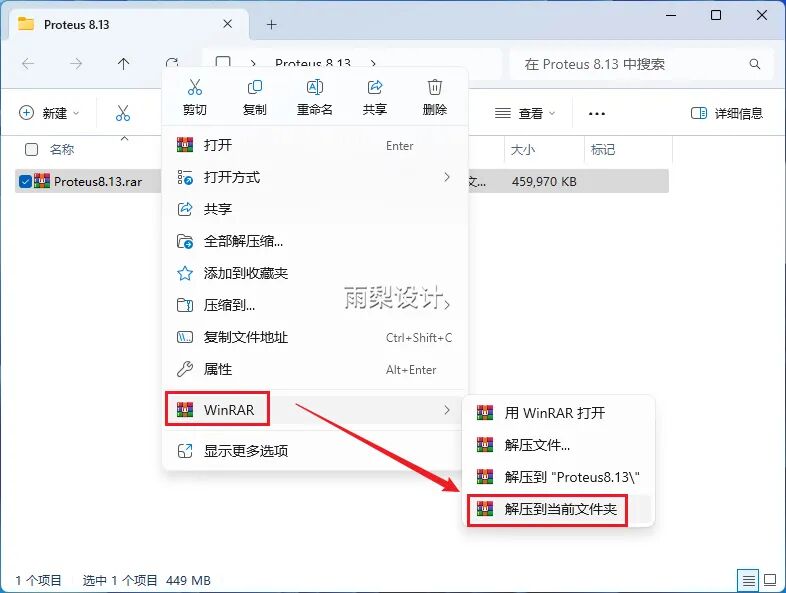
1. Select the downloaded file, right-click, choose extract, and then select “Extract to current directory”.
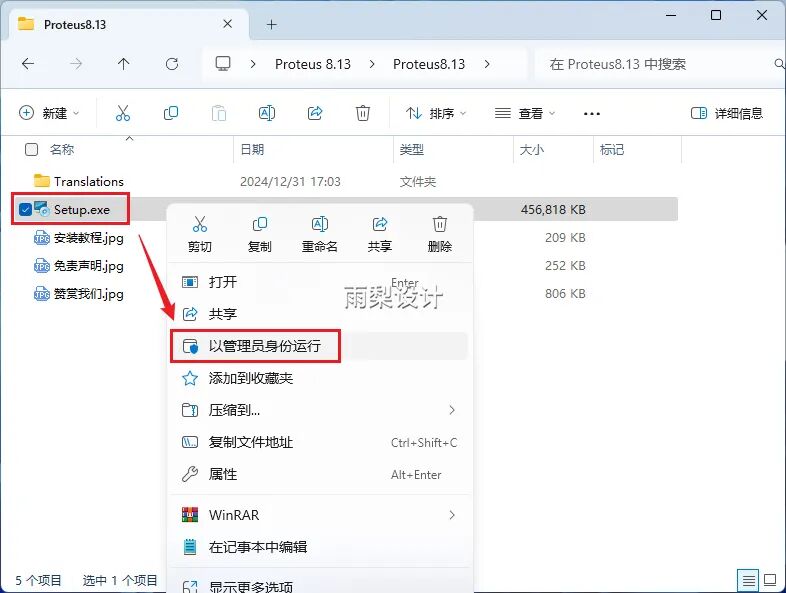
2.Right-click on [Setup] and select [Run as administrator].
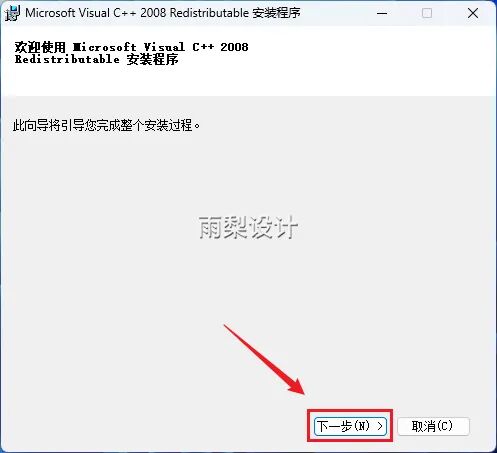
3.Click [Next] (If the VC runtime library is already installed on the computer, it will automatically skip to step 10 to start the installation)
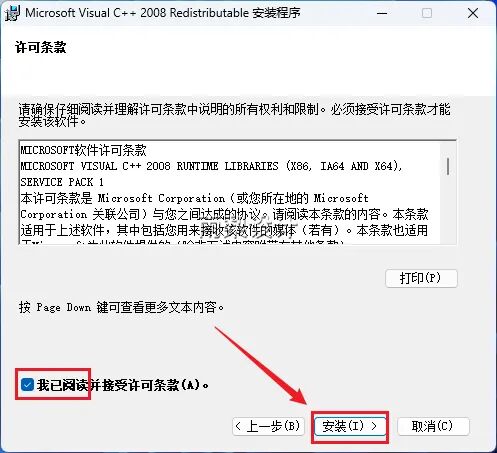
4. Check [I have read…], click [Install].
5. Click [Finish]
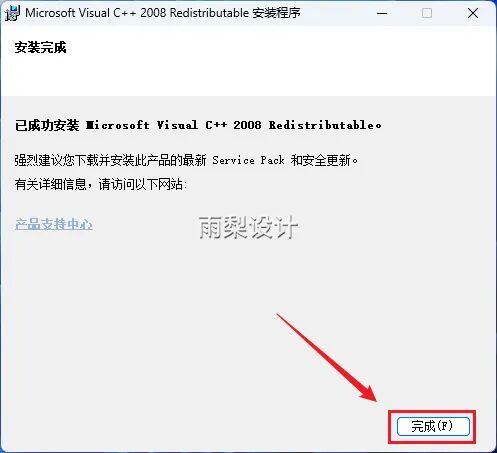
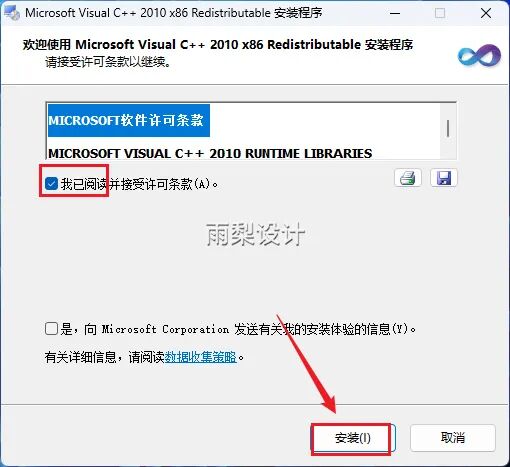
6.Check [I have read…], click [Install].
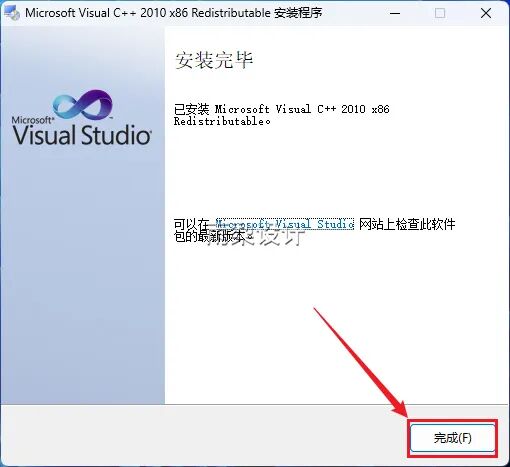
7.Click [Finish].
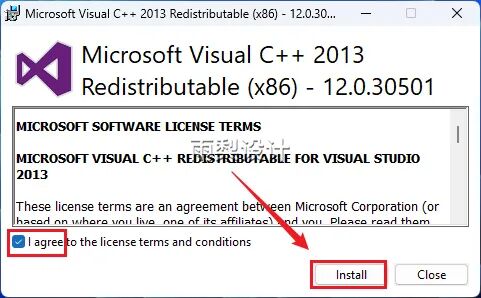
8. Check [I agree…], click [Install].
9.Click [Close]
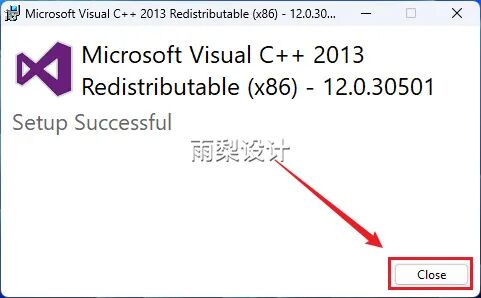
10.Change the letter C in the installation path to D; click [Next]
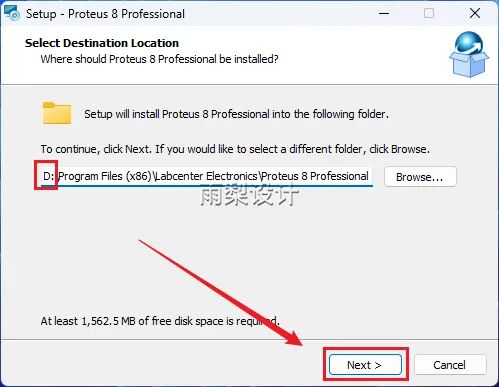
11.Click [Next].
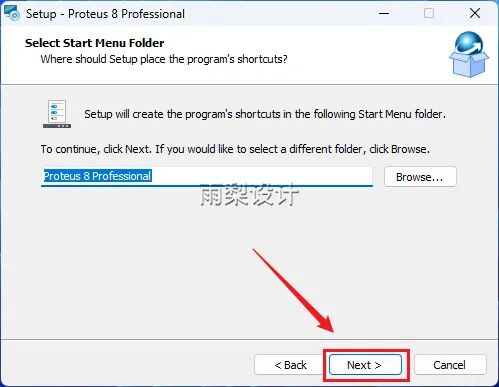
12. Installing automatically…
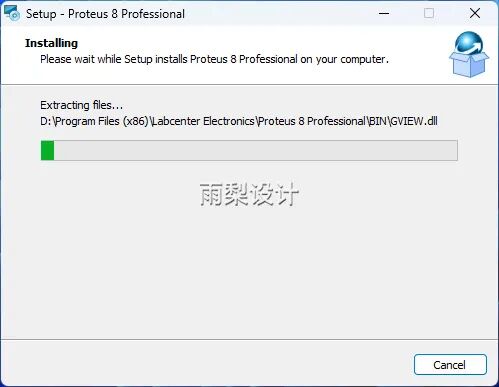
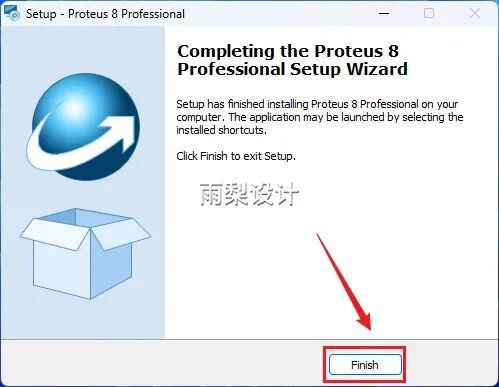
13.Click [Finish]
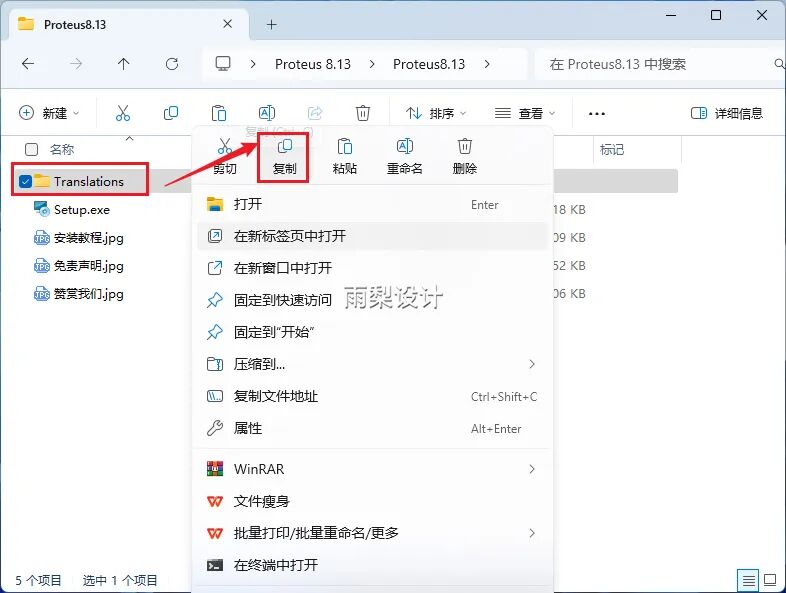
14. Return to the installation package; right-click on the “Translation” folder and select “Copy”.
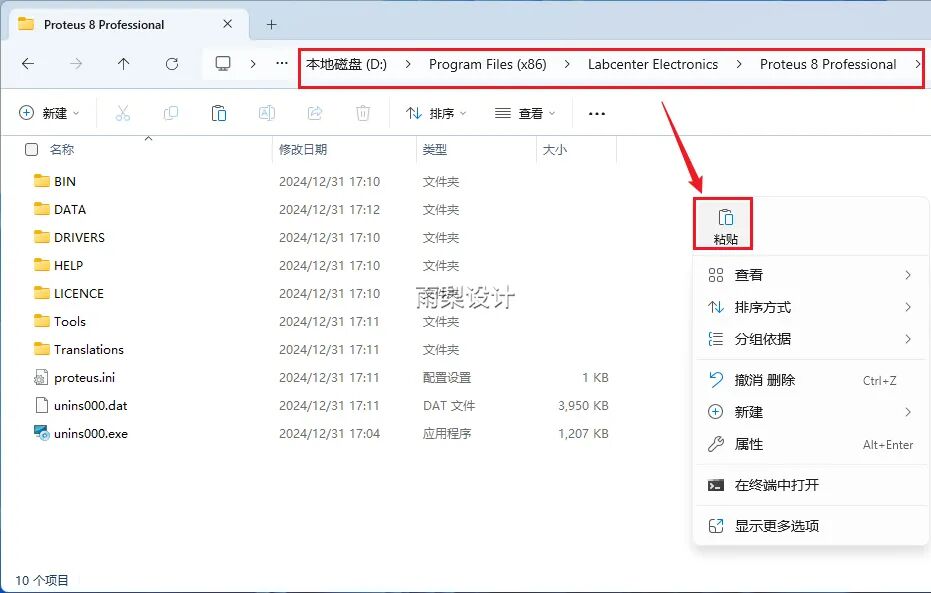
15. Navigate to the software installation folder, right-click and select [Paste] (refer to the operation in image 10).
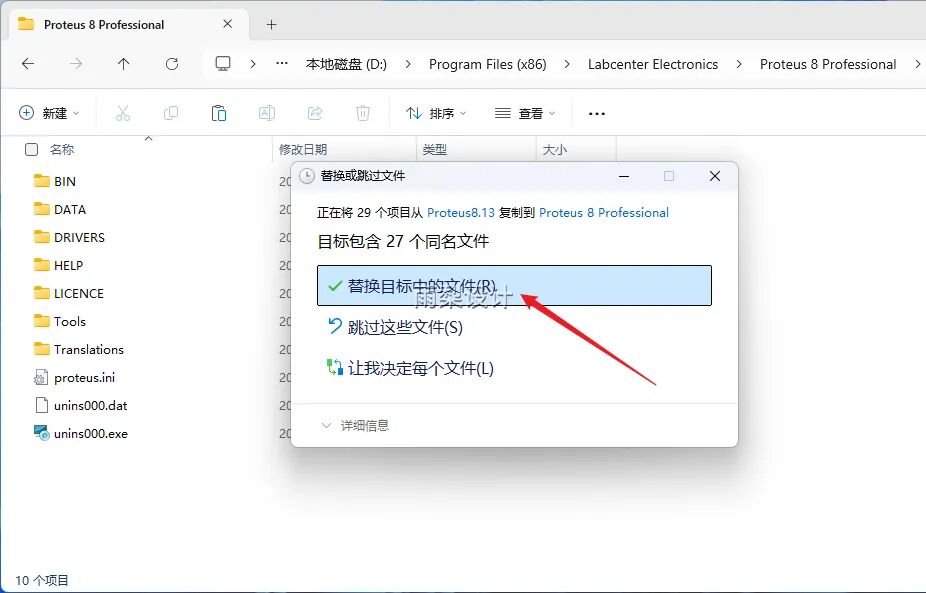
16.Click [Replace files in the target]
17.Find the software icon on the desktop and double-click to start
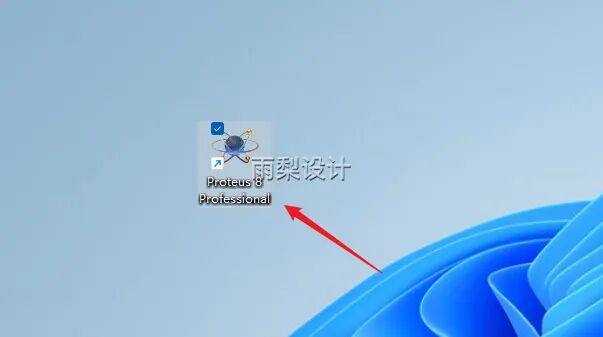
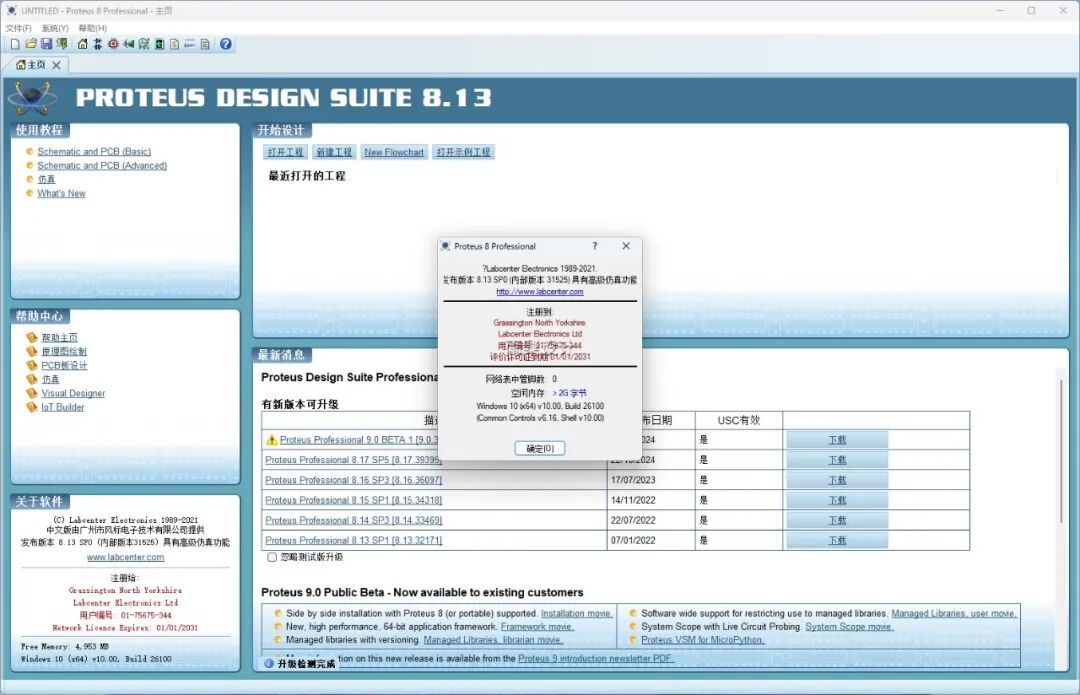
18. Installation complete, open as shown below
 Remember to “like” and “recommend”, you can find it later in the “Look Again”, thank you!
Disclaimer:The resource links provided by this public account are sourced from the internet and shared by users, all belong to the original authors and companies. They are for personal learning and research purposes only and cannot be used for commercial purposes. Please delete them within 24 hours after downloading to avoid copyright issues. Please respect the original authors and purchase the official version. If commercial use is needed, please purchase it yourself and ensure legal authorization. If any infringement is found, please contact us promptly, and we will remove the related resources immediately. Thank you for your support!