In the Linux world, file permission management is like installing locks on a house—ensuring you can come and go freely while controlling who can visit and who can only look at the door. Today, we will get to know three “lock masters”: chmod, chown, and chgrp, allowing you to easily master the core skills of Linux permission management!
1. Basics of Permissions: The Triple Lock System
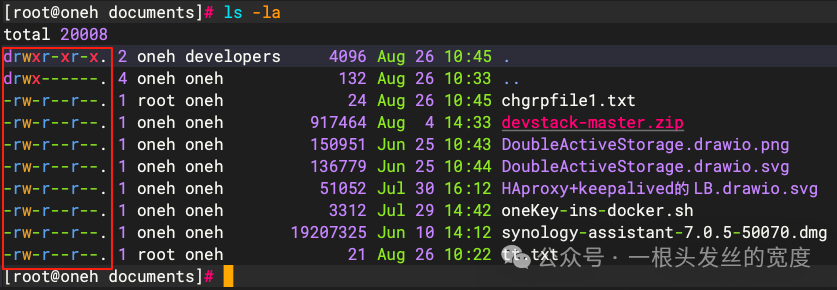
Before diving into the commands, let’s understand the Linux permission model:
- Owner (owner): The owner of the house
- Group (group): The owner’s family/colleagues
- Other Users (other): Passersby
Each type of user has three kinds of permissions:
- r (read): View content
- w (write): Modify content
- x (execute): Run programs
When you use <span>ls -l</span> to view files, you will see permission indicators like <span>-rw-r--r--</span>, which are controlled by these three “masters”.
2. chmod: The Permission Adjuster
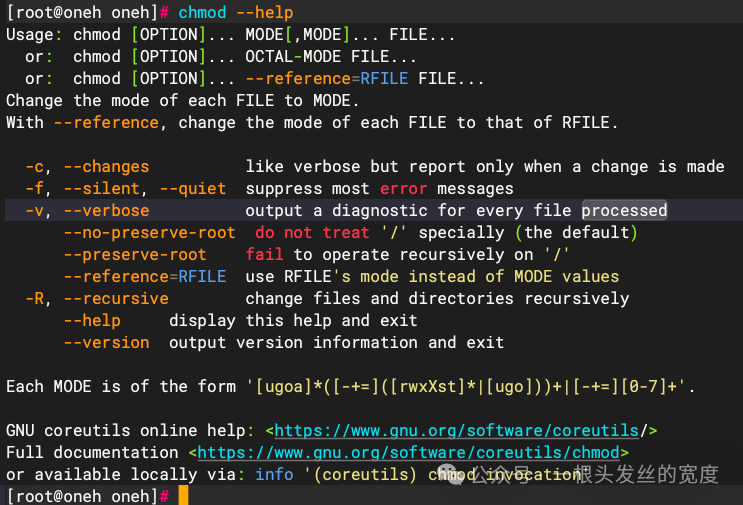
Function: Adjust the read, write, and execute permissions of filesCore Syntax:<span>chmod [options] mode file</span>
Two Adjustment Methods:
-
Symbolic Mode (recommended for beginners)
chmod [user][operation][permission] fileExamples:
<span>chmod g+w report.txt</span>→ Add write permission for group users<span>chmod o-rx secret.doc</span>→ Remove read and execute permissions for other users<span>chmod a+x script.sh</span>→ Add execute permission for everyone
- User: u (owner), g (group), o (other), a (all)
- Operation: + (add), – (remove), = (set)
- Permission: r (read), w (write), x (execute)
Numeric Mode (commonly used by experienced users)
Examples:
<span>chmod 755 script.sh</span>→ Owner (rwx=7), group (rx=5), other (rx=5)<span>chmod 644 document.txt</span>→ Owner (rw=6), group (r=4), other (r=4)
- r=4, w=2, x=1, sum gives permission value
- Three digits represent: owner, group, other
Typical Scenarios:
- Script execution:
<span>chmod +x install.sh</span> - Protect configuration files:
<span>chmod 600 /etc/passwd</span> - Shared directory:
<span>chmod -R 775 /shared</span>
3. chown: The Owner Change Expert
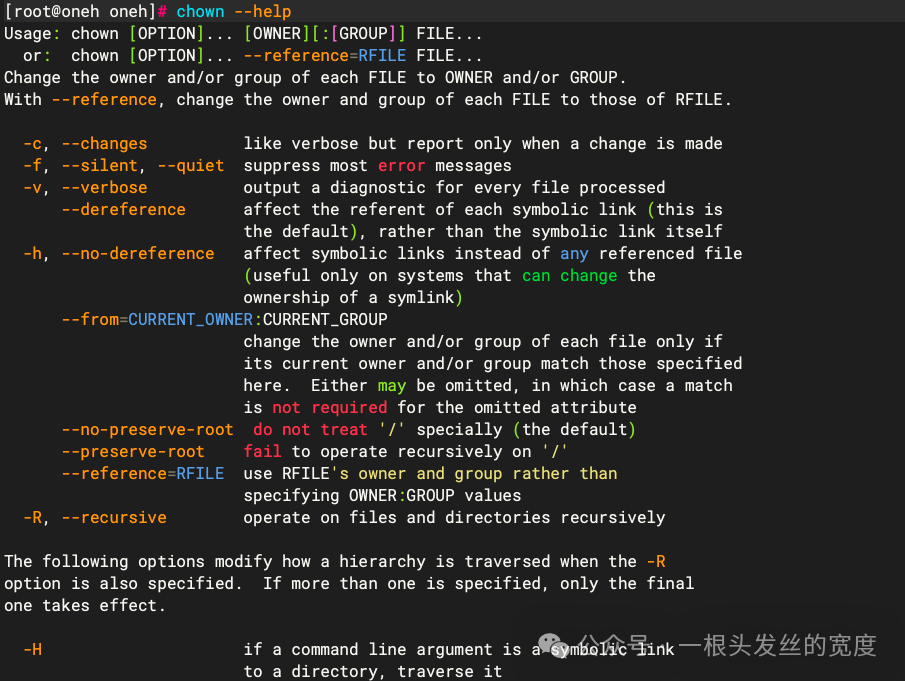
Function: Change the owner and/or group of a fileCore Syntax:<span>chown [options] new_owner[:new_group] file</span>
Common Forms:
-
Change only the owner:
chown alice file.txt -
Change both owner and group:
chown alice:developers project/ -
Change only the group (equivalent to chgrp):
chown :staff data.csv
Typical Scenarios:
- Transfer of ownership after an employee leaves:
<span>chown newdev:devteam /project</span> - Adjustments after software installation:
<span>chown root:bin /usr/local/bin/app</span> - Temporary permission adjustments:
<span>chown www-data:www-data /var/www/html</span>
⚠️ Note: Regular users can only “give” files to their own group; only root can change owners arbitrarily.
4. chgrp: The Group Permission Manager
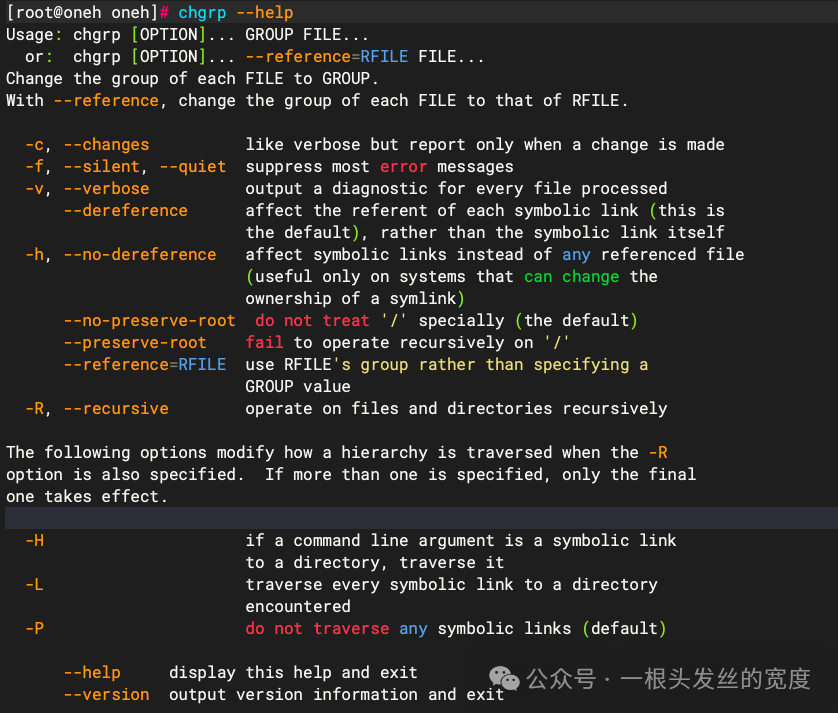
Function: Specifically change the group of a fileCore Syntax:<span>chgrp [options] new_group file</span>
Common Forms:
chgrp developers code/
chgrp -R marketing campaign_data/
Typical Scenarios:
- Team collaboration:
<span>chgrp -R qa_team /tests</span> - Log management:
<span>chgrp logviewers /var/log/app.log</span> - Temporary permissions: during an event
<span>chgrp marketing campaign_data/</span>, restore after the event
💡 Tip:
<span>chgrp</span>is a shortcut for<span>chown :group</span>, making it simpler when you only need to change the group without altering the owner.
5. Comparison Table of the Three Command Masters
| Command | Full Name | Main Function | Requires Root | Typical Scenarios |
|---|---|---|---|---|
| chmod | change mode | Modify permissions (rwx) | Usually not required | Adjust who can read, write, and execute |
| chown | change owner | Modify owner and group | Required | Change of ownership, comprehensive permission adjustments |
| chgrp | change group | Only modify the group | Usually not required | Team collaboration permission management |
6. Practical Scenario Analysis
Scenario 1: New Employee Joins the Development Team
# 1. Create user
useradd -G developers john

# 2. Adjust project directory group permissions
chgrp -R developers /projects

# 3. Ensure new directory has correct permissions
chmod -R 775 /projects
→ The new employee automatically gains access to the project
Scenario 2: Deploying a Web Application
# 1. Set file owner to the web server user
chown -R www-data:www-data /var/www/html

# 2. Set secure permissions
find /var/www/html -type d -exec chmod 750 {} \;
find /var/www/html -type f -exec chmod 640 {} \;
→ Ensures the web server can read while preventing access from other users
Scenario 3: Protecting Sensitive Configuration Files
chmod 600 /etc/shadow
chown root:shadow /etc/shadow
→ Only root can read and write, enhancing security
7. Pitfall Guide
- Risk of Excessive Permissions: Avoid using
<span>chmod 777</span>, as it is equivalent to removing all locks - Be Cautious with Recursive Operations:
<span>chown -R</span>misoperations may lead to confusion in system file permissions - Group Must Exist: Ensure the target group is created before using
<span>chgrp</span>(use<span>groupadd</span>) - Handling Symbolic Links: By default, operations target the file; add
<span>-h</span>to modify the link itself
8. Memory Mnemonics
- chmod Adjusts Permissions: Read, write, execute freely defined
- chown Changes Owner: Owner and group move together
- chgrp Specializes in Groups: A good helper for team collaboration
Mastering these three “lock masters” will allow you to manage file security in the Linux world with ease. Remember: Good permission settings are not restrictions, but wise sharing. Proper permission configuration can protect important data while promoting efficient team collaboration.
The next time you face a permission issue, ask yourself:
- Who needs their access permissions adjusted? → Use chmod
- Should the file change owners? → Use chown
- Is it just a team change that needs adjustment? → Use chgrp
Now, open the terminal and give it a try! A simple <span>ls -l</span> will show you that the permission knowledge you just mastered is running in the system. Linux permission management is actually that simple!
Recommended Reading:👉 1.Linux System Savior? Detailed Explanation of chroot: From System Repair to Environment Isolation Secrets👉 2.Manage Linux Systemd Services Easily with Systemd-manager-tui👉 3.Understanding User Space Reboot Operations in Linux (soft-reboot) — No Real Shutdown, Kernel Steady as a Rock, Services Instantly Renewed
Please open in the WeChat client