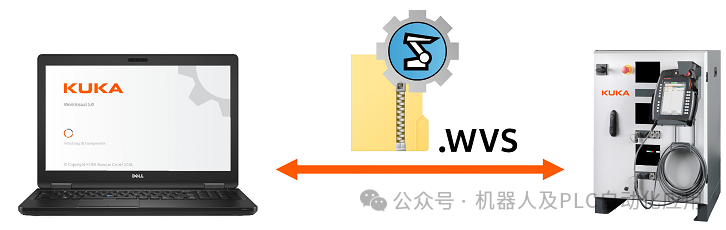
Configuration and programs are exchanged between the controller and the connected WorkVisual laptop via project files (*.wvs). Projects downloaded from the controller are stored in the directory ….\WorkVisual Projects\DownloadedProjects.
Multiple projects can be “stored” on the controller, and can be activated without WorkVisual if necessary.
Active projects are displayed on the operating interface.
• The active project is displayed on the smartPAD by pressing the project button.
• Pressing a button opens a view that shows all projects on the control system.
• No special user permissions are required on the control system.
Loading WorkVisual Projects from the Controller
1. Menu sequence: File > Find Project
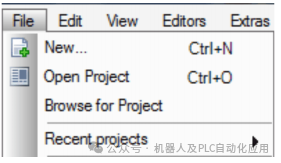
2. The project browser opens.
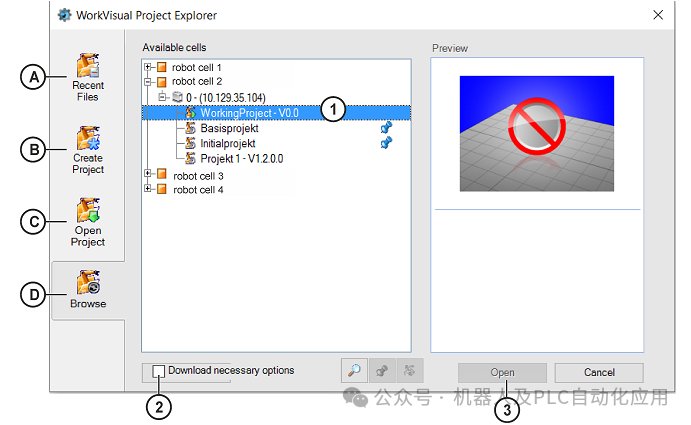
Pre-selection is already made in the left side find tab (D).
3. Expand the node of the required work unit in the available work unit area. All robot controllers of that work unit will be displayed.
4. Expand the node of the required robot controller. All projects will be displayed.
5. If the necessary alternative software packages are missing on the WorkVisual PC, they can be downloaded with the project. To do this, activate the checkbox (2).
6. Select the required project (1) and click open (2). The project opens in WorkVisual.
Tabs
• Recent Files (A) shows the files that have been used recently.
Menu path: File > Recently Opened Files (quick access via a separate selection window)
• Create Project (B) allows you to
‒ Create a new empty project
‒ Create a new project using a template
‒ Create a new project based on an existing project
Menu path: File > New
• Open Project (C) is used to open an existing project.
Menu path: File > Open Project
• Find (D) is used to load a project from the robot controller.
Menu path: File > Find Project
Troubleshooting
In some cases, even with a network connection, no controllers may be displayed in the find window. This issue can be resolved with the following steps:
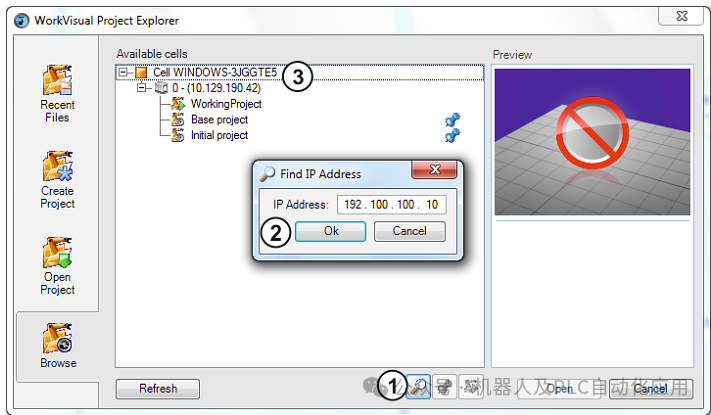
1. Click the Lupe (magnifying glass) (1) button in the WorkVisual browser.
2. The Find IP Address (2) window opens.
3. Enter the required control cabinet IP address.
4. Click OK (2) to apply the IP address.
5. Now, the controller appears in the available work unit window (3).