1
Basic Information
|
Name: Keil uVision5 MDK v5.18 |
|
Size: 404M |
|
Installation Environment: Windows 7 and above 64-bit operating system |
|
Baidu Cloud Link: https://pan.baidu.com/s/1xo25OuTM7SZZOYRDHQb2uw?pwd=6666 Extraction Code: 6666 Quark Cloud Link: https://pan.quark.cn/s/f63642116884 |
2
Software Introduction
Keil uVision5 MDK-ARM V5.18 is an Integrated Development Environment (IDE) developed by ARM (formerly Keil Elektronik GmbH), specifically designed for the development of microcontrollers based on the ARM architecture. This version was released in 2022 and supports Windows 7/8/10/11 systems, featuring a new package manager, and an SWD download speed that is five times faster than Keil 4.
Main Features:
-
Compiler: Provides efficient code compilation capabilities, supporting C/C++ language development.
-
Debugger: Supports real-time debugging and simulation, facilitating problem identification and optimization.
-
Project Management: Supports multi-project management and version control, enhancing development efficiency.
3
Installation Steps
Note: Please disable your antivirus software and firewall (for Windows 10 and above, also disable Defender real-time protection) before re-extracting the installation package.
1. Extract the installation package: Right-click on the 【Keil uvision5 MDK】 compressed file, select the extraction software installed on your computer, and click to extract to 【Keil uvision5 MDK】.
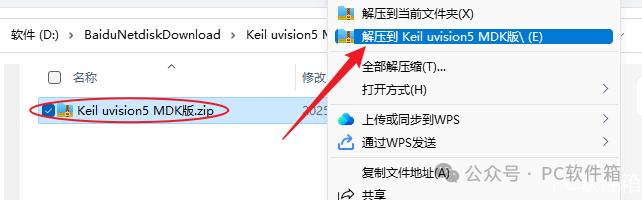
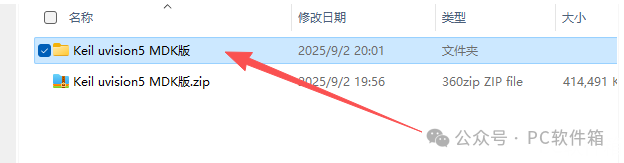
2. Open the extracted 【Keil uvision5 MDK】 folder.
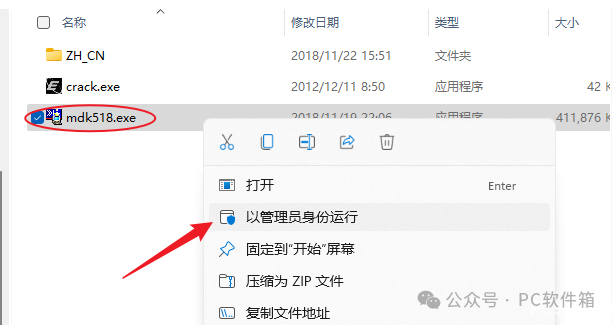
3. Right-click on the 【mdk518】 installation program and select 【Run as administrator】.
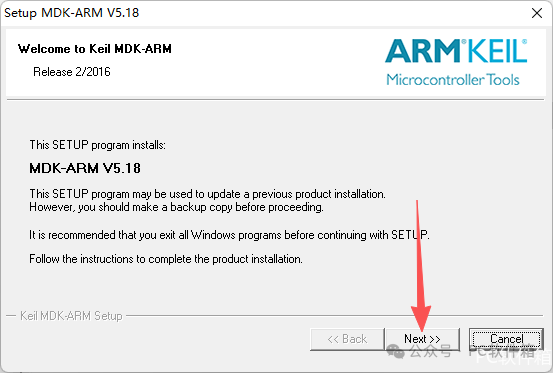
4. Click 【Next>>】.
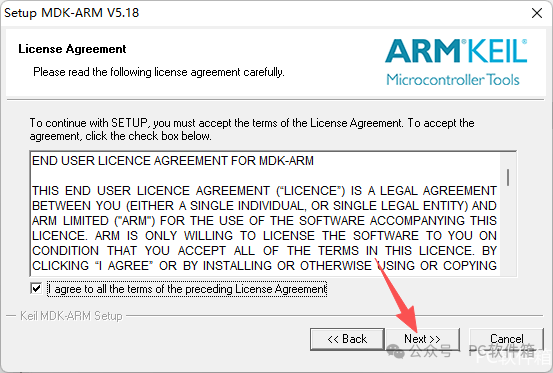
5. Check 【I agree to all the…】, then click 【Next>>】.
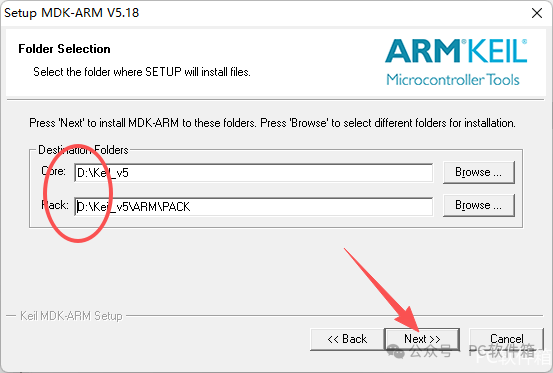
6. Click 【Browse】 to change the installation path of the software, it is recommended to install it on a disk other than C drive, then click 【Next>>】.
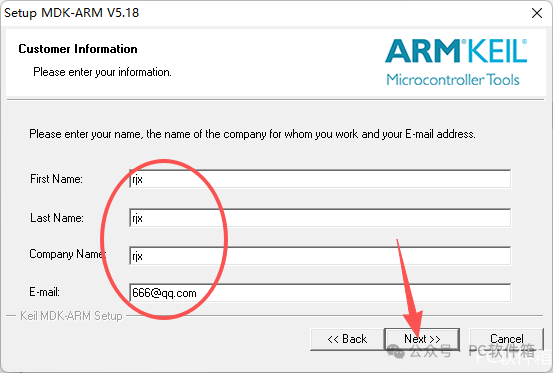
7. Fill in the information as desired, then click 【Next>>】.
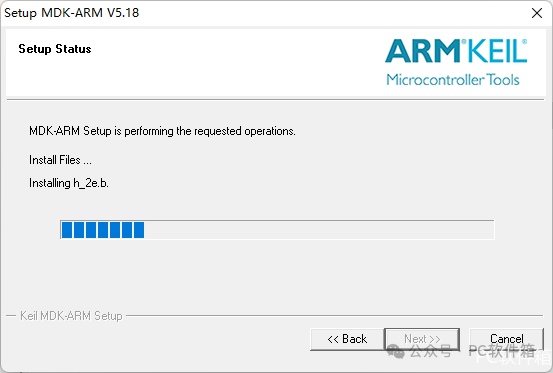
8. The software is being installed.
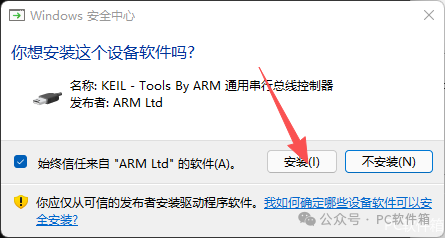
9. Click 【Install】.
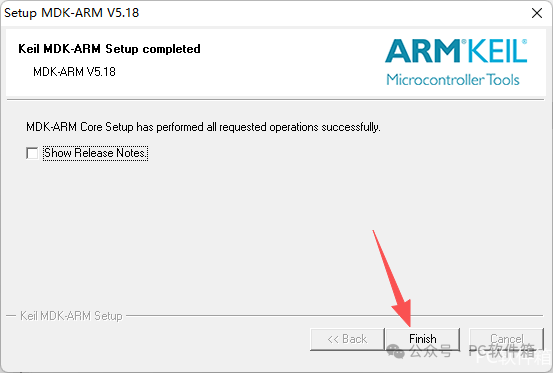
10. Installation complete, uncheck the box, then click 【Finish】.
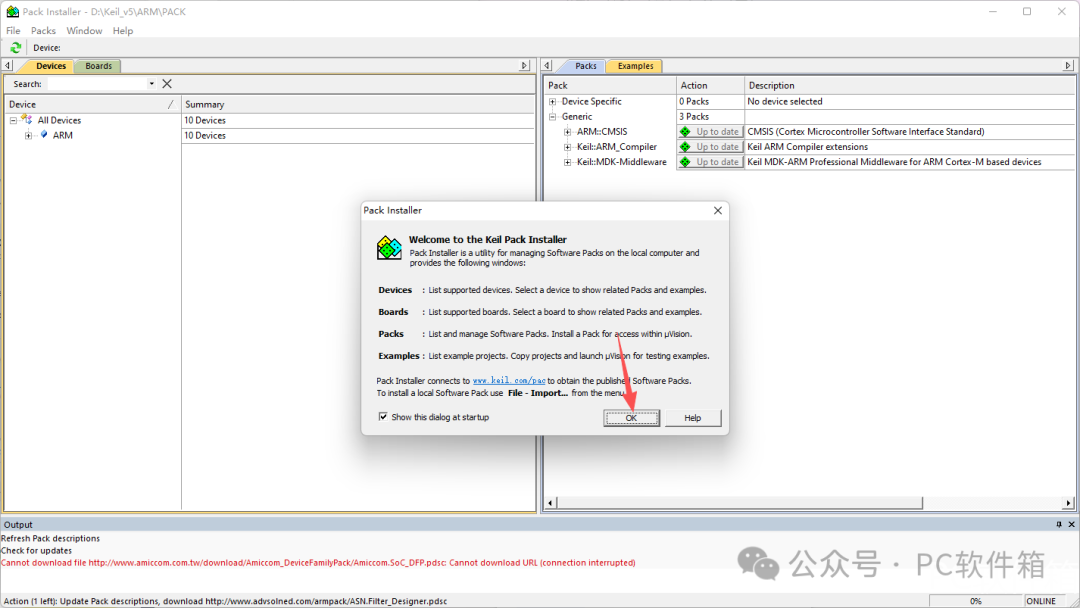
11. Click 【OK】.
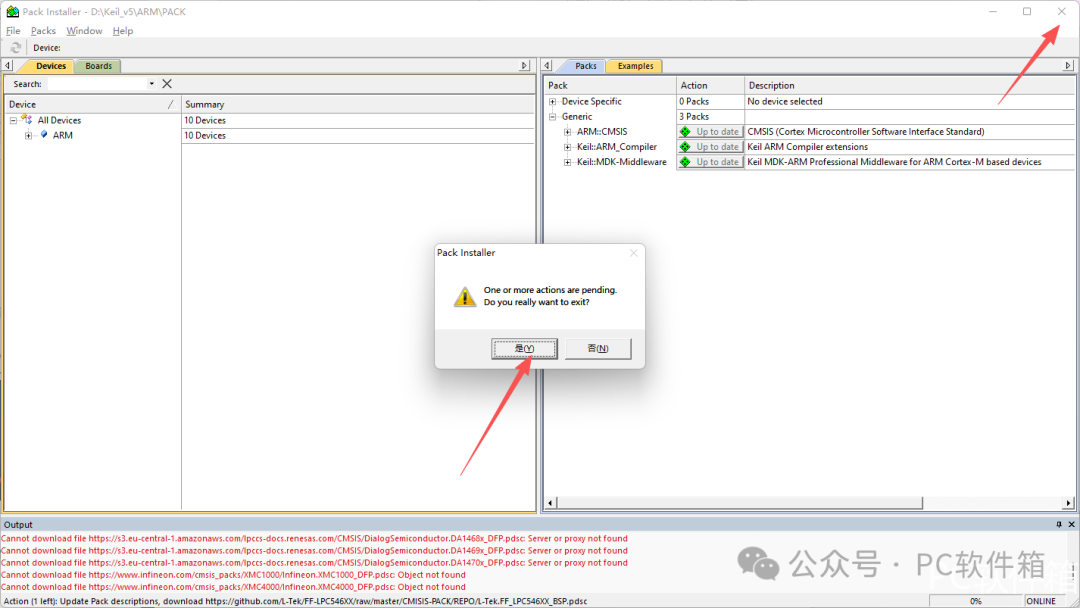
12. Click the close button in the upper right corner of the software to exit.
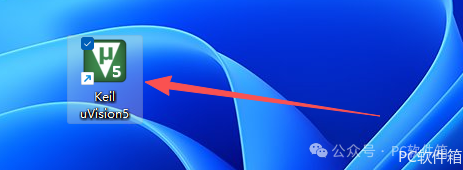
13. Double-click to open 【Keil uVision5】 on the desktop.
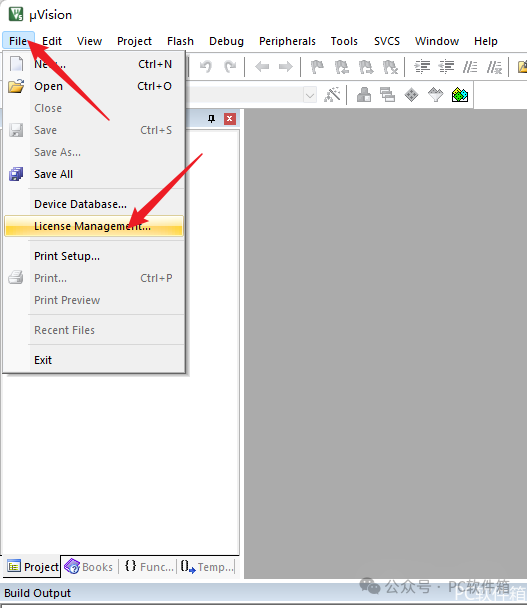
14. Click on 【License Management】 under the 【File】 menu.
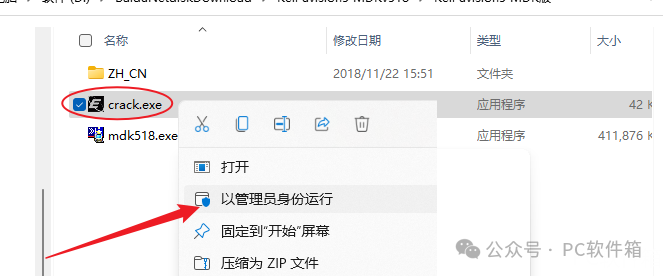
15. Open the previously extracted 【Keil uvision5 MDK】 folder, select the 【crack】 executable file, right-click and select 【Run as administrator】.
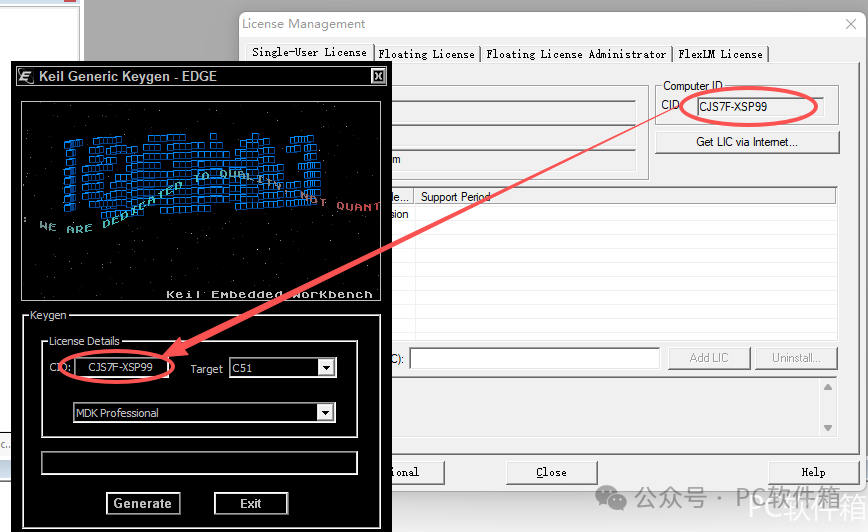
16. Use the shortcut “Ctrl+C” to copy the 【CID】 from the software license manager, then paste it into the 【CID】 box of the key generator using “Ctrl+V”.
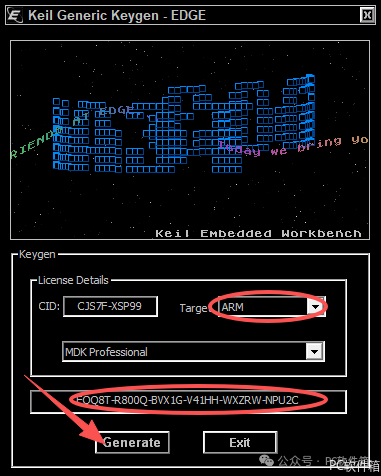
17. First, select 【ARM】 in the 【Target】 section, click 【Generate】, then use “Ctrl+C” to copy the generated 【activation code】 from the box above.
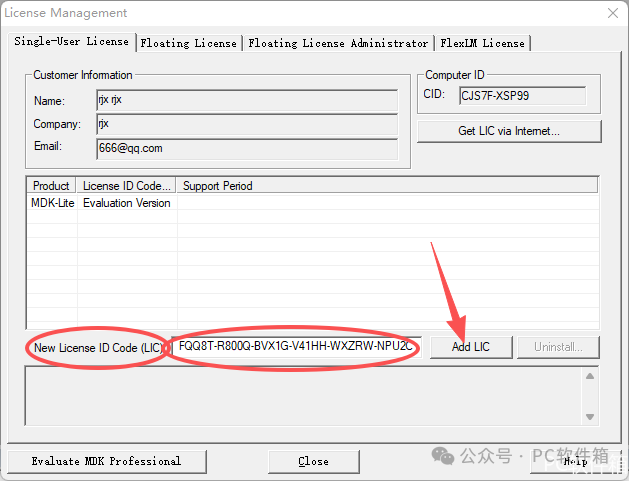
18. Paste the activation code into the 【New License ID Code】 box using “Ctrl+V”, then click 【Add LIC】. (If activation fails, close the software and reopen it as administrator)
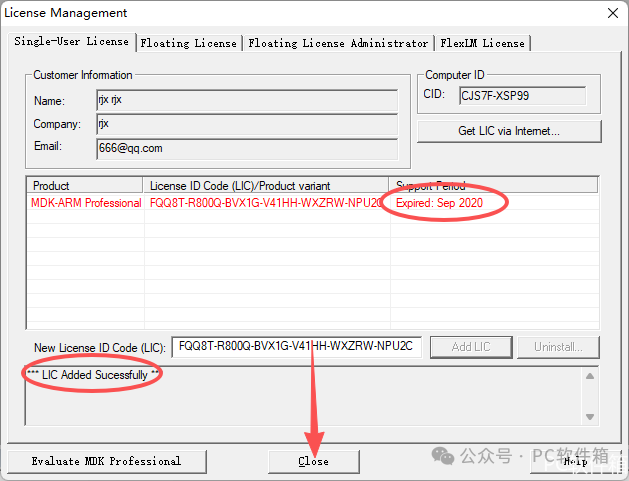
19. Activation successful, click 【Close】.
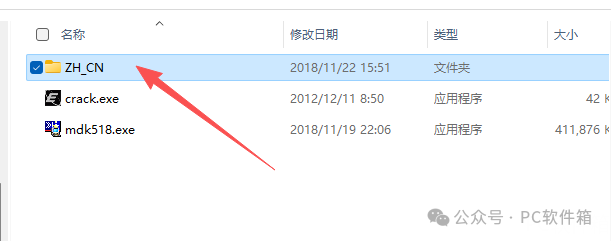
20. Double-click to open the 【ZH_CN】 folder inside the previously extracted 【Keil uvision5 MDK】 folder.
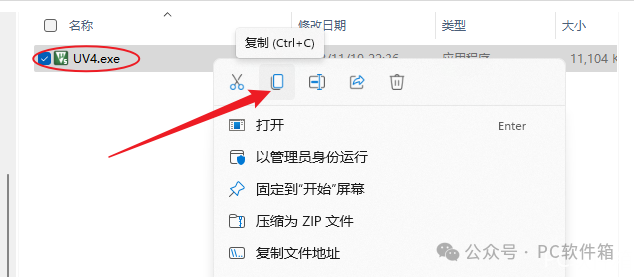
21. Select the 【UV4】 file, right-click and select 【Copy】.
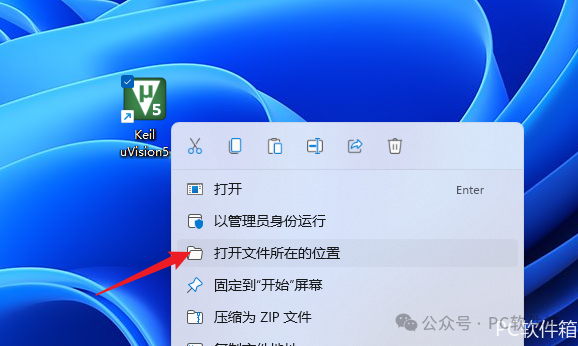
22. Right-click on 【Keil uVision5】 on the desktop and select 【Open file location】.
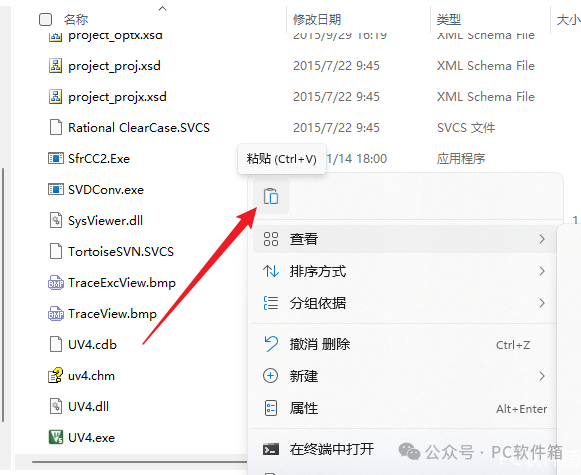
23. Right-click in the empty space and select 【Paste】.
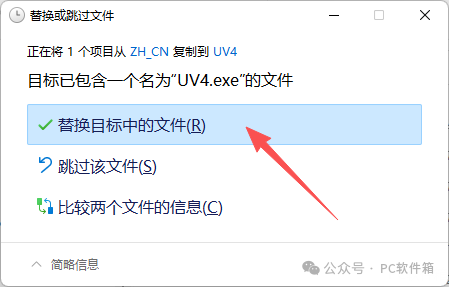
24. Click 【Replace the files in the destination】, and the localization is complete.
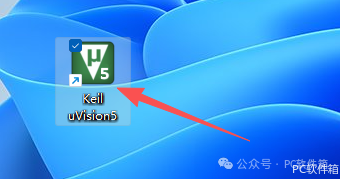
25. Double-click to open 【Keil uVision5】 on the desktop.
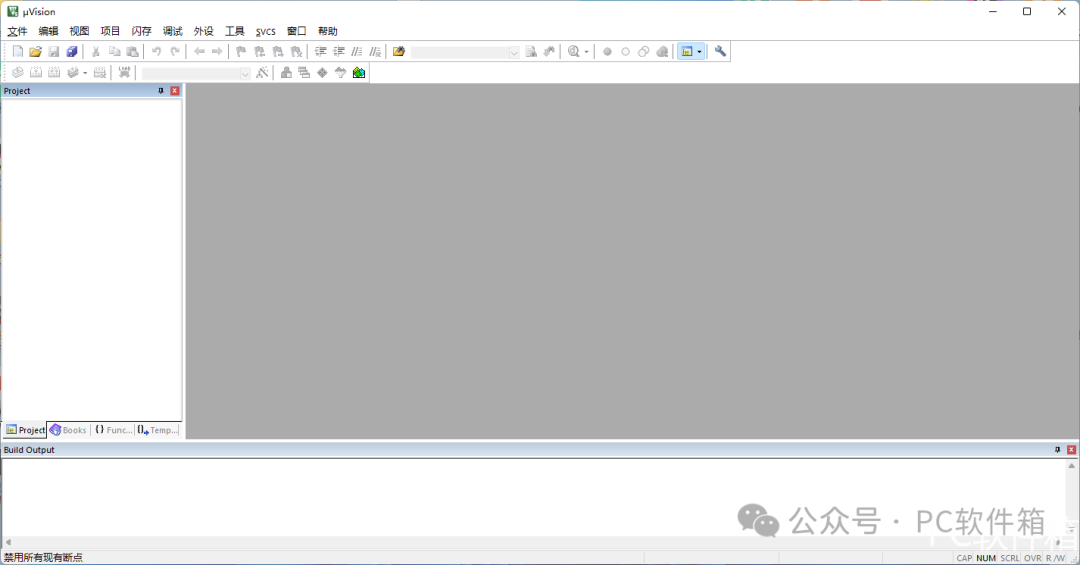
26. Installation complete, the software interface is as follows.