Are you accustomed to using package management commands like apt, yum, dnf, and pacman to manage software on different Linux systems?
In fact, besides these default package management tools in Linux systems, you can also use Homebrew as a package management tool.
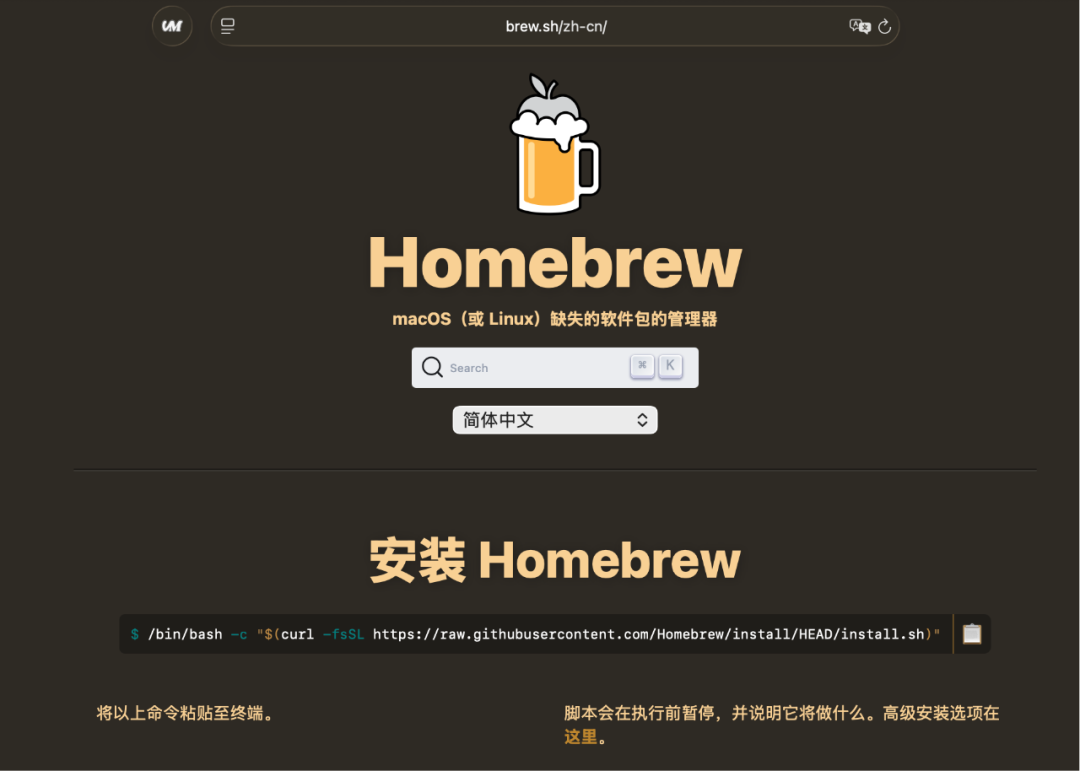
Homebrew is a third-party package management tool primarily aimed at users on MacOS, serving as a system software manager to install and manage various software packages.
Actually, Homebrew can also be used on Linux, and using Homebrew for software installation and management on Linux is quite good, potentially better and more unified than the default package management.
You can download it from the official website and install it.
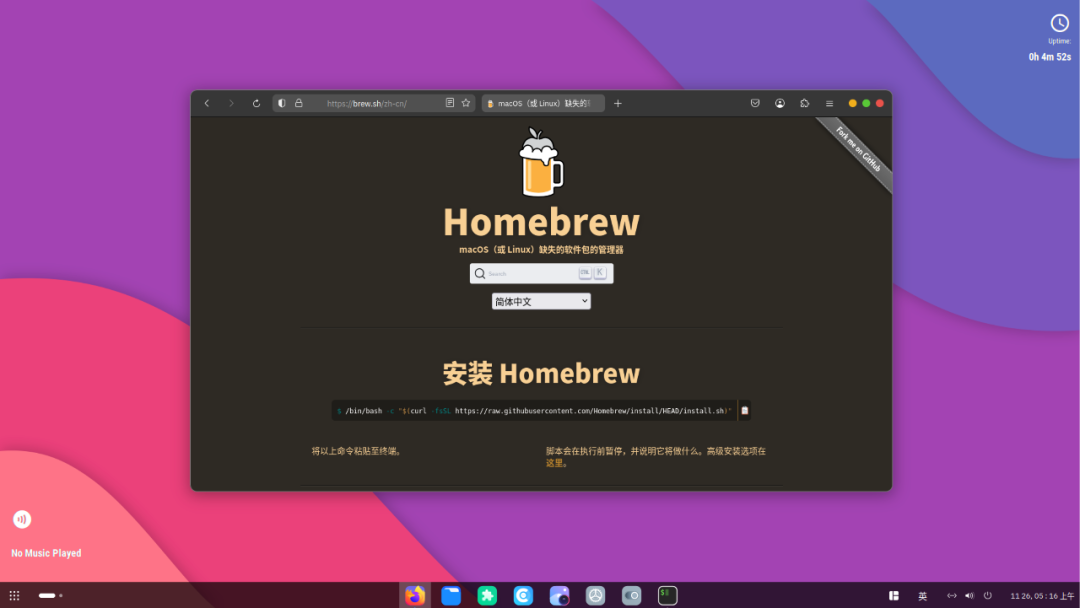
Copy the installation command into the terminal and then install it.
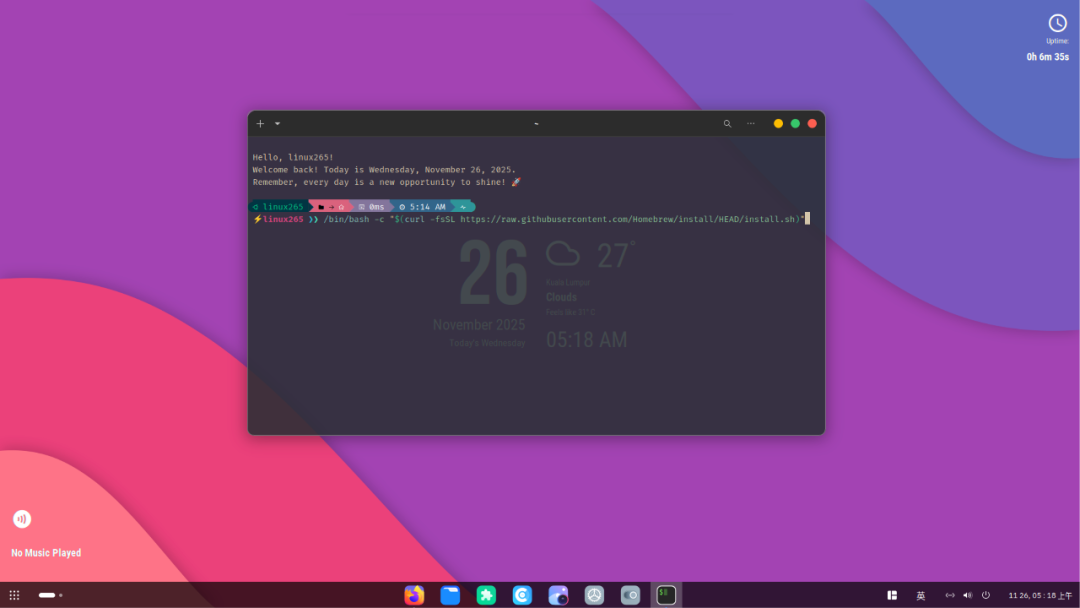
Once the installation is complete, you can use the brew command in the terminal to install software.
The default installation path is<span><span>/home/linuxbrew/.linuxbrew</span></span>.
One of the most important aspects of Homebrew is that it can install packages into a separate directory, linking files to <span><span>/opt/homebrew</span></span>, which brings many benefits to users.
This is because it helps avoid polluting or damaging system files and directories, ensuring the purity and stability of the system, and providing unified management for additional applications installed on the system.
Typically, in Linux systems, we can easily install software using the built-in package management tools, but these software usually default to installation in directories like<span><span>/usr/bin</span></span> or <span><span>/usr/local/bin</span></span>.
This can lead to unnecessary complications during system upgrades or version management for many software installed using the system’s package manager.
However, Homebrew does not install files outside its own directory, so you only need to focus on the default installation directory of Homebrew, making future migrations easier.
Packages installed by Homebrew are typically user-level, meaning you do not need root permissions and can easily install and manage these packages as a regular user.
<span><span>brew install</span></span> Installation
To install software, simply follow the command with the corresponding software name.
brew install wgetIn this case, the default installation will be the latest version of the software.
Of course, you can also specify the version to install.
For example: using<span><span>brew install</span></span> command allows you to specify different versions for installation.
brew install [email protected]Without needing to use the system’s default software version environment, this also allows for managing different versions of the same software for different projects.
<span><span>brew switch</span></span> Switch Version
If you want to switch the default software version to the current version, you can do so with the following command.
brew switch wget <version>For example:
brew switch wget 1.20.3Isn’t that convenient?
<span><span>brew upgrade</span></span>
You can also upgrade all packages managed by the brew command to the latest version with a single command.
<span><span>brew bundle</span></span>
If you want to manage and install software in bulk, you can also use the<span><span>brew bundle</span></span> command.
This command provides a convenient way to install uniform software across different Linux host environments. You just need to use
<span><span>brew bundle dump --file ~/brewfile</span></span>
to back up a Brewfile, and then on another machine, in the directory where the file is located, use the following command
<span><span>brew bundle --file=./brewfile</span></span>
to batch install all software, ensuring consistency of packages in the new migrated environment.
In Conclusion
Typically, using Homebrew’s <span><span>brew install</span></span> and <span><span>brew switch</span></span> can meet daily needs. Of course, Homebrew has many more excellent features; this is just a brief introduction to Homebrew. For more detailed information, you can check the relevant documentation on the official website.
If you’re interested, take a look!
 Aurora: Another Immutable Linux Distribution!Recommended: 3 Minimal Linux DistributionsWhy Learn Linux?You don’t need to be an expert in Linux; start as a beginner.Linux, Vim, and MarkdownOld friends, remember to 🌟star so it’s easier to find me next time!