2024
UNNC
IT Services
IT

Beep! Freshman Guide
@2024
Wi-Fi (eduroam) Connection Guide – Android Edition
IT Services
“
In today’s network society, the first thing to do when entering UNNC is to connect to the campus network! This guide introduces how to connect to eduroam on Android phones and Windows computers.
”

Android System
Android

Windows System
Windows
01
Android System
Android
How to connect to eduroam on Android?
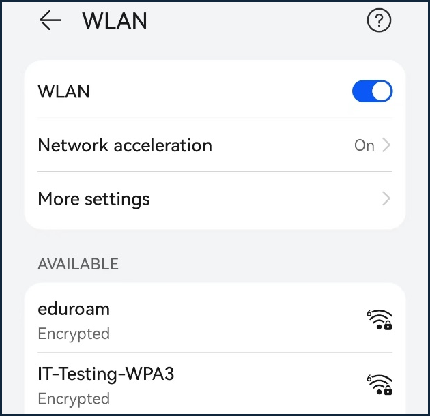
1. Choose “eduroam”.
Choose “eduroam“.
2. Set the parameters as below.
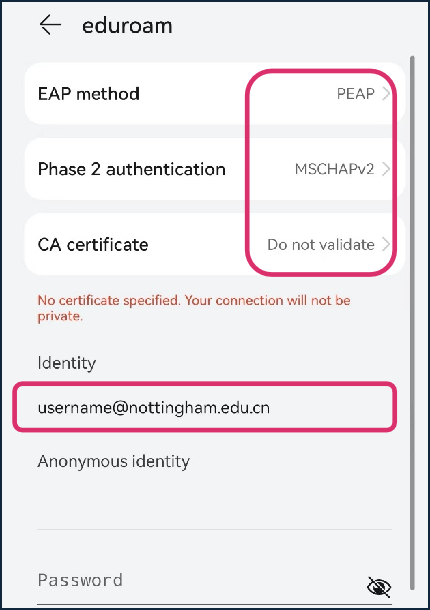
Set parameter as below.
-
Check EAP method: PEAP
-
Phase-2 authentication: MSCHAPv2 or None
-
CA certificate: Do not validate or unspecified
-
Input identity: [email protected]
-
Anonymous identity: keep blank
-
Input password
-
Check EAP method: PEAP
-
Phase-2 authentication: MSCHAPv2 or None
-
CA certificate: Do not validate or unspecified
-
Input identity: [email protected]
-
Anonymous identity: keep blank
-
Input password
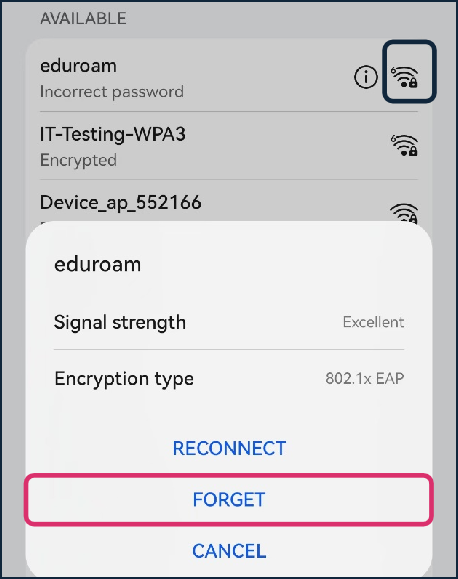
3. If the password is reset, you need to forget eduroam first and join again.
If the password is reset, you need to
forget eduroam first and join again.
<<< IT-SERVICES
02
Windows System
Windows
How to connect to eduroam on Windows?
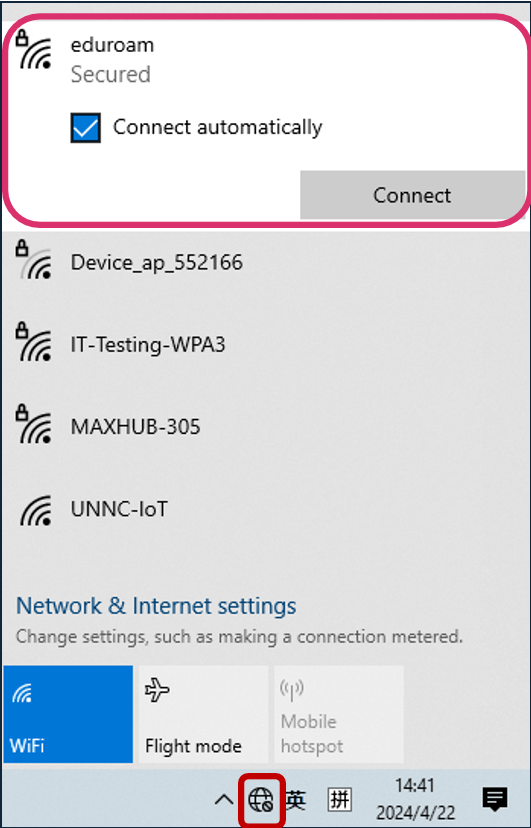
1. Left click on the internet icon to connect to eduroam.
Left click on the internet icon
> Connect to eduroam.
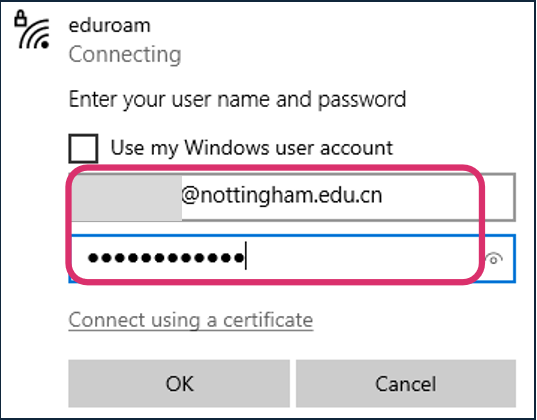
2. Input UNNC username and password to log in.
Input UNNC user name ([email protected]) and
password to log in.
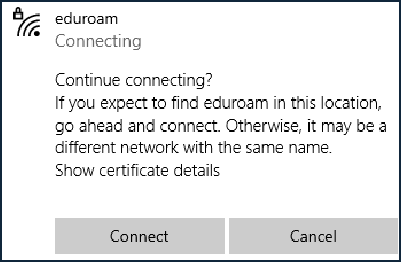
3. Click on “Connect”.
Click on “Connect”.
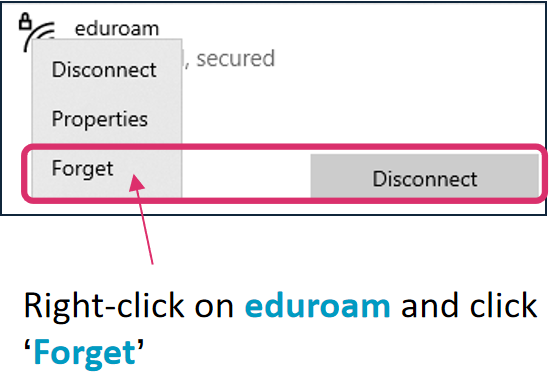
4. If the password is reset, you need to forget eduroam first and join again.
If the password is reset, you need to forget eduroam first and join again.
<<< IT-SERVICES
end
Organizer: University of Nottingham Ningbo China
IT Services
This issue behind the scenes
Text | Zheng Zihan
Layout | Zheng Zihan
Review | Serena