
Introduction

Currently, China Telecom has adopted the E-Sign client dial-up method in many university areas to prevent broadband sharing, which restricts multiple clients from sharing a single account. This policy has caused significant inconvenience in our study and daily life. Unfortunately, driven by economic interests, various provincial telecom companies have implemented this practice in universities.
In Wuhan, this dial-up software is called E-Sign, while other regions may refer to it as Flash News or other names, but they all utilize the NetKeeper solution.
NetKeeper is a dynamic verification scheme. For example, if your account is “15333333333” and your password is “666666”, NetKeeper applies an algorithm that prepends a string of characters to your account, transforming it into something like “bi8e^>ij15333333333”. This modified account is then used for dial-up, and the prepended string changes dynamically with the current time.
The PandoraBox system is a Linux-based embedded system designed for wireless routers.
Additionally, this tutorial is recommended for students with a certain level of hands-on ability. Those who wish to learn more should research thoroughly and read this tutorial carefully before proceeding. Be bold and meticulous during the operation; do not be careless.
Preparation
1. One Xiaomi Mini Router (other compatible smart routers like the Ji Router or TP-Link routers can also be used, but this tutorial uses the Xiaomi Mini Router for demonstration), a computer with internet access, a browser, a USB drive (greater than 200MB and formatted to FAT32), Xshell, WinSCP, and several network cables.
If you do not understand the above terms or cannot use the software, please search for solutions independently.
Flashing the PandoraBox System
a) Obtain SSH access for the Xiaomi Mini Router. This process can be completed by following a guide on Baidu Experience, which I will not elaborate on here. Baidu Experience Guide
b) Download the PandoraBox firmware. The download link for the Xiaomi Mini version of PandoraBox is: PandoraBox Download
Below this link, there are four directories: old fw, stable, testing, and u-boot. Please pay special attention to the stable and u-boot directories. The stable directory contains stable firmware versions, so choose a newer version when flashing. U-boot is a safeguard to prevent the router from bricking, but I am not concerned about bricking the Xiaomi Mini Router, so I will not elaborate on the u-boot tutorial here. You can click the links below or search for it yourself.
U-boot related links: U-boot Guide 1, U-boot Guide 2
c) Create a recovery disk for the official Xiaomi firmware. There are two methods to create a recovery disk (though it is not mandatory, it is recommended to create one to restore the official system in case of issues):
- Method 1: After obtaining SSH access (as mentioned above), flash the official firmware using the PandoraBox method.
- Method 2: 1. Format the USB drive to FAT or FAT32. 2. Rename the original bin firmware file to miwifi.com and place it in the root directory of the USB drive. 3. Disconnect the router’s power, insert the USB drive into the router, and press the reset hole while plugging in the power. 4. When the indicator light flashes, release the button. The yellow light will blink for a moment, and the router will automatically restart, restoring to the official firmware. After recovery, you will need to perform the SSH operation again.
The entire USB flashing process takes longer than a normal OTA upgrade because this method will completely rewrite the Xiaomi router’s system (all data in the hard disk version router will be erased). After flashing, the system will automatically restart and enter the normal startup state (yellow light on – blue light on).
If any anomalies/failures occur or the USB drive cannot be read, the router will enter a red light state. It is recommended to retry or replace the USB drive. A normal startup will display a blue light, indicating the flashing is complete. MIWIFI Official Firmware Download Link, MIWIFI Download Link
d) Flash the PandoraBox firmware. After obtaining SSH access, downloading the PandoraBox firmware, and creating the official firmware recovery disk, we can proceed to the exciting part:
Rename the downloaded PandoraBox firmware “PandoraBox-ralink-mt7620-xiaomi-mini-squashfs-sysupgrade-r1024-20150608.bin” to a shorter name without any Chinese or special characters for easier use, such as “PandoraBox.bin”.
Use WinSCP software to log into the SSH-enabled Xiaomi Mini Router. The relevant configuration is as follows: select SCP for the protocol, the hostname is the IP address of the Xiaomi Mini Router (mine is 192.168.31.1; please change it if yours is different), port number 22, username root, and the password provided during the SSH setup.
During the first configuration login, a key verification prompt will appear; click “Yes” to continue logging in.
In WinSCP, navigate to the router’s /tmp/ directory and drag the bin firmware directly into the /tmp/ directory. The firmware should be named “PandoraBox.bin” without any Chinese or special characters, as this may cause the copied file name to become garbled.
Using Xshell, log into the router (similar to the above WinSCP login). Enter the flashing command. Double-click to open Xshell software, create a new session, fill in the Xiaomi Mini Router’s IP address (mine is 192.168.31.1), port number 22, and then click OK. In the pop-up box, select connect.
Then enter the username root and the password used during the SSH setup, and click OK to log into the router.
Use Xshell to execute the flashing command (this process can be done via wireless or wired connection to the router). After successfully logging into the router, a command prompt interface similar to cmd will appear. Do not be afraid; you only need to enter a few simple commands. Execute the following command: “mtd -r write /tmp/xxx.bin firmware”, where “xxx.bin” is the previously named firmware “PandoraBox.bin”, so the command here will be “mtd -r write /tmp/PandoraBox.bin firmware”.
After executing the command, the router will start flashing the firmware. Wait a moment for the flashing to complete, and it will automatically restart.
The PC and router will be forcibly disconnected via wireless connection; just wait for the router to finish restarting and reconnect to the hotspot.
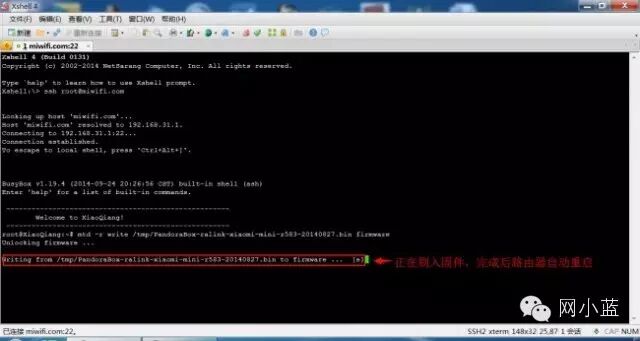
After successful flashing, the indicator light will turn blue and flash regularly, indicating that the router has successfully completed the flashing process. Note: Do not forcefully cut off power during the flashing process. If an unfortunate event occurs, such as a long yellow (red) light or flashing red light entering recovery mode, please directly use the previously created USB drive to restore to the original ROM.
Log into the flashed router by opening a browser on your computer and entering “192.168.1.1” to access the router’s backend, with the username as root and the password as admin.
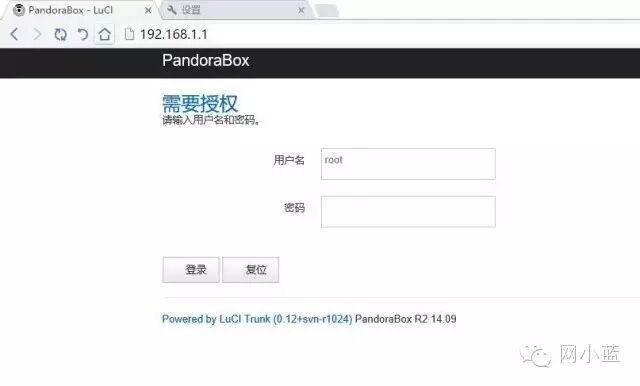
The following is the backend interface of the PandoraBox system.
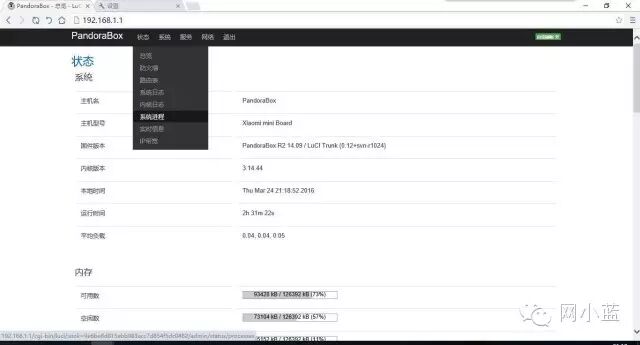
The PandoraBox system interface and functions are highly similar to OpenWRT, allowing you to define and configure advanced settings for the router according to your needs. If you are a beginner, some areas may be difficult to understand, but there are various related tutorials and introductions available online for you to learn gradually.
Bypassing E-Sign for Automatic Dial-Up

e) Introduction to E-Sign. E-Sign is a dial-up software used by China Telecom to maintain its restrictive policies against users sharing internet access in universities. In Wuhan, it is generally referred to as E-Sign, while other regions may have different names like Flash News.
f) Working Principle of E-Sign Dial-Up. E-Sign utilizes NetKeeper, a dynamic verification scheme. For example, if your account is “15333333333” and your password is “666666”, NetKeeper applies an algorithm that prepends a string of characters to your account, transforming it into something like “bi8e^>ij15333333333”. This modified account is then used for dial-up, and the prepended string changes dynamically with the current time. Once we implement this dial-up algorithm on the router system OpenWRT/PandoraBox, we can use the router to dial without needing the E-Sign client. The algorithm principle is as follows:
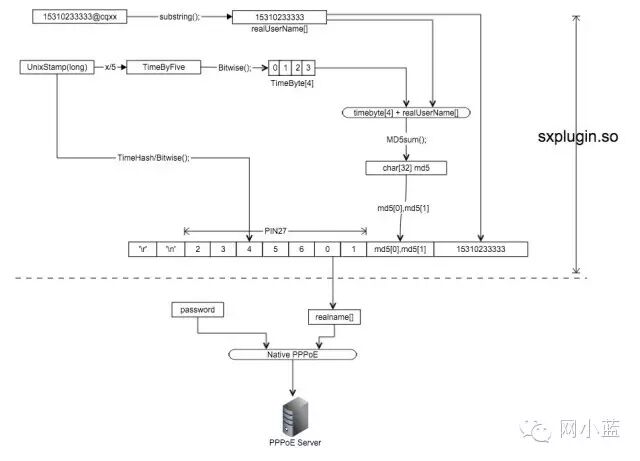
Some users have reverse-engineered the Android version of the E-Sign client to obtain the dial-up process and ported it to OpenWRT, achieving the effect of bypassing the telecom sharing restrictions. The dial-up principle uses a library called sxplugin.so to generate dynamic accounts, followed by PPPoE dial-up.
g) This tutorial supports E-Sign bypassing in regions such as Wuhan, Chongqing, Hangzhou, Nanchang (V18-V32), Hainan, Qinghai/Xinjiang, Hebei, and Shandong Mobile. Note: The related information is sourced from the internet, and I have not verified all of it; I have only verified Wuhan E-Sign, so users should be cautious.
h) Specific Operation Process. If you have successfully completed the flashing according to the above tutorial, the following tutorial should not be difficult for you.
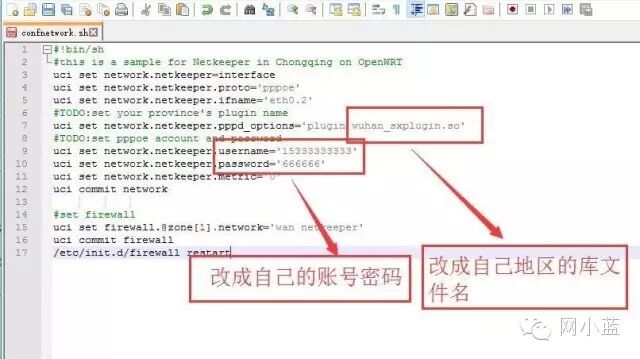
1. Download the necessary files, which include the library file “sxplugin.so” suitable for your region and the configuration file “confnetwork.sh”. The download link is: Download Link (Password: wwqs). The link contains multiple library files, so please choose the appropriate one.
2. Modify the “pppd_options”, “username”, and “password” fields in the configuration file “confnetwork.sh” as required.
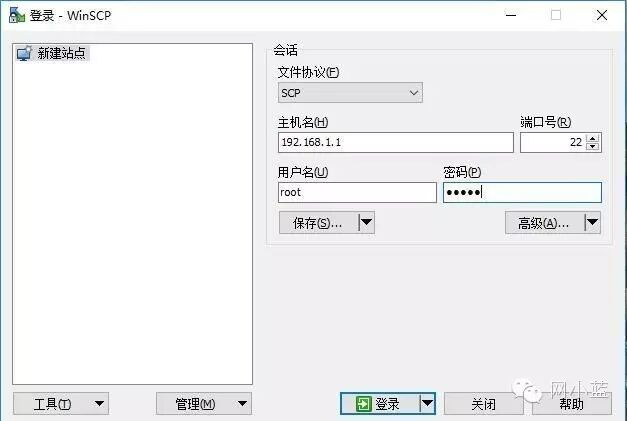
3. Use WinSCP software to log into the flashed router and upload the two downloaded files. The relevant configuration is as follows: select SCP for the protocol, the hostname is the router’s IP address (mine is 192.168.1.1; please change it if yours is different), port number 22, username root, and password admin.
4. Upload the library file “sxplugin.so” to the router’s /usr/lib/pppd/2.4.7/ directory.
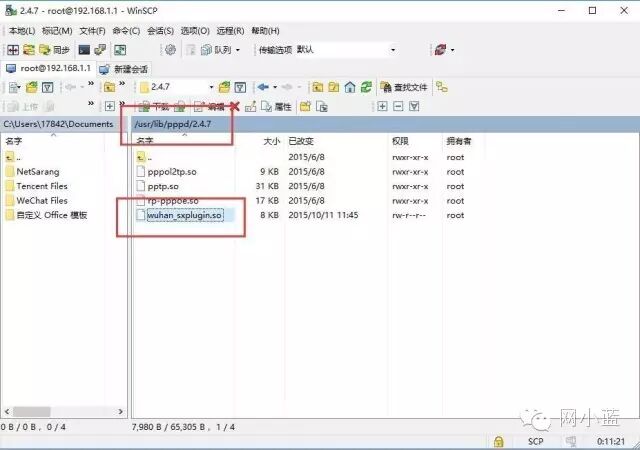
5. Upload the configuration file “confnetwork.sh” to the router’s /tmp/ directory, following the same upload process as above.
6. Use Xshell to log into the router (similar to the login during flashing). Double-click to open Xshell software, create a new session, fill in the router’s IP address (mine is 192.168.1.1), port number 22, and then click OK. In the pop-up box, select connect.
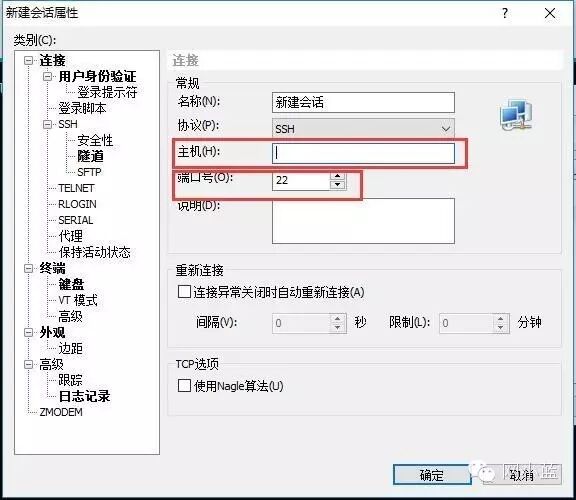
7. Enter the username root and the password admin, then click OK to log into the router.
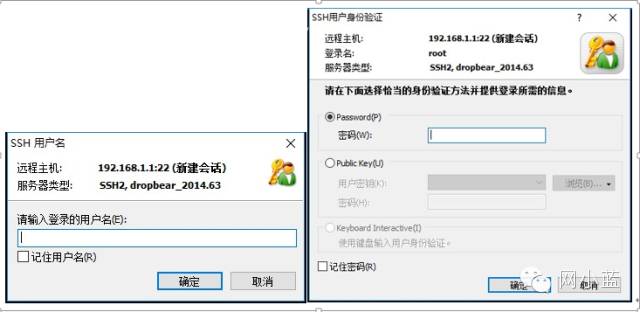
8. Use Xshell to execute the script to configure the router (this process can be done via wireless or wired connection to the router). After successfully logging in, execute the following two commands:
chmod a+x /tmp/confnetwork.sh<br/>sh /tmp/confnetwork.shFinally, synchronize the router’s time in the browser and reconnect to E-Sign (NetKeeper). If you cannot connect, it is likely that the library file was not selected correctly; try another library file and dial again. Thus, you have completed the goal of bypassing E-Sign for network sharing under PandoraBox.
i) Notes: Only by uploading and configuring the correct library file “sxplugin.so” can you achieve normal dial-up internet access. Once the Xiaomi Mini Router obtains SSH access, it means losing the warranty. I am not responsible for any losses incurred during the flashing process. Flashing carries risks; proceed with caution.
Acknowledgments
This tutorial is compiled from various solutions provided by many users on different forums and has been personally practiced by me. I apologize for not being able to list all the posts from users; I will only mention a few:
Final Words
I am not responsible for any losses incurred during the flashing process. Flashing carries risks; proceed with caution. This tutorial is largely contributed by many users and open-source projects on GitHub, intended for educational purposes only. Please do not use it for commercial purposes.
For reprinting this article, please indicate the source. I am Zhou Bowen, a student at Hubei University. Contact: [email protected]. If there are any copyright or other illegal issues, please contact me.