Are you still troubled by poor signals from CMCC or China Unicom? Are you worried about running out of data at the end of the month? Now, you only need a Phicomm K1 router and a Ruijie account password to provide 24-hour WiFi coverage for your entire dormitory!
- Download the required files: -TFTP32/TFTP64 (depending on your system, please download from Baidu) – the uboot for breed 【breed-mt7620-reset1.bin】 (link: http://breed.hackpascal.net/breed-mt7620-reset1.bin) – the firmware to flash 【RT-AC54U-GPIO-1-PSG1208-64M_3.4.3.9-098】 (can also be OpenWRT, etc.) – uboot.bin download link: http://pan.baidu.com/s/1o7oTjlg2
- Enter 192.168.2.1 with username admin and password admin to reset to factory settings. After the reset, go to 192.168.2.1 until you see the router’s operating status interface instead of the setup wizard interface.
- Open Internet Explorer (note: use IE) and visit: http://192.168.2.1/goform/Diagnosis?pingAddr=192.168.2.100|echo””|telnetd
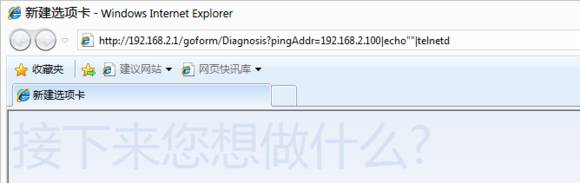 After the diagnosis interface appears, ignore it and leave it aside without closing the browser.
 - Press Win + R to open the run window, type cmd
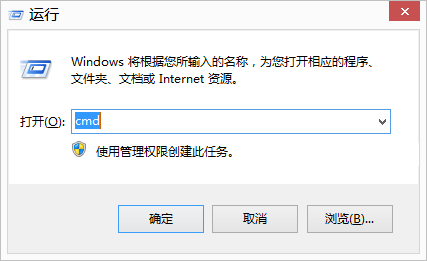 In the command prompt window, type telnet 192.168.2.1
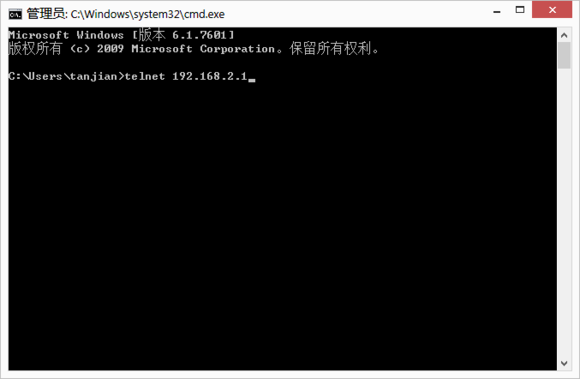 Then press Enter. Enter admin for both username and password, then press Enter.
 - Flash uboot and firmware. Open TFTP32/TFTP64 and in the command prompt window, type cd /tmp and press Enter. Check if the IP address in TFTP32/TFTP64 shows as 192.168.2.X
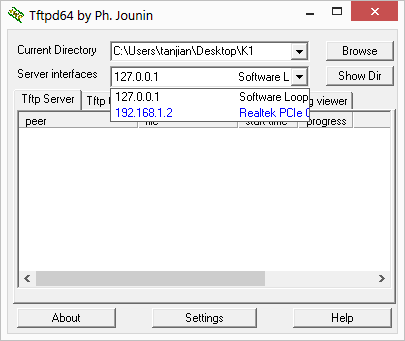 Select the network card currently connected to the router, generally the IP address is 192.168.2.X (the image shows after flashing, so it is 192.168.1.2).
 - In the cmd window, type tftp -g -l /tmp/uboot.bin -r uboot.bin 192.168.2.x and press Enter (here X is the corresponding IP address in the TFTP software, modify x to the corresponding number). Then type mtd_write write uboot.bin Bootloader and press Enter.
- Wait for the window to show 80K, then wait two minutes, disconnect the router’s power, press and hold the QSS/RESET button, then reconnect the power (do not release the reset button, keep holding it), then enter 192.168.1.1 in the IE browser to see the uboot interface
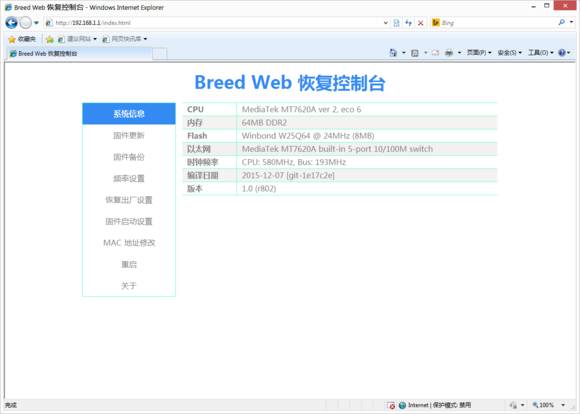
- Adjust the background color of the card to bring up the layout toolbar to set each card, which can be nested to insert images or other templates. After this interface appears, you can release the RESET button, select firmware update, check the box in front of the firmware, then browse to select the ROM file to flash. Here is the previously downloaded 【RT-AC54U-GPIO-1-PSG1208-64M_3.4.3.9-098.trx】
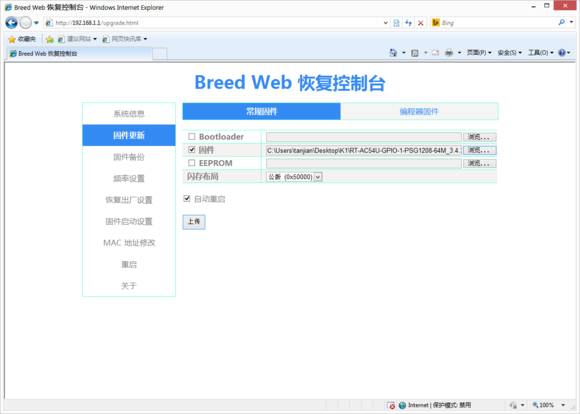 After uploading, wait a few seconds for the following interface to appear.
 - Click update, and the following interface will appear
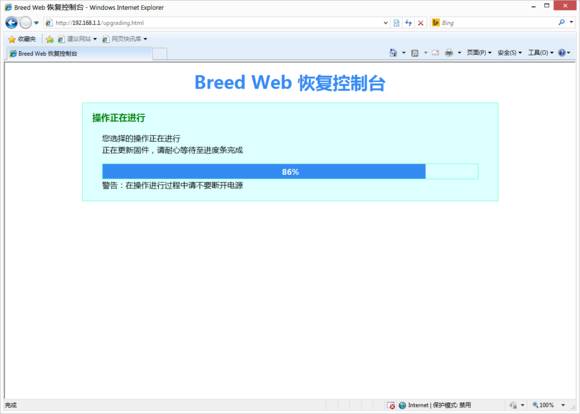 Then wait for 5 minutes, it is important to wait a bit longer until the power light is solid and the other lights are off.
 - Then disconnect the router’s power and reconnect it. In the browser, enter 192.168.1.1
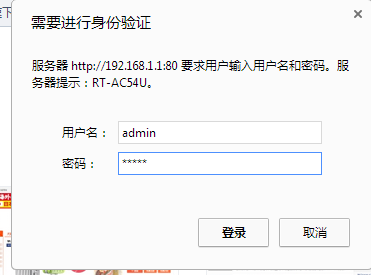 Username admin and password admin to see the third-party firmware interface.
The original tutorial is from Baidu Tieba, click to read the original text for more details~
Material collected by: Chen Qi
Editor: Chen Qi