Introduction
Regardless of the programming language, the purpose of data manipulation is to export processed data for subsequent use. The logic of file operations in Python differs somewhat from that in R, primarily divided into three parts: opening files, reading and writing files, and closing files.
1. File Encoding
As mentioned in our Linux course, computers only recognize 0s and 1s, and the data stored on hard drives is written in the form of 0s and 1s (the strength of magnetism). Therefore, the process of converting human-readable data into 0s and 1s is known as <span>encoding technology (codebook)</span>. The mainstream encoding types for computers include <span>UTF-8</span>, <span>GBK5</span>, <span>Big5</span>, and <span>ANSI</span>. For example, when saving a text file, you can choose the encoding format: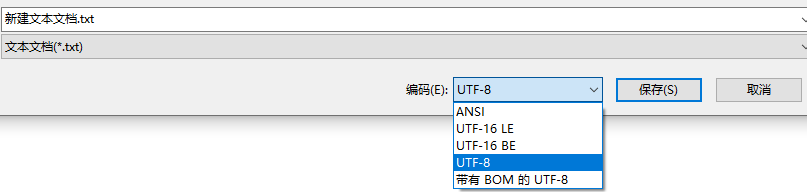
The current mainstream encoding format is <span>UTF-8</span>, which supports multiple languages including English, Chinese, and Korean.
2. Basic File Operations
The basic operations for files include opening files, reading and writing files, and closing files. Opening and closing can be independent of reading and writing.
11.2.1 Opening Files
The <span>open</span> function can open an existing file and return a file object. If the file does not exist, a new file will be created. The syntax is:<span>open(name, mode, encoding)</span><span>name</span> is the specific path of the target file to be opened, and <span>mode</span> is the mode for opening the file: Read-only <span>r</span>: opens the file in read-only mode, with the file pointer positioned at the beginning of the file; <span>r</span> is the default mode (i.e., effective when the <span>mode</span> value is not specified). Write <span>w</span>: opens a file for writing only; if the file exists, it opens the file and writes from the beginning, deleting the original content. If the file does not exist, a new file is automatically created for writing. Append <span>a</span>: opens a file for appending; if the file already exists, the new content will be appended to the end of the original file. If the file does not exist, a new file will be created for writing. For example, I want to open a file named <span>Biomamba.txt</span> in the home directory (which has been pre-created):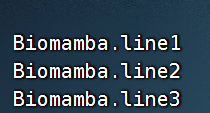
myfile = open(file='./Biomamba.txt', mode='r', encoding='UTF-8')11.2.2 Reading Files
<span>file_object.read(num)</span><span>num</span> indicates the length of data to read from the file (in bytes); if <span>num</span> is not provided, it means to read all data from the file.
# Read the first ten bytes:
fir_file = myfile.read(10)
print(fir_file)
## Biomamba.l# The returned object is a string
print(type(fir_file))## <class 'str'># Second read
sec_file = print(myfile.read(10))## ine1
## Biomaprint(sec_file)
# It can be seen that the second read starts from the end of the first read:## None# Read the remaining content
remain_file = print(myfile.read())## mba.line2
## Biomamba.line3print(remain_file)## None<span>file_object.readlines()</span> reads all lines in the file at once and returns a list, where each line of data is an element.
myfile = open(file='./Biomamba.txt', mode='r', encoding='UTF-8')
my_context = myfile.readlines()
print(my_context)
# It can be seen that the three lines we wrote in the file have all been read, and special characters will also be read in
# For example, the newline character \n
## ['Biomamba.line1\n', 'Biomamba.line2\n', 'Biomamba.line3\n']print(type(my_context))
# The returned object is a list## <class 'list'><span>file_object.readline()</span> can read data line by line; we can use a <span>while</span> loop to demonstrate the result:
myfile = open(file='./Biomamba.txt', mode='r', encoding='UTF-8')
# Read the first three lines of the file and print them:
temp_num = 1
while temp_num <= 3:
    temp_context = myfile.readline()
    print(f"---------Data of line {temp_num}----------")
    print(temp_context)
    temp_num += 1
## ---------Data of line 1----------
## Biomamba.line1
##
## ---------Data of line 2----------
## Biomamba.line2
##
## ---------Data of line 3----------
## Biomamba.line3<span>for</span> loop can also be used to get file content line by line:
myfile = open(file='./Biomamba.txt', mode='r', encoding='UTF-8')
for temp_file in myfile:
    print(temp_file)
## Biomamba.line1
##
## Biomamba.line2
##
## Biomamba.line311.2.3 Closing Files
If a file is not closed, it remains in use and cannot be moved, deleted, or otherwise manipulated. Syntax:<span>file_object.close()</span> For example:
myfile.close()11.2.4 Using with open() as
This statement allows the file to be automatically closed after the code block is executed. For example:
with open(file='./Biomamba.txt', mode='r', encoding='UTF-8') as myfile:
    for temp_line in myfile:
        print(temp_line)
## Biomamba.line1
##
## Biomamba.line2
##
## Biomamba.line3Performing more complex operations, such as reading the <span>Biomamba.txt</span> file and counting the occurrences of the string <span>Biomamba</span>:
with open(file='./Biomamba.txt', mode='r', encoding='UTF-8') as myfile:
    file_context = myfile.read()
    my_times = file_context.count('Biomamba')

print(f"The string 'Biomamba' appears {my_times} times in the file.")
## The string 'Biomamba' appears 3 times in the file.11.2.5 Writing to Files
This mainly consists of three steps: opening the file, writing to the file, and flushing the file content.
# 1. Open the file
myfile = open('my.new_file.txt', 'w')

# 2. Write to the file (written in the memory buffer)
myfile.write('I am a new file')

# 3. Flush the file (actually write and update the file)
## 15myfile.flush()# Let's read the file we just created and print to check:
with open(file='my.new_file.txt', mode='r', encoding='UTF-8') as new_file:
print(new_file.read())
# Successfully outputs the content we just wrote:## I am a new file# The close method can also automatically flush the file, for example:
myfile = open('noflush_file.txt', 'w')
myfile.write('I am a noflush file')
# myfile.flush() # Here we do not flush the file## 19myfile.close()
# Let's read the file we just created and print to check:
with open(file='noflush_file.txt', mode='r', encoding='UTF-8') as noflush_file:
print(noflush_file.read())
# Successfully outputs the content, showing that the close method indeed completes the hard disk write operation:## I am a noflush file# The w mode will clear the original content and write a new file:
myfile = open('noflush_file.txt', 'w')
myfile.write('I have been cleared and rewritten')## 8myfile.close()
with open(file='noflush_file.txt', mode='r', encoding='UTF-8') as noflush_file:
print(noflush_file.read())
# It can be seen that the original content has been cleared, and the new content is written in the file:## I have been cleared and rewritten11.2.6 Appending to Files
<span>a</span> mode is similar to <span>w</span> mode, with the only difference being the mode; when operating on the file, the original content will not be cleared, but appended to the end of the original text.
# 1. Open the file
myfile = open('noflush_file.txt', 'a')
# 2. Write content
myfile.write('I am an appended content')
# 3. Close the file
## 8myfile.close()
# Check the content append situation
with open(file='noflush_file.txt', mode='r', encoding='UTF-8') as noflush_file:
print(noflush_file.read())
# It can be seen that the new content has been directly appended to the end of the file (without automatic newline)## I have been cleared and rewrittenI am an appended content# Add a newline character
# 1. Open the file
myfile = open('noflush_file.txt', 'a')
# 2. Write content
myfile.write('\nI am a newline content')
# 3. Close the file## 9myfile.close()
# Check the content append situation
with open(file='noflush_file.txt', mode='r', encoding='UTF-8') as noflush_file:
print(noflush_file.read())
# It can be seen that the newline content has been appended on the next line## I have been cleared and rewrittenI am an appended content
## I am a newline contentPrevious Reviews
Bioinformatics Python Quick Reference
Python Installation (Windows + Linux)
Python’s “Rstudio” – Pycharm
Python Tool: Jupyter Notebook
Understanding Python Basics in One Article: Literals, Comments, Variables, Types, Operators
Python Conditional Statements
Python Loop Statements
Python Functions and Methods
Mastering Python Data Containers in One Article
Advanced Python Functions

Contact Us

 Leave a message to receive materials and out-of-the-box single-cell analysis images on WeChatWeChat ID[Biomamba_zhushou], making it convenient for everyone to communicate at any time. We have also built a discussion group matrix, and everyone is welcome to join the group for discussions.After reading these articles, you can addtips for beginners in bioinformaticsWithout retrieval, there is no right to speak
Students who already have contact information for the bioinformatics basedo not need to add again

 Every like and view you give is taken seriously as appreciation