The origin of the problem is as follows: while analyzing stock data, I thought it might be more convenient to import stock candlestick data into PowerBI, and then use stock code filters and time filters, compared to viewing historical trends in trading software. Thus, this topic was born.
Unfortunately, the final path did not work out, and this article is merely a record of how to reference defined parameters when using Python code as a data source.
(1) Implementation Path of the Initial Idea
The path design is as follows:
- Add filters in the report editing interface
- Select stock/code
- Trigger Power Query to fetch data (using Python code)
- Return data for display
- Filter by time period to view historical performance
(2) Key Points to Unblock the Path
The key to unblocking the path is how to control the feedback from the page filter to Power Query to refresh the data.
So naturally, we thought of parameters.
PowerBI has parameters in two places:
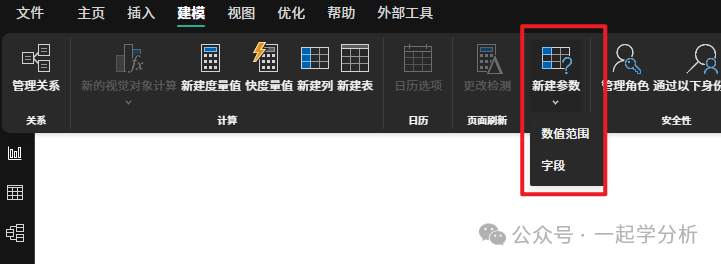
One is in the modeling feature of the report editing page. However, from the introduction, the parameters defined here can only be used in visual objects or DAX formulas, and do not affect the source M language (Power Query), making it unfeasible.
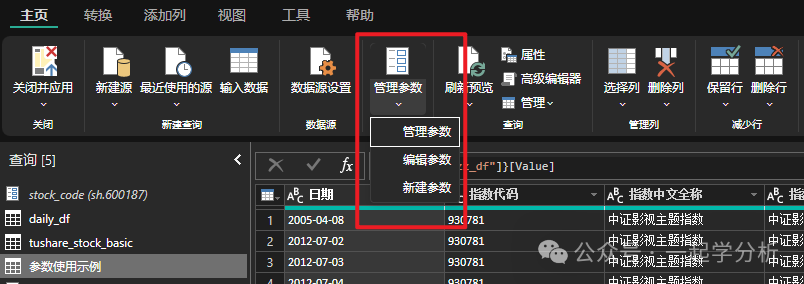
The second is in the data transformation feature (i.e., Power Query interface), where there is a parameter management feature that can be referenced by M language.
But the problem is, how can the parameters here be controlled from the outer report editing page?
The solution provided by Microsoft is to use dynamic M query parameters. In simple terms:
- In the options – preview features, enable the dynamic M query parameters feature to activate it;
- Then, in the report page, open the model view on the left, find or create a table with a list of stock codes;
- Next, find the field for stock codes, click it, and in the field properties, open advanced features;
- Find the bind to parameter option, and select the parameter name defined in Power Query to bind;
- Finally, you can add filters on the page and use this field as a filter object to pass to Power Query for data querying.
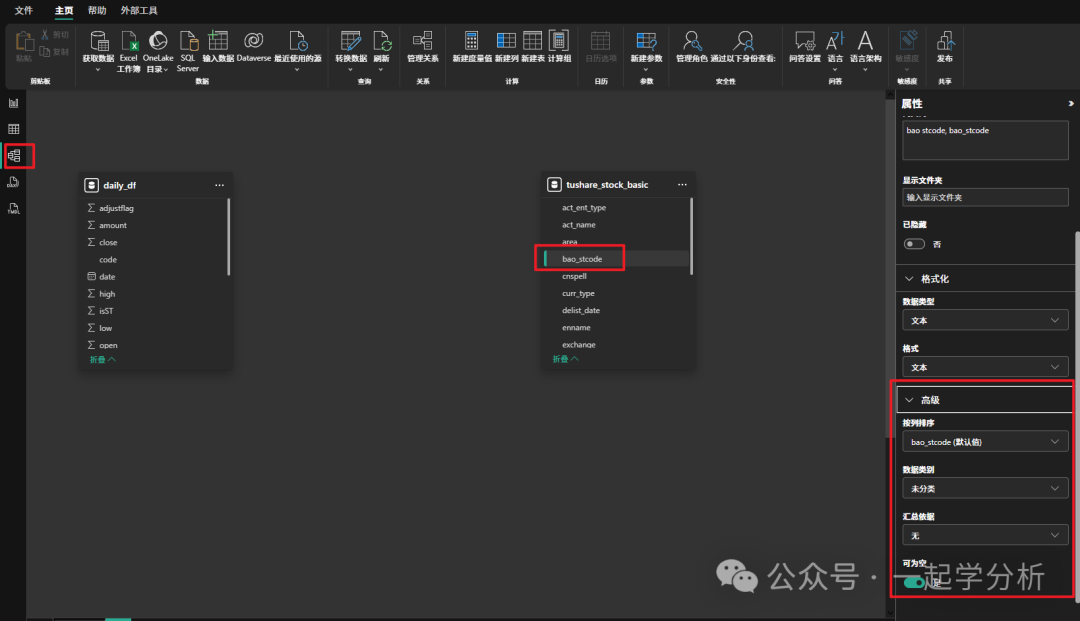
However, unfortunately, I can see that the “bind to parameter” feature is not available in my screenshot.
After continuous dialogue with AI and reviewing materials, I found that AI was misleading me.
It caused me two confusions:
-
Where can I find the option to enable the “dynamic M query parameters” feature? I searched through the options menu but couldn’t find it. Later, I realized that this feature might have been an early experimental feature, and after PowerBI was updated to the current version, it has become a formal feature that no longer needs to be enabled.
-
Why can’t I find the “bind to parameter” feature in the model view? In fact, this feature should only be effective when using Direct Query mode, which only supports a few data sources like SQL Server, and does not even support MySQL. Once again, I was misled by AI, which told me that I could achieve direct connection through MySQL data source and even insisted that I install the ODBC driver. It turned out that this was not the case.
The second reason also led to the direct collapse of my conceptual thinking. However, it is a significant progress that I have managed to reference parameters defined in Power Query within Python code, and I will wait to see if Microsoft improves related features in the future.
(3) How to Reference External Parameters in Python
1. Example of Python Code to Fetch the CSI Index
The following is the code to fetch daily candlestick data for the CSI index. You can find the desired index code on the official CSI index website and replace the code in symbol=”930781″ accordingly; start_date is the date when the index was listed, and you can set it to a longer date.
import akshare as ak
from datetime import datetime
now_date=datetime.now().strftime('%Y%m%d')
zz_df = ak.stock_zh_index_hist_csindex(symbol="930781", start_date="20050408",  end_date=now_date)
2. After Converting the Code to Power Query, the M Language Looks Like This
let
    源 = Python.Execute("import akshare as ak #(lf)from datetime import datetime #(lf)#(lf)now_date=datetime.now().strftime('%Y%m%d')#(lf)#(lf)zz_df = ak.stock_zh_index_hist_csindex(symbol=\"930781\", start_date=\"20050408\",  end_date=now_date)#(lf)"),
    zz_df1 = 源{[Name="zz_df"]}[Value]
in
    zz_df1
This allows for the correct retrieval of index data, and it can be seen that all the code is wrapped in the Python.Execute method for execution, which is not very aesthetically pleasing.
The drawback is that every time the index code is changed, it is very cumbersome, requiring many steps to modify it in the M language editor.
So, let’s see how to reference external parameters.
3. First, Parameters Need to Be Defined
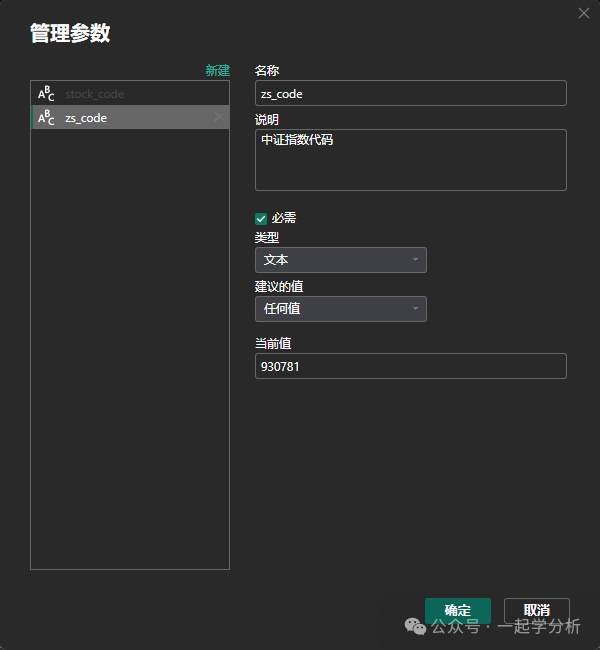
In the Power Query interface, use the manage parameters – new parameter feature to create a parameter named zs_code, define it as text, and set a default value.
4. Then Modify the M Code
In fact, you only need to split and assemble the Python code required by Python.Execute, referencing the parameter value correctly.
The basic structure is: the front part of the Python code + index code (achieved by referencing the parameter) + the back part of the parameter code. This is similar to writing text + referencing cells in Excel.
-
For convenience, we first define a parameter py_script in the M code, and then separate the front part of the previously generated index code with double quotes. The first line of the code should be noted that the double quote at the end should be changed to a single quote, so that the referenced zs_code is passed as text.
-
Next, use the & concatenation operator to connect zs_code, and the M code can directly recognize the defined parameter name.
-
Then concatenate the remaining Python code (the third line) with the concatenation operator. Note the single quote at the beginning, which is the closing of the previous single quote.
-
Finally, use Python.Execute(py_script), and it is complete.
let
    py_script = "import akshare as ak #(lf)from datetime import datetime #(lf)#(lf)now_date=datetime.now().strftime('%Y%m%d')#(lf)#(lf)zz_df = ak.stock_zh_index_hist_csindex(symbol='"  &        zs_code &        "', start_date=\"20050408\",  end_date=now_date)#(lf)",
    源 = Python.Execute(py_script),
    zz_df1 = 源{[Name="zz_df"]}[Value]
in
    zz_df1
Let’s look at the final effect. For example, when I change zs_code to the CSI 300 index, the data updates to that of the CSI 300.
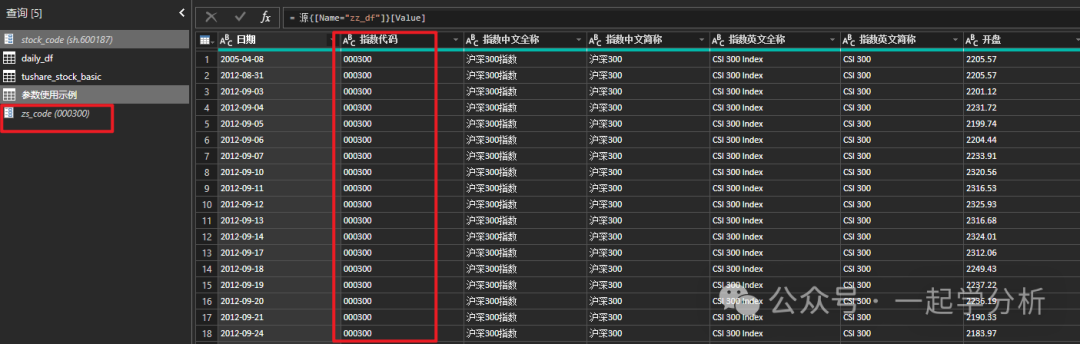
Thus, we have concluded how to reference parameters defined in Power Query within Python code.
We await further methods that can be used on the report page.
As for whether direct connection mode is really feasible, I have not been able to verify it due to the lack of a SQL Server database.