Follow and star to learn new Python skills every day
Due to changes in the public account’s push rules, please click “View” and add “Star” to get exciting technical shares at the first time
Source: Internet
The author often writes Python scripts for data processing, data transmission, and model training. As the volume and complexity of data increase, running scripts may take some time. While waiting for data processing to complete, one can also do some other work.
To achieve this, the author has written a set of Python scripts to solve this problem. These scripts send process updates, visualizations, and completion notifications to the phone. When you occasionally have these free moments, you can enjoy rather than worry about the model’s progress.

What is Needed
The first question is, what needs to be known? It depends on the work you are doing. For the author, there are mainly three processing tasks that may take time:
· Model training
· Data processing and/or transmission
· Financial modeling
We need to analyze each case specifically.
Model Training
Updates every n epochs must include key metrics. For example, the loss and accuracy of the training and validation sets. Then completion notifications should include:
· Visualization of key metrics during training (similarly, loss and accuracy of the training and validation sets)
· Other less important but still useful information, such as local model directory, training time, model architecture, etc.
· Prediction outputs, for text generation, the generated text (or a sample of it); for image generation, the output is a (hopefully) cool visualization
For example, to train a neural network to reproduce a given artistic style, we need to focus on the images generated by the model, the loss and accuracy graphs, the current training time, and the name of the model.
import notify
START= datetime.now()  # this line would be placed before model training begins
MODELNAME="SynthwaveGAN"  # giving us our model name
NOTIFY=100  # so we send an update notification every 100 epochs
# for each epoch e, we would include the following code
if e % notify_epoch == 0 and e != 0:
    # here we create the email body message
    txt = (f"{MODELNAME} update as of "
           f"{datetime.now().strftime('%H:%M:%S')}.")
    # we build the MIME message object with notify.message
    msg = notify.message(
        subject="Synthwave GAN",
        text=txt,
        img=[
            f"../visuals/{MODELNAME}/epoch_{e}_loss.png",
            f"../visuals/{MODELNAME}/epoch_{e}_iter_{i}.png"
        ]
    )  # note that we attach two images here, the loss plot and
    # ...a generated image output from our model
    notify.send(msg)  # we then send the message
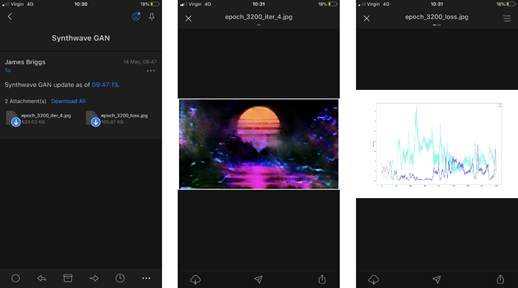
Every 100 epochs, an email containing all the above content will be sent. Here is one of the emails:
Data Processing and Transmission
This point is not very interesting, but in terms of time consumption, it ranks first.
For example, using Python to upload batch data to SQL Server (for those unfamiliar with BULK INSERT). At the end of the upload script, there will be a simple message notifying that the upload is complete.
import os
import notify
from data import Sql  # see https://jamescalam.github.io/pysqlplus/lib/data/sql.html
dt = Sql('database123', 'server001')  # setup the connection to SQL Server
for i, file in enumerate(os.listdir('../data/new')):
    dt.push_raw(f'../data/new/{file}')  # push a file to SQL Server
    # once the upload is complete, send a notification
    # first we create the message
    msg = notify.message(
        subject="SQL Data Upload",
        text=f"Data upload complete, {i} files uploaded.",
    )
    # send the message
    notify.send(msg)
If an error is occasionally thrown, a try-except statement can also be added to catch the error and include it in a list to be included in the update and/or completion email.
Financial Models
Everything running in financial modeling is actually very fast, so only one example can be provided here.
For example, a cash flow modeling tool. In reality, this process only takes 10-20 seconds, but now assume you are a hotshot quantitative analyst on Wall Street dealing with millions of loans. In this email, you might want to include a high-level summary analysis of the portfolio. You can randomly select some loans and visualize key values over a given time period—providing a small sample to cross-check the model’s performance.
end = datetime.datetime.now()  # get the ending datetime
# get the total runtime in hours:minutes:seconds
hours, rem = divmod((end - start).seconds, 3600)
mins, secs = divmod(rem, 60)
runtime = "{:02d}:{:02d}:{:02d}".format(hours, mins, secs)
# now build our message
notify.msg(
    subject="Cashflow Model Completion",
    text=(f"{len(model.output)} loans processed. "
          f"Total runtime: {runtime}"),
    img=[
        "../vis/loan01_amortisation.png",
        "../vis/loan07_amortisation.png",
        "../vis/loan01_profit_and_loss.png",
        "../vis/loan07_profit_and_loss.png"
    ]
)
notify.send(msg)  # and send it
Code
All the above functions are excerpted from a script named notify.py. In the example code, Outlook will be used. Two Python libraries are needed here, email and smtplib:
· email: Used to manage email messages. With this library, you can set up the email message itself, including the subject, body, and attachments.
· smtplib: Handles SMTP connections. The Simple Mail Transfer Protocol (SMTP) is the protocol used by most email systems to send mail over the internet.
MIME
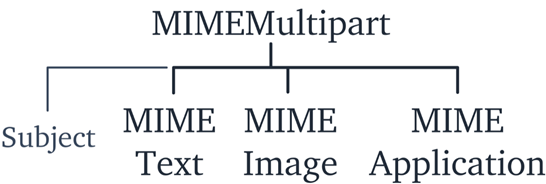
The message itself is constructed using the MIMEMultipart object from the email module. Three MIME subclasses are also needed and attached to the MIMEMultipart object:
· mimetext: This will contain the email “payload”, i.e., the text in the body of the email.
· mimeimage: This is used to include images in the email.
· mimeapplication: Used for MIME message application objects, i.e., file attachments.
In addition to these subclasses, there are other parameters, such as the Subject value in MimeMultipart. All of these together form the structure below.
What happens when you put them all together:
import os
from email.mime.text import MIMEText
from email.mime.image import MIMEImage
from email.mime.application import MIMEApplication
from email.mime.multipart import MIMEMultipart
def message(subject="Python Notification", text="", img=None, attachment=None):
    # build message contents
    msg = MIMEMultipart()
    msg["Subject"] = subject  # add in the subject
    msg.attach(MIMEText(text))  # add text contents
    # check if we have anything given in the img parameter
    if img is not None:
        # if we do, we want to iterate through the images, so let’s check that
        # what we have is actually a list
        if type(img) is not list:
            img = [img]  # if it isn’t a list, make it one
        # now iterate through our list
        for one_img in img:
            img_data = open(one_img, "rb").read()  # read the image binary data
            # attach the image data to MIMEMultipart using MIMEImage, we add
            # the given filename use os.basename
            msg.attach(MIMEImage(img_data, name=os.path.basename(one_img)))
    # we do the same for attachments as we did for images
    if attachment is not None:
        if type(attachment) is not list:
            attachment = [attachment]  # if it isn’t a list, make it one
        for one_attachment in attachment:
            with open(one_attachment, "rb") as f:
                # read in the attachment using MIMEApplication
                file = MIMEApplication(
                    f.read(),
                    name=os.path.basename(one_attachment)
                )
                # here we edit the attached file metadata
                file["Content-Disposition"] = f"attachment; filename="{os.path.basename(one_attachment)}"
                msg.attach(file)  # finally, add the attachment to our message object
    return msg
This script is quite simple. At the top, there are imports (this is the MIME part introduced earlier) and the Python os library.
Next, a function named message is defined. This allows the function to be called with different parameters and easily build an email message object. For example, an email with multiple images and attachments can be written like this:
email_msg = message(
    text="Model processing complete, please see attached data.",
    img=["accuracy.png", "loss.png"],
    attachments=["data_in.csv", "data_out.csv"]
)
First, initialize the MIMEMultipart object and assign it to msg; then, use the “subject” key to set the email subject. The attach method adds different MIME subclasses to the MIMEMultipart object. You can use the MIMEText subclass to add the email body.
For the image img and attachment, you can pass nothing, just a file path, or a set of file paths. We handle this by first checking if the parameter is None; if the parameter is None, we pass; otherwise, we check the given data type, if it is not a list, we create one, which allows us to iterate through the items with the following for loop.
Then, use the MIMEImage and MIMEApplication subclasses to attach images and files, respectively. Use os.basename to get the filename from the given file path, and the attachment name includes that filename.
SMTP
Now that the email message object has been built, the next step is to send it. This is where the smtplib module comes into play. The code is also very simple, with one exception.
Since different email providers and their respective servers require different SMTP addresses, search for “outlook smtp” in Google. You can get the server address smtp-mail.outlook.com and port number 587 without clicking on the page.
When initializing the SMTP object with smtplib.SMTP, both methods need to be used. SMTP – close to the beginning of the send function:
import smtplib
import socket
def send(server="smtp-mail.outlook.com", port=587, msg):
    # contain following in try-except in case of momentary network errors
    try:
        # initialise connection to email server, the default is Outlook
        smtp = smtplib.SMTP(server, port)
        # this is the Extended Hello command, essentially greeting our SMTP or ESMTP server
        smtp.ehlo()
        # this is the Start Transport Layer Security command, tells the server we will
        # be communicating with TLS encryption
        smtp.starttls()
        # read email and password from file
        with open('../data/email.txt', 'r') as fp:
            email = fp.read()
        with open('../data/password.txt', 'r') as fp:
            pwd = fp.read()
        # login to outlook server
        smtp.login(email, pwd)
        # send notification to self
        smtp.sendmail(email, email, msg.as_string())
        # disconnect from the server
        smtp.quit()
    except socket.gaierror:
        print("Network connection error, email not sent.")
smtp.ehlo() and smtp.starttls() are both SMTP commands. ehlo (Extended Hello) essentially greets the server. starttls notifies the server that we will be communicating with a TLS encrypted connection.
After this, simply read the email and password from the file, stored in email and pwd, respectively. Then, use smtp.login to log in to the SMTP server. Log in and use smtp.sendmail to send the email.
The author always sends notifications to themselves, but in the case of automated reports, you may want to send the email elsewhere. For this, I would change the destination_address: smtp.sendmail(email, destination_address, msg.as_string()).
Finally, terminate the session and close the connection with smtp.quit.
Put all of this in a try-except statement. In the case of a momentary network connection loss, it will not be possible to connect to the server, resulting in socket.gaierror. Using a try-except statement can prevent the program from crashing in the event of a network connection failure.
The author uses it for ML model training updates and data transmission completion. If the email is not sent, that’s okay. This simple, passive handling of connection loss is appropriate.
Putting It All Together
Now that we have written both parts of the code, we can send emails:
# build a message object
msg = message(text="See attached!", img="important.png",
             attachment="data.csv")
send(msg)  # send the email (defaults to Outlook)
This is the entire process of email notifications and/or automation using Python. Thanks to the email and smtplib libraries, the setup process becomes very easy.

One more thing to note is the server addresses and TLS ports of public email providers.
For any time-consuming processing or training tasks, progress updates and completion notifications are often the real liberation. Python makes work better!

Long press or scan the QR code below to get free Python public courses and hundreds of gigabytes of learning materials organized by experts, including but not limited to Python e-books, tutorials, project orders, source code, etc.

▲ Scan the QR code - Get it for free
Recommended Reading
Write more elegant code: Understand the core differences between Python protocols and abstract base classes
Understand whether iterable objects in Python are equal, just a few tips
You read that right! ChatGPT Sandbox is still using a 3-year-old version of Python?
DBOS: Make Python workflows persistent, easily cope with interruptions and retries
Click Read the original text to learn more