How to Read Files
First, we create a file that contains our daily to-do list:
example.txt
Daily To-Do List
============

【Today's Tasks】
1. Submit last week's work summary by 8:30 AM
2. Attend the departmental meeting at 10:00 AM, take notes on key points
3. Meet with the client to revise requirements at 2:00 PM, prepare a revision plan
4. Organize desktop files and back up important materials before leaving work

【Notes】
- Arrive at the meeting room 5 minutes early
- Sync any changes in client requirements with the design team
- Remember to water the plants tonight

【Reminder】
Bring an umbrella tomorrow; the weather forecast says there will be light rain.
Now, let’s establish a program:
schedule.py
with open ('example.txt', encoding="utf-8") as file_object:
    contents = file_object.read()
    print(contents)
It is important to note that, as per the example above, the file example.txt needs to be placed in the Python working directory. Python will only look for files in the main working directory and will not search in its subfolders. To open a file that is not in the same directory as the program file, you need to provide the file path. For example, if we place the file example.txt on the desktop:
schedule.py
file_path = "C:/Users/96579/Desktop/example.txt"

with open (file_path, encoding="utf-8") as file_object:
    contents = file_object.read()
    print(contents)
We can check the current working directory of Python runtime with another program:
import os

# Print the current working directory of Python runtime
print("Current Directory:", os.getcwd())
<span>import os</span>This line of code imports the os module from the Python standard library. The os module provides functionalities to interact with the operating system, such as file and directory operations, environment variable management, etc.
<span>print("Current Directory:", os.getcwd())</span>This line of code prints the current working directory of the Python runtime. os.getcwd() is a function in the os module that retrieves the path of the current working directory.
It is important to note that directly copying the path into the program may cause the program to fail:
File "E:\Untitled-1", line 1
    file_path = "C:\Users\96579\Desktop\example.txt"
                ^^^^^^^^^^^^^^^^^^^^^^^^^^^^^^^^^^^^
SyntaxError: (unicode error) 'unicodeescape' codec can't decode bytes in position 2-3: truncated \UXXXXXXXX escape
This error is caused by the special meaning of the backslash in Python strings. In Python strings, \ is used as an escape character, while the Windows path also uses \ as a separator, leading to a conflict.
Backslash
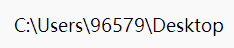
The first solution is to replace the backslash with a forward slash as shown in the example above.
The second solution is to use double backslashes instead of a single backslash:
file_path = "C:\Users\96579\Desktop\example.txt"

with open (file_path, encoding="utf-8") as file_object:
    contents = file_object.read()
    print(contents)
The third solution is to add an ‘r’ before the string to make it a raw string:
file_path = r"C:\Users\96579\Desktop\example.txt"

with open (file_path, encoding="utf-8") as file_object:
    contents = file_object.read()
    print(contents)
<span>encoding="utf-8"</span>This parameter specifies the encoding of the file. UTF-8 is a widely used character encoding that can support almost all characters, including non-Latin characters such as Chinese and Japanese. By specifying encoding=”utf-8″, we can ensure that the characters in the file are read correctly.
By default, Python will use gbk encoding to read files on Windows systems, but if your file is actually saved in a different encoding (like utf-8), you will encounter this error:
Traceback (most recent call last):
  File "c:\Users\96579\Desktop\VSCode project\333\schedule.py", line 4, in <module>
    contents = file_object.read()
UnicodeDecodeError: 'gbk' codec can't decode byte 0x80 in position 52: illegal multibyte sequence
That concludes today’s content. I hope it helps you!
Feel free to like, view, follow, and share.