Essential for Home Servers! One-Click Deployment of Astro Service Panel
Have you ever encountered the hassle of managing too many self-built services at home, forgetting port numbers, and dealing with chaotic management? Today, I bring you a super practical home network service panel, Astro, which allows for one-click deployment and easy management of all services!
Project Overview
Astro is an open-source home network service dashboard (project address: https://github.com/igorsheg/astro), supporting unified management of NAS, media servers, smart home devices, and various self-built services. It can monitor service operation status in real-time and comes with response time statistics, making it a “smart butler” for home servers.
Project Advantages
1.Real-time Monitoring: Built-in service health checks with a traffic light status display.2.Dark Theme: Natively supports Dark/Light dual modes, eye-friendly and stylish.3.Visual Operation: Drag-and-drop interface management, easy for beginners to use.4.Icon Library Support: Comes with a vast collection of Material Design icons for more intuitive categorization.5.Docker Deployment: Quick setup in ten minutes, supports mainstream NAS systems like Synology.
Deployment Process (Dockge Solution)
Step 1: Create docker-compose.yml
- 1
- 2
- 3
- 4
- 5
- 6
- 7
- 8
- 9
- 10
version: "3.8"
services:
  astro:
    image: igorsheg/astro:latest
    container_name: astro
    volumes:
      - /path/to/docker/astro:/data
    ports:
      - 3130:3000
    restart: unless-stopped
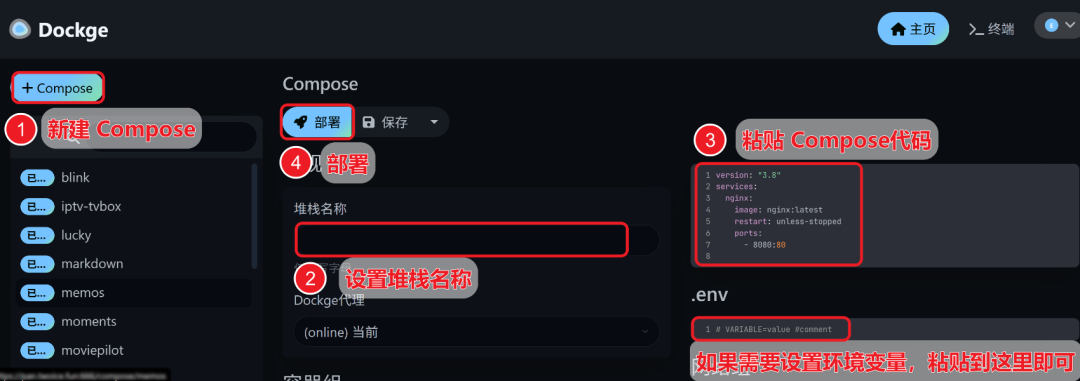
Step 2: Dockge Deployment Open the Dockge panel -> Create Stack -> Set Stack name -> Paste compose code -> Successfully start in 30 seconds!
Usage Demonstration
Access http://yourIP:3130 to enter the main interface:
1. Service Management
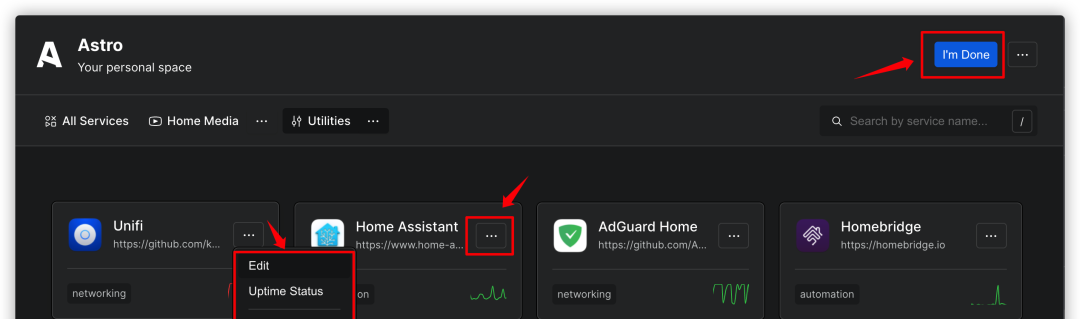
Click the Manage button in the upper right corner to enter edit mode:
• Click the … next to the service for editing/deleting.• Real-time status monitoring supports viewing the 72-hour response curve.
2. Category Creation
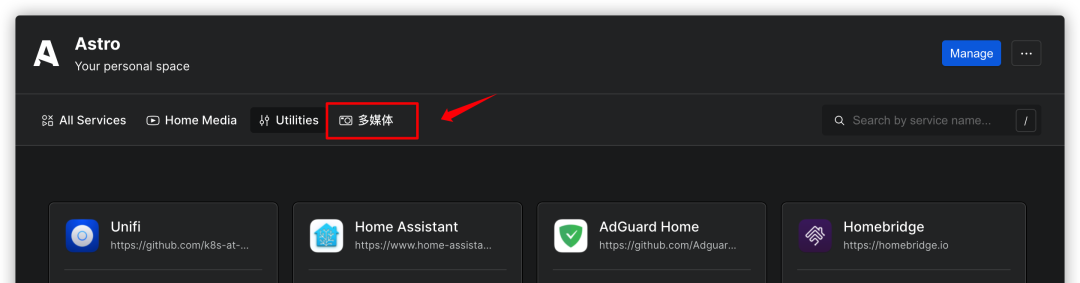
Create categories for media libraries/smart home, etc., using New Category:
• Supports icon search (e.g., entering “movie” displays the film icon).• It is recommended to categorize by service type, with no more than 6 categories.
3. Theme Switching
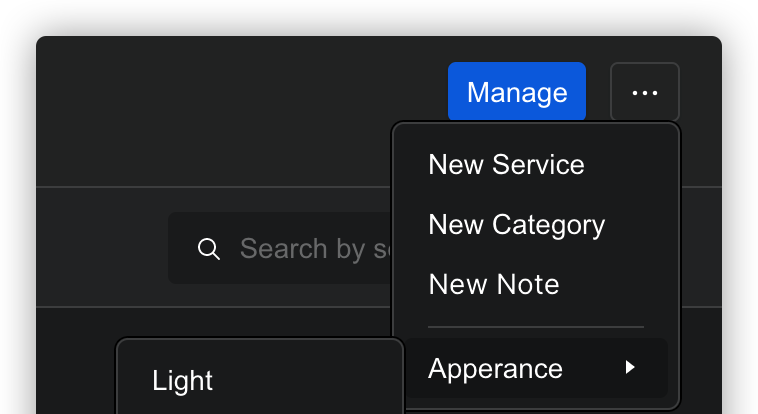
Click the gear icon in the lower right corner:
• Dark mode is more suitable for nighttime operations.• It is recommended to enable “Follow System” for automatic switching.
Summary and Recommendations
Based on practical tests, Astro performs excellently in the following scenarios: ✅ Managing 10+ self-built services on a home server ✅ Need for unified monitoring of service health status ✅ Frequently switching between internal and external network access environments.
Note: ⚠️ High memory usage (recommended to run on devices with 2GB or more) ⚠️ Some features are still under development (e.g., notes module).
Recommendation Rating: ⭐⭐⭐☆ (Three and a half stars) Suitable for users needing basic service management to try out; heavy users are advised to use it in conjunction with Nginx Proxy Manager.
If you find this tutorial useful, feel free to discuss in the comments, like, and support!
Finally, here’s my super awesome supreme Docker repository, where I have organized all the Docker images I have used, and it is continuously updated. I hope those with GitHub accounts can give it a star. If you don’t know what to play with, you can find it all categorized here. Repository link: https://github.com/TWO-ICE/Awesome-NAS-Docker