In the fields of AI painting and natural language processing, LoRA models have become favorites among many developers and enthusiasts due to their efficient fine-tuning and resource-saving advantages. However, when it comes to model training, many people feel that the threshold is high and the operation is complex. Today, I would like to recommend a powerful tool—liblib. Using it to train LoRA models is straightforward, and beginners can quickly get started. Let’s take a look!Steps to Train LoRA Models with liblib1. Register and Log in to Your liblib Account
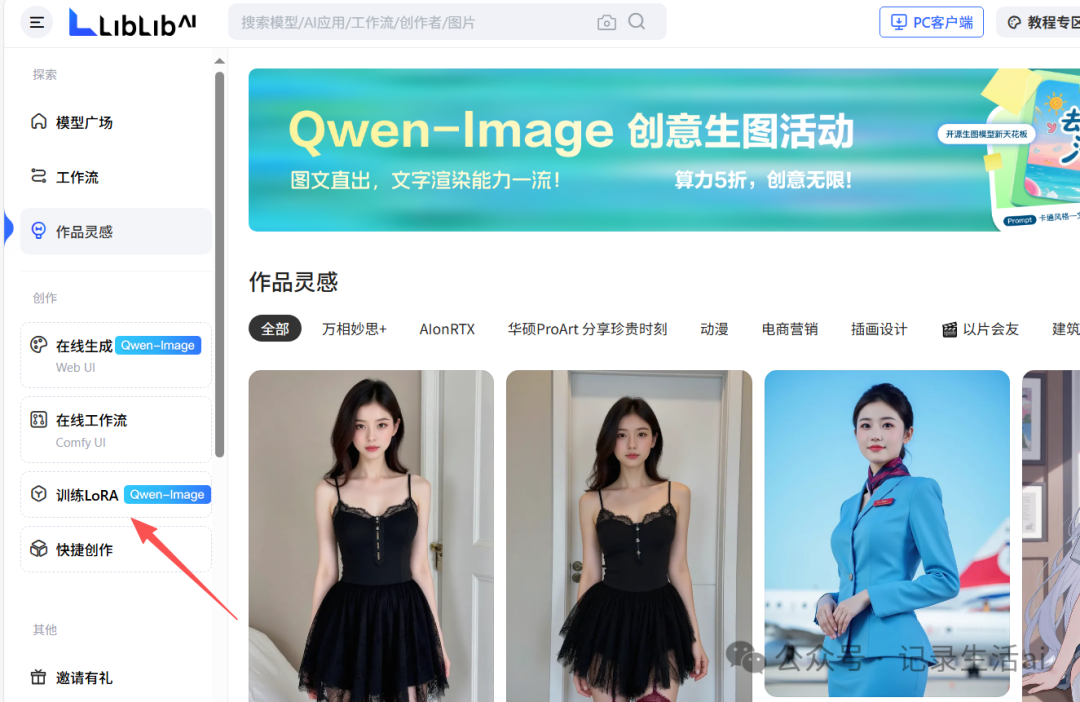
Open the liblib official website, follow the prompts to complete the registration and log in. After logging in, you can see various functional modules of the platform. Find the “LoRA Training” entry to access the training page.
 2. Prepare Training Data
Data is the foundation of model training. You need to prepare training data according to your needs. If you are training a LoRA model for AI painting, prepare a batch of images with a consistent style; if you are training a language model, prepare relevant text data. After organizing the data, upload it to the liblib platform. The platform supports various data formats, and the upload process is simple—just drag and drop the corresponding files into the designated area.
 3. Select a Base Model
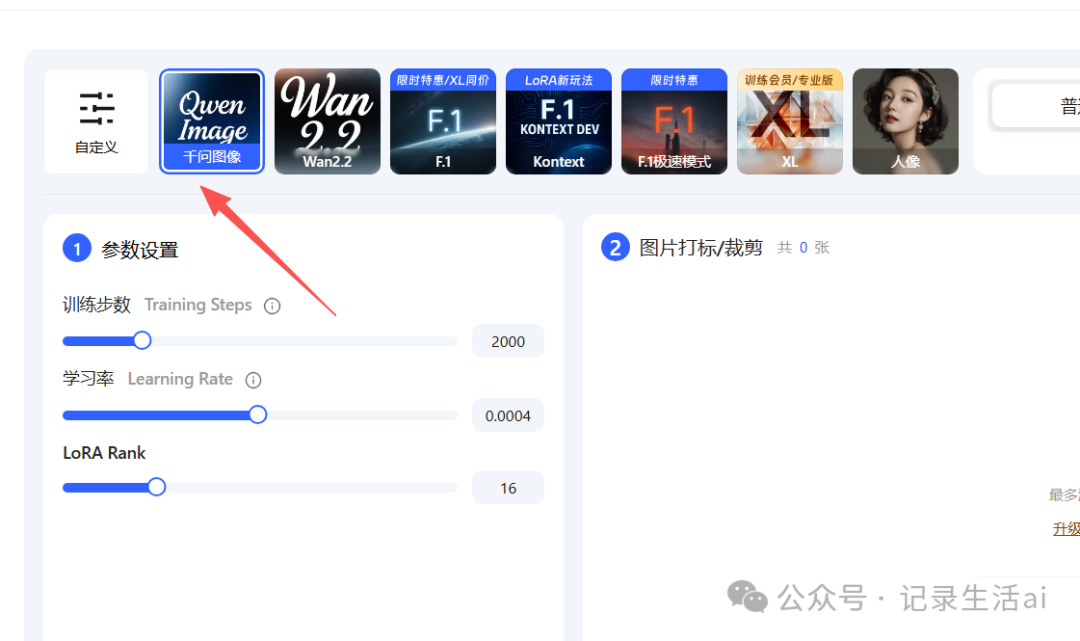
In the training settings, you need to select a pre-trained base model. The liblib platform offers a variety of popular base models to choose from, such as the Stable Diffusion series. Select an appropriate base model based on your training task and data type.
 4. Set Training Parameters
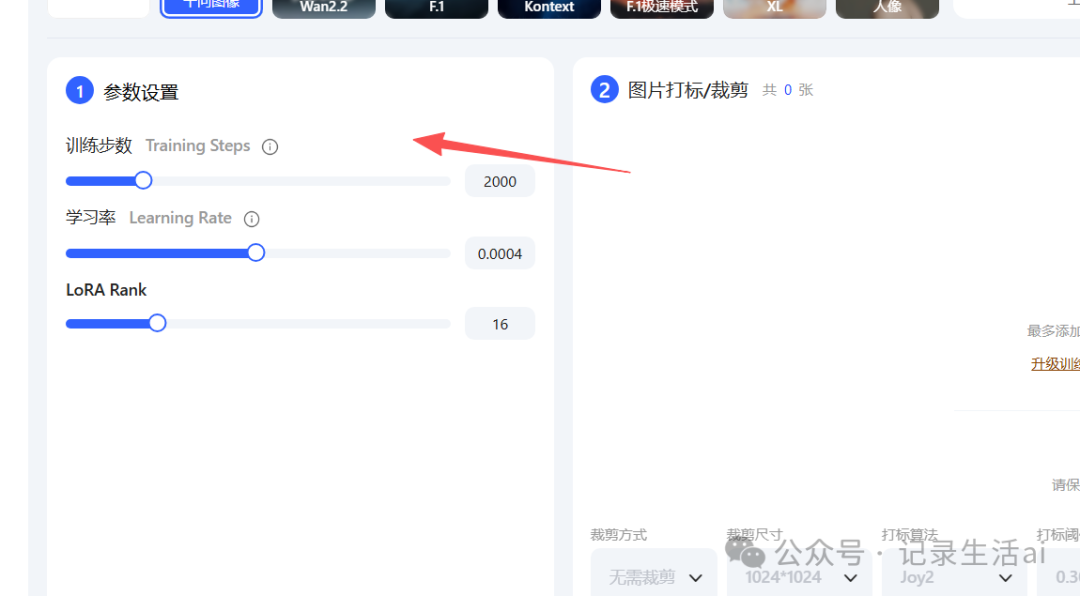
This step is crucial for training, but don’t worry; the platform provides some default parameters that beginners can use to start. If you have some experience, you can adjust the parameters according to your needs, such as the number of training epochs and learning rate. More training epochs may lead to better model fitting, but it can also result in overfitting; the learning rate affects the speed and effectiveness of model training and needs to be set appropriately.
 5. Start Training
Once the parameters are set, click the “Start Training” button, and the platform will automatically begin model training. During the training process, you can see the training progress and related metrics on the page, such as loss values. The lower the loss value, the better the training effect of the model.
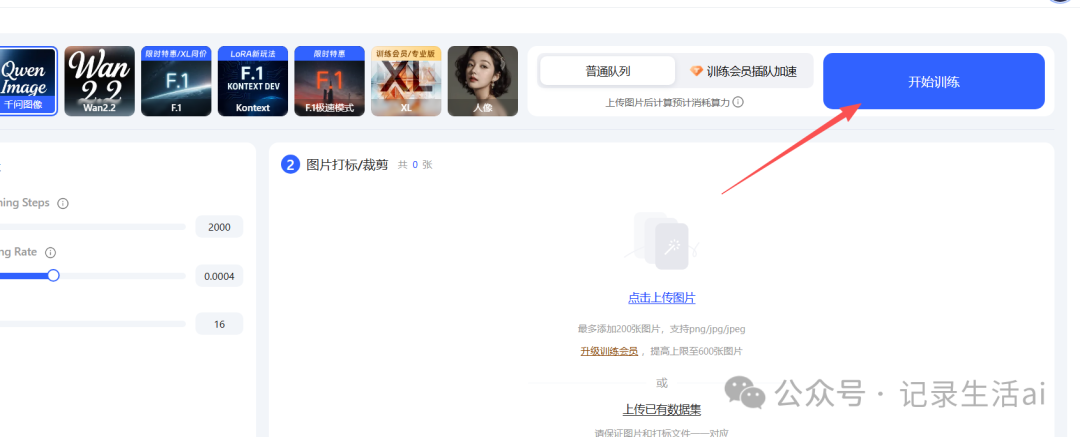 Finally, we need to patiently wait for the progress bar to finish loading.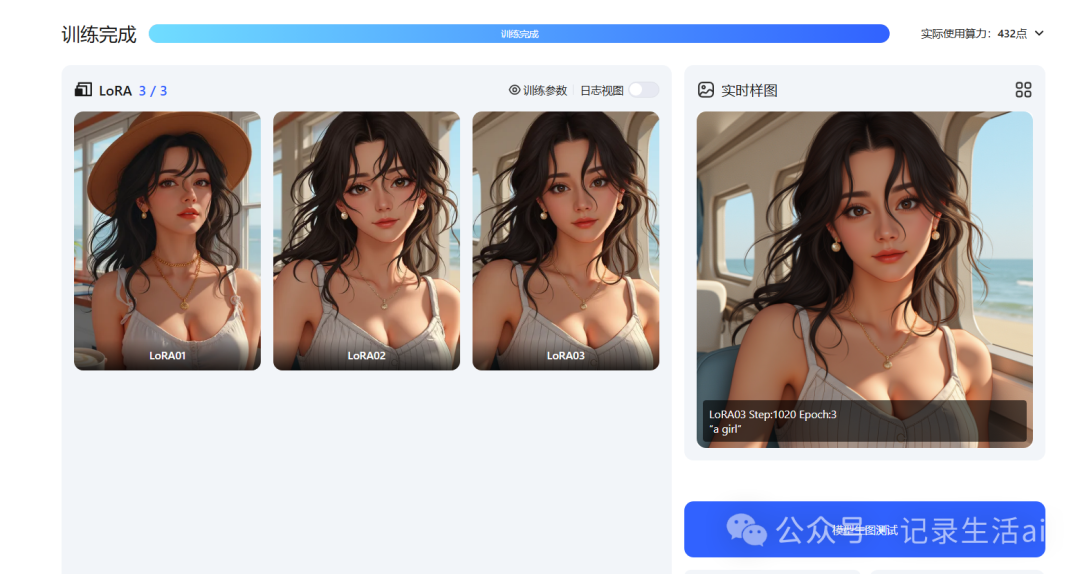
After training is complete, you can download the trained LoRA model from the platform. Import the model into the corresponding application tools, such as Stable Diffusion painting software, to experience the effects of the model you trained!
Finally:
If you need a preview prompt for the model effect in the lower left corner, make sure to change it; otherwise, it may not relate well to the content you uploaded!!!!!!!