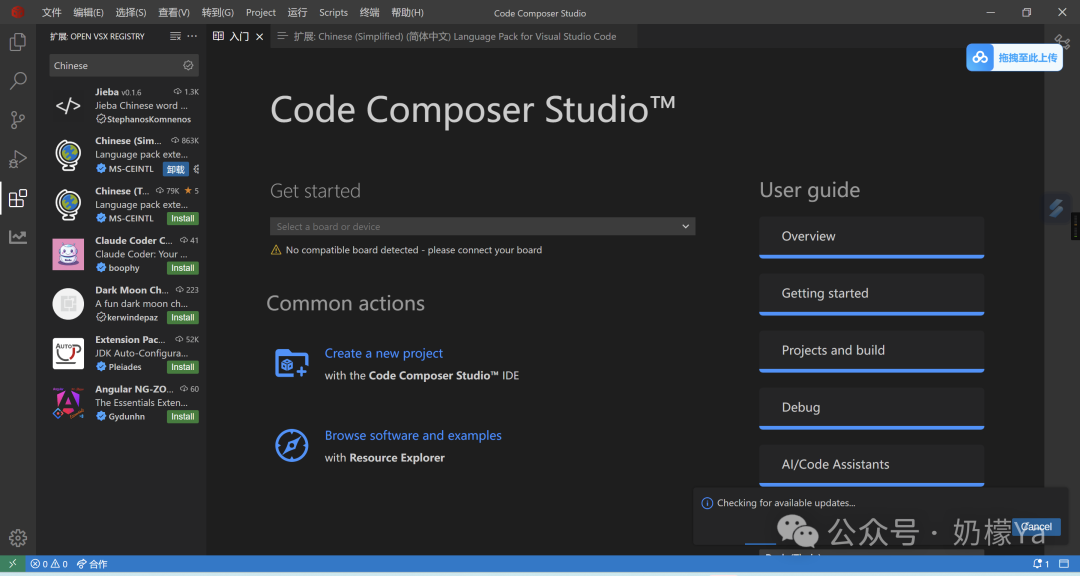
Software Introduction:
Code Composer Studio is an integrated development environment (IDE) for TI microcontrollers and processors. It includes a comprehensive set of tools for building, debugging, analyzing, and optimizing embedded applications. Code Composer Studio is available on Windows®, Linux®, and macOS® platforms.
Code Composer Studio provides an intuitive user interface that guides users through every step of application development. It includes an optimized C/C++ compiler, source code editor, project build environment, debugger, analysis tools, and various other features. Familiar tools and interfaces allow you to easily and simply start development.
Code Composer Studio combines the advantages of the Eclipse® Theia framework with TI’s advanced features, providing a rich and excellent development environment. The cloud-based Code Composer Studio allows development in the cloud without the need to download and install large amounts of software. Visit the TI Developer Zone (https://dev.ti.com/) to start using it in the cloud.
For VS Code® users, the interface of Code Composer Studio will feel very familiar. The Eclipse® Theia framework utilizes some of the same components as VS Code. However, if you prefer to use VS Code natively, you can obtain the TI VS Code extension package that supports the selected devices from the marketplace.

Download Link: (You can also message “CCS” in the background)
https://www.ti.com.cn/tool/cn/CCSTUDIO
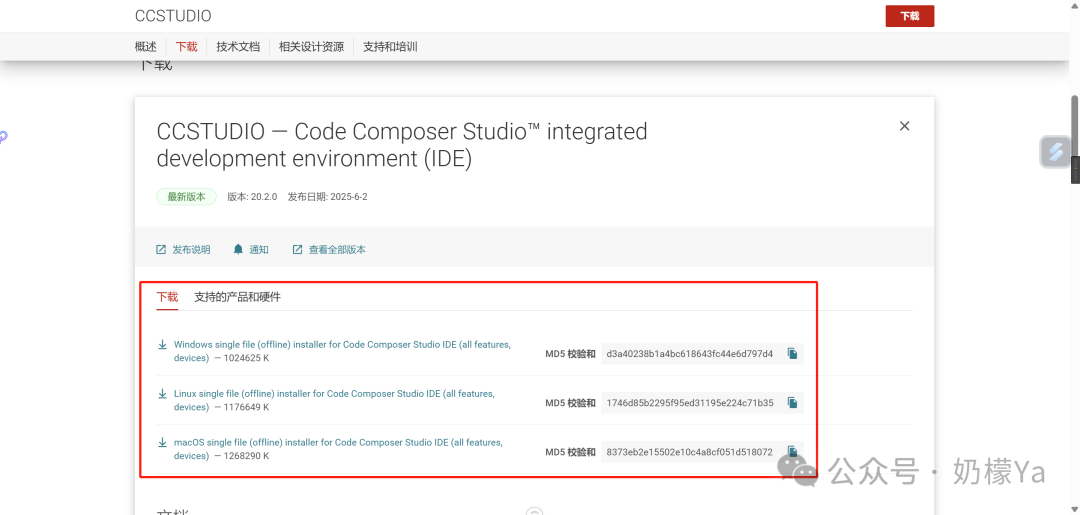
Installation Guide:
1. Double-click to run the installer (the one with the setup label)
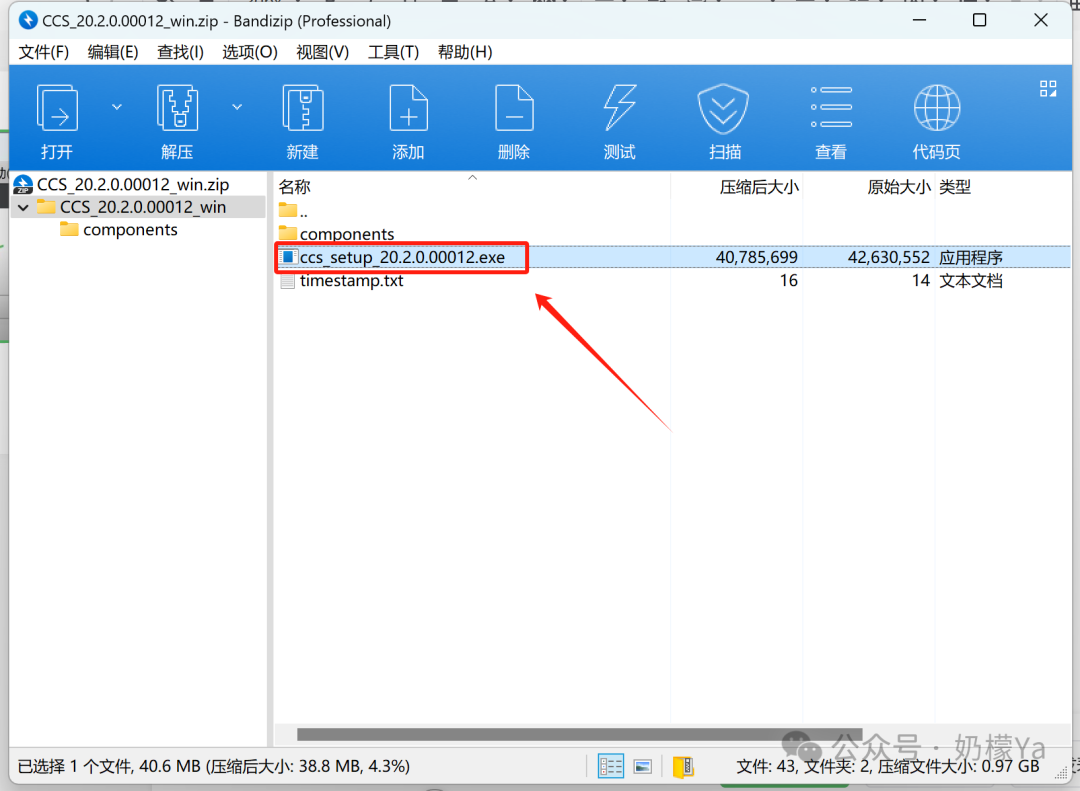
2. Click on Manage Settings under Virus and Threat Protection Settings
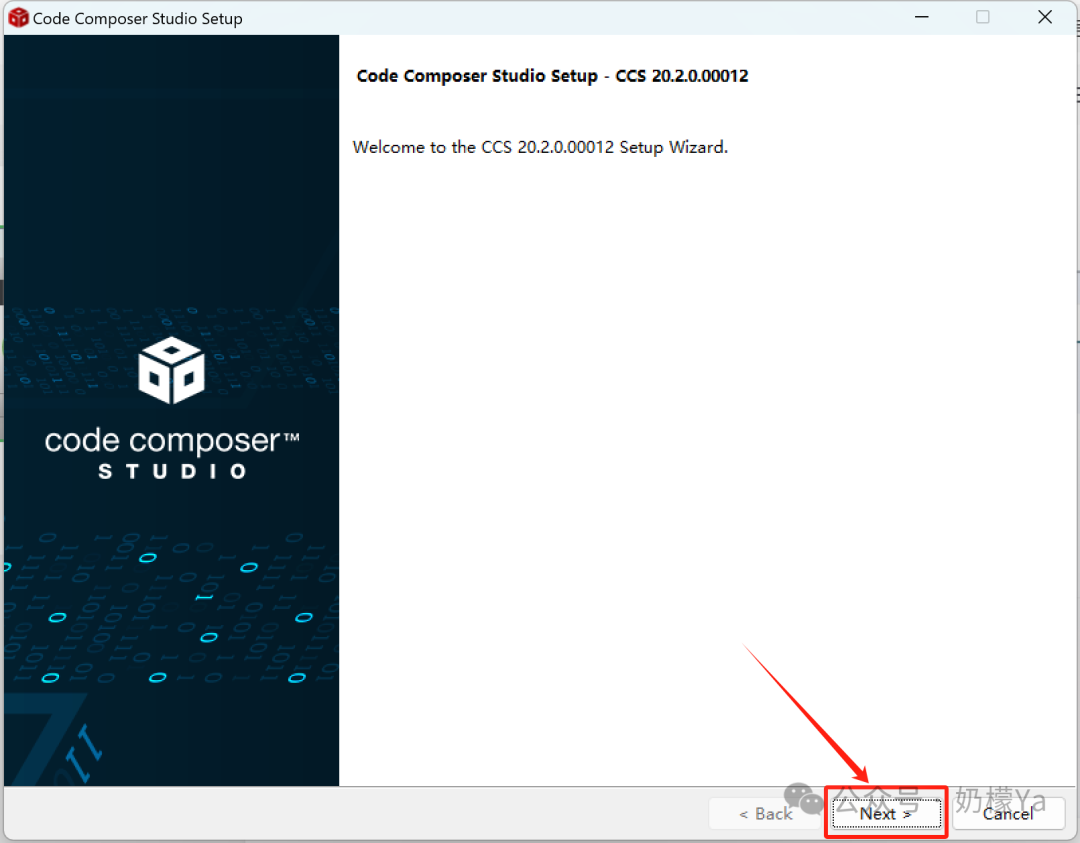
3. Check the first option and click “Next”
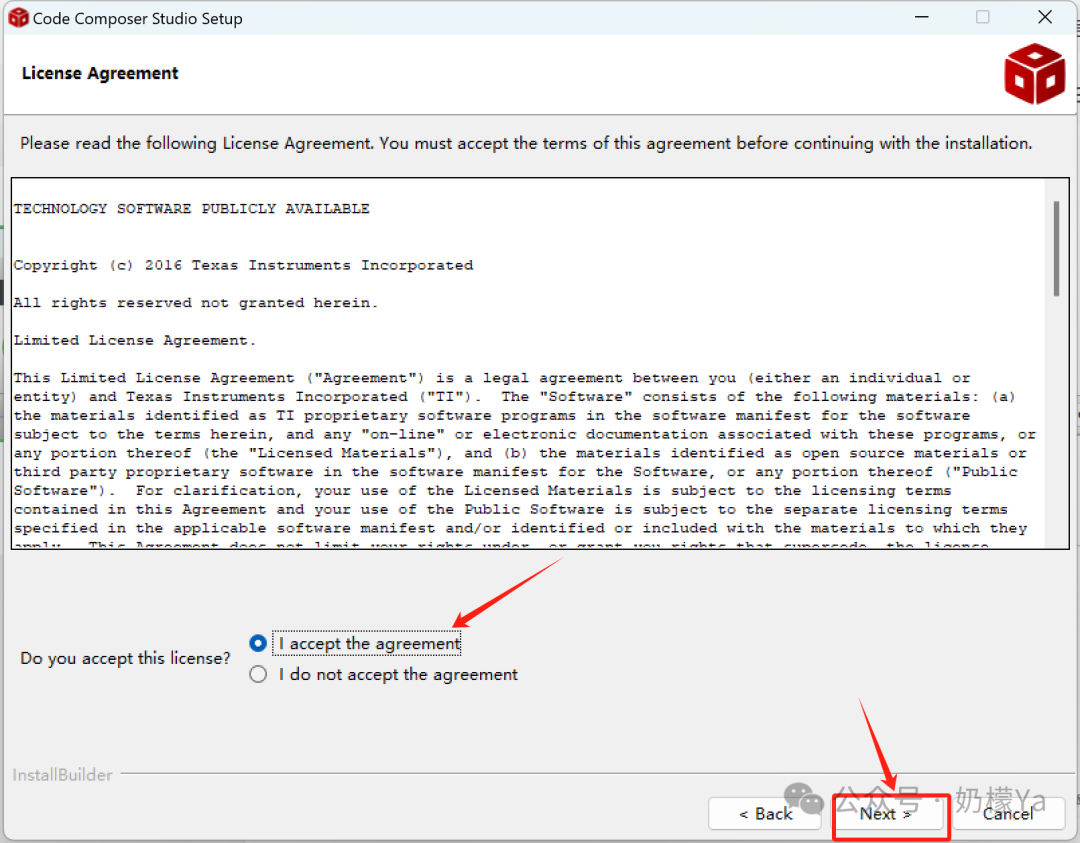
4. You can only click “Next”
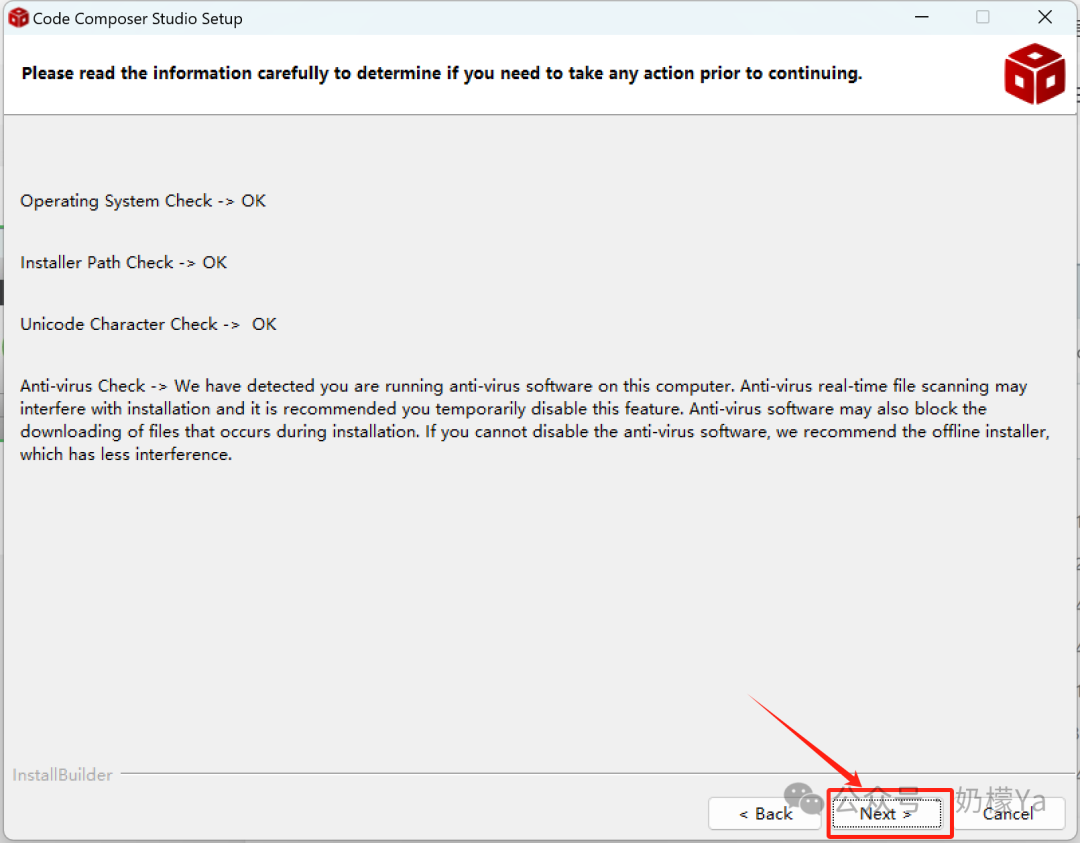
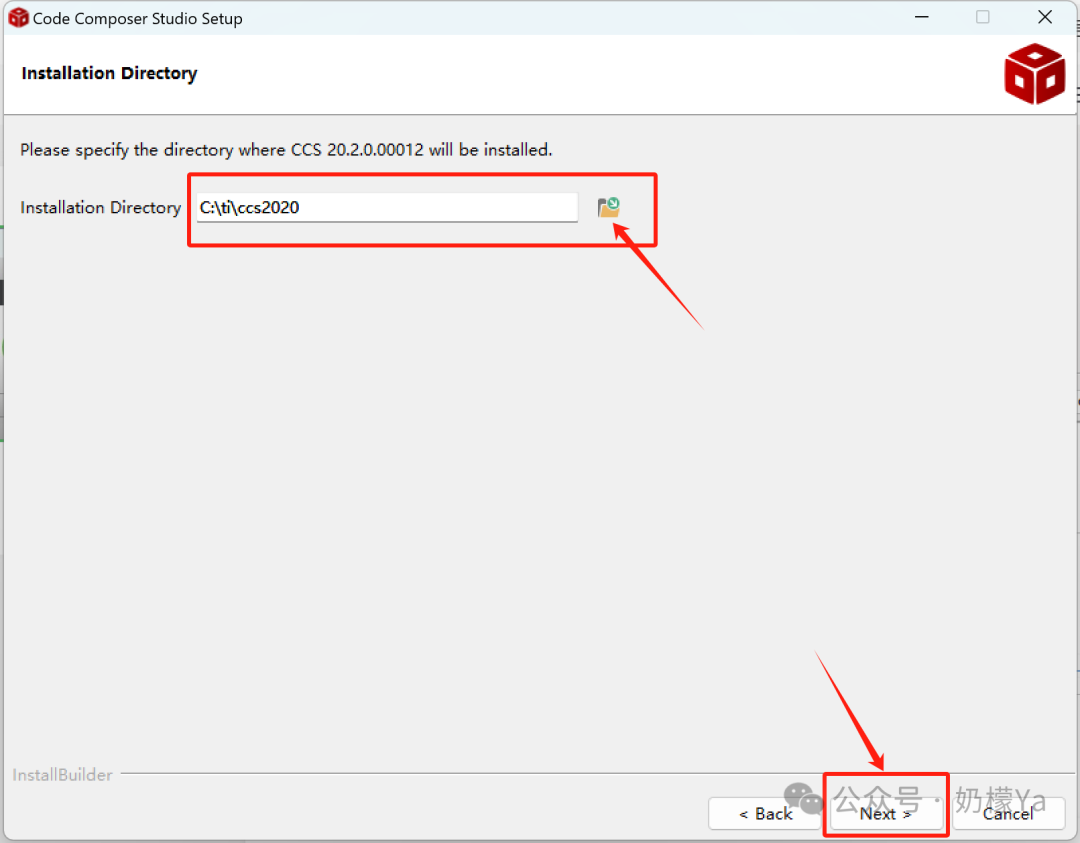
5. You can modify the installation path of the software and then click “Next”
6. Click “Next”
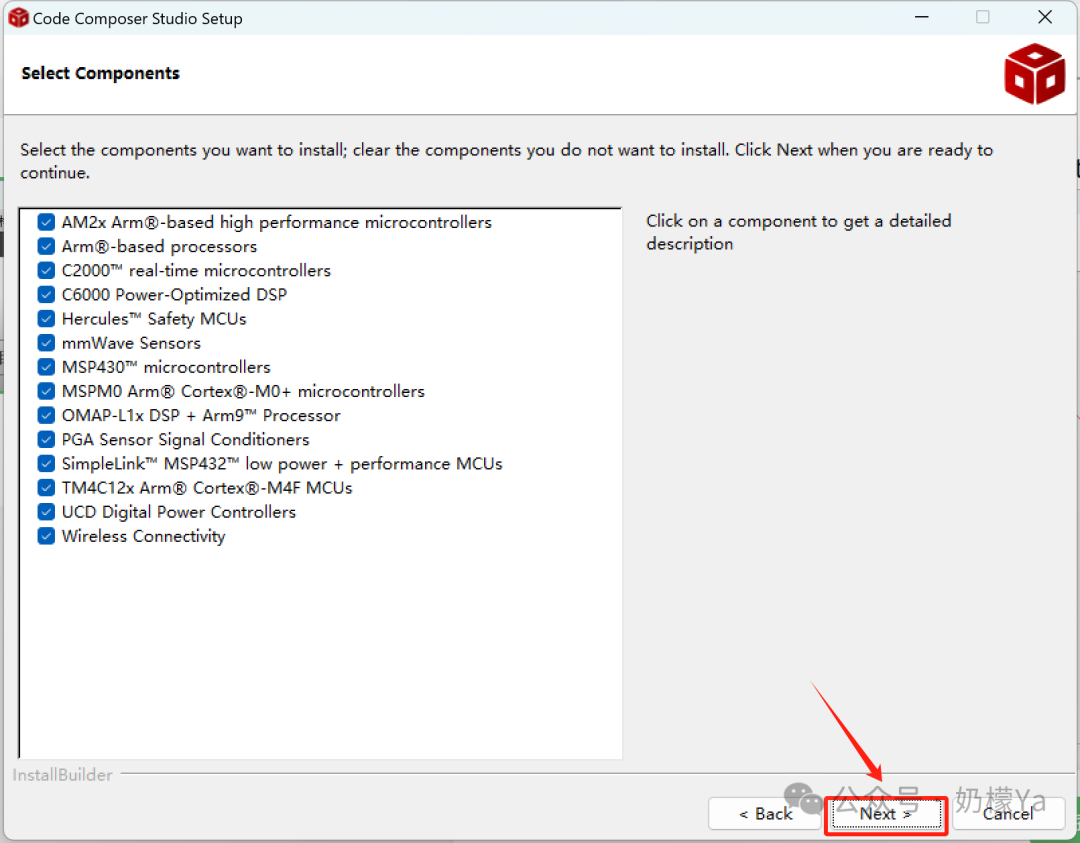
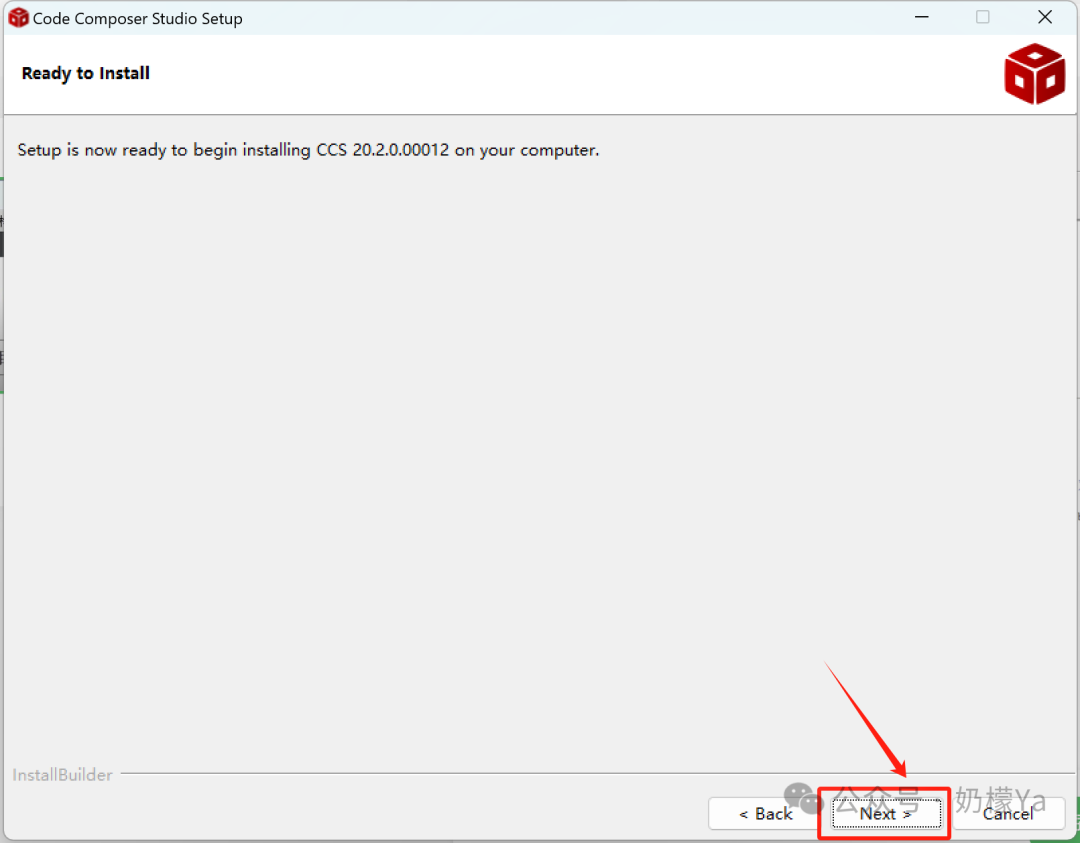
7. Click “Next” and wait for the installation to complete
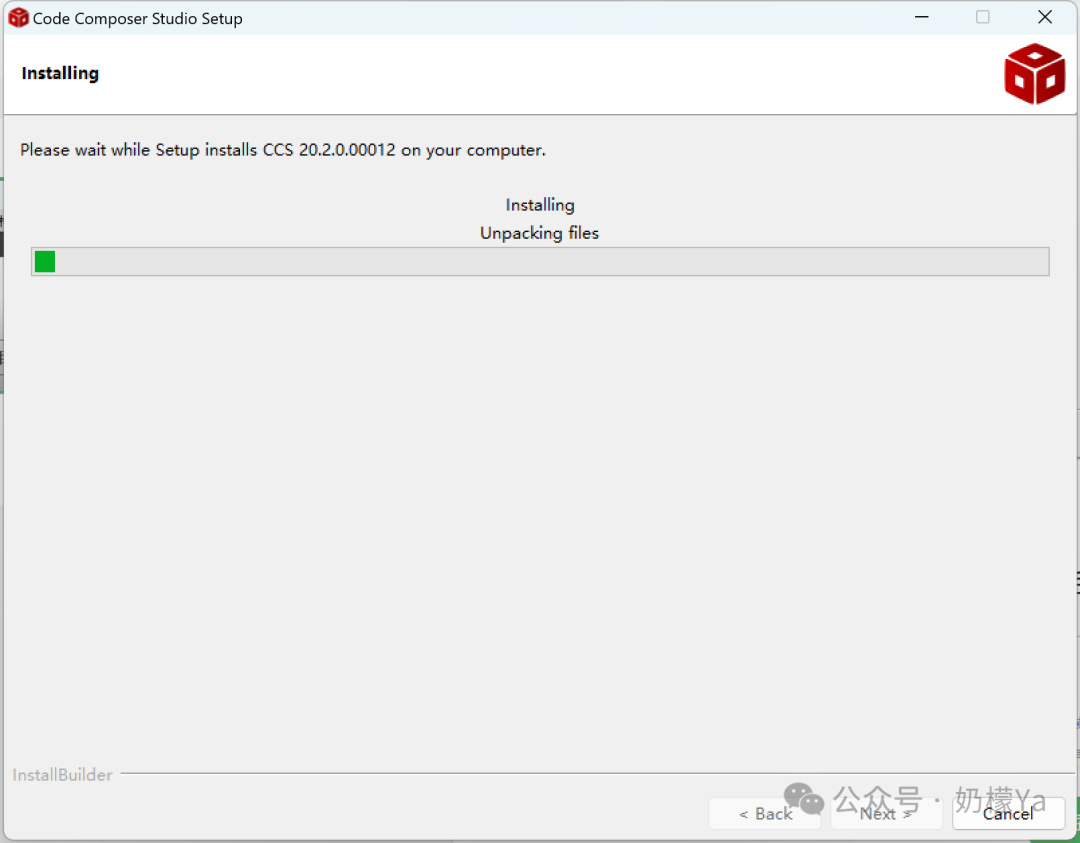
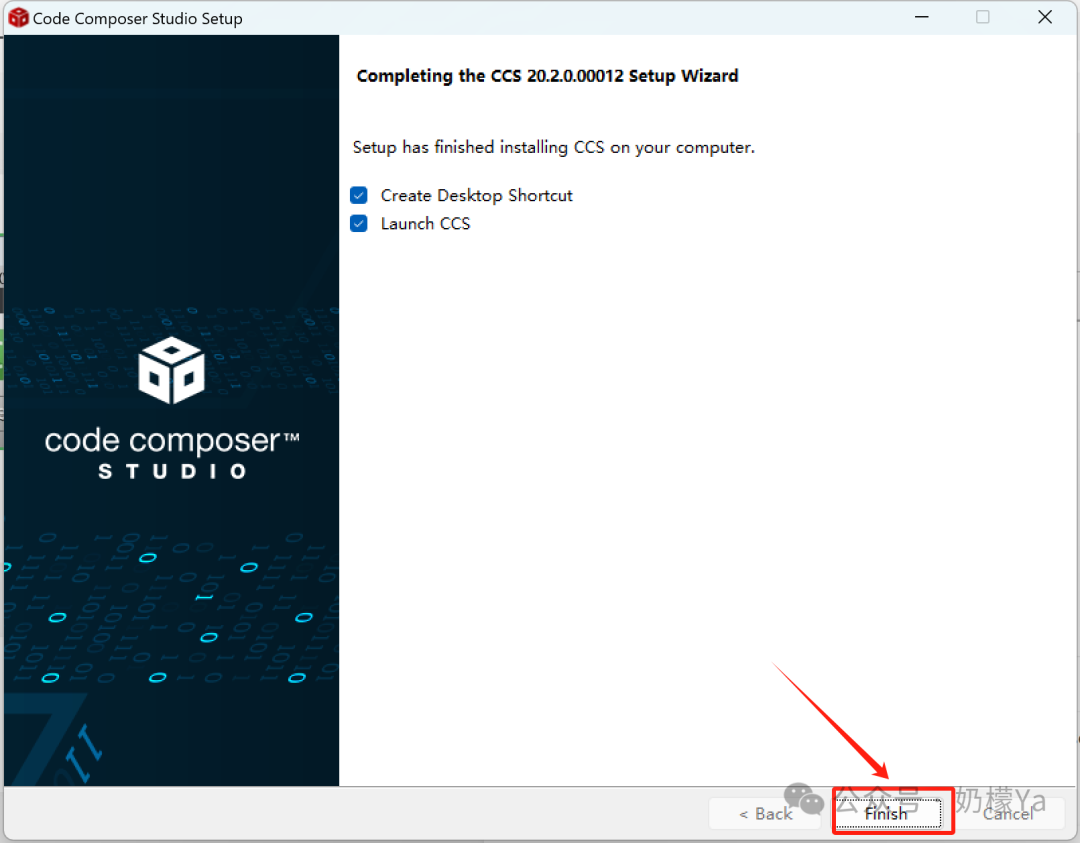
8. Click “Finish”
9. Enter CCS
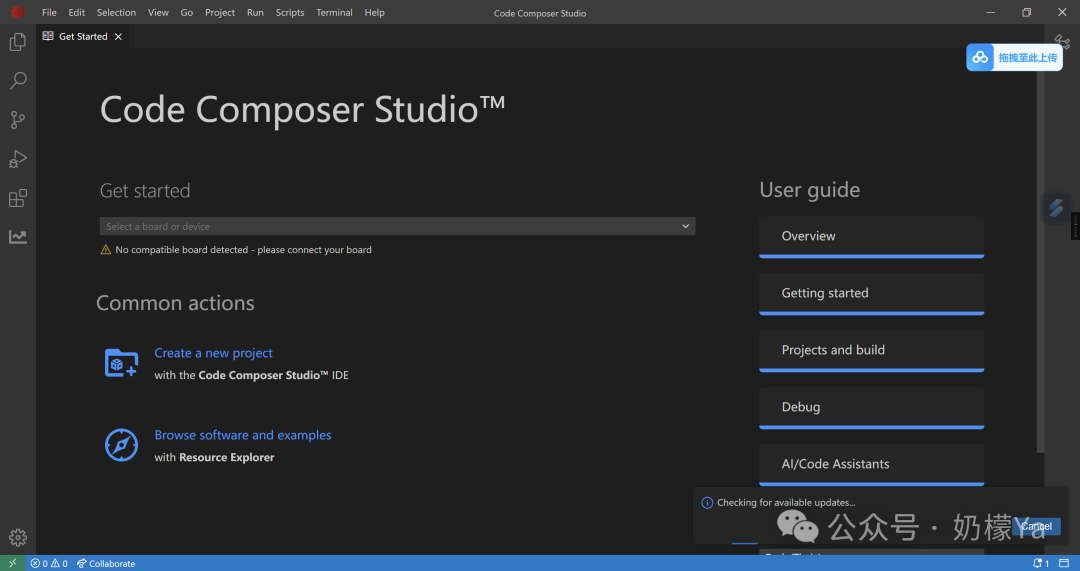
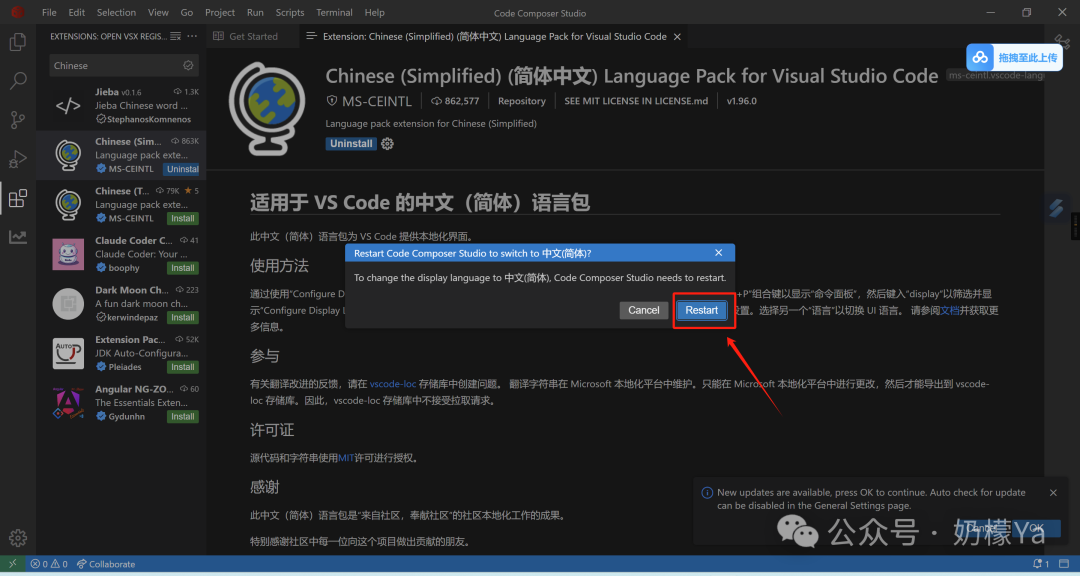
10. Click on the “Extension Plugins” icon, search for “Chinese”, and install the plugin with the “Simple” globe icon
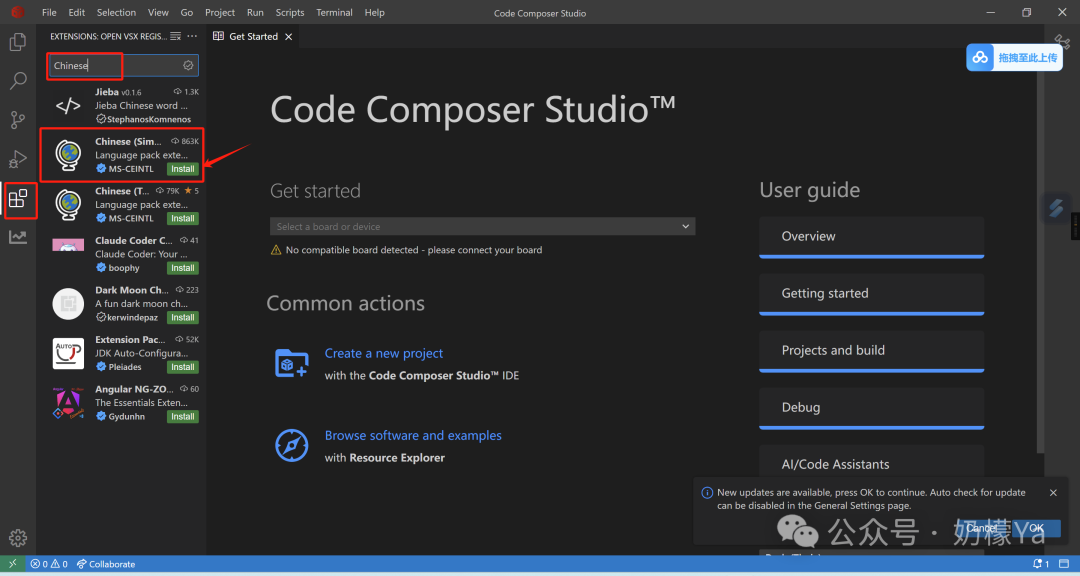
11. After installation is complete, close the window, re-enter the software, and follow this operation: hold down Ctrl+Shift+P, type “display”, and click or press “Enter”
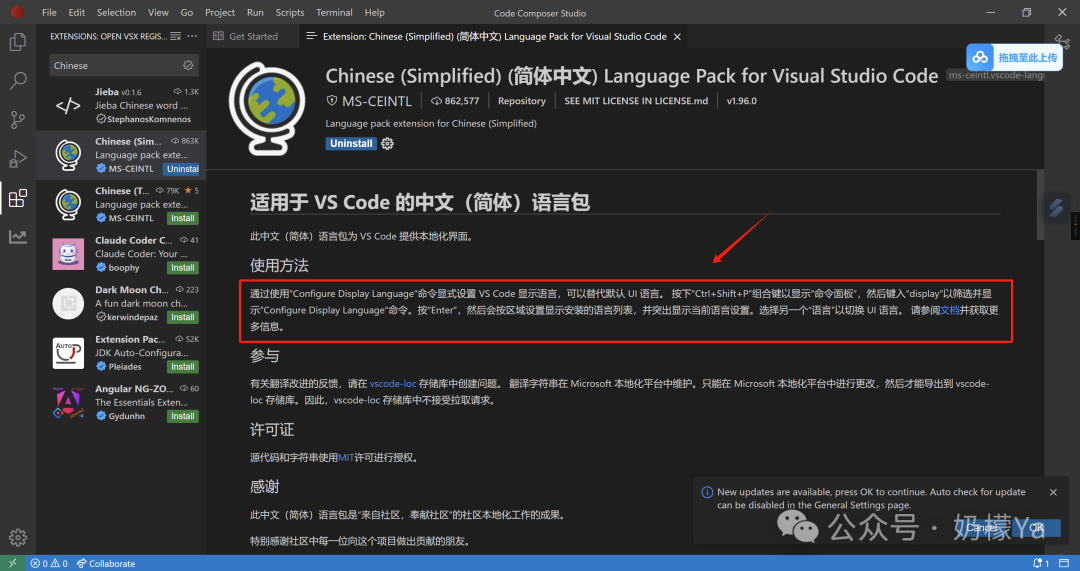
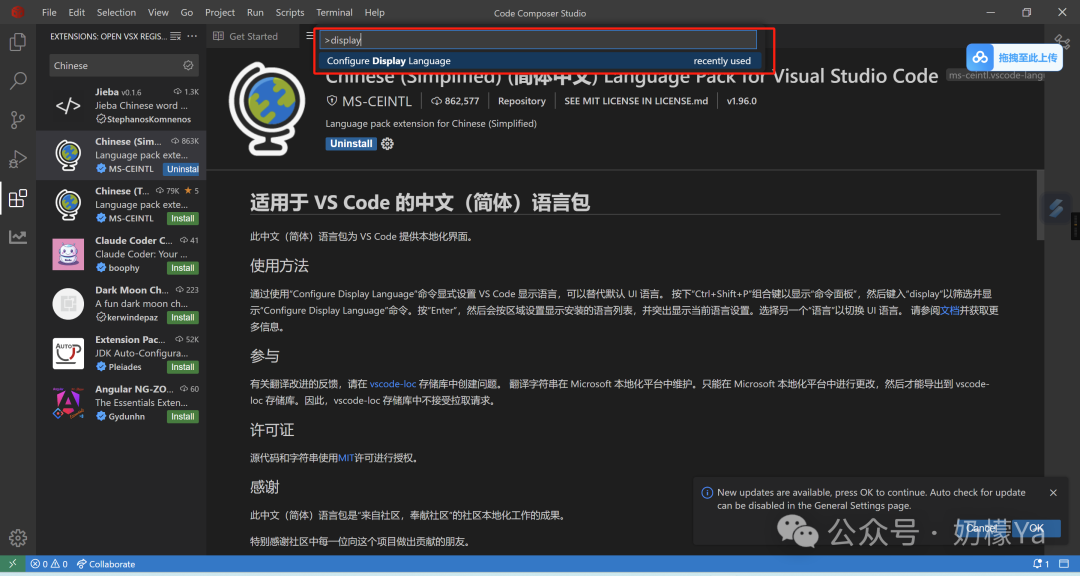
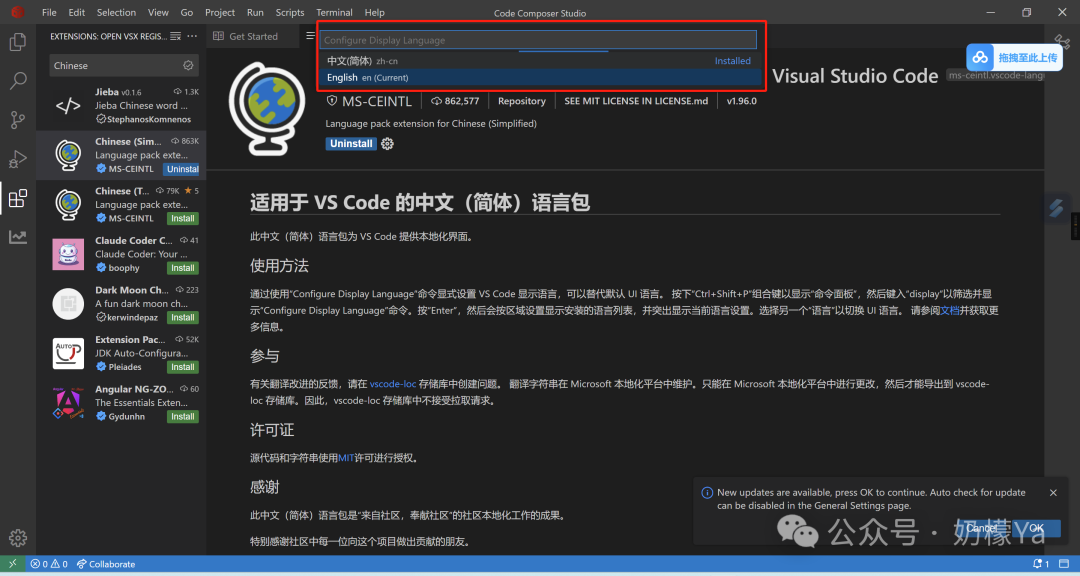
12. Switch to Chinese and click “Restart”
13. Ok, start your TI code tuning journey~