
ANSYS is a multipurpose finite element analysis software primarily used to solve problems related to structures, fluids, electricity, electromagnetic fields, and collisions. It is mainly used for linear analysis, nonlinear analysis, highly nonlinear analysis, fluid dynamics analysis, electromagnetic field analysis, acoustic analysis, piezoelectric analysis, and multiphysics coupling analysis.
2. What is APDL?
APDL stands for ANSYS Parametric Design Language, also known as ANSYS Parametric Design Language. APDL is not only the foundation for implementing classic ANSYS features such as optimization design and adaptive meshing but also provides convenience for daily analysis. The application of APDL mainly lies in allowing users to organize ANSYS commands using a programming language to write parameterized user programs, thus achieving the entire process of finite element analysis, including establishing parameterized CAD models, parameterized meshing and control, parameterized material definitions, parameterized load and boundary condition definitions, parameterized analysis control and solving, and parameterized post-processing.
3. How to Call ANSYS from MATLAB?
The brief introduction to ANSYS and APDL above is to help readers better understand the process of calling ANSYS from MATLAB. One of the prominent advantages of ANSYS compared to other finite element software is the ability to model using APDL, and calling ANSYS from MATLAB is also based on APDL. The schematic diagram is as follows:
MATLAB calls ANSYS interface:
system('SET ANSYS_LOCK=OFF & "C:\ANSYS10.0\Ansys Inc\v100\ANSYS\bin\Intel\ansys100.exe" -b -i test1.mac -o file.out');
system('"C:\ANSYS10.0\Ansys Inc\v100\ANSYS\bin\Intel\ansys100.exe" -b -i test1.mac -o file.out');The above is the interface for MATLAB 2018a calling ANSYS 10.0, which has been tested and is usable. Both can be used, but due to certain reasons, if ANSYS is locked, it may cause an error, so it is recommended to use the first command. The first command adds “SET ANSYS_LOCK=OFF”, which can help unlock it. Additionally, the path “C:\ANSYS10.0\Ansys Inc\v100\ANSYS\bin\Intel\ansys100” needs to be replaced with your own ANSYS installation path. If you do not know how to find the path, you can follow these steps:
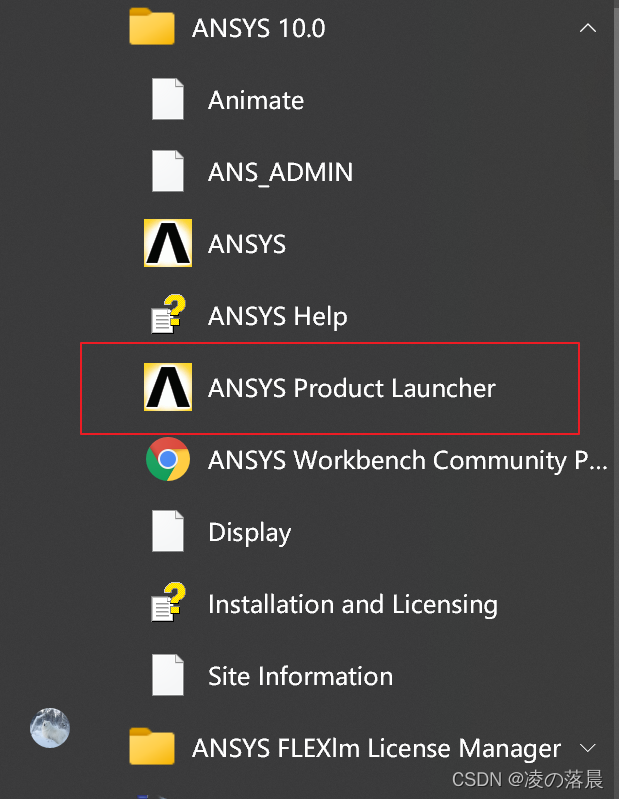
(1) Find the ANSYS Product Launcher and click into it.
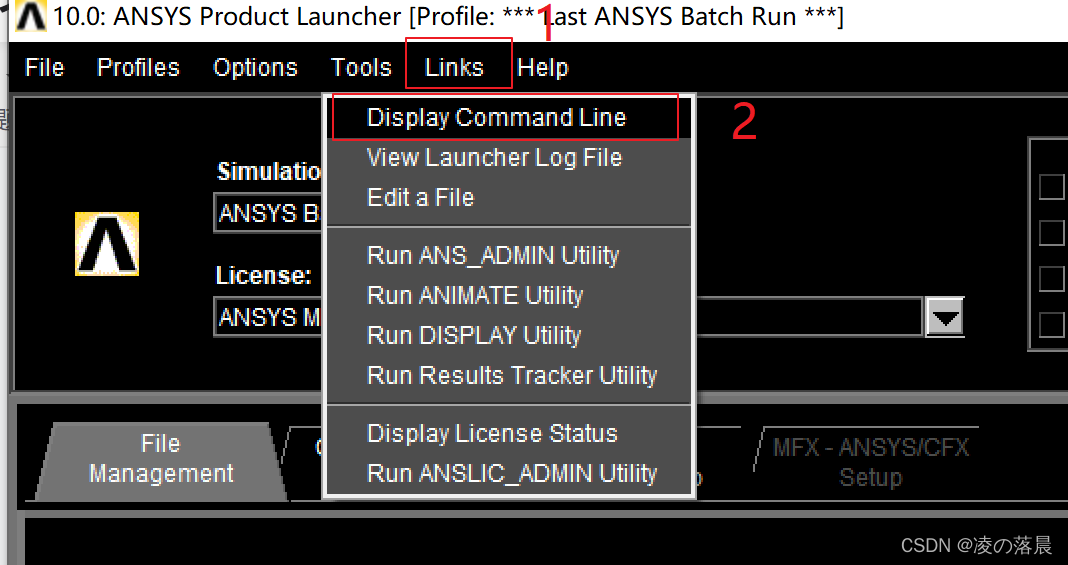
(2) Find Links and select Display Command Line.
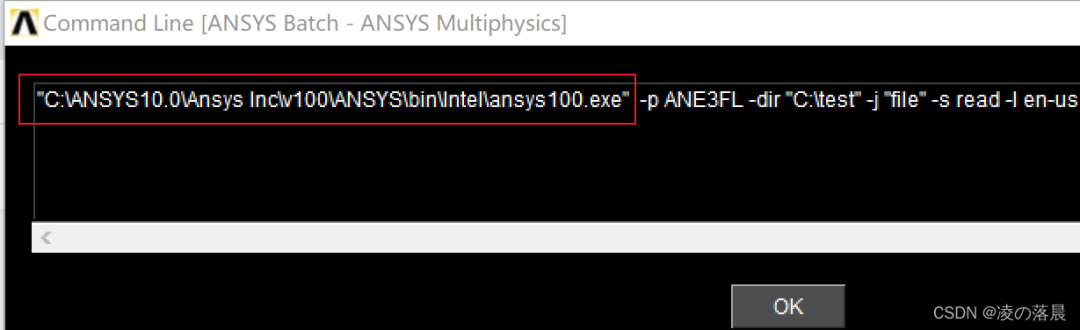
(3) The red box shows the installation path of ANSYS on this machine; copy it and replace it in the interface path.
After handling the interface path, you also need to replace “test1.mac” with the APDL file or macro file you need to call; the suffix can be .txt, and the rest should remain unchanged.
Additionally, it is important to note that if the call still fails after following the above steps, there are mainly two reasons: (1) The APDL file itself has issues; you can directly copy it to ANSYS for testing; (2) Version issues, as the calling interface for higher versions of ANSYS may differ and require certain changes. The interface changes are as follows (it has been tested that MATLAB 2018a can call ANSYS 15.0):
system('SET KMP_STACKSIZE=2048k & "C:\ANSYS10.0\Ansys Inc\v100\ANSYS\bin\intel\ansys100.exe" -b -i test1.mac -o file.out');If you need to call ANSYS under Linux, you can use the following interface (the author has not used it, so you can test it if needed):
system('/opt/ansys_inc/v811/ansys/bin/ansys811 -p AA_R -b -i test1.mac -o file.out');4. How to Call ANSYS from C++?
Using C++ to call ANSYS is relatively rare; the author uses it for subsequent needs for a large number of repeated calculations in ANSYS. By utilizing C++ multithreading, ANSYS can be called concurrently for calculations, thus saving computation time. Calling ANSYS from C++ mainly uses the built-in Windows API, which includes three methods: WinExec(), ShellExecute(), and CreateProcess(). Among these, WinExec is the simplest, ShellExecute is more flexible than WinExec, and CreateProcess is the most complex:
(1) WinExec has two parameters, the first specifies the path, and the second specifies the display mode.
(2) ShellExecute allows specifying the working directory and can find file associations to open files directly without loading the associated application. ShellExecute can also open web pages, start associated email applications, etc.
(3) CreateProcess has a total of ten parameters, but most can be replaced with NULL. It can specify process security attributes, inheritance information, class priority, etc. If we want to obtain sufficient information about the new process and control the details of the new process’s attributes, we need to use the CreateProcess function.
The author has only used WinExec() and CreateProcess() in the following calls:
string path="C:\ANSYS10.0\Ansys Inc\v100\ANSYS\bin\Intel\ansys100.exe -p ANE3FL -dir C:\test -j file -s read -l en-us -b -i C:\test\b.txt -o C:\test\file.out";
WinExec(path.c_str(),SW_HIDE);STARTUPINFO si;
PROCESS_INFORMATION pi;
LPTSTR szCmdline1=_tcsdup(TEXT(“c:\ANSYS10.0\Ansys Inc\v100\ANSYS\bin\Intel\ansys100.exe”));
LPTSTR szCmdline2=_tcsdup(TEXT(“-p ANE3FL -dir C:\test -j file -s read -l en-us -b -i C:\test\b.txt -o C:\test\file.out”));
ZeroMemory( &si, sizeof(si) );
si.cb = sizeof(si);
ZeroMemory( &pi, sizeof(pi) );
CreateProcess( szCmdline1, // No module name (use command line)
szCmdline2, // Command line
NULL, // Process handle not inheritable
NULL, // Thread handle not inheritable
FALSE, // Set handle inheritance to FALSE
0, // No creation flags
NULL, // Use parent’s environment block
NULL, // Use parent’s starting directory
&si, // Pointer to STARTUPINFO structure
&pi); // Pointer to PROCESS_INFORMATION structure
Changes to the interface part are as follows:
(1) Follow the above steps to reach the ANSYS Product Launcher interface.
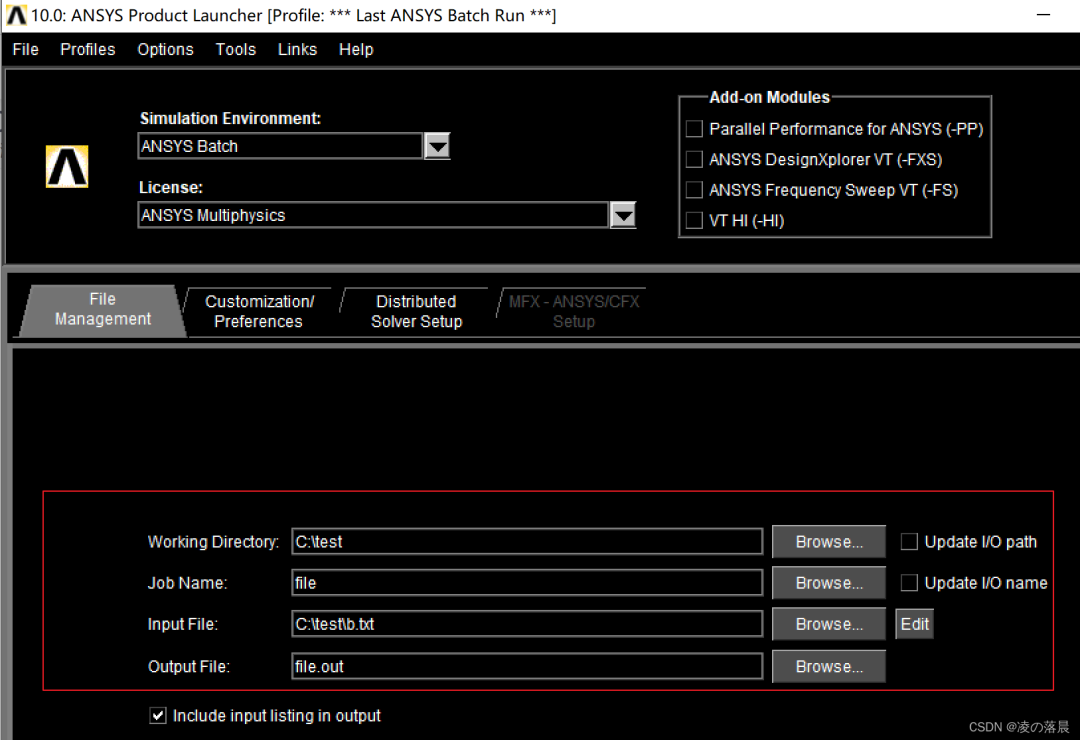
(2) Configure the content in the box according to your needs and follow the steps below.
(3) Copy the content from the red box to replace in the interface.

5. Conclusion
All the above configurations need to be carefully completed according to the steps to ensure that the call does not fail. Additionally, if there are issues with the ANSYS license, you can refer to my other blog, which teaches you step by step how to reconfigure it. If you need to communicate, feel free to message me; I am open to sharing knowledge, and please point out any mistakes or omissions.
Copyright Statement: This article is an original work by CSDN blogger “czy1219” and follows the CC 4.0 BY-SA copyright agreement. Please include the original source link and this statement when reprinting.
Original link: https://blog.csdn.net/qq_44571245/article/details/122446396
[Previous Highlights]
1. Complete Quick Installation Tutorial and Chinese Localization Method for ANSYS 2022R1 (Installation package included at the end).
2. Complete installation package and quick installation tutorial for ANSYS 2021R2 (Installation package included at the end).
3. Quick installation and cracking tutorial for ANSYS 2021R1 (Installation package included at the end, successfully tested!).
4. Method to switch between Chinese and English versions of ANSYS 2021R1.
5. Quick installation and cracking tutorial for ANSYS 2020R2 (Installation package included at the end).
6. Quick installation tutorial for ANSYS 2020R1 (Installation package included at the end).
7. Installation tutorial for ANSYS 2019R3 and accompanying installation package (includes method for resolving license expiration, successfully tested!).
8. Quick installation tutorial for ANSYS 2019R2 and method for resolving license expiration (Installation package included at the end).
9. Quick installation and cracking tutorial for ANSYS 2019R1 (Installation package included at the end, successfully tested!).
10. Quick installation tutorial for ANSYS 19.0 (with accompanying installation package).
11. Installation tutorial for ANSYS 18.0 (with accompanying installation package).
12. [FLUENT] Fluent 2020R1 Chinese version (startup method).
13. Official teaching materials for ANSYS LS-DYNA (free to obtain!).
14. Official teaching materials for ANSYS Maxwell! Free to obtain!
15. 1.3 Mechanical preprocessing, structure, modal, heat transfer, buckling analysis tutorial and source files (full set worth 10,000 yuan, free to give away!).
16. 1.6 Heat Transfer analysis module tutorial and source files (full set worth 10,000 yuan, free to give away! Download at the end).
17. ANSYS Workbench external pressure cylindrical eigenvalue buckling analysis case (using solid elements)!
18. [ANSYS WORKBENCH] Steady-state heat conduction analysis case.
19. [ANSYS Workbench] Steady-state thermal radiation analysis case.
20. [ANSYS WORKBENCH] Named selection introduction, advanced and high-level applications.
21. Download and installation tutorial for ABAQUS 2021 version! (with accompanying installation package, successfully tested).
22. Download and installation tutorial for ABAQUS 2020 version! (with accompanying installation package, successfully tested).
23. Download and installation tutorial for ABAQUS 6.14.44 version! (with accompanying installation package, successfully tested).
24. Download and installation tutorial for ABAQUS 6.12 version! (with accompanying installation package, successfully tested).
About Pressure Vessel Circle
A large number of CAE simulation analysis cases, software basics and advanced operation guides, a wealth of CAE-related engineering software and learning materials, CAE industry news, etc., is a leading CAE analysis technology platform for pressure vessels in China!
