Master these commands to significantly boost your Linux operating efficiency.
As one of the most popular operating systems, Linux is renowned for its powerful command line tools. Whether you are a developer, system administrator, or tech enthusiast, mastering Linux commands can greatly enhance your productivity. Today, I will share some practical and efficient Linux commands to help you better control your system!
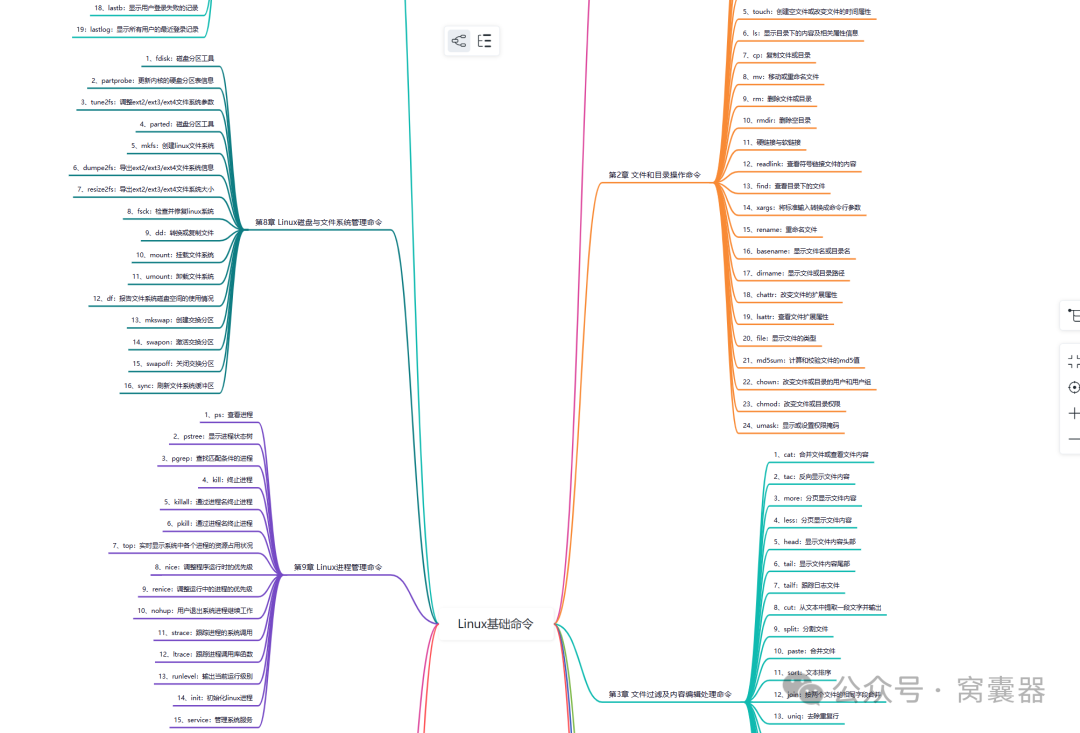
🤖 1. Introduction to Linux Commands: From Beginner to Intermediate
Linux commands may seem complex, but they actually follow a pattern. Most commands adhere to a basic structure: Command Name + Options + Arguments. For example, in <span><span>ls -l /home</span></span>, <span><span>ls</span></span> is the command name, <span><span>-l</span></span> is the option, and <span><span>/home</span></span> is the argument.
When starting to learn, there is no need to memorize every option for all commands. After mastering the basic usage, you can always refer to the detailed help documentation using <span><span>man <command_name></span></span> (e.g., <span><span>man ls</span></span>) or <span><span><command_name> --help</span></span>.
🛠️ 2. File and Directory Operations: Basic but Crucial
File operations are among the most commonly used functions in Linux, and the following commands are frequently used:
- ls: Lists directory contents.
<span><span>ls -l</span></span>can display detailed information, while<span><span>ls -a</span></span>shows all files (including hidden files). <span><span>cd</span><span>: Change directory.</span></span><span><span>cd ~</span></span>quickly returns to the home directory, and<span><span>cd -</span></span>returns to the previous directory.<span><span>mkdir</span></span>: Create a new directory.<span><span>cp</span></span>: Copy files or directories. Use<span><span>cp -r</span></span>to recursively copy directories.<span><span>mv</span><span>: Move or rename files or directories.</span></span><span><span>rm</span></span>: Delete files or directories. Please use<span><span>rm -rf</span></span>with caution, as it will forcefully and recursively delete, making recovery difficult.<span><span>find</span><span>: A powerful file search tool. For example, </span></span><span><span>find . -name "*.txt"</span></span>can find all txt files in the current directory.
📊 3. System Monitoring and Management: Understanding System Status
Understanding system status is fundamental for troubleshooting and performance optimization:
<span><span>top</span></span>/<span><span>htop</span><span>: Displays real-time system process status and resource usage.</span></span><span><span>htop</span></span>is an enhanced version of<span><span>top</span></span><code><span><span>, providing a more user-friendly interface.</span></span><span><span>ps</span></span>: View a snapshot of processes.<span><span>ps aux | grep nginx</span></span>can find the Nginx process.<span><span>df</span><span>: View disk space usage.</span></span><span><span>df -h</span></span>will display information in a human-readable format (e.g., GB, MB).<span><span>free</span><span>: View memory usage. It is also recommended to use </span></span> <code><span><span>free -h</span></span>.<span><span>uname</span><span>: Display system information.</span></span><span><span>uname -a</span></span>displays all information.
🌐 4. Network Operations: Connection and Transmission
Network commands help us communicate and transfer data between servers:
<span><span>ping</span></span>: Check network connectivity.<span><span>ping -c 4 google.com</span></span>will send 4 test packets and then stop.<span><span>ssh</span></span>: Secure remote login.<span><span>ssh user@host -p 2222</span></span>can specify a port for connection.<span><span>scp</span></span>: Securely copy files between local and remote systems. For example:<span><span>scp file.txt user@remote_host:/path/to/dest</span></span>.<span><span>wget</span></span>/<span><span>curl</span></span>: Download content from the web or test APIs.<span><span>wget -c</span></span>supports resuming downloads, while<span><span>curl</span></span><span><span> has more features.</span></span><span><span>ifconfig</span></span>/<span><span>ip</span></span>: View and configure network interfaces.<span><span>ip</span></span>is gradually replacing<span><span>ifconfig</span></span><span><span>.</span></span>
⚙️ 5. Permission Management: The Key to Security
The Linux permission system ensures system security, with key commands including:
<span><span>sudo</span></span>: Execute commands with superuser privileges. Prepend<span><span>sudo</span></span>to any command to elevate privileges.<span><span>chmod</span></span>: Modify file permissions. For example,<span><span>chmod 755 script.sh</span></span>sets permissions.<span><span>chown</span></span>: Change file ownership.<span><span>chown user:group file.txt</span></span>changes the owner and group.
🧩 6. Efficiency Tips: Boost Your Productivity
Once you have mastered the basic commands, these tips can significantly enhance your efficiency:
- The pipe symbol
<span><span>|</span></span>: Use the output of one command as the input for another. For example,<span><span>cat log.txt | grep "error"</span></span>quickly filters log lines containing errors. - Redirection
<span><span>></span></span>and<span><span>>></span></span>:<span><span>></span></span>will overwrite the output to a file, while<span><span>>></span></span>appends to the end of the file. - Wildcard *:
<span><span>*</span></span>matches any character, such as<span><span>*.txt</span></span>matching all text files;<span><span>?</span></span><span><span> matches a single character.</span></span> - Command history: Use
<span><span>history</span></span>to view command history, and use<span><span>!100</span></span>to execute the 100th command in history. - Alias: Create shortcuts for commonly used commands, such as
<span><span>alias ll='ls -alF'</span></span>. Writing aliases in<span><span>~/.bashrc</span></span><span><span> makes them permanent.</span></span>
💡 7. Practical Cases: Command Combinations to Solve Real Problems
- Quickly clean up logs:
<span><span>find /var/log -name "*.log" -mtime +30 -exec rm -f {} \;</span></span>will delete all log files older than 30 days in the /var/log directory. - Real-time log monitoring:
<span><span>tail -f /var/log/nginx/access.log | grep "404"</span></span>can monitor 404 errors in the Nginx access log in real-time. This is one of my most frequently used commands. - System performance snapshot:
<span><span>ps aux --sort=-%cpu | head -10</span></span>lists the top 10 processes by CPU usage.
🔧 8. Package Management: Differences Across Systems
Different Linux distributions use different package management tools:
- Debian/Ubuntu: Use
<span><span>apt</span></span>, such as<span><span>apt install package_name</span></span>to install packages. - RHEL/CentOS: Use
<span><span>yum</span></span>or<span><span>dnf</span></span>. - Arch Linux: Use
<span><span>pacman</span></span>, such as<span><span>pacman -S package_name</span></span>.
📚 9. Learning Suggestions: How to Effectively Master
- Practice more: Just reading without practice is futile. It is best to try these commands in a Linux system or virtual machine.
- Understand concepts: Understanding core concepts like “pipes”, “redirection”, and “permissions” is more valuable than merely memorizing commands.
- Utilize help: When encountering unfamiliar commands or options, remember to use
<span><span>man</span></span>or<span><span>--help</span></span><span><span> to view help documentation.</span></span> - Progress gradually: There is no need to memorize all commands at once. After mastering the basics, gradually learn more advanced usages.
✨ Conclusion
The Linux command line may seem complex, but once mastered, you will find it incredibly powerful and efficient. From basic file operations to system monitoring, from network management to permission settings, these commands form the foundation of Linux system management.
The most important thing is not to memorize all commands, but to understand their logic and master the learning methods.. Even experienced system administrators often need to refer to manuals or search for usage.
I hope this article helps you embark on the path to becoming a Linux command line expert. If you have particularly useful Linux commands or tips, feel free to share them in the comments!