(Click the public account above to quickly follow)
Source: xrzs
Link: https://my.oschina.net/leejun2005/blog/793916
If you have good articles to submit, please click → here for details
Shell, as a widely used system language under Linux, has a simple syntax and is easy to get started with. However, mastering it and minimizing errors is not an easy task. It can be a great tool for home and travel, but it can also be a deadly weapon~
Today, let’s discuss a common issue in Linux: how to avoid accidentally deleting directories. The following will detail different scenarios of accidental directory deletion and corresponding solutions.
1. Empty Variable Leading to Accidental File Deletion
base_path=/usr/sbin
tmp_file=`cmd_invalid`
# rm -rf $base_path/$tmp_file
In this case, if the command fails or returns empty, the consequences can be disastrous. So how can we prevent this?
(1) Use shell variable expansion features to assign a default value if the variable is empty or throw an exception to exit the script:
echo ${base_path:?var is empty}/${tmp_file:?var is empty}
-bash: tmp_file: var is empty
(2) Manually check if the variable is empty:
[[ ${tmp_file} == “” ]] && echo 1
1
[[ -z ${tmp_file} ]] && echo 1
1
(3) If the variable is undefined, you can enable the set option:
# cat a.sh
set -u
b=
echo $b
echo $a
echo 1
# bash a.sh
a.sh: line 4: a: unbound variable
2. Path Contains Spaces Leading to Accidental File Deletion
The most classic example is the bumblebee project. This project was originally not well-known, but a bug in its installation script install.sh suddenly made it the focus of the world.
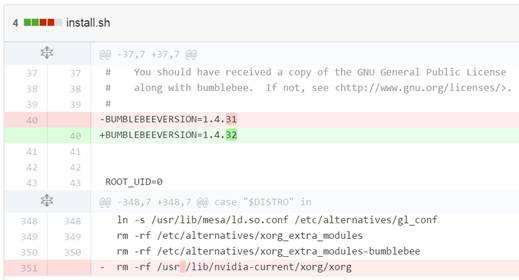
So how can we prevent such issues?
(1) Good programming habits: Enclose variables in quotes to prevent expansion
path=”/usr/local /sbin”
# rm -rf $path
rm -rf “$path”
(2) Perform semantic checks on variables
For example, check for spaces or other special characters. This is not universal and not recommended.
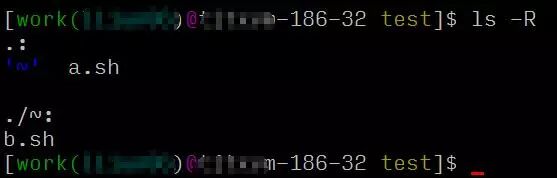
3. Directory or File Contains Special Characters Leading to Accidental File Deletion
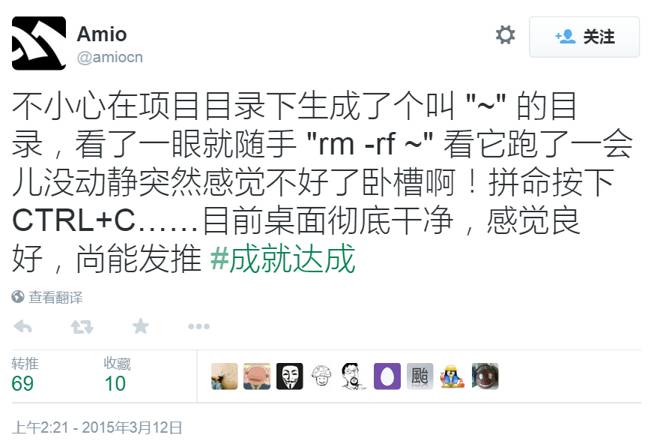

ll
Total 8
drwxrwxr-x 2 work work 4096 Nov 24 18:57 ‘~’
-rw-rw-r– 1 work work 34 Nov 24 19:49 a.sh
# rm -rf ~
So how can we prevent such issues?
(1) Good programming habits: Enclose variables in quotes to prevent expansion
rm -rf “~”
(2) If unsure, echo or find before deleting to see what the variable expands to
echo rm -rf “~”
rm -rf ~
echo rm -rf ~
rm -rf /home/work
4. Failed Directory Change Leading to Accidental File Deletion
cd ooxx_path_not_exist
rm -rf *.exe
Congratulations, in this case, all matching files in your current directory will be accidentally deleted. So how can we prevent such issues?
(1) Use logical short-circuit operations
cd path && rm -rf *.exe
(2) Check if the path exists
[[ -d ~ ]] && echo 1
1
5. Ultimate Solution
Do not use root to operate system resources, as this will at least prevent the deletion of system files.
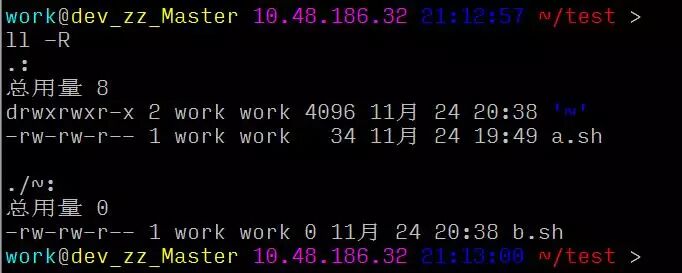
6. Use Friendly Prompts in Login Shell
A friendly command prompt can constantly remind the operator of the current path, avoiding file operations in the wrong path.
OK, this concludes the article. It lists some common cases and solutions, hoping to inspire everyone. If you have other cases and suggestions, feel free to share~
Did you gain something from this article? Please share it with more people
Follow ‘Linux Enthusiasts’ for more technical content