The Bluetooth USB adapter has a Bluetooth CSR chipset and uses a USB transceiver to transmit HCI data packets. Therefore, the Linux USB layer, BlueZ USB transceiver driver, and the BlueZ protocol stack are the main kernel layers that enable the device to function. Now, you will learn how the three layers interact to allow Linux network applications to run on this device.
The Linux USB subsystem is similar to the PCMCIA subsystem, both of which have host controller device drivers for interacting with mobile devices and both include
a core layer that serves the device drivers for the host controller and a single device. The USB host controller follows one of two standards: UHCI (Universal Host Controller Interface) or OHCI (Open Host Controller Interface). Due to the presence of PCMCIA, the Linux device driver for a single USB device does not depend on the host controller. The data transmitted via USB devices is divided into four types (or pipes):
Control
Interrupt
Bulk
Isochronous
The first two are generally used for small messages while the latter two are used for larger messages.
When a USB device is plugged in, the host controller uses the control pipe to enumerate it and assign it a device address (1 to 127). The host controller device driver
reads the device descriptor, which contains information about the device, such as class, subclass, and protocol. The usbcore kernel module of Linux supports
USB host controllers and USB devices. It includes functions and data structures that USB device drivers can use. The USB driver registers two entry points using usbcore and its own class/subclass/protocol information (see struct usb_driver in kernel include/linux/usb.h): probe and disconnect. When the corresponding USB device is attached, usbcore matches the registered class information with the class information read from the device configuration descriptor during enumeration, and binds the device to the appropriate driver. This core uses a data structure called USB RequestBlock or URB (defined in include/linux/usb.h) to manage data transfers asynchronously between the host and the device. The device driver uses these routines to request various types of data transfers (control, interrupt, bulk, or isochronous). Once the transfer request is complete, the core uses previously registered callback functions to notify the driver.
For Bluetooth USB devices, HCI commands are transmitted using the Control pipe, HCI events use the Interrupt pipe,
Asynchronous (ACL) data uses the Bulk pipe, while Synchronous (SCO) audio data uses the Isochronous pipe. The Bluetooth specification defines the class/subclass/protocol codes for Bluetooth USB devices as 0xE/0x01/0x01. The BlueZ USB transport driver (drivers/bluetooth/hci_usb.c) registers this class/subclass/protocol information with the Linux USB core. When the Belkin USB adapter is plugged in, the host controller device driver enumerates it. Since the device descriptor read from the adapter during enumeration matches the information registered by the hci_usb driver with the USB core, this driver can attach to the Belkin USB device. The HCI, ACL, and SCO data read by the hci_usb driver from the various endpoints described above is transparently transferred to the BlueZ protocol stack. Once this is done, by using the BlueZ services and tools described above, Linux
TCP/IP applications can run on BlueZ BNEP, while serial applications can run on BlueZ RFCOMM.
5. Experimental Steps
♦ Experiment Directory: /UP-Magic6410/SRC/kernel/linux-2.6.21/
/UP-Magic6410/SRC/exp/wireless/03_bluetooth
♦ Add Bluetooth device support in the kernel
1. Enter the UP-Magic6410 type CD kernel directory on the host machine:
[root@localhost ~]# cd /UP-Magic6410/SRC/kernel/linux-2.6.21/
2. Run the make menuconfig command to configure the kernel for Bluetooth support
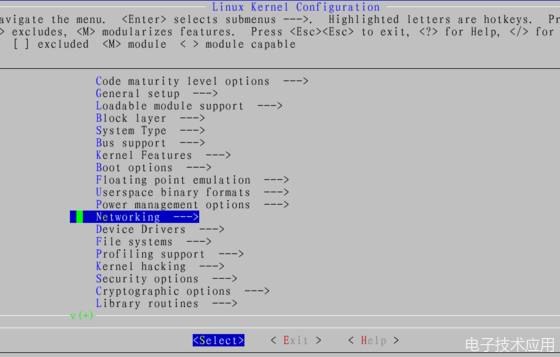
Select Networking —> options, as shown in the figure
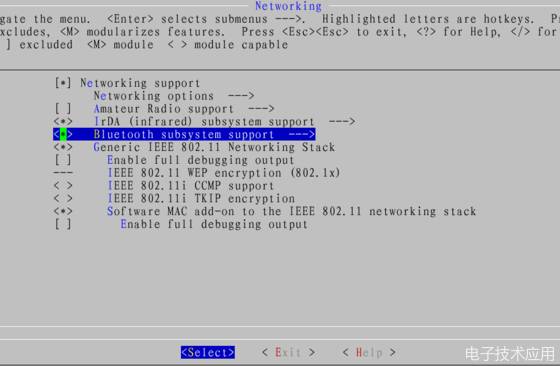
Enter <*> Bluetooth subsystem support —> sub-option, and make the following settings. As shown in the figure
Enter Bluetooth subsystem support —> subsystem directory, configure as follows:
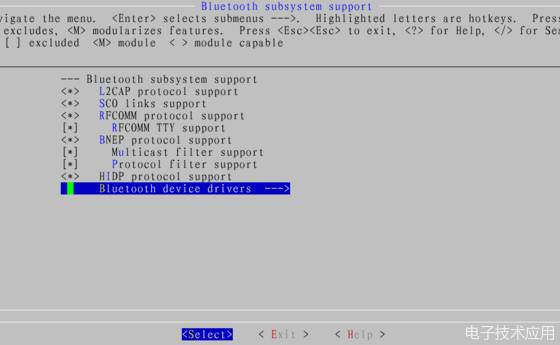
Select “Bluetooth device drivers —>” in the above figure, press enter to enter its submenu, compile as shown in the figure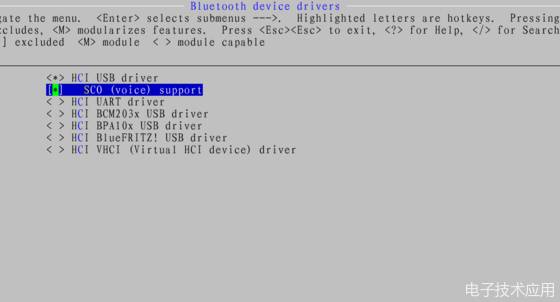
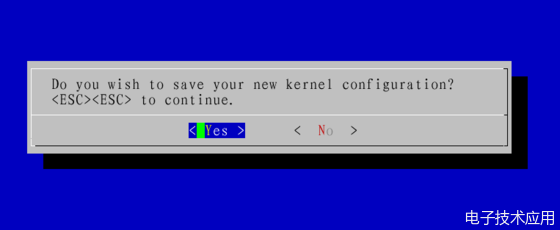
After selecting the options, save and exit.
3. Recompile the kernel, run the make command
[root@localhost linux-2.6.21]# make
scripts/kconfig/conf -s arch/arm/Kconfig
CHK include/linux/version.h
SYMLINK include/asm-arm/arch -> include/asm-arm/arch-s3c
make[1]: `include/asm-arm/mach-types.h’ is up to date.
CHK include/linux/utsrelease.h
……
……
Finally, a new ARM-LINUX kernel image file zImage is generated in the arch/arm/boot directory of the kernel source directory
[root@localhost linux-2.6.21]# ls arch/arm/boot/zImage
arch/arm/boot/zImage
[root@localhost linux-2.6.21]#
4. According to the accompanying burning documentation for the UP-Magic6410 type CD, burn the newly generated kernel image file zImage to the UP-Magic6410 device.