Device Drivers
By default, Ubuntu comes pre-installed with the necessary drivers for mouse, keyboard, audio, and video. The days when device drivers were a nightmare for Linux-based operating systems are long gone.
To view device options, go to the settings option on the left control panel.
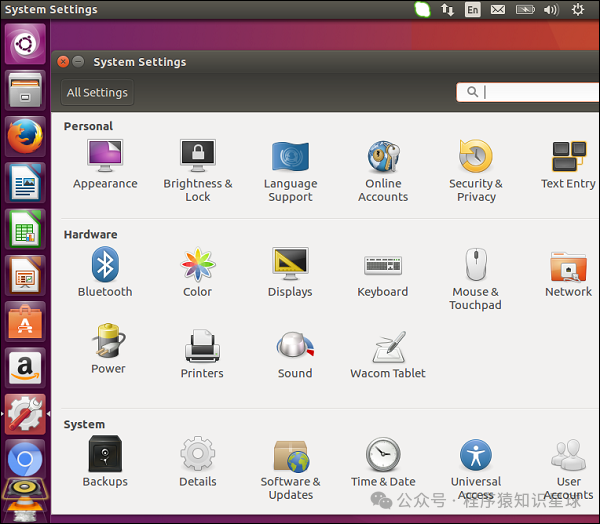
In the hardware section, you will see various options for hardware devices such as monitors, keyboards, mice, etc.
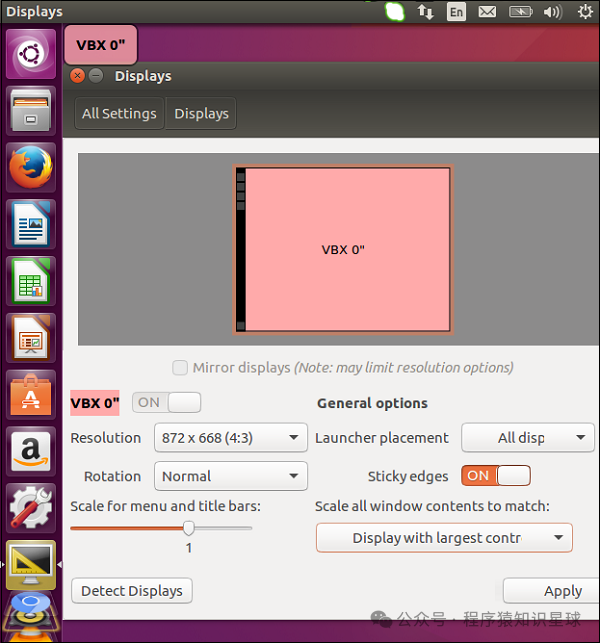
For example, using the “Display” section, we can change the screen resolution and other display settings, as shown in the screenshot below.
 To install any additional drivers, we need to visit the respective driver website and download the necessary distribution for the specific device driver. Then, use the software center to install the required device driver.
Software Center
Ubuntu has a software center that you can use to install a wide range of applications. The software center is designed to search the Internet for available software that can be downloaded and installed.
Installing Software
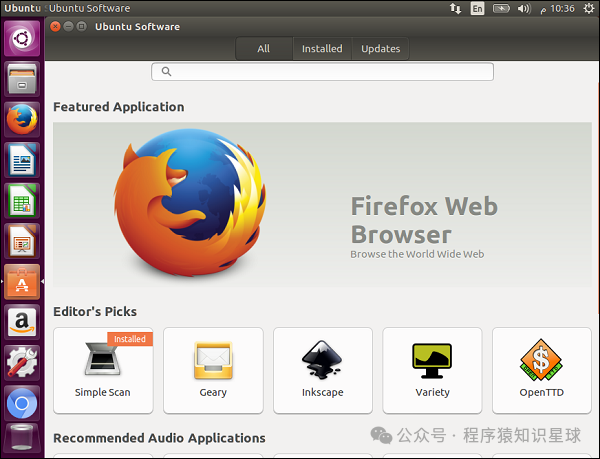
Step 1− In the control panel, the software center appears on the left side of the screen. In the following screenshot, it is surrounded by a red box. Double-click to open it.
Once opened, it will display the following options –
- View all available software.
- All software currently installed on the machine.
- Any available updates for the software currently installed on the machine.
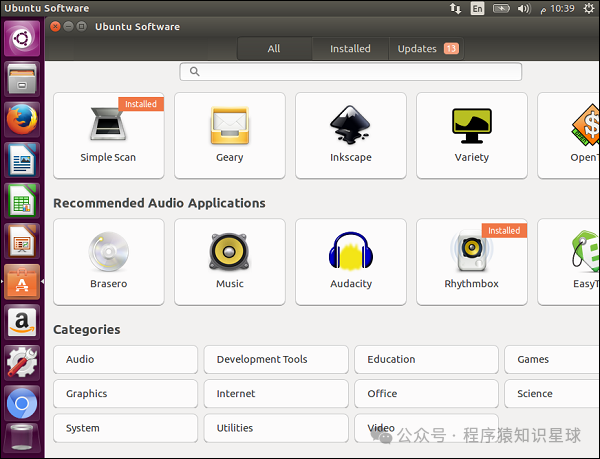
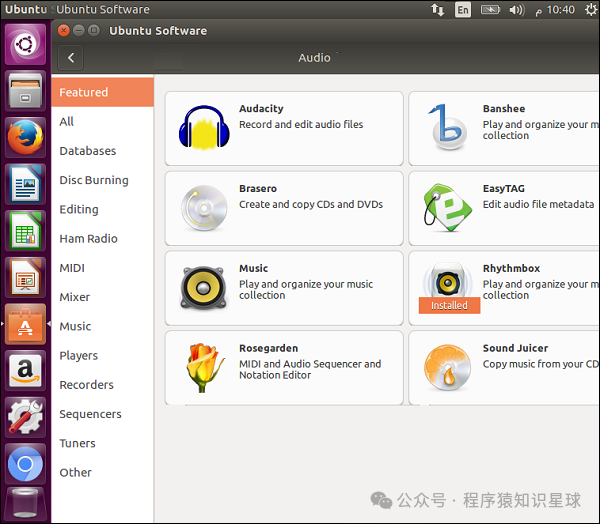
 Step 2 − We can also browse various software categories. For example, let’s click on the audio category. We can see a list of software available for installation. As shown in the following screenshot, the application “Rhythmbox” is already installed.
 Step 3 − Now let’s select an application, say a music application, to see how it is installed.
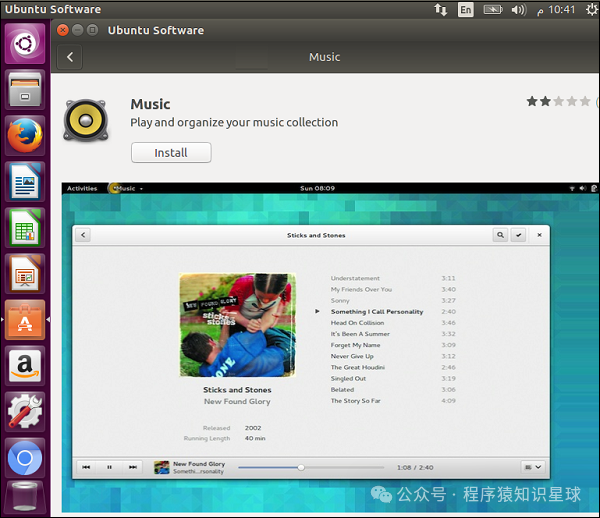
 Step 4 − After clicking on the music application, the following screenshot will pop up. Click the install button to start the installation..
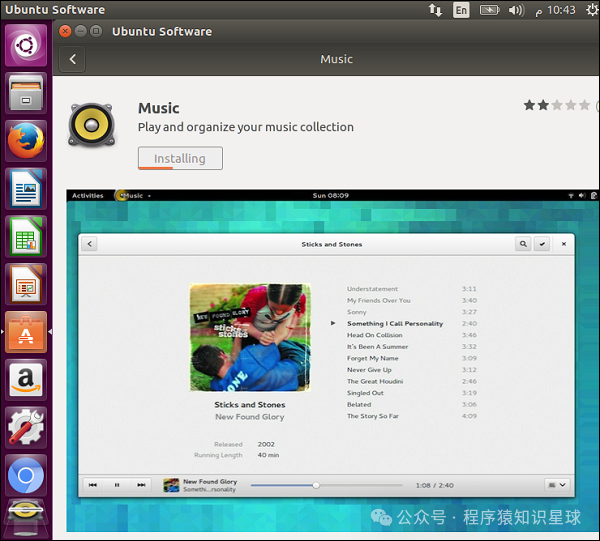
 Then we will see the installation progress bar indicating that the music application is being installed.
 Step 5 − After the installation is complete, click the launch button to start the software.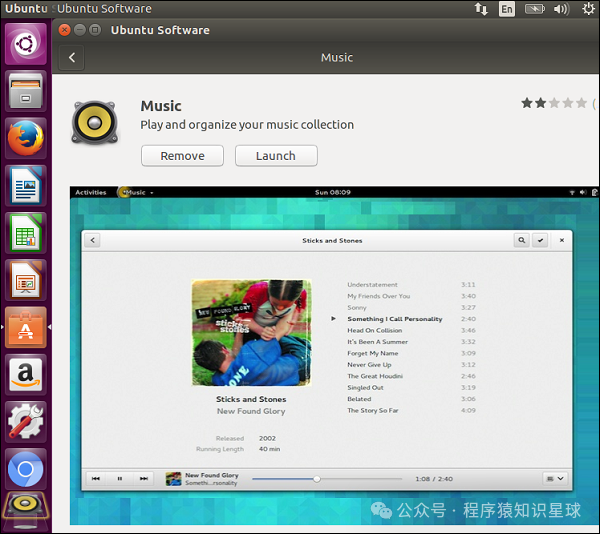
Removing Software
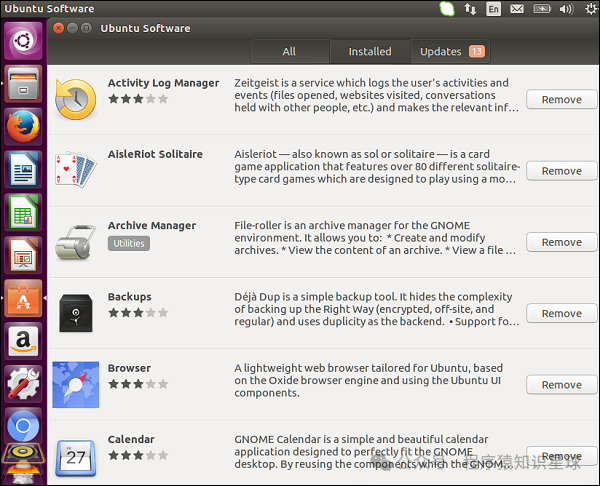
To view the list of software installed on the machine, go to the installed section of the software center application. This provides an option to remove any unwanted software if needed, as shown in the following screenshot.
Updates
In the updates section, we can install critical updates for the Ubuntu operating system. This section also shows updates available for the software installed on the system.
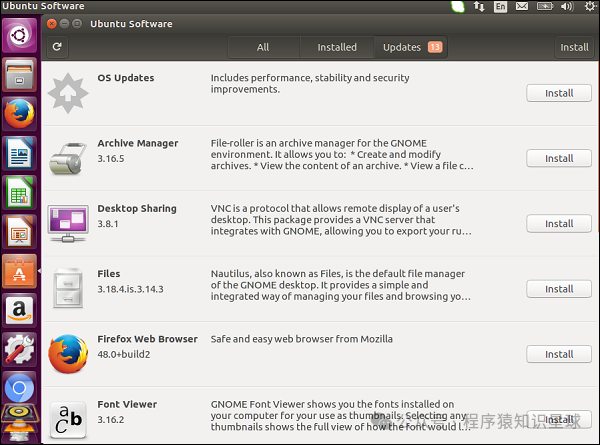 Click the install button next to the required update you wish to install.
—————————————————-
Next Chapter Preview: Ubuntu – Browsers, Email, Media Players, and Skype Software
———————————————