(Thank you for your likes and appreciation. If this article resonates with you, please “like” and “recommend” it. Thank you all!)
Task Introduction
The Siemens TIA Portal software fails to download the program to the PLC, displaying“Firmware version incompatible” error.This is usually caused by a mismatch between the firmware version configured in the project and the actual firmware version running on the device. This article will guide you step-by-step on how to upgrade the firmware version for the PLC and restore normal program downloads.
Task Assignment
There is a Siemens S7-1200 PLC on site, with CPU model 1214C DC/DC/DC, and the original firmware version is V4.1. Currently, when attempting to download a new project to this PLC viaTIA Portal software, the download fails with the error message indicating “firmware version incompatible”. Please resolve this error and successfully download the new project to the PLC.Task AnalysisThe reason for this error is very simple yet easily overlooked: the firmware version configured for the CPU in the TIA Portal project does not match the actual firmware version running on the S7-1200 PLC hardware in front of you! For example, if the project specifies the CPU version as V4.5, but the PLC only has V4.1, or vice versa, thenTIA Portal will report “firmware version incompatible” during the download process.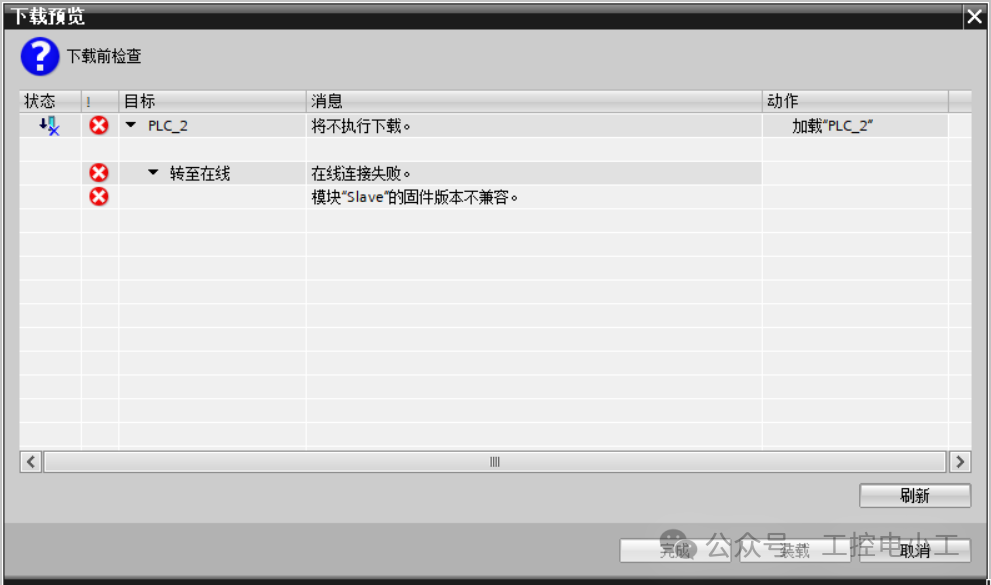 Task Implementation1. Confirm the actual firmware version of the PLCUsing TIA Portal V17, the method to check the actual PLC version number is as follows: After connecting the PLC to the computer, click on “Online Access” in the project’s left directory tree → Find the online PLC → Expand the folder, double-click on “Online and Diagnostics” → Check the firmware version in “General Information”.The detailed steps are shown in the image below:
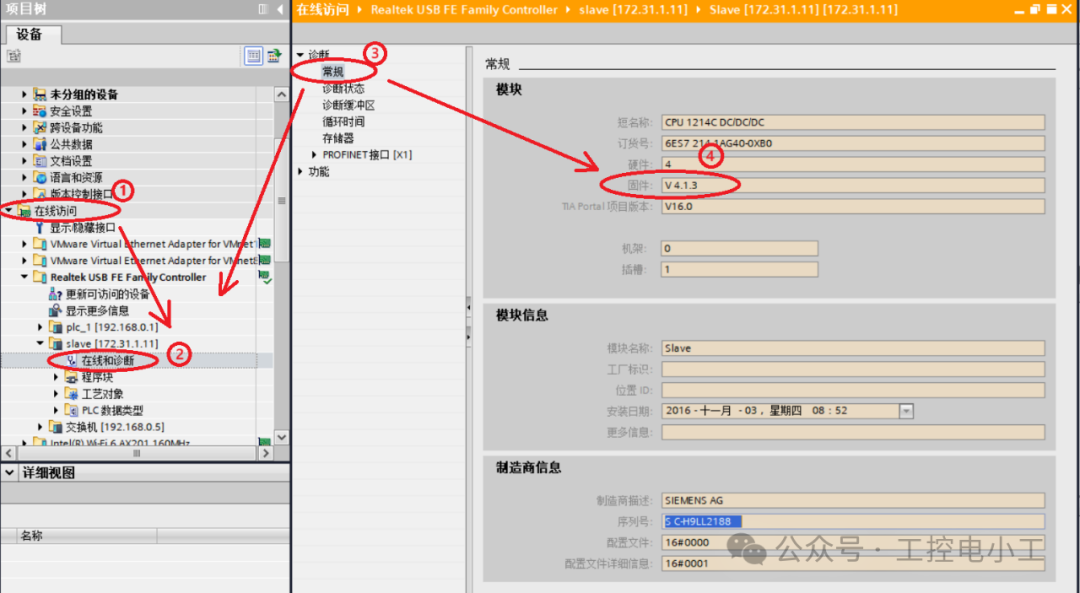
2. Check the PLC firmware version configured in the project
In the project tree, double-click on the PLC device → “General” → “Directory Information” → “Firmware Version” → Verify if it matches the actual PLC version.
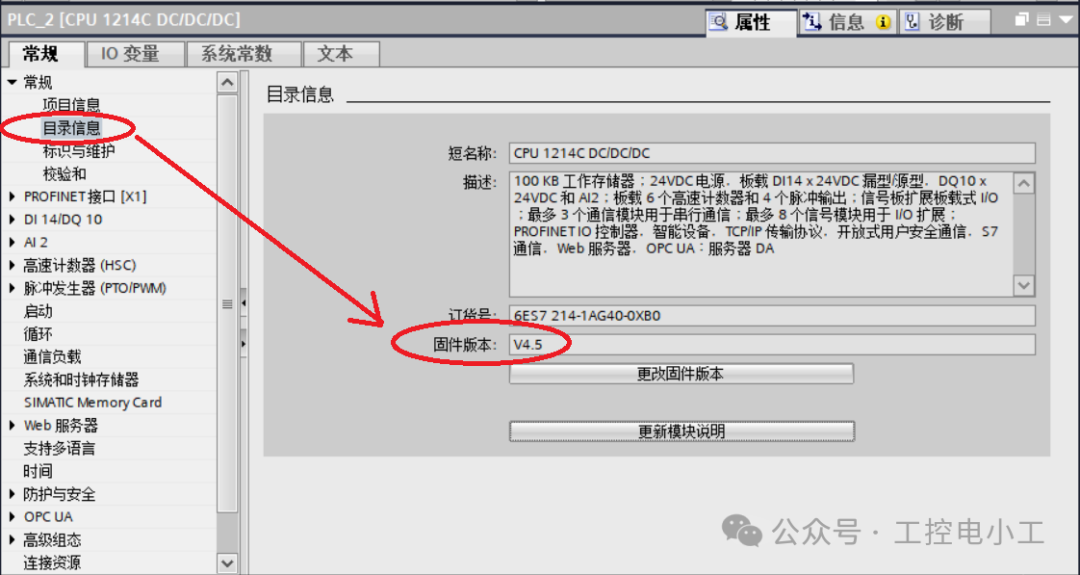
Conclusion: From steps 1 and 2, it can be seen that the actual PLC firmware version is V4.1, while the firmware version set in the project is V4.5. Therefore, we need to upgrade the firmware of the actual PLC device, bringing it up to V4.5!
3. Perform the PLC firmware version upgrade
There are two methods for upgrading the firmware version: Method 1 is to download the latest firmware file from the official website to an SD card, insert the SD card into the PLC for the upgrade. Method 2 is to directly connect the computer to the PLC and upgrade the PLC firmware online. In this task, we choose method two, performing the online upgrade directly.The specific steps for executing the online upgrade are as follows:
Step 1 Download the latest firmware file from the Siemens official website (download link).
https://sieportal.siemens.com/zh-cn/support
You can first find the product serial number from the actual PLC, then enter that serial number in the official website’s search bar to search and download the relevant firmware. Note that the firmware file format is UPD.Note: If you cannot download the firmware from the Siemens official website, you can send a message “firmware download” to my public account to automatically obtain firmware for all Siemens PLC models.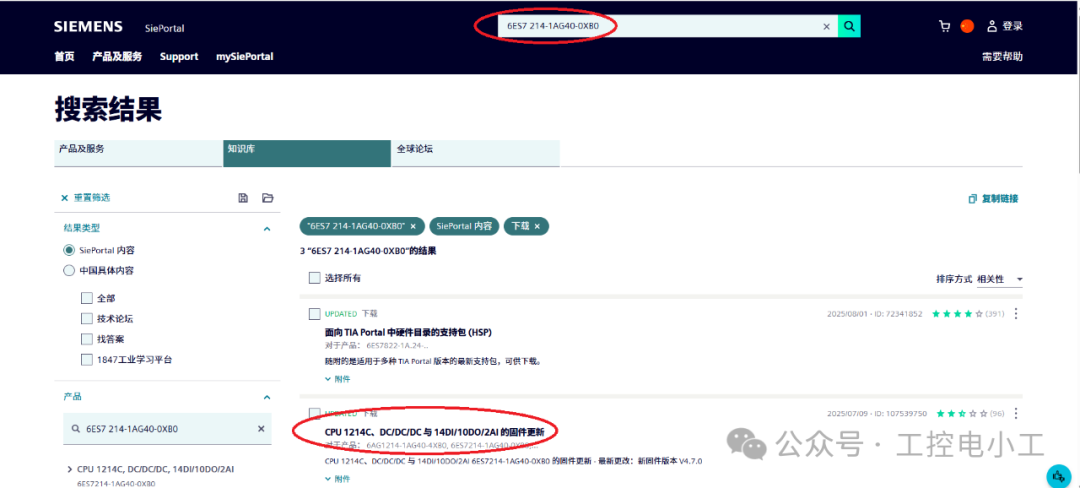
Step 2 Connect to the PLC online in TIA Portal, go to