
For those who enjoy using NAS, after installing the NAS system, many are trying to figure out how to conveniently access their home devices from outside. There are many ways to achieve this, and today I will mainly introduce Easytier, which I find very convenient for quickly implementing remote networking to access home devices.
1. What is Easytier
Easytier is a simple, secure, and decentralized tool for intranet penetration and remote networking, suitable for various scenarios such as remote work, remote access, and gaming acceleration. It requires no public IP and no complex configuration, allowing for easy and secure interconnection between devices in different locations.
2. Installing Easytier on Feiniu NAS
Find the most downloaded Easytier image in the Feiniu NAS image repository for installation.When starting the container, set it to run with high privileges.In the “Command” input box, enter:
--network-name <your virtual network name> --network-secret <your network password, arbitrary input, needed for later joining the network> -p tcp://public.easytier.top:11010 --ipv4 10.10.10.3 -n 192.168.0.0/24 (replace with your own internal network segment)This is a typical configuration for a client node connecting to an existing EasyTier network.Parameter explanation:
<span><span>--network-name your virtual network name</span></span>
- Meaning: Specifies the name of the virtual network to join.
- Explanation: All nodes (clients and super nodes) that are to form the same virtual LAN (VLAN) must use the exact same network name. For example, if the network name is xiejava, this is akin to a shared “room number” or “channel number”; only nodes with the same name can discover and communicate with each other.
<span><span>--network-secret your network password</span></span>- Authentication: Prevents unauthorized nodes from joining your private network.
- Communication encryption: Encrypts the data transmitted between nodes to ensure communication security. Therefore, a strong password is very important.
- Meaning: The key (password) used for verifying and encrypting network communication.
- Explanation: All nodes joining the same network must use the exact same key. It serves two main purposes:
<span><span>-p tcp://public.easytier.top:11010</span></span>- -p is a shorthand for –peer.
- tcp:// indicates that the TCP protocol is used for connection.
- public.easytier.top:11010 is the address and port of the super node. This is a server deployed on the public internet that helps client nodes located in different intranets (like your machine) to “punch holes” and relay connections.
- Meaning: Specifies the address of the upper layer node (Super Node) to connect to.
- Explanation:
- In simple terms, this parameter tells your client: “Please go to this address to find the intermediary server, which will help you connect with other partners in the network.”
<span><span>--ipv4 10.10.10.3</span></span>- Meaning: Specifies the static IPv4 address used by this node in the virtual network.
- Explanation: After joining the virtual network, your machine will have two IP addresses: one is the real address of the physical network card (e.g., 192.168.1.100), and the other is this virtual address 10.10.10.3. Other devices in the network will access your machine through this 10.10.10.3 address. Using a static IP makes it easier to manage and access specific devices.
<span><span>-n 192.168.0.0/24</span></span>- -n is a shorthand for –route, used to add routes.
- 192.168.0.0/24 is a network segment. This command means: “All packets destined for the 192.168.0.0/24 network segment should be sent through this machine’s EasyTier virtual network card (i.e., routed through the EasyTier virtual network).”
- Meaning: Adds a static routing rule for the virtual network.
- Explanation:
- Usage: Suppose your home local area network segment is 192.168.0.0/24, and you added this route on this machine. Then, when other nodes in the network (like 10.10.10.2) want to access your internal server (like 192.168.0.100), their packets will be sent to your machine (10.10.10.3), which will then forward them to 192.168.0.100 using the local physical network. This achieves the function of accessing company intranet resources from a remote location. This is typically configured on nodes acting as a “gateway” or providing routing services.
Configuration Summary
This complete command configures an EasyTier client, which serves to:
- Join a private virtual network named “virtual network name” with the password “your virtual network password”.
- Establish contact with other nodes by connecting to the super node public.easytier.top:11010 on the public internet.
- Its fixed IP address in this virtual network is 10.10.10.3.
- It also announces that it can provide routing services to the 192.168.0.0/24 network segment, and all data from other nodes accessing this segment will pass through it.
In simple terms, this NAS machine acts as a node within the home network, joining the virtual network (address 10.10.10.3) while also serving as a “gateway” for external access to the internal 192.168.0.x servers.
3. Quick Networking and Remote Access with Easytier
Easytier provides various tools compatible with different operating systems including Linux, Windows, MacOS, Android, etc. Below is an example for Windows.
Visit the official website https://easytier.rs/guide/download.html to download the Easytier GUI for Windows.After installation on the Windows machine, open the Easytier GUI interface for configuration.Set the network name and network password to the values specified in the Easytier Docker container command on Feiniu NAS.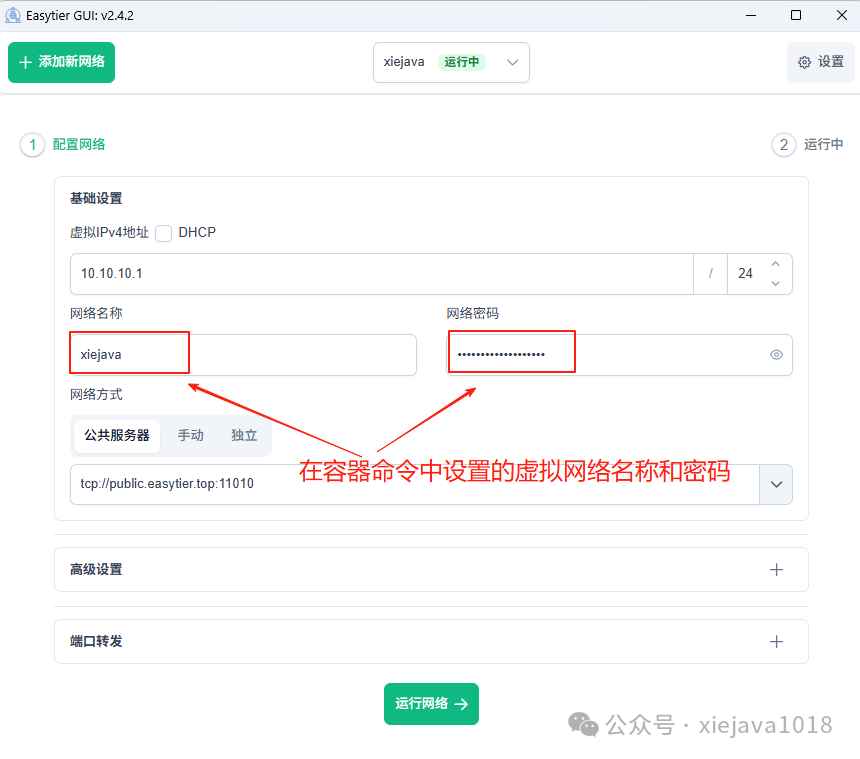 After completing the setup, click “Run Network” and wait a moment to see that both the local machine and the Easytier on Feiniu NAS are connected.You can see that the machine running the Easytier GUI on Windows is connected to the mobile hotspot network and can ping the home intranet IP, allowing smooth access to the home network.4. Applicable Scenarios for Easytier
- Remote Work: Allows computers at the company, home, and remote locations to communicate as if they are on the same local area network.
- Remote Access: Securely access home NAS, servers, or other devices anytime, anywhere.
- Gaming Acceleration: Create a virtual local area network for smooth online gaming.
- IoT Networking: Securely interconnect devices distributed across different locations.
Author’s blog: http://xiejava.ishareread.com/
Follow: WeChat public account, let’s learn and grow together!