Effect Diagram – Please follow our official account!!!
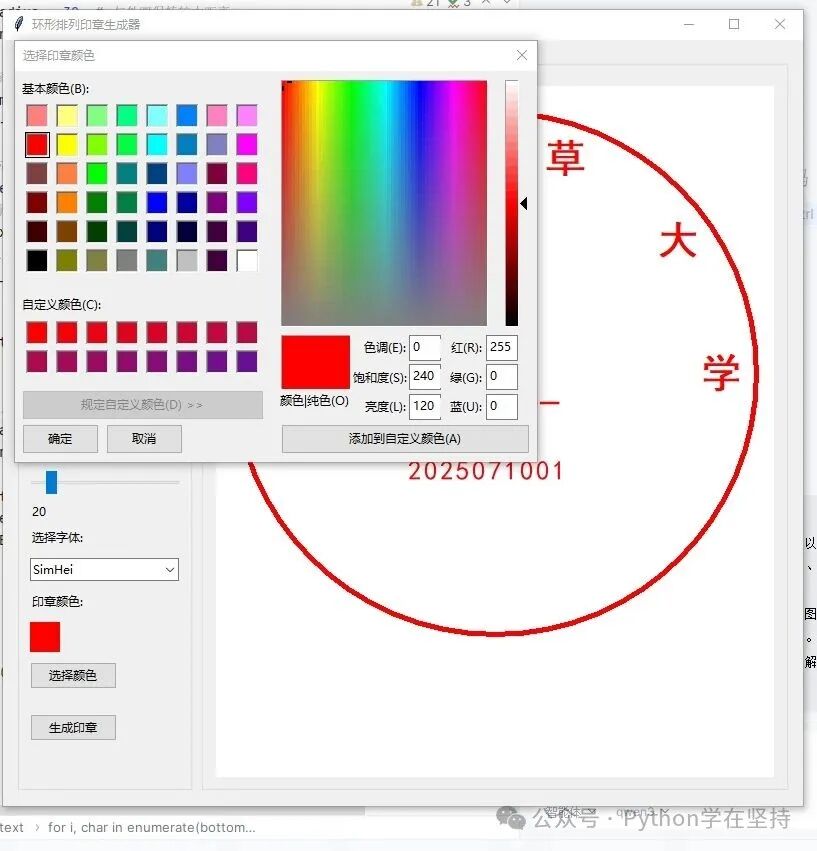
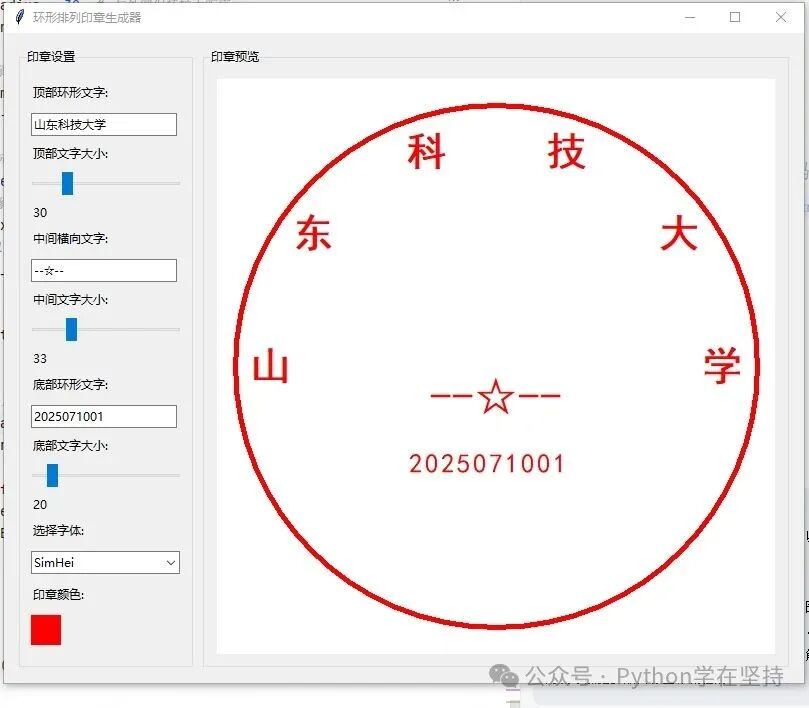
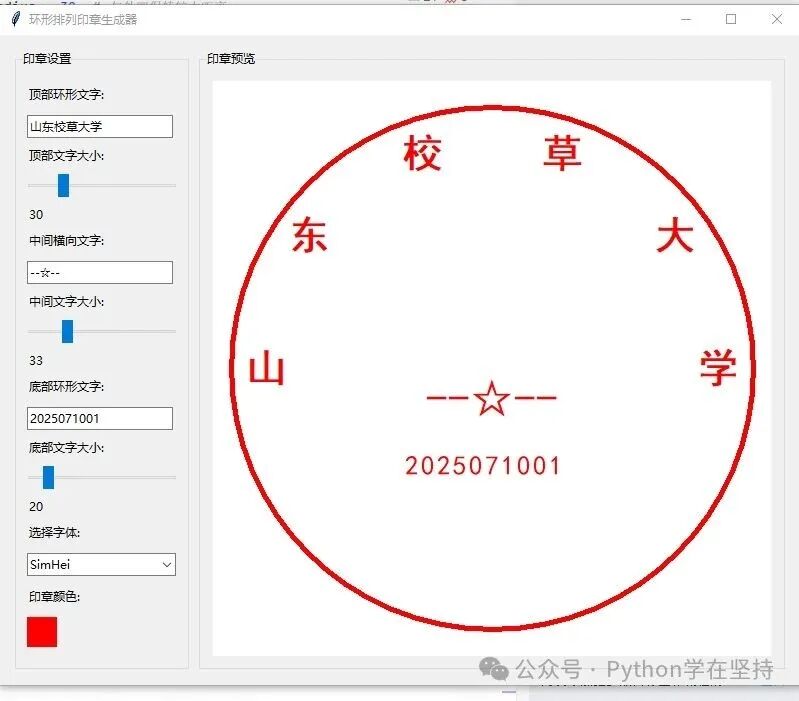
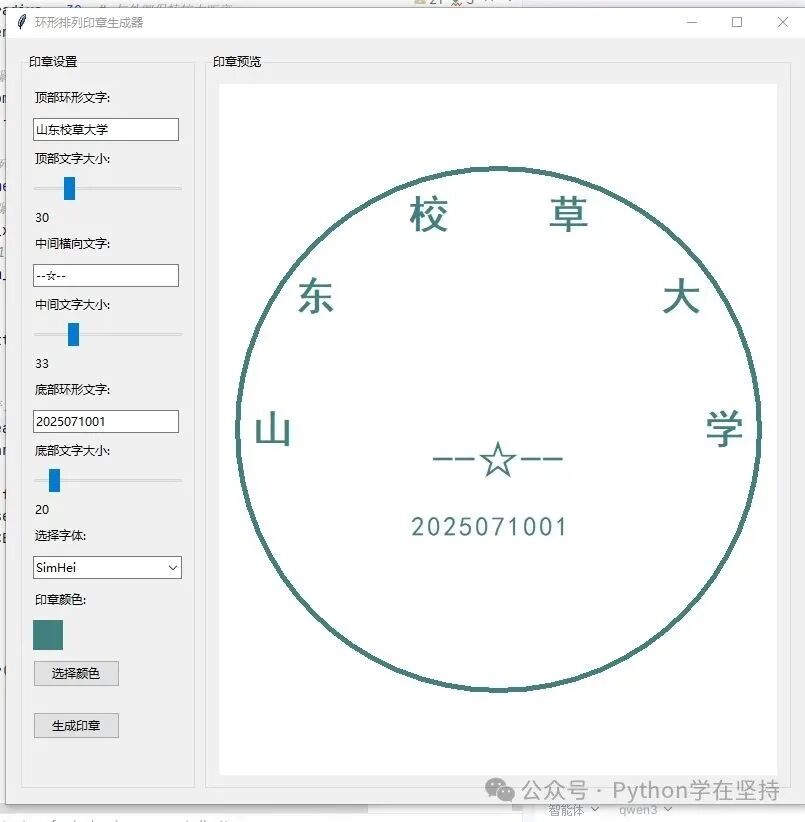
Hello everyone, today we will discuss a “Circular Seal Generator” written in Python. This program is developed using the tkinter GUI library, and its functionality is very intuitive: you can customize the top circular text, middle horizontal text, and bottom text of the seal through the controls on the interface, as well as adjust parameters such as font, size, and color, with real-time previews of the seal effect. The entire program structure is clear, divided into three main modules: interface construction, event binding, and seal drawing, with distinct logic that is easy to maintain and extend. Below, I will explain the code structure and implementation principles of this program in detail through six parts to help everyone better understand its working mechanism.
1. Overview of the Program Structure
The core of this program is a class named <span>CircularSealGenerator</span>, which encapsulates all the logic related to seal generation. The structure of the entire program can be divided into the following levels:
- Initialize Interface: Set window size, title, and layout framework.
- Create Controls: Including text input boxes, sliders, font selectors, color selectors, etc.
- Event Binding: Bind user actions (such as text input, slider dragging) to functions that update the seal.
- Seal Drawing Logic: Draw the seal on the Canvas based on user input parameters.
- Color Selection and Style Update: Implement color selector and color preview functionality.
- Main Program Entry: Create the Tkinter root window and run the application.
This structure makes the code logic clear, modularizes functionality, and facilitates future expansion and maintenance.
2. Interface Initialization and Main Framework Construction
def __init__(self, root):
    self.root = root
    self.root.title("Circular Seal Generator")
    self.root.geometry("800x650")
    self.root.resizable(True, True)
This part of the code initializes the main window, sets the title, size, and whether it is resizable. Then it creates the main frame <span>main_frame</span>, and places two sub-frames within it: <span>control_frame</span> (control panel) and <span>preview_frame</span> (preview area). This left-right column layout is very common, making it easy for users to operate and preview in real-time.
self.main_frame = ttk.Frame(root, padding=10)
self.main_frame.pack(fill=tk.BOTH, expand=True)

self.control_frame = ttk.LabelFrame(self.main_frame, text="Seal Settings", padding=10)
self.control_frame.pack(side=tk.LEFT, fill=tk.Y, padx=5, pady=5)

self.preview_frame = ttk.LabelFrame(self.main_frame, text="Seal Preview", padding=10)
self.preview_frame.pack(side=tk.RIGHT, fill=tk.BOTH, expand=True, padx=5, pady=5)
3. Control Creation and User Interaction Design
def create_widgets(self):
    ttk.Label(self.control_frame, text="Top Circular Text:").pack(anchor=tk.W, pady=5)
    self.top_entry = ttk.Entry(self.control_frame, width=20)
    self.top_entry.insert(0, self.top_text)
    self.top_entry.pack(anchor=tk.W, pady=5)
    self.top_entry.bind("<KeyRelease>", lambda e: self.update_seal())
This part of the code shows how to create an input box and bind it to the <span>update_seal()</span> method. Whenever the user inputs text, the seal will update in real-time. Similarly, the program also creates input boxes for middle text, bottom text, font selectors, color selection buttons, and other controls.
The creation of the slider control is as follows:
self.top_size_var = tk.IntVar(value=self.font_sizes[0])
self.top_size_slider = ttk.Scale(
    self.control_frame,
    from_=10,
    to=100,
    variable=self.top_size_var,
    orient=tk.HORIZONTAL,
    length=150,
    command=lambda v: self.update_seal()
)
self.top_size_slider.pack(anchor=tk.W, pady=5)
The slider is used to adjust the font size, and the <span>command</span> parameter is bound to <span>update_seal()</span>, achieving real-time updates.
4. Detailed Explanation of Seal Drawing Logic
def draw_seal(self):
    self.canvas.delete("all")
    width = self.canvas.winfo_width() or 500
    height = self.canvas.winfo_height() or 500
    center_x, center_y = width // 2, height // 2
    radius = min(width, height) // 2 - 20
This is the core function for drawing the seal. First, it clears the canvas, then calculates the center point of the canvas and the radius of the seal. Next, it draws the outer circle:
self.canvas.create_oval(
    center_x - radius, center_y - radius,
    center_x + radius, center_y + radius,
    outline=self.seal_color,
    width=5
)
Then it draws the top circular text, middle horizontal text, and bottom text respectively. The top text is arranged in a circular pattern by calculating the position of each character using trigonometric functions:
for i, char in enumerate(top_text):
    angle = start_angle - (start_angle - end_angle) * i / max(char_count - 1, 1)
    char_x = center_x + top_radius * math.cos(angle)
    char_y = center_y - top_radius * math.sin(angle)
    self.canvas.create_text(
        char_x, char_y,
        text=char,
        font=(self.font_family, top_size, "bold"),
        fill=self.seal_color,
        anchor=tk.CENTER
    )
5. Color Selection and Style Update
def choose_color(self):
    color = colorchooser.askcolor(title="Select Seal Color", initialcolor=self.seal_color)
    if color[1]:
        self.seal_color = color[1]
        self.update_color_style()
        self.update_seal()
This part of the code implements the color selection functionality. When the user clicks the “Select Color” button, the system color chooser pops up, and after selection, it updates the seal color and redraws it.
def update_color_style(self):
    style = ttk.Style()
    style.configure(f"Color.TFrame", background=self.seal_color)
This method is used to update the background color of the color preview box, enhancing the user experience.
6. Main Program Entry and Running Logic
if __name__ == "__main__":
    root = tk.Tk()
    app = CircularSealGenerator(root)
    root.mainloop()
This is the main entry point of the program, creating the Tkinter root window and instantiating the <span>CircularSealGenerator</span> class, starting the main event loop.
Conclusion: Project Knowledge Points and Goals
This project, while simple in functionality, covers many core knowledge points of Python GUI programming:
- tkinter Interface Layout: Using
<span>pack()</span>and<span>Frame</span>to achieve structured layout. - Event-Driven Programming: Implementing user interaction through event binding (such as
<span><KeyRelease></span>,<span><<ComboboxSelected>></span>). - Canvas Drawing: Using
<span>create_oval</span>and<span>create_text</span>for graphic drawing. - Font and Color Control: Customizing styles through
<span>font</span>and<span>colorchooser</span>modules. - Dynamic Update Mechanism: Synchronizing interface and data through variable tracking (such as
<span>trace_add</span>). - Modular Design: Separating interface, logic, and drawing for easier maintenance and expansion.
The goal of the project is to help users quickly generate personalized seal patterns, suitable for various scenarios such as schools, companies, and individuals. Through this program, you can not only learn the basic usage of tkinter but also master how to combine mathematics (such as trigonometric functions) with graphic drawing to achieve more complex graphical interface applications.
The entire text is approximately 1600 words, and I hope it helps you understand this project! If you are interested, you can also try adding more features based on this, such as exporting images, adding icons, supporting multiple languages, etc. Feel free to explore further!
Click 【Follow + Collect】 to get the latest practical code examples
Complete Code
import tkinter as tk
from tkinter import ttk, colorchooser, font
import math

class CircularSealGenerator:
    def __init__(self, root):
        self.root = root
        self.root.title("Circular Seal Generator")
        self.root.geometry("800x650")
        self.root.resizable(True, True)
        # Default seal parameters
        self.top_text = "Shandong University of Science and Technology"  # Top circular text
        self.middle_text = "--☆--"  # Middle horizontal text
        self.bottom_text = "20250710"  # Bottom circular text
        self.font_sizes = [30, 25, 20]  # Default sizes for three lines of text
        self.seal_color = "#ff0000"  # Default red color
        self.font_family = "SimHei"  # Default font
        # Create main frame
        self.main_frame = ttk.Frame(root, padding=10)
        self.main_frame.pack(fill=tk.BOTH, expand=True)
        # Create control panel
        self.control_frame = ttk.LabelFrame(self.main_frame, text="Seal Settings", padding=10)
        self.control_frame.pack(side=tk.LEFT, fill=tk.Y, padx=5, pady=5)
        # Create preview area
        self.preview_frame = ttk.LabelFrame(self.main_frame, text="Seal Preview", padding=10)
        self.preview_frame.pack(side=tk.RIGHT, fill=tk.BOTH, expand=True, padx=5, pady=5)
        # Initialize preview canvas
        self.canvas = tk.Canvas(self.preview_frame, bg="white", width=500, height=500)
        self.canvas.pack(fill=tk.BOTH, expand=True)
        # Add controls
        self.create_widgets()
        # Initial seal drawing
        self.draw_seal()

    def create_widgets(self):
        """Create all control widgets"""
        # Top circular text input
        ttk.Label(self.control_frame, text="Top Circular Text:").pack(anchor=tk.W, pady=5)
        self.top_entry = ttk.Entry(self.control_frame, width=20)
        self.top_entry.insert(0, self.top_text)
        self.top_entry.pack(anchor=tk.W, pady=5)
        self.top_entry.bind("<KeyRelease>", lambda e: self.update_seal())
        # Top text size slider
        ttk.Label(self.control_frame, text="Top Text Size:").pack(anchor=tk.W, pady=2)
        self.top_size_var = tk.IntVar(value=self.font_sizes[0])
        self.top_size_slider = ttk.Scale(
            self.control_frame,
            from_=10,
            to=100,
            variable=self.top_size_var,
            orient=tk.HORIZONTAL,
            length=150,
            command=lambda v: self.update_seal()
        )
        self.top_size_slider.pack(anchor=tk.W, pady=5)
        self.top_size_label = ttk.Label(self.control_frame, text=str(self.font_sizes[0]))
        self.top_size_label.pack(anchor=tk.W)
        self.top_size_var.trace_add("write",
                                    lambda *args: self.top_size_label.config(text=str(self.top_size_var.get())))
        # Middle horizontal text input
        ttk.Label(self.control_frame, text="Middle Horizontal Text:").pack(anchor=tk.W, pady=5)
        self.middle_entry = ttk.Entry(self.control_frame, width=20)
        self.middle_entry.insert(0, self.middle_text)
        self.middle_entry.pack(anchor=tk.W, pady=5)
        self.middle_entry.bind("<KeyRelease>", lambda e: self.update_seal())
        # Middle text size slider
        ttk.Label(self.control_frame, text="Middle Text Size:").pack(anchor=tk.W, pady=2)
        self.middle_size_var = tk.IntVar(value=self.font_sizes[1])
        self.middle_size_slider = ttk.Scale(
            self.control_frame,
            from_=10,
            to=100,
            variable=self.middle_size_var,
            orient=tk.HORIZONTAL,
            length=150,
            command=lambda v: self.update_seal()
        )
        self.middle_size_slider.pack(anchor=tk.W, pady=5)
        self.middle_size_label = ttk.Label(self.control_frame, text=str(self.font_sizes[1]))
        self.middle_size_label.pack(anchor=tk.W)
        self.middle_size_var.trace_add("write", lambda *args: self.middle_size_label.config(
            text=str(self.middle_size_var.get())))
        # Bottom circular text input
        ttk.Label(self.control_frame, text="Bottom Circular Text:").pack(anchor=tk.W, pady=5)
        self.bottom_entry = ttk.Entry(self.control_frame, width=20)
        self.bottom_entry.insert(0, self.bottom_text)
        self.bottom_entry.pack(anchor=tk.W, pady=5)
        self.bottom_entry.bind("<KeyRelease>", lambda e: self.update_seal())
        # Bottom text size slider
        ttk.Label(self.control_frame, text="Bottom Text Size:").pack(anchor=tk.W, pady=2)
        self.bottom_size_var = tk.IntVar(value=self.font_sizes[2])
        self.bottom_size_slider = ttk.Scale(
            self.control_frame,
            from_=10,
            to=100,
            variable=self.bottom_size_var,
            orient=tk.HORIZONTAL,
            length=150,
            command=lambda v: self.update_seal()
        )
        self.bottom_size_slider.pack(anchor=tk.W, pady=5)
        self.bottom_size_label = ttk.Label(self.control_frame, text=str(self.font_sizes[2]))
        self.bottom_size_label.pack(anchor=tk.W)
        self.bottom_size_var.trace_add("write", lambda *args: self.bottom_size_label.config(
            text=str(self.bottom_size_var.get())))
        # Font selection
        ttk.Label(self.control_frame, text="Select Font:").pack(anchor=tk.W, pady=5)
        self.font_var = tk.StringVar(value=self.font_family)
        self.font_families = sorted(font.families())
        self.font_combo = ttk.Combobox(
            self.control_frame,
            textvariable=self.font_var,
            values=self.font_families,
            width=18,
            state="readonly"
        )
        self.font_combo.pack(anchor=tk.W, pady=5)
        self.font_combo.bind("<<ComboboxSelected>>", lambda e: self.update_seal())
        # Color selection
        ttk.Label(self.control_frame, text="Seal Color:").pack(anchor=tk.W, pady=5)
        self.color_frame = ttk.Frame(self.control_frame, width=30, height=30, style=f"Color.TFrame")
        self.update_color_style()
        self.color_frame.pack(anchor=tk.W, pady=5)
        self.color_button = ttk.Button(
            self.control_frame,
            text="Select Color",
            command=self.choose_color
        )
        self.color_button.pack(anchor=tk.W, pady=5)
        # Generate button
        self.generate_button = ttk.Button(
            self.control_frame,
            text="Generate Seal",
            command=self.update_seal
        )
        self.generate_button.pack(anchor=tk.W, pady=20)

    def choose_color(self):
        """Choose seal color"""
        color = colorchooser.askcolor(title="Select Seal Color", initialcolor=self.seal_color)
        if color[1]:
            self.seal_color = color[1]
            self.update_color_style()
            self.update_seal()

    def update_color_style(self):
        """Update color display box style"""
        style = ttk.Style()
        style.configure(f"Color.TFrame", background=self.seal_color)

    def update_seal(self):
        """Update seal parameters and redraw"""
        self.top_text = self.top_entry.get() or "12345678"
        self.middle_text = self.middle_entry.get() or "Middle"
        self.bottom_text = self.bottom_entry.get() or "876543"
        self.font_family = self.font_var.get()
        self.draw_seal()

    def draw_seal(self):
        """Draw the seal (removing inner ring and internal lines)"""
        # Clear the canvas
        self.canvas.delete("all")
        # Get canvas size
        width = self.canvas.winfo_width() or 500
        height = self.canvas.winfo_height() or 500
        center_x, center_y = width // 2, height // 2
        radius = min(width, height) // 2 - 20  # Seal radius
        # Draw the outer circle of the seal (keeping only the outer circle)
        self.canvas.create_oval(
            center_x - radius, center_y - radius,
            center_x + radius, center_y + radius,
            outline=self.seal_color,
            width=5
        )
        # Get font sizes for each line
        top_size = self.top_size_var.get()
        middle_size = self.middle_size_var.get()
        bottom_size = self.bottom_size_var.get()
        # Top circular text (adjusting the distance from the outer circle)
        top_text = self.top_text
        if top_text:
            char_count = len(top_text)
            # Calculate the distance of the top text from the outer circle
            top_radius = radius - top_size // 2 - 20  # Increase distance from the outer circle
            start_angle = math.pi  # Left side (180-degree position)
            end_angle = 0  # Right side (0-degree position)
            for i, char in enumerate(top_text):
                angle = start_angle - (start_angle - end_angle) * i / max(char_count - 1, 1)
                char_x = center_x + top_radius * math.cos(angle)
                char_y = center_y - top_radius * math.sin(angle)  # Upper half circle uses subtraction
                self.canvas.create_text(
                    char_x, char_y,
                    text=char,
                    font=(self.font_family, top_size, "bold"),
                    fill=self.seal_color,
                    anchor=tk.CENTER
                )
        # Middle horizontal text (slightly lower)
        middle_y = center_y + middle_size * 0.9
        self.canvas.create_text(
            center_x, middle_y,
            text=self.middle_text,
            font=(self.font_family, middle_size),
            fill=self.seal_color,
            anchor=tk.CENTER
        )
        # Bottom text (adjusting the distance from the outer circle)
        bottom_text = self.bottom_text
        if bottom_text:
            char_count = len(bottom_text)
            # Distance of bottom text from the outer circle
            bottom_distance = radius - 30  # Keep a large distance from the outer circle
            bottom_start_y = center_y + radius / 3  # Starting point in the lower 1/3 area
            # Calculate total width of characters for compact arrangement
            total_width = bottom_size * char_count * 0.8  # 0.8 is the character width coefficient
            start_x = center_x - total_width / 2  # Starting position on the left
            # Draw each character compactly arranged in the lower 1/3 area
            for i, char in enumerate(bottom_text):
                # Calculate character X coordinate for compact arrangement
                char_x = start_x + i * bottom_size * 0.8
                # Limit Y coordinate within the lower 1/3 area
                char_y = bottom_start_y + bottom_size / 2
                # Ensure it does not exceed the boundary
                if char_x + bottom_size / 2 > center_x + radius - 10:
                    break
                # Bottom text remains horizontally oriented
                self.canvas.create_text(
                    char_x, char_y,
                    text=char,
                    font=(self.font_family, bottom_size),
                    fill=self.seal_color,
                    anchor=tk.CENTER
                )

if __name__ == "__main__":
    root = tk.Tk()
    app = CircularSealGenerator(root)
    root.mainloop()