In addition to the display, keyboard, and mouse, which are similar to desktop computers, laptops also feature a touchpad. Many people only know that this touchpad can be used to move the cursor, but it actually has many more interesting functions.
Today, the computer repair editor will demonstrate the touchpad features of both Apple laptops and Windows-based laptops:
Windows-based laptops:
Zooming In and Out of Pages
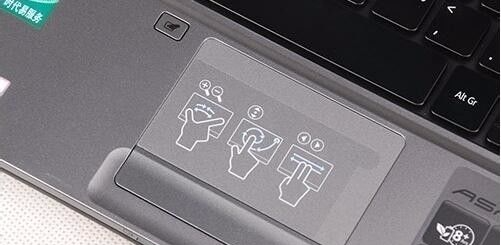
By spreading your index and middle fingers apart on the touchpad, the page zooms in; by pinching your fingers together, the page zooms out. (This applies to touchpads that support multi-touch)
Scrolling Up and Down, Left and Right
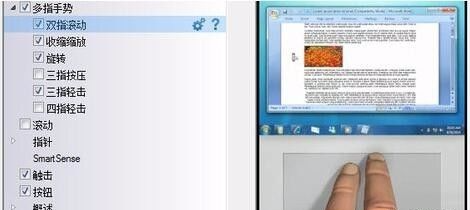
When browsing web pages or Word documents, we usually scroll using the mouse. However, on a laptop touchpad, you can move two fingers left and right or up and down to scroll, which is equivalent to dragging the scroll bar. (This applies to touchpads that support multi-touch).
Mouse Movement
Using a single finger to touch and move the touchpad is equivalent to moving the mouse. A light tap on the touchpad simulates a left mouse click, while a double tap simulates a left mouse double-click.
Mouse Dragging
By double-tapping the touchpad with one finger, then keeping that finger on the touchpad without lifting it, you can drag items by moving your finger until you lift it off the touchpad, which will stop the dragging action.
Three-Finger Gestures
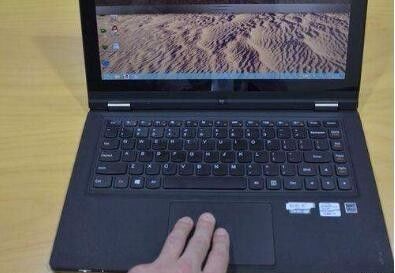
Placing three fingers on the touchpad and swiping up minimizes all currently open program windows. Swiping down restores all minimized programs on the desktop.
Apple MacBook Touchpad:
Single Finger
Moving a single finger works like a mouse to move the cursor. A single tap selects an item, while a double tap opens a file.
Two Fingers:
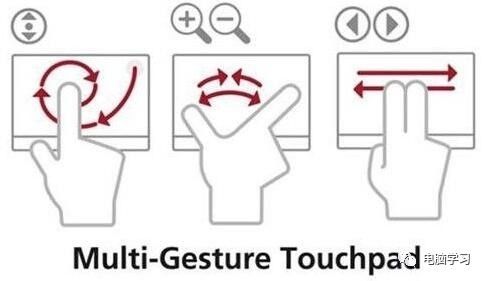
Using two fingers to click: right-click function;
Two-finger up and down movement: scroll;
Two-finger pinch: zoom in and out of web content;
Two-finger swipe left and right: navigate back and forth;
Double-tapping with two fingers on a webpage (only in Safari): smart zoom.
Three Fingers
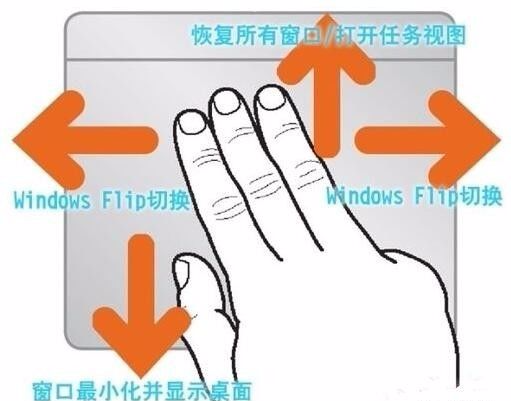
Dragging the pointer to the top of a window and then using three fingers to drag: move the window;
Triple tapping on text or words (only in Safari): look up in the dictionary;
Three-finger swipe up: minimize and switch between multiple interfaces.
Four Fingers

Four-finger spread: show the desktop (i.e., push all windows to the side);
Four-finger swipe up: activate Mission Control (task control);
Four-finger swipe left and right: switch between desktops or full-screen applications;
Four-finger swipe down: show all windows of the current application;
Four-finger pinch: open Launchpad;
Do you have better touchpad tricks?
Share them with us!