 📺 IntroductionOpenWRT is a highly customizable Linux operating system designed specifically for embedded devices, especially smart routers and network devices.You can think of it as the “Android system” on your home router. Just like Android phones allow you to install various apps to achieve endless functionalities, OpenWRT also allows you to install various software packages on the router, greatly expanding its originally limited capabilities.Today, we will briefly discuss how to use an OpenWrt router to capture packets from an IPTV set-top box.
 1. Preparation 🛠️
-
Devices
-
Optical modem
-
OpenWrt router (capable of SSH login and installing tcpdump)
-
IPTV set-top box
-
A PC (with Wireshark installed)
Software
-
Install Wireshark on the PC
-
Install tcpdump on the OpenWrt router:
SSH into the router, if the PC is running Windows 10 or above, you can enter in the cmd terminal (Powershell): ssh [email protected] (router IP) to log in
After logging in, enter the following command to install
opkg update
opkg install tcpdump
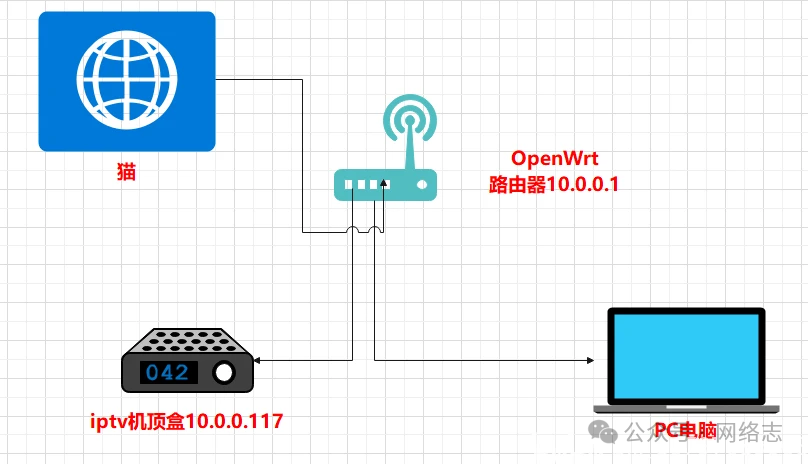
 2. Wiring 📡If you only need to capture IPTV traffic (without internet), you can wire it like this:
-
Optical modem iTV port → OpenWrt WAN port
-
The iTV dedicated port of the optical modem outputs IPTV private network.
-
The WAN port of OpenWrt obtains the iTV network, effectively “pulling in” the traffic from the set-top box.
-
Set-top box → OpenWrt LAN port
-
The set-top box connects to the LAN port of OpenWrt, and normally it can receive IPTV signals from the WAN port.
-
The set-top box will automatically obtain the IP assigned by OpenWrt; note the IP assigned to it (for example, 10.0.0.117).
-
PC → OpenWrt LAN port / WiFi
-
The computer is also connected to OpenWrt, ensuring that the PC and the set-top box are on the same subnet (e.g., both are 10.0.0.x).
-
This way, the PC can capture the data packets from the set-top box using
<span>tcpdump</span>+ Wireshark.
⚠️ In some regions, the iTV port of the optical modem may carry VLAN (e.g., VLAN 85/45), and you need to set the VLAN Tag in the WAN interface of OpenWrt; otherwise, the set-top box will not authenticate.
 3. Packet Capture Process 🔍
-
Confirm the set-top box IP address
-
After the set-top box connects to OpenWrt, enter the settings page of the IPTV set-top box to check its assigned IP.
-
For example:
<span>10.0.0.117</span>
Run command on PC In the Wireshark installation directory, hold <span>Shift + Right Click</span> → Open PowerShell → Enter the following command:
ssh [email protected] -p 22 "tcpdump host 10.0.0.117 -iany -s 0 -l -w -" | "wireshark.exe" -k -i -Parameter explanation:
-
<span>10.0.0.1</span>→ OpenWrt router IP -
<span>10.0.0.117</span>→ IPTV set-top box IP -
<span>-iany</span>→ Capture all network interfaces -
<span>-s 0</span>→ Do not truncate packets -
<span>-w -</span>→ Output captured data directly to standard output -
<span>| wireshark.exe -k -i -</span>→ Pipe the data to Wireshark for real-time analysis
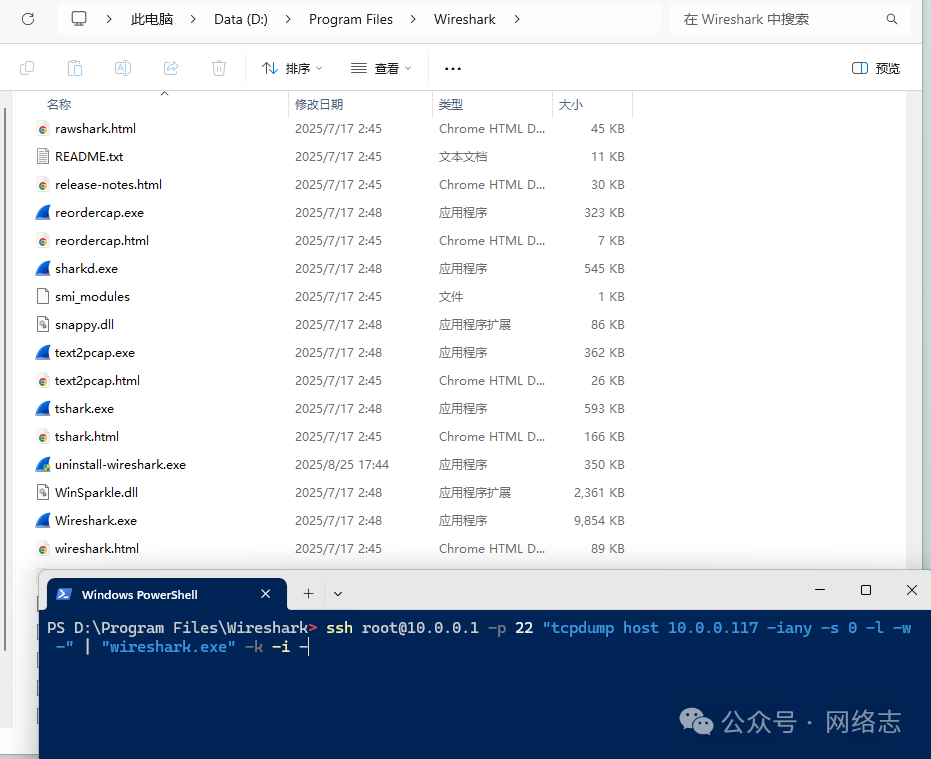
Enter password → Wireshark automatically starts At this point, Wireshark will display the traffic from the IPTV set-top box in real-time.
 4. Saving and Analyzing 📂
-
Switch between several channels, and after accumulating some data, stop the packet capture.
-
In Wireshark, save it as a
<span>.pcapng</span>file. -
Use filters to analyze:
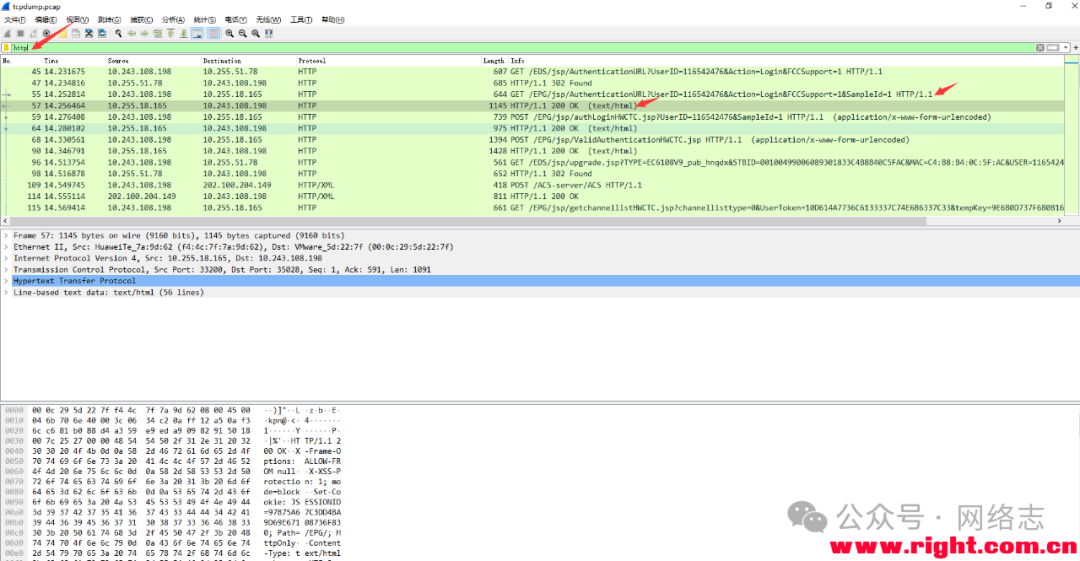
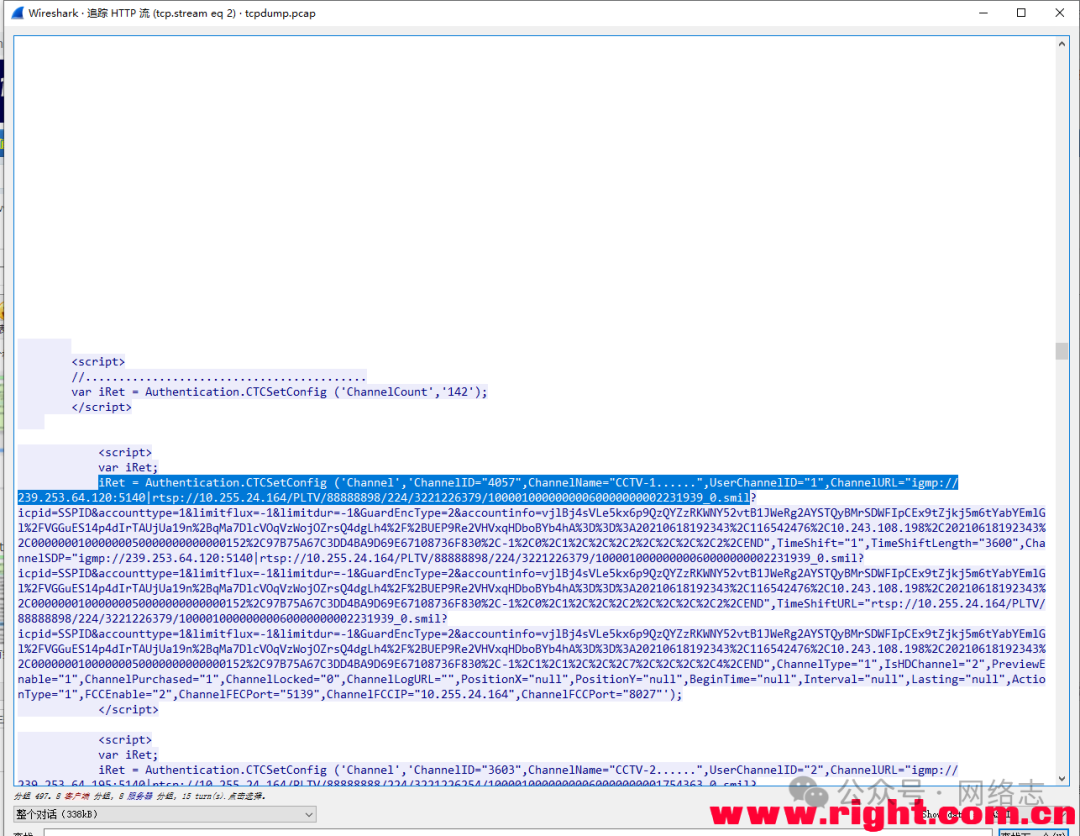
Analyze the data containing text/html after GET, and trace the http stream
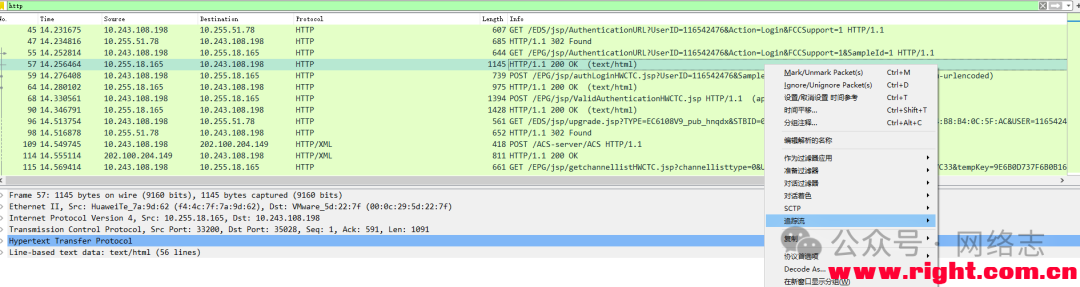 Find the channel data in the trace results as shown in the following image; if not, continue tracing the next data containing text/html
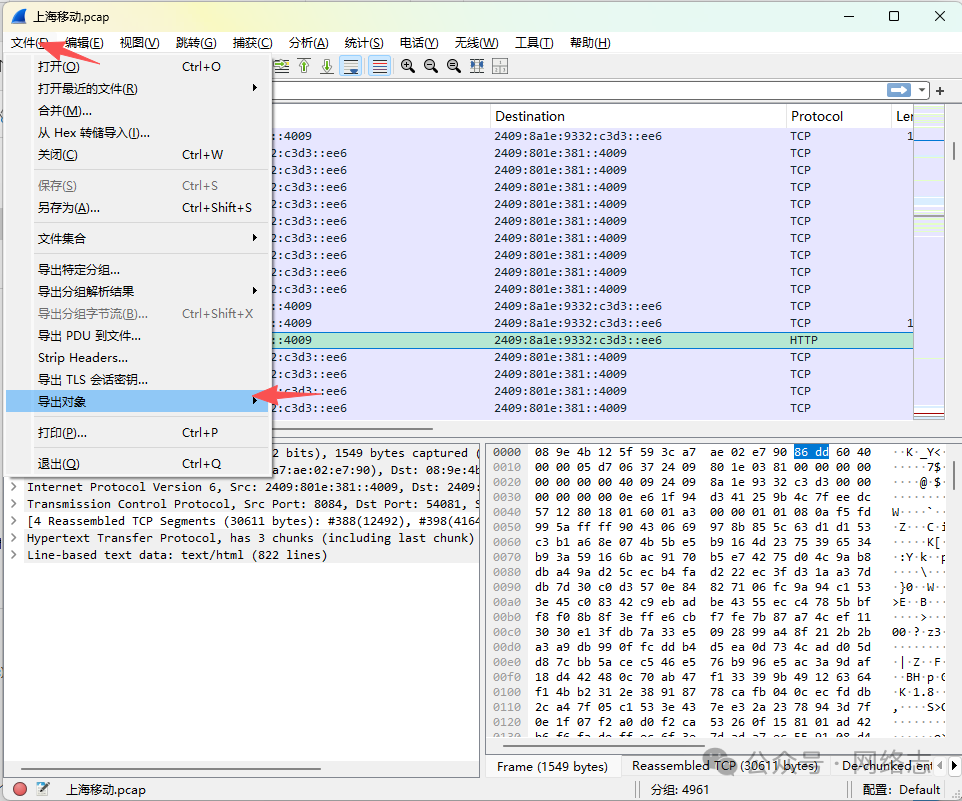
 Export the object, http…
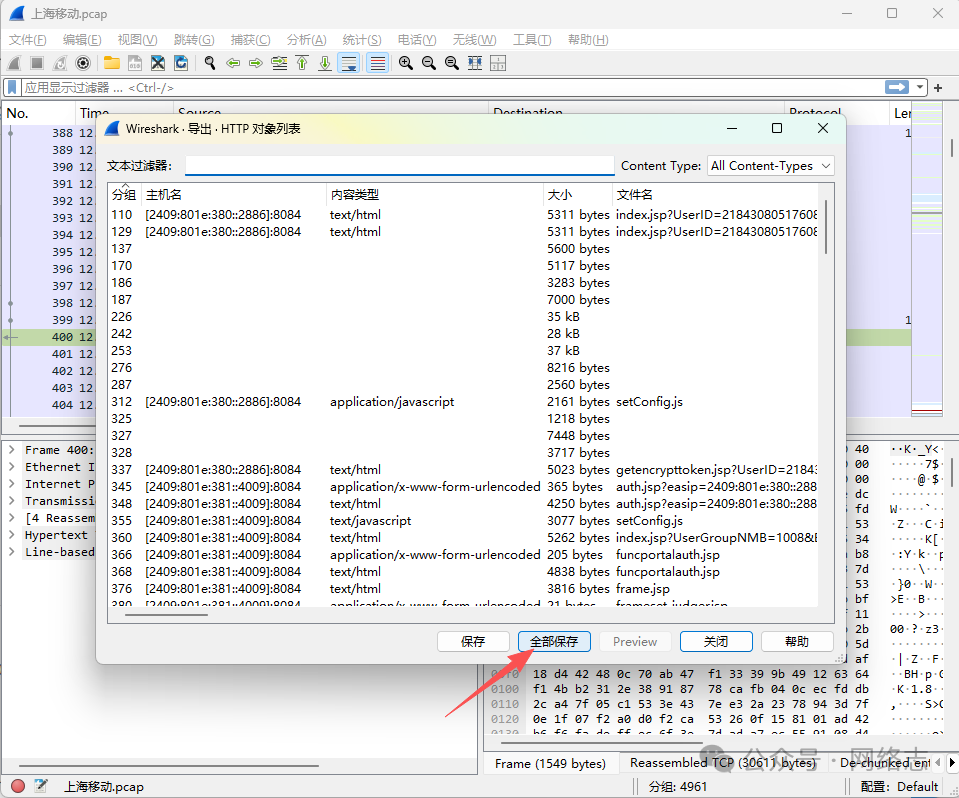
 Save all
 The largest file saved is the captured channel list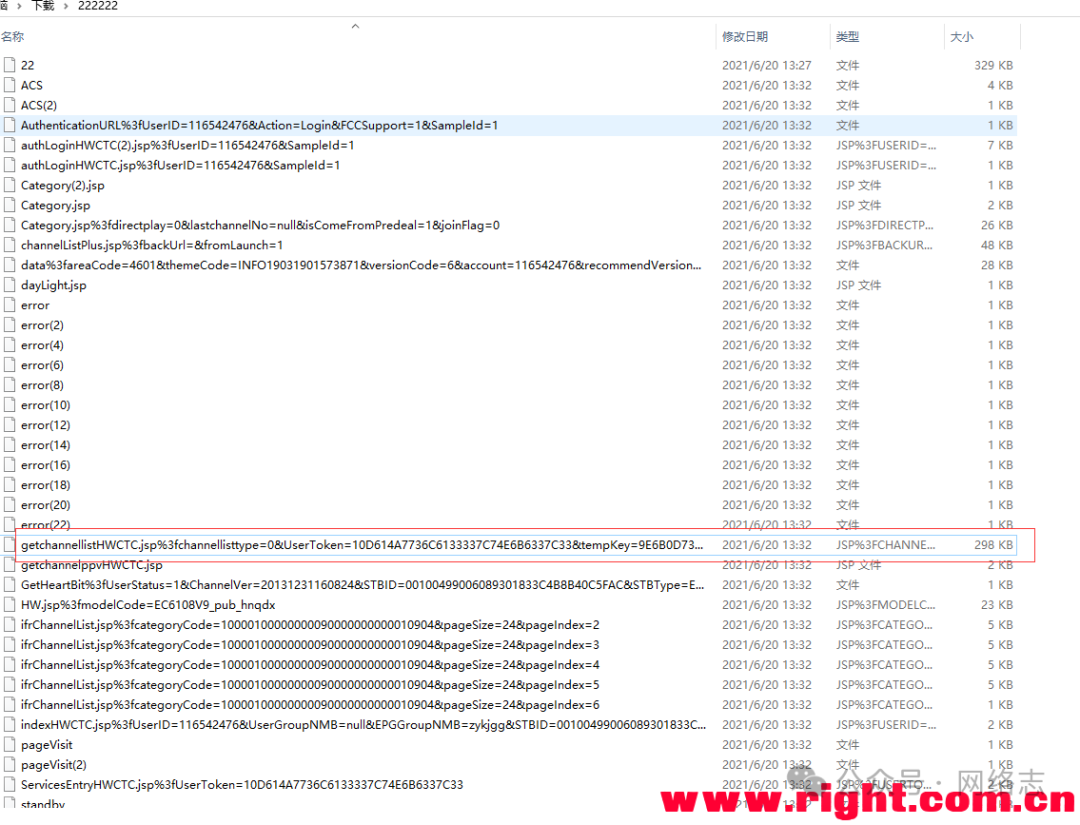
Experience summary: The packets captured from IPTV may vary by region; for example, some channel list files are frameset_builder.jsp, while others are getchannellistHWCTC.jsp, etc. However, the basic idea is that the box will access and load the channel list after powering on, and capturing the packets of the channel list will suffice.
⚠️5. Risk Warning
-
IPTV is a service of the operator’s private network, and cracking/stealing is a violation of regulations.
-
This tutorial is for educational research and laboratory environment use only.
-
Operators regularly update encryption/authentication methods, and the captured addresses may not be valid for long.
 END
END