Lesson 1: Implementation of Basic Scoring Functionality
【Project Background】
The physical fitness test for high school students is a core component of the physical education system in our country, playing a key role in improving the physical health of adolescents, fostering a lifelong awareness of exercise, and enhancing the quality assessment of education. The test items scientifically cover physical functions, athletic qualities, and health indicators, mainly including:
Basic Indicators: BMI index, vital capacity
Physical Fitness Items: 50-meter run, standing long jump, sit-and-reach
Gender-Specific Items: Boys (pull-ups, 1000-meter run) / Girls (sit-ups, 800-meter run)
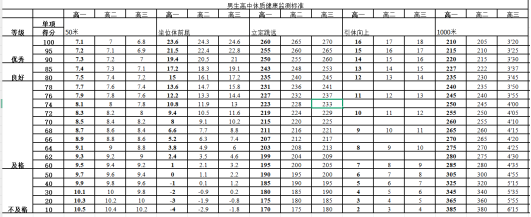
The traditional manual scoring method has efficiency bottlenecks—facing a massive amount of test data, manual calculations and grading are not only time-consuming and labor-intensive but also prone to errors. This time, we will explore a Python-based intelligent solution to achieve a qualitative leap in the efficiency of processing sports scores!
【Part One: Interface Construction】
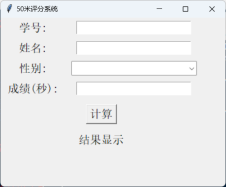
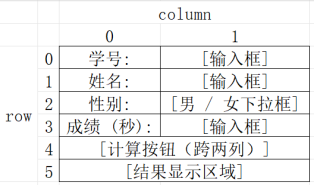
1. Complete other labels based on the format of the student ID label.
tk.Label(root,text=”Student ID:”,font=16).grid(row=0, column=0, padx=10, pady=5)
2. Complete other input fields based on the student ID input box format, and do not forget the grid line.
id_entry = tk.Entry(root,font=16)
id_entry.grid(row=0, column=1, padx=10, pady=5)
【Part Two: Implementation of Calculation Functionality】
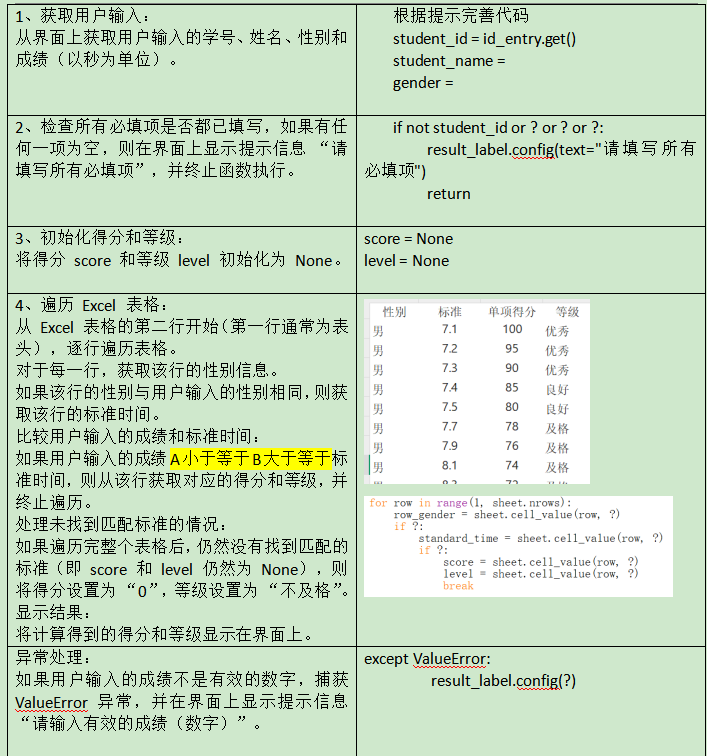
Algorithm Description
【Assignments】
Basic Assignment: Complete the above code to implement the calculation of scores and grades.
Advanced Assignment:
First, consider the similarities and differences in scoring logic for sit-and-reach, standing long jump, 1000 meters or 800 meters, pull-ups or sit-ups. How can the code be modified to allow selection of different items from a dropdown list, such as calculating the sit-and-reach score and grade?
Lesson 2: Batch Data Processing
【Project Review】
In the previous lesson, we built a simple physical fitness scoring system interface using Tkinter, which can calculate scores and grades based on user input of student ID, name, gender, and 50-meter run results. By using the xlrd library to read standard data from Excel, we accurately matched the standards and displayed results when the user input is complete and valid, while also handling input exceptions. In this lesson, we will expand the functionality to achieve batch scoring and gain a deeper understanding of Tkinter’s dialog boxes, menus, and the differences between openpyxl, xlrd, and xlwt in handling Excel files.
【Interface Construction】
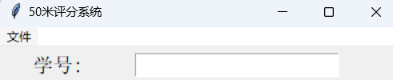
Based on the previous lesson, add a new control: the menu.
1. Create a menu bar object using the tk.Menu class and configure it to the main window.
menu_bar = tk.Menu(root)
root.config(menu=menu_bar)
2. Create a dropdown menu object, which will serve as a submenu of the menu bar. Typically, the tearoff parameter is set to 0, so the menu cannot be torn off (i.e., cannot be separated from the menu bar to become an independent window).
file_menu = tk.Menu(menu_bar, tearoff=0)
3. Use the add_cascade method to add the dropdown menu to the menu bar and specify the label for the menu.
menu_bar.add_cascade(label=”File”, menu=file_menu)
4. Use the add_command method to add specific command options to the dropdown menu. When the user clicks on this option, the corresponding function will be executed.
file_menu.add_command(label=”Open and Process”, command=process_excel)
【Implementation of Batch Scoring Functionality】
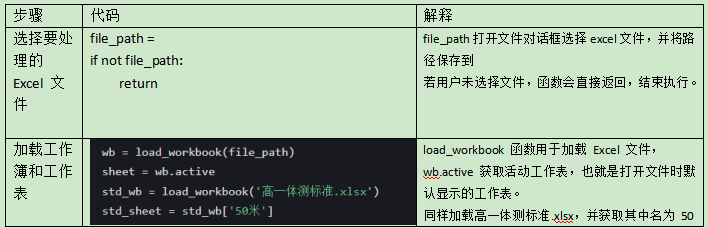
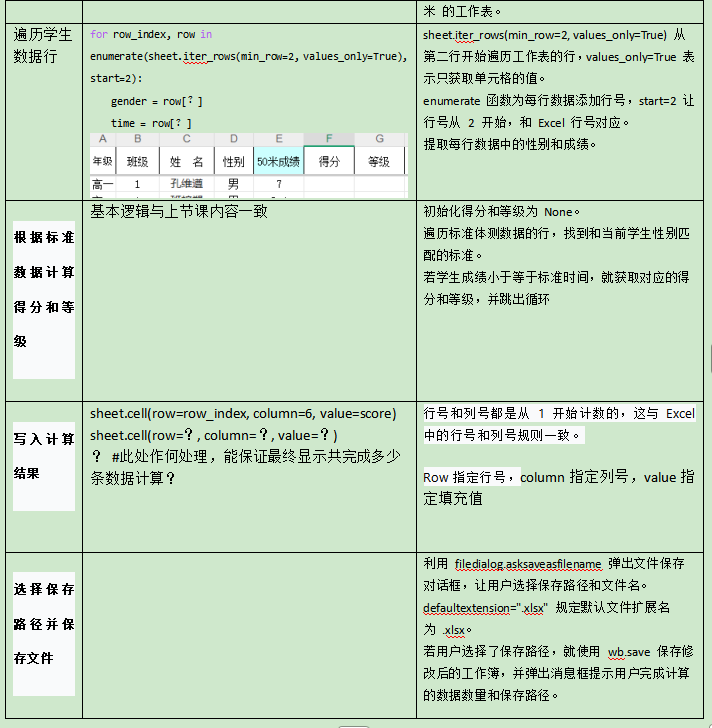
【Assignments】
Modify the code according to the table to complete the operations of importing, calculating, and saving the Excel file.
【Further Reading】
1. Differences between openpyxl and xlrd, xlwt
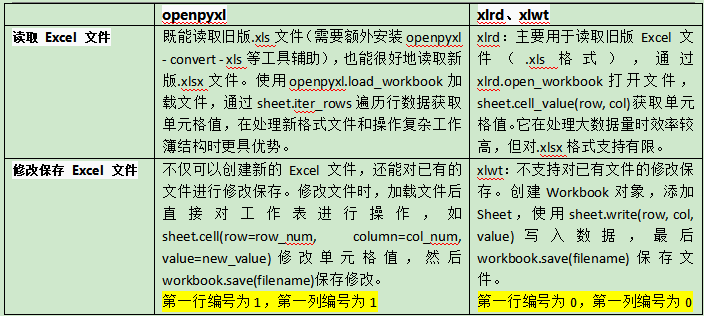
2.
for std_row in std_sheet.iter_rows(min_row=2,values_only=True):
What does this line do?
sheet is an instance of the Worksheet class in the openpyxl library, representing an Excel worksheet.
iter_rows is a method of the Worksheet class used to iterate through the rows in the worksheet.
min_row=2 indicates that iteration starts from the second row of the worksheet, as the first row is usually the header, so the actual data rows start from the second row.
values_only=True means that each iteration returns a tuple of the values of the cells in each row, rather than the cell objects themselves.
enumerate(…, start=2):
enumerate is a built-in Python function that can be used to get both the index and the corresponding value while iterating over an iterable object.
start=2 is an optional parameter of the enumerate function, specifying that the starting index value is 2.
Here’s an example:
Assuming there is a file example.xlsx
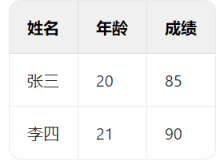
Run the following code
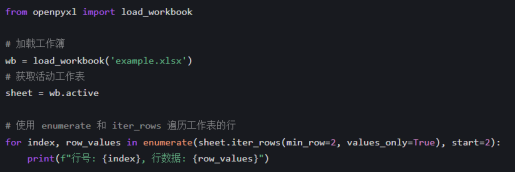
The output result is as follows:

Disclaimer
The above images and text are for sharing purposes, and the copyright belongs to the original author and source. If there are any copyright issues, please contact us in a timely manner, and we will correct, delete, or handle it according to the law.
Compiled by: Huang Qi
Technical: Huang Qi
Reviewed by: Wu Tao
Editorial Team: Group 6 of Municipal High Schools
Jinan Foreign Language School
Published by: Wang Yuan