In Linux system operations, process management is an important part of daily operations. System administrators often need to find abnormal processes, terminate unresponsive services, or clean up processes that consume excessive resources. This article will systematically introduce practical methods for finding and terminating processes in Linux, based on real operational scenarios.
1. Methods for Finding Processes
1.1 Using the ps Command with grep for Filtering
# Find all processes
ps -ef

# Find a specific process (e.g., nginx)
ps -ef | grep nginx

# Find and exclude the grep process itself
ps -ef | grep nginx | grep -v grep
Applicable Scenario: When a service is abnormal and its running status needs to be confirmed, such as checking whether the web service is running normally.
1.2 Using pgrep to Quickly Obtain Process IDs
# Get process PID
pgrep nginx

# Get process PID and name
pgrep -l nginx
Applicable Scenario:Quickly obtain process IDs in automation scripts for subsequent monitoring or management operations.
1.3 Using top/htop to View Processes in Real Time
# Dynamically view process resource usage
top

# Interactive process management (requires installation)
htop
Applicable Scenario:When the system experiences performance issues, view the processes with the highest CPU and memory usage in real time.
2. Methods for Terminating Processes
2.1 Using the kill Command to Terminate Processes by PID
# Gracefully terminate a process (recommended first choice)
kill -15 PID

# Forcefully terminate a process
kill -9 PID

# Terminate multiple processes
kill -9 PID1 PID2 PID3
Applicable Scenario:Terminate an abnormal process with a known PID, such as an unresponsive Java application.
2.2 Using pkill to Terminate Processes by Name
# Terminate all processes with the specified name
pkill nginx

# Forcefully terminate processes
pkill -9 nginx

# Terminate processes of a specified user
pkill -u username
Applicable Scenario:Quickly terminate all processes of a service, such as restarting an entire application cluster.
2.3 Using killall to Terminate Process Groups
# Terminate all processes with the same name
killall nginx

# Confirm before termination interactively
killall -i nginx

# Terminate processes that have been running for a specified time
killall -o 2h nginx  # Terminate processes running for more than 2 hours
Applicable Scenario:Clean up zombie processes or terminate all instances of the same application.
3. Practical Operational Scenarios
# Scenario 1: Handling Unresponsive Web Server
1)Find nginx process
ps -ef | grep nginx
2)Find abnormal worker process
3)Gracefully restart
kill -HUP $(pgrep nginx | head -1)
4)If still unresponsive, force restart
pkill -9 nginx && systemctl start nginx
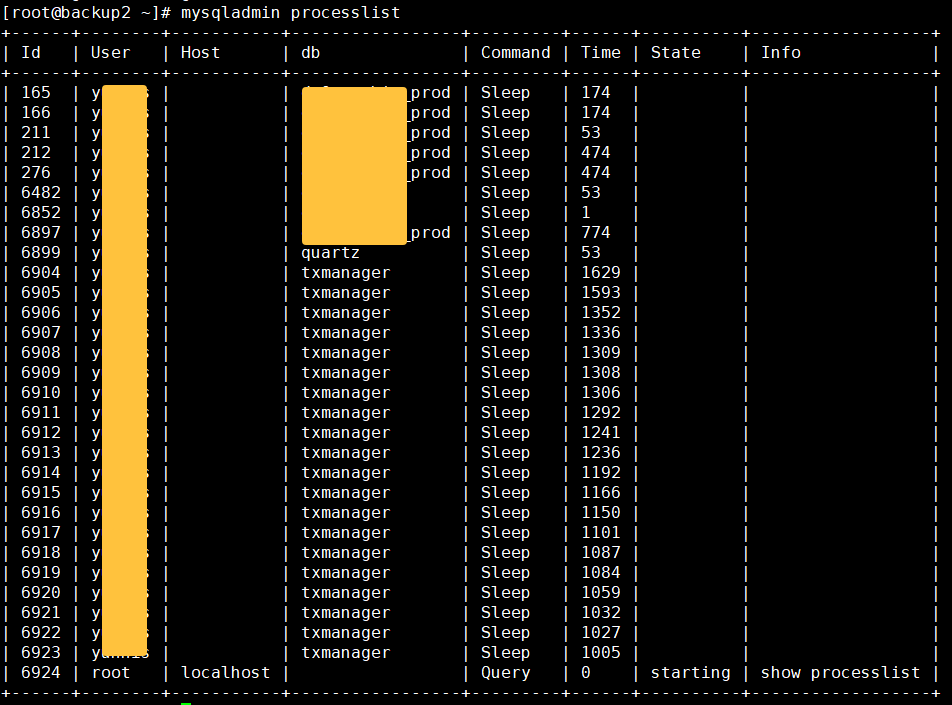
# Scenario 2: Handling Excessive Database Connections
1)View MySQL connection processes
ps -ef | grep mysql
2)Terminate idle connections that have been open for too long
killall -o 1h mysqld
3)Verify connection status
mysqladmin processlist
# Scenario 3: Cleaning Up Memory Leak Processes
1)View processes with the highest memory usage
top -o %MEM
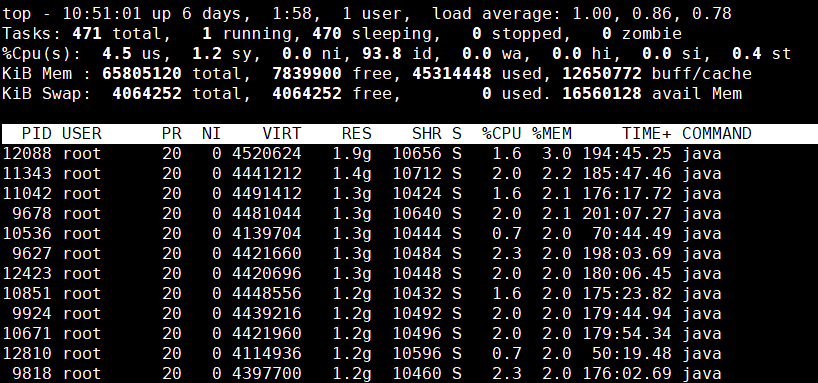
2)Confirm abnormal process
ps -p PID -o pid,ppid,cmd,%mem,%cpu

# ex:
[root@backup ~]# ps -p 12088 -o pid,ppid,cmd,%mem,%cpu
  PID  PPID CMD                         %MEM %CPU
12088 11993 java -Duser.timezone=GMT+8   2.9  2.2
[root@backup ~]#
3)Preserve the scene and then terminate the process
kill -TERM PID
4. Precautions
4.1 Permission Control
- Ordinary users can only terminate their own processes
- Root users can terminate all processes
- Use sudo cautiously in production environments
4.2 Signal Usage Principles
- Prefer to use
<span>SIGTERM(15) </span>to allow processes to clean up resources - Use
<span>SIGKILL(9) </span>cautiously as it may cause data loss - Use
<span>SIGHUP(1) </span>to reload configuration
4.3 Confirm Before Operations
# Confirm process information before termination
ps -p PID -o user,pid,ppid,cmd

# Verify after termination
ps -p PID &&& echo "Process is still running" || echo "Process has ended"
4.4 Record Audit Logs
# Record before important operations
echo "$(date): Terminated process PID=$PID (Reason: Memory leak)" >> /var/log/process_manage.log
5. Alternative Solutions and Advanced Tools
5.1 <span>systemctl</span> for Managing Service Processes
# It is recommended to use system service management first
systemctl stop nginx
systemctl restart mysql
5.2 Using timeout to Control Process Runtime
# Automatically terminate timeout processes
timeout 30s ./long_running_script.sh
5.3 Using nohup to Manage Background Processes
# Start controlled background processes
nohup ./start_service.sh > service.log 2>&1 &
6. Conclusion
In Linux operations, proper process management is essential for the stable operation of the system. It is recommended to follow the principle of “find first, confirm, graceful first, then force” and keep operation records. For important services, it is advisable to prioritize using <span>systemctl</span> and other service management tools to avoid the risks associated with directly using the <span>kill</span> command.