The submission interpreter is a special background operation mechanism in the KUKA system, implemented through an independent KRL program for continuous monitoring and response.Its core features include:
① Background loop execution: runs independently in an infinite loop, not dependent on the main program execution status;
② Non-motion control: can execute status queries and send commands, but prohibits motion-related commands;
③ Multi-task processing: supports simultaneous management of multiple submission programs (multi-submission);
④ System interaction: typically used in scenarios such as device status monitoring (e.g., end tool status detection), I/O signal processing, etc.
The submission interpreter displays the “S” icon in the status bar of the teach pendant, with the common status types (inferred from status flag symbols) being as follows:
Running status (green): at least one submission interpreter is executing a program;
Warning status (yellow exclamation mark): there are operational warnings that require user confirmation;
Error status (red): a program execution error or system conflict has been detected;
Disabled status (gray): the submission interpreter is in an inactive state.
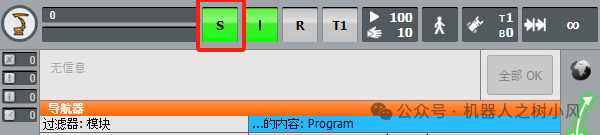
1. The method to create a new submission interpreter on the teach pendant is as follows, taking the KUKA robot KSS 8.7 system as an example.
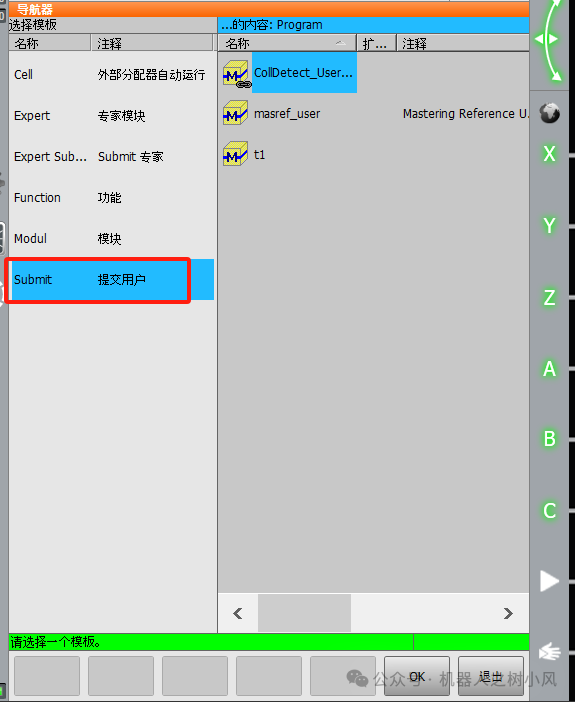
1. Create a new submission interpreter program. When creating, select the Submit (User Submission) template and name it, for example, sps1.
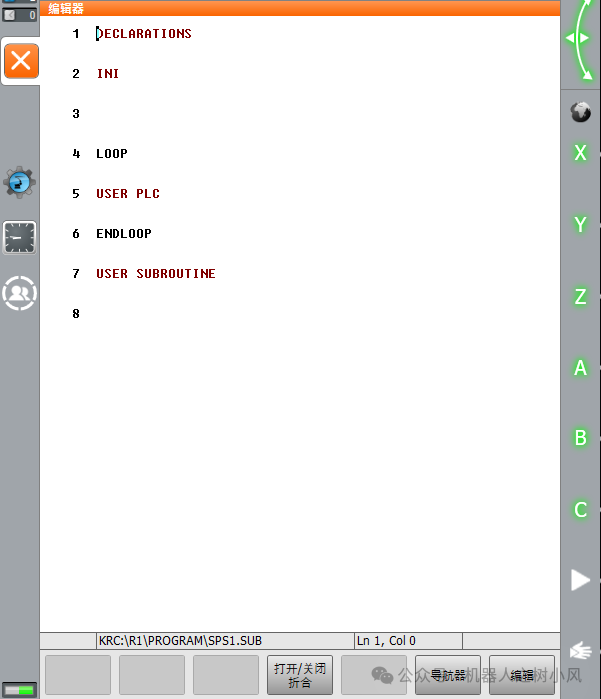
2. After selecting 【Open】 sps1, the program content defaults as shown below, which can be modified according to actual needs.
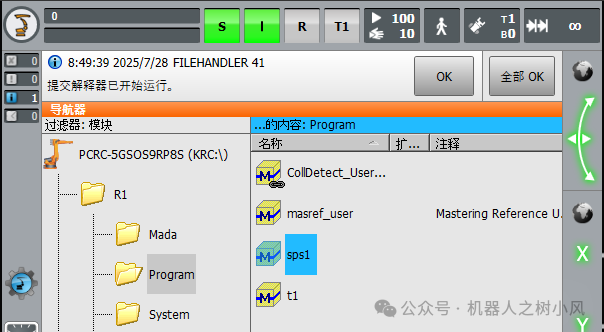
If you select 【Select】 sps1, it prompts “The submission interpreter has started running,” because the default submission interpreter sps is running.
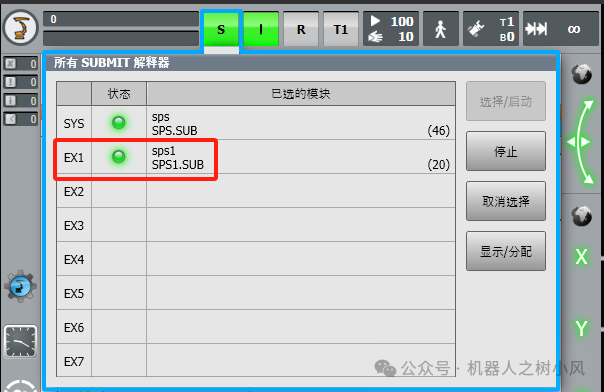
3. Click the submission interpreter icon to display all submission interpreters, as shown below.
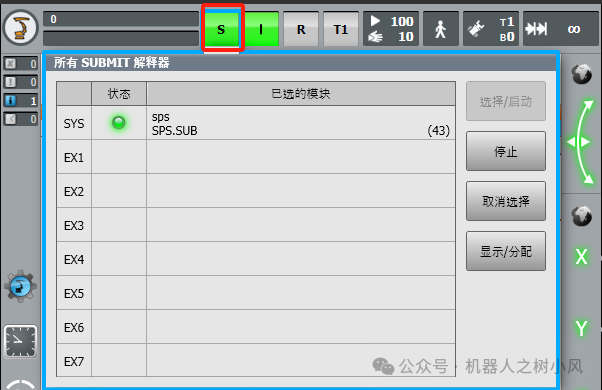
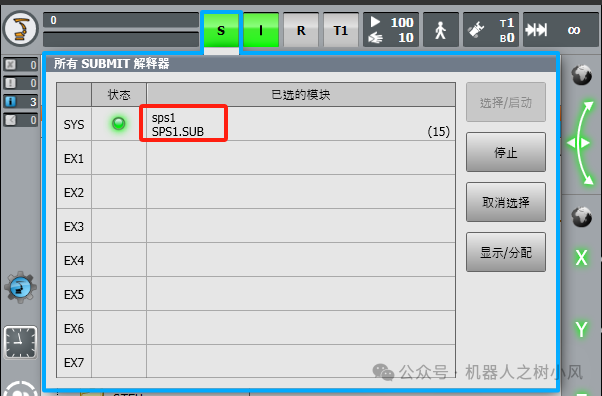
4. If only one submission interpreter is running and you want to run the newly created sps1, you need to 【Deselect】 the default sps, then 【Select】 sps1, as shown. You can switch again by 【Deselecting】.
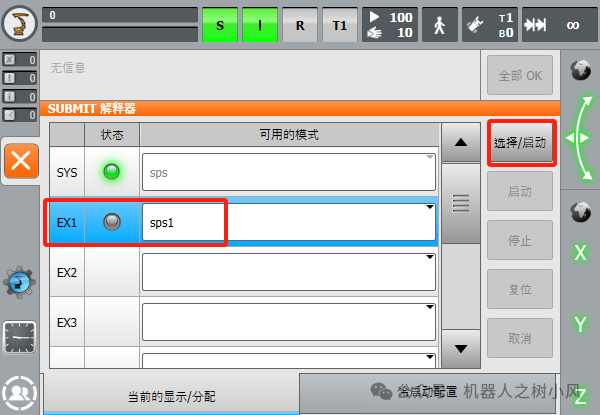
5. Of course, multiple submission interpreters can also run simultaneously, meeting our actual multi-tasking needs. Assign the newly created sps1 to the other 7 submission interpreters EX1-EX7, selecting one such as EX1. Remember to log in with user permissions.
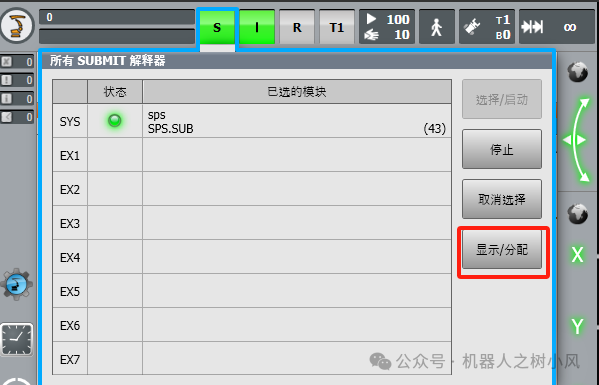
1. Click 【Show/Assign】 to view the available modes and which submission interpreters are available;
2. Under EX1, you can see that sps1 is available for selection;
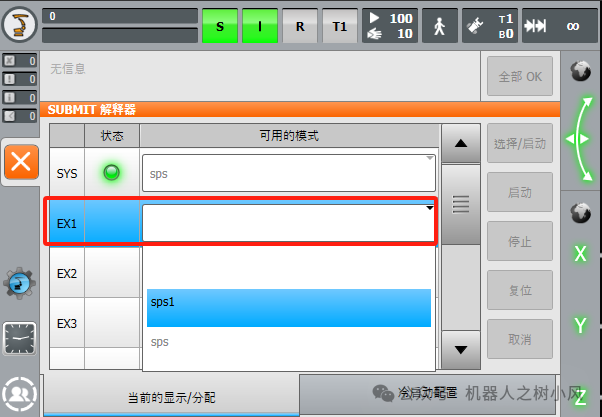
3. After selecting sps1, click 【Select/Start】 to activate the sps1 submission interpreter.
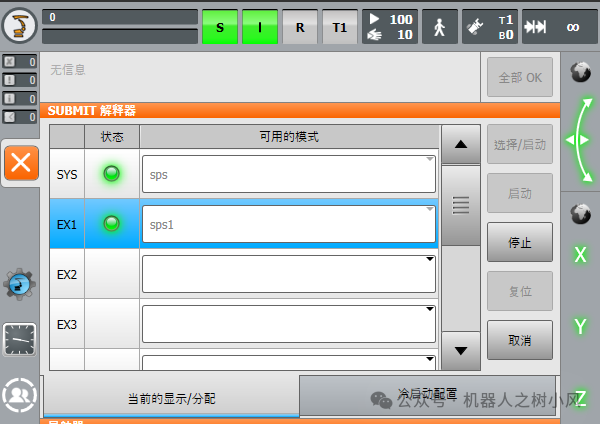
4. You can see that sps1 is running.
The above is the content regarding the submission interpreter.