MATLAB – Reading and Writing CSV Files
There are various methods to read and write CSV files in MATLAB, which can be selected based on data type and requirements.
Basic Read and Write
📝 1. Writing to a CSV File
1. Numeric Matrix → writematrix
data = [1, 2.5, 3; 4, 5.1, 6];
writematrix(data, 'output.csv'); % Default comma-separated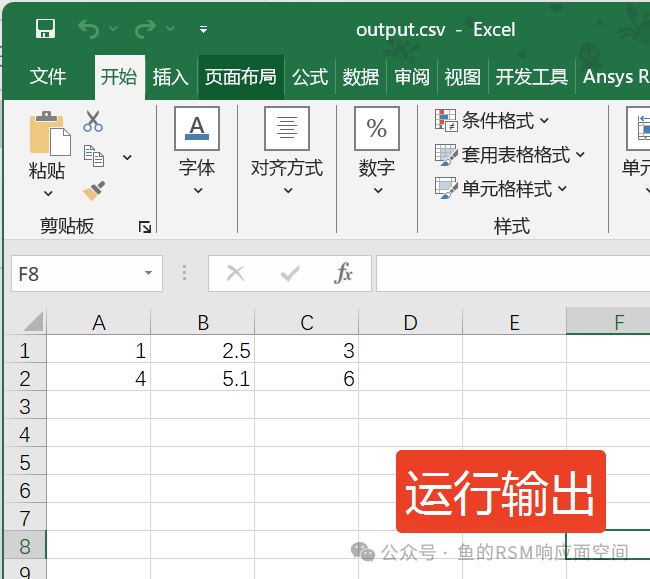
The second parameter ‘output.csv’ is used to specify the path of the CSV file, which defaults to the current script’s path.
It is better to use the full path 🙂 (e.g., ‘C:\Users\Desktop\data.csv’)
2. Table Data → writetable (Recommended ⭐)
% Create a table with headers
Name = {'Alice'; 'Bob'};
Age = [25; 30];
T = table(Name, Age);    % Define the table
writetable(T, 'data.csv');
Output file content:
Name,Age
Alice,25
Bob,30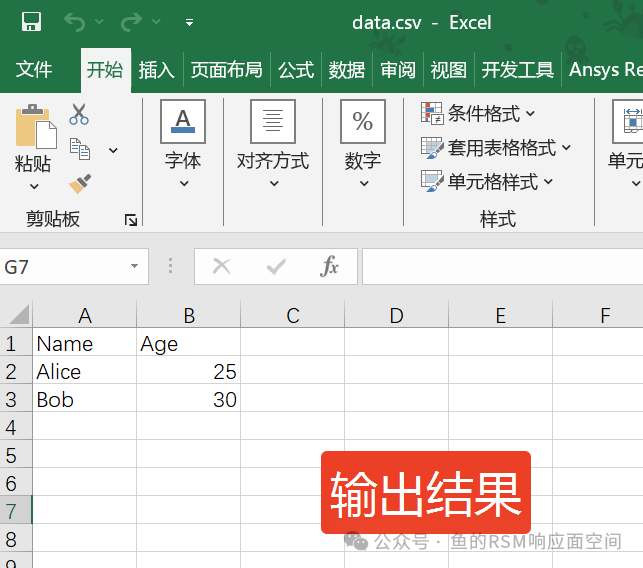
3. Custom Options
writetable(T, 'data.txt', ...    % Export as .txt
    'Delimiter', ';', ...        % Semicolon separated
    'QuoteStrings', true, ...    % Quote strings
    'WriteRowNames', true);      % Write row names (headers)
📖 2. Reading a CSV File
1. Numeric Data → readmatrix
numData = readmatrix('data.csv'); % Ignore text headers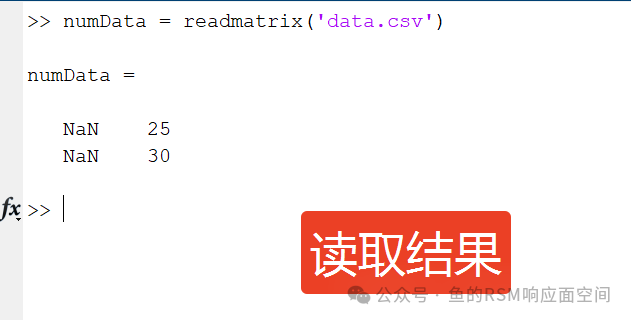
2. Table Data → readtable (Recommended ⭐)
T = readtable('data.csv');
disp(T.Name); % Directly access column data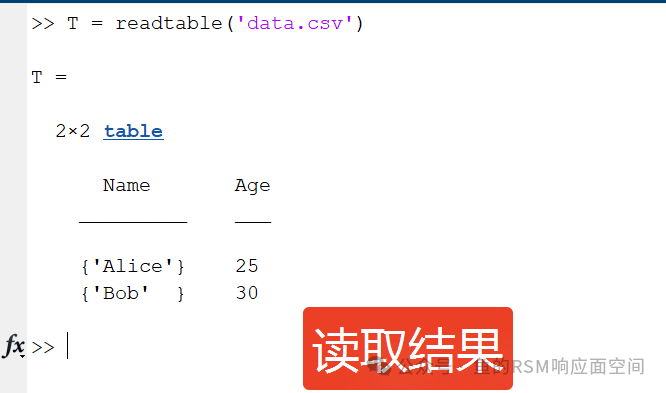
3. Mixed Type Data → detectImportOptions
opts = detectImportOptions('mixed_data.csv');
opts.VariableTypes = {'char', 'double', 'datetime'}; % Manually specify data types
data = readtable('mixed_data.csv', opts);
4. Text Data → readcell
cellData = readcell('data.csv'); % Returns a cell array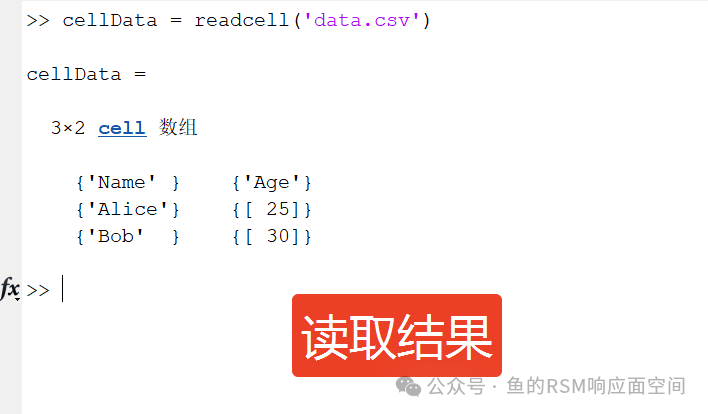
⚠️ 3. Notes
- 1. Header Handling:
- •
<span>readtable</span>automatically recognizes the first row as column names - • If there is no header, you need to add the parameter:
<span>'ReadVariableNames', false</span>
- • By default, empty values are recognized as
<span>NaN</span>(numeric) or<span>empty</span>(text)
- • When encountering garbled Chinese characters, specify the encoding:
opts = detectImportOptions('file.csv', 'FileEncoding', 'UTF-8');
T = readtable('file.csv', opts);
opts = detectImportOptions('large_file.csv');
opts.SelectedVariableNames = {'Col1','Col3'}; % Only read specified columns
T = readtable('large_file.csv', opts);
🔄 4. Comparison of Read and Write Functions
| Function | Purpose | Input Data Type | Output Data Type |
<span>writematrix</span> |
Write numeric matrix | Numeric matrix | CSV file |
<span>writetable</span> |
Write table data | table | CSV file |
<span>readmatrix</span> |
Read numeric data | CSV file | Numeric matrix |
<span>readtable</span> |
Read table data | CSV file | table |
<span>readcell</span> |
Read mixed type data | CSV file | Cell array |
You can first use<span>preview = readtable('file.csv', 'Range', '1:6')</span> to preview the first 5 rows of data.
Advanced Read and Write Operations
Importing data from CSV in a specific format is achieved using the detectImportOptions function
1. Basic Usage of detectImportOptions
% Detect file import options
opts = detectImportOptions('data.csv');

% View detection results (variable names, types, etc.)
disp(opts.VariableNames);      % Display variable names
disp(opts.VariableTypes);      % Display data types (e.g., 'double', 'char')

% Use configuration to import data
data = readtable('data.csv', opts);
2. Specifying Variable Types
Manually override the automatically detected types:
opts = detectImportOptions('data.csv');
opts = setvartype(opts, 'Salary', 'double');    % Set Salary column as double type
opts = setvartype(opts, {'Name','Department'}, 'string'); % Set multiple columns as string
3. Selecting Imported Variables
Only import specified columns (ignore other columns):
opts = detectImportOptions('data.csv');
opts.SelectedVariableNames = {'Name', 'Age'};  % Only import Name and Age columns
data = readtable('data.csv', opts);
4. Handling Missing Values
Define missing value identifiers (e.g., “Missing” or -1):
opts = detectImportOptions('data.csv');
opts.Delimiter = ';';                   % Specify the data delimiter
opts.MissingRule = 'fill';              % Fill missing values (default NaN)
opts = setvaropts(opts, 'Age', 'FillValue', -1); % Set missing values in Age column to -1
opts = setvaropts(opts, 'Name', 'FillValue', 'Missing'); % Set missing values in Name column to 'Missing'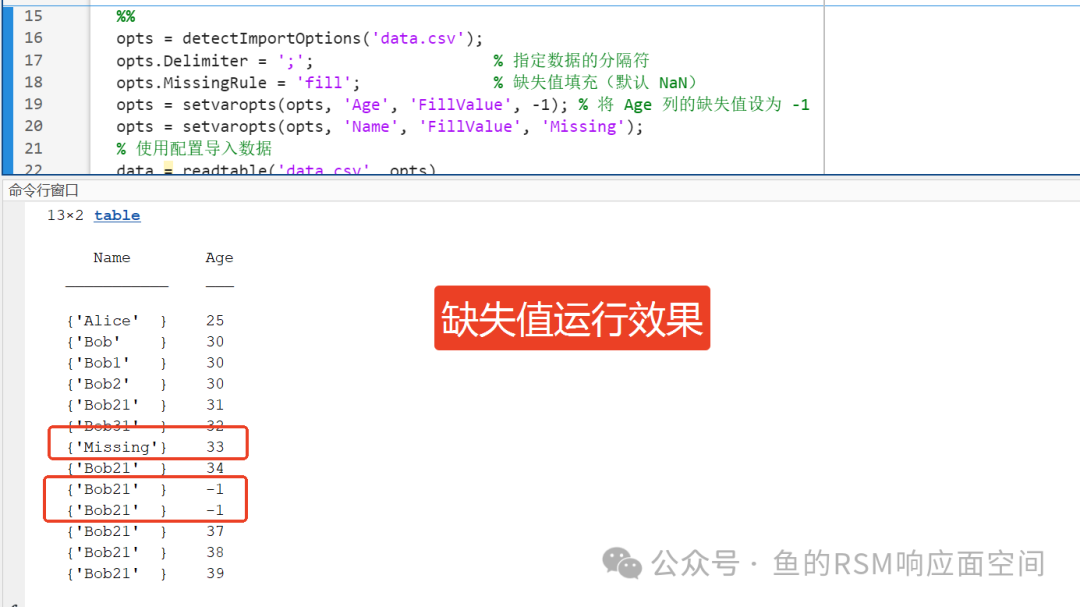
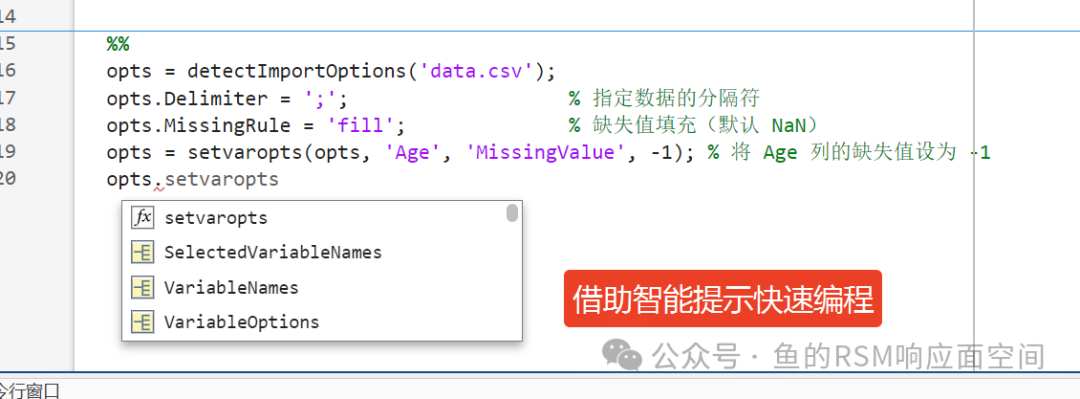
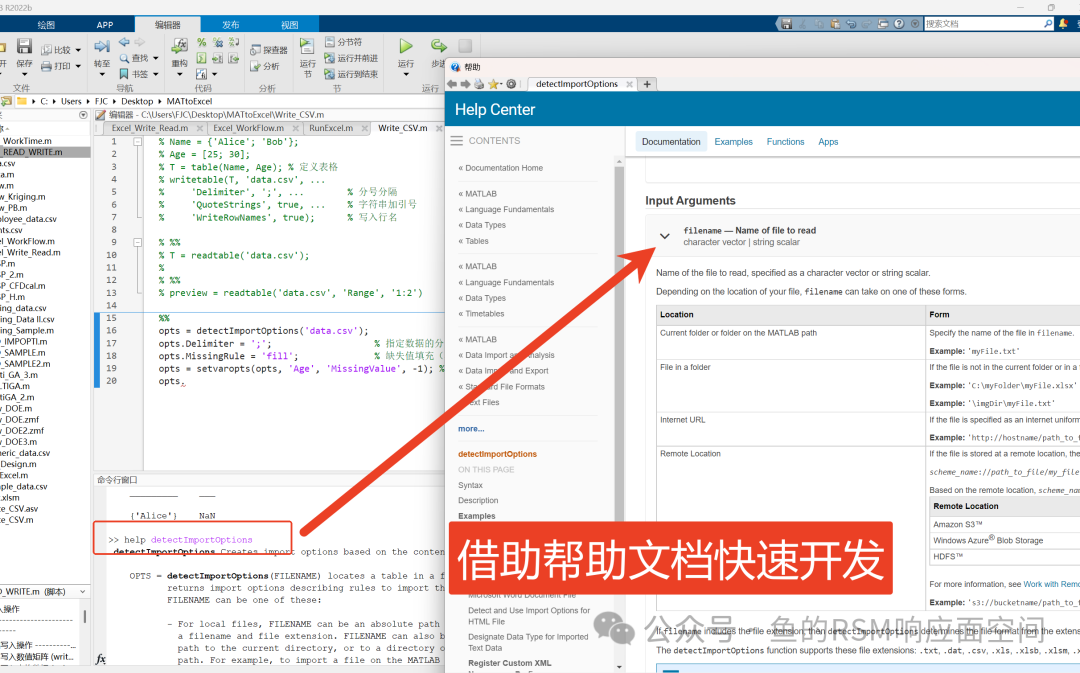
Additionally, in newer versions of MATLAB, you can quickly develop using intelligent prompts and help documentation
5. Skipping Rows/Range
Ignore comment lines at the beginning of the file or specify the import range:
opts = detectImportOptions('data.csv');
opts.DataLines = [3, Inf];      % Start importing from the 3rd line (skip the first two lines)
opts.VariableNamesLine = 2;     % The 2nd line is the variable names (skip the 1st line)
6. Custom Delimiters and Encoding
Handle non-standard format files:
opts = detectImportOptions('data.txt', 'Delimiter', ';');  % Specify semicolon delimiter
opts = detectImportOptions('data.txt', 'Encoding', 'UTF-8'); % Set encoding
7. Complete Example
Assuming <span>Testdata.csv</span> contains:
ID,Name,Age,Salary
1,Alice,25,5000
2,Bob,N/A,6000
3,Charlie,30,
% Step 1: Detect options and adjust
opts = detectImportOptions('data.csv');
opts = setvartype(opts, 'Salary', 'double'); % Ensure salary is numeric
opts.MissingRule = 'fill'; % Fill missing values
opts = setvaropts(opts, 'Age', 'MissingValue', -1); % Set missing age to -1
% Step 2: Import data
data = readtable('data.csv', opts);Result:
ID    Name      Age    Salary
___   ______    ___    ______
1     "Alice"   25     5000
2     "Bob"     -1     6000     % N/A in Age replaced with -1
3     "Charlie" 30     NaN      % Empty value automatically filled with NaN
By adjusting the generated <span>opts</span> object, you can quickly resolve format issues in data import.
To summarize the core syntax of the code
By using <span>opts = detectImportOptions('data.csv');</span>, and modifying opts configuration.
Finally, use <span>data = readtable('data.csv', opts);</span> to complete the data import.