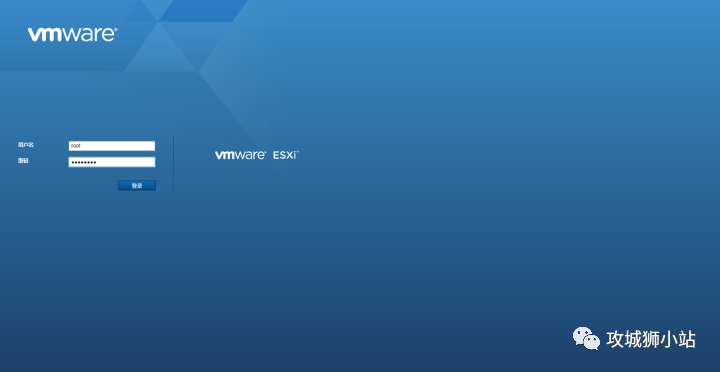
Installing vSphere 6.5 Virtualization
-
vSphere Concepts and Features
VMware vSphere™ utilizes virtualization capabilities to transform data centers into simplified cloud computing infrastructures, enabling IT organizations to deliver flexible and reliable IT services. The two core components of vSphere are VMware ESXi™ and VMware vCenter Server™. ESXi is the virtualization platform for creating and running virtual machines. vCenter Server acts as the central administrator for ESXi hosts connected to the network. vCenter Server can pool resources from multiple hosts and manage those resources. It also provides many features for monitoring and managing physical and virtual infrastructures. Virtualization Basics: Just like physical machines, virtual machines are software computers that run operating systems and applications. The hypervisor serves as the platform for running virtual machines and can consolidate computing resources. Each virtual machine contains its own virtual (software-based) hardware, including virtual CPUs, memory, hard disks, and network interface cards. The software known as the hypervisor is installed on the physical hardware within the virtualization data center and serves as the platform for virtual machines. ESXi is the hypervisor in the vSphere environment. The hypervisor dynamically allocates physical hardware resources to virtual machines as needed to support their operation. Through the hypervisor, virtual machines can operate somewhat independently of the underlying physical hardware. For example, virtual machines can be moved between physical hosts, or the virtual disks of a virtual machine can be moved from one type of storage to another without affecting the operation of the virtual machine. Because virtual machines are decoupled from specific physical hardware, virtualization allows physical computing resources (such as CPUs, memory, storage, and networks) to be consolidated into resource pools, which can then be dynamically and flexibly allocated to virtual machines. With appropriate management software, such as vCenter Server, various features can also be utilized to enhance the availability and security of the virtual infrastructure. -
Physical Topology of vSphere Data Center
-
A typical VMware vSphere data center consists of basic physical building blocks, such as x86 virtualization servers, storage networks and arrays, IP networks, management servers, and desktop clients. The vSphere data center topology includes the following components. Computing servers run ESXi on industry-standard x86 servers. The ESXi software provides resources for virtual machines and runs virtual machines. Each computing server is referred to as an independent host in the virtual environment. Many similarly configured x86 servers can be grouped together and connected to the same network and storage subsystems to provide
-
Resource pools in the virtual environment (known as clusters). Networking and array storage technologies, such as Fibre Channel SAN arrays, iSCSI SAN arrays, and NAS arrays, are widely used storage technologies that VMware vSphere supports to meet different data center storage needs. Storage arrays are connected to server groups through storage area networks and shared among server groups. This arrangement allows for the aggregation of storage resources and provides more flexibility in provisioning these resources to virtual machines. IP Networks: Each computing server can have multiple physical network adapters, providing high bandwidth and reliable network connections for the entire VMware vSphere data center. vCenter Server: vCenter Server provides a single control point for the data center. It offers essential data center services such as access control, performance monitoring, and configuration. It unifies the resources of each computing server, allowing these resources to be shared among virtual machines across the data center. The principle is: based on the policies set by system administrators, it manages the allocation of virtual machines to computing servers and resources to virtual machines within a given computing server. In cases where vCenter Server is inaccessible (e.g., network disconnection), which is rare, computing servers can still continue to operate. Servers can be managed individually and continue to run the virtual machines allocated to them based on the last set resource allocation. After reconnecting to vCenter Server, the data center can again be managed as a whole. Management Clients: VMware vSphere provides multiple interfaces for data center management and virtual machine access. These interfaces include the vSphere Web Client (for access through a web browser) or the vSphere Command Line Interface (vSphere CLI). vSphere Software Components
-
VMware vSphere is a suite of software components for virtualization.
These components include ESXi, vCenter Server, and other software components that implement many different functions in the vSphere environment. vSphere includes the following software components: ESXi is a virtualization platform that allows you to create virtual machines as a set of configuration and disk files, which can perform all the functions of a physical machine. With ESXi, you can run virtual machines, install operating systems, run applications, and configure virtual machines. Configuration includes identifying the resources for the virtual machine, such as storage devices. The server can provide boot, management, and other services for managing virtual machines. vCenter Server serves as the central administrator service for VMware ESXi hosts connected to the network. vCenter Server directs operations on virtual machines and virtual machine hosts (ESXi hosts).
-
Start Installing ESXi 6.5
-
You can boot from a USB drive to install ESXi 6.5 (if you need the image, please leave a message).
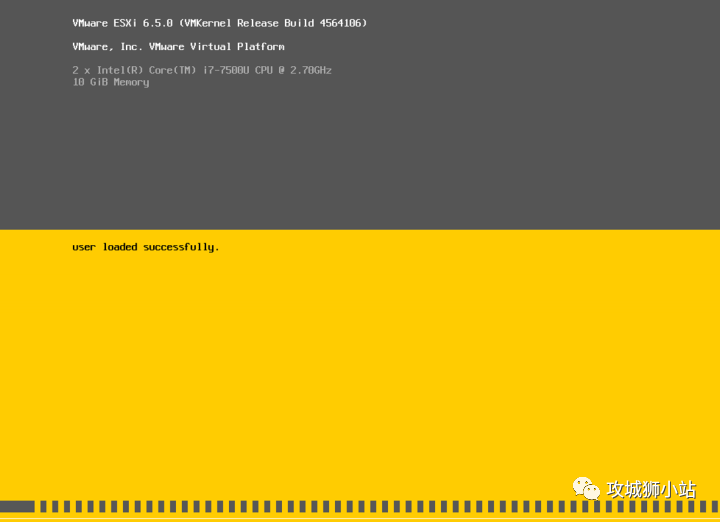
-
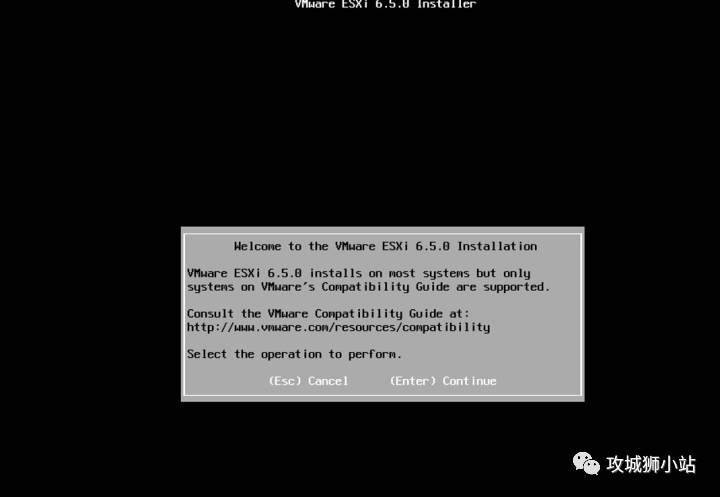
Select Continue
-
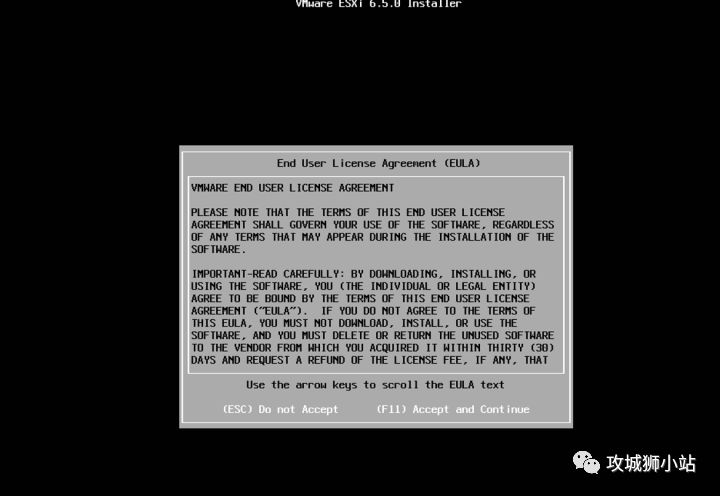
Click Agree
-
Click Continue
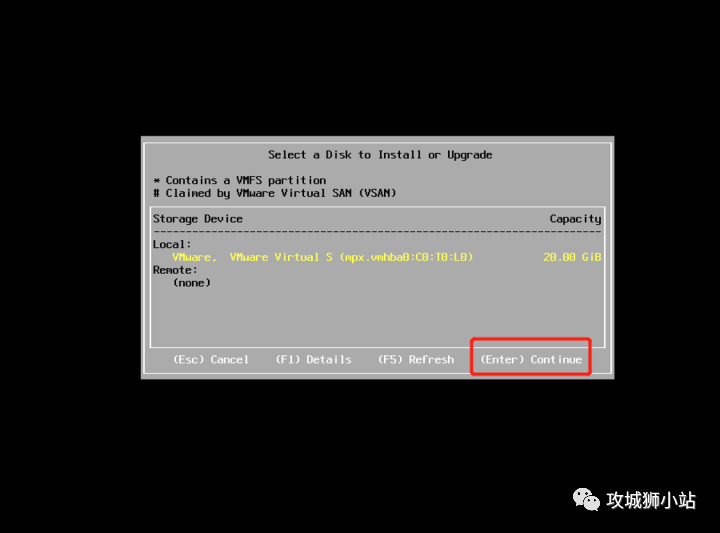
-
Select Language: Here, choose the default English
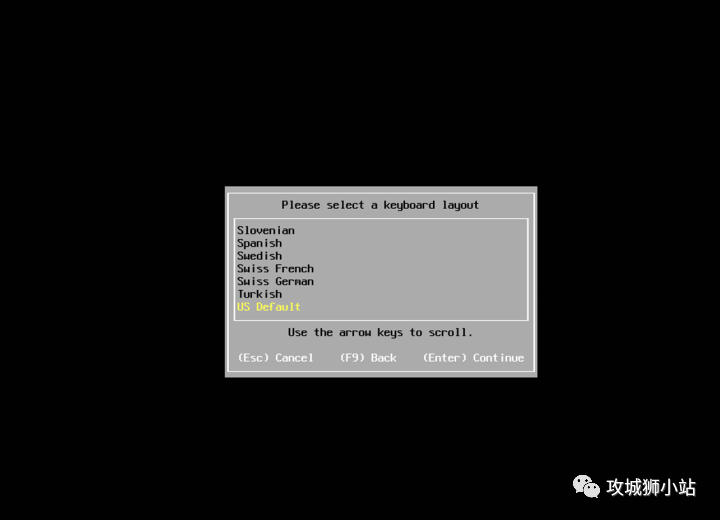
-
Press F11 to select Install
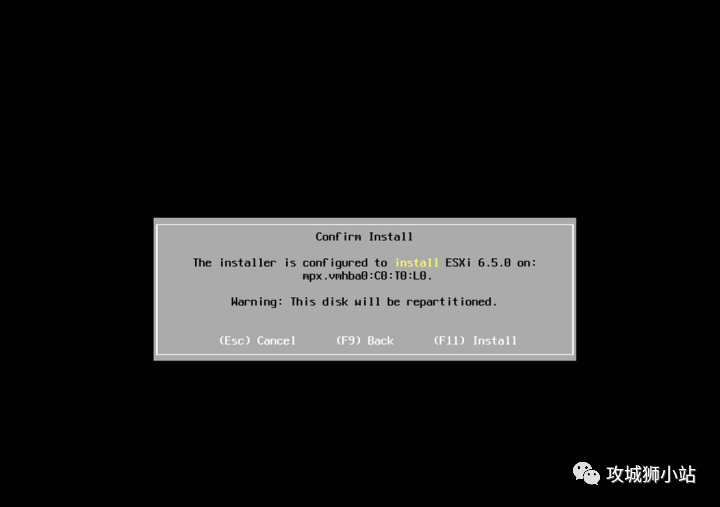
-
Press Enter
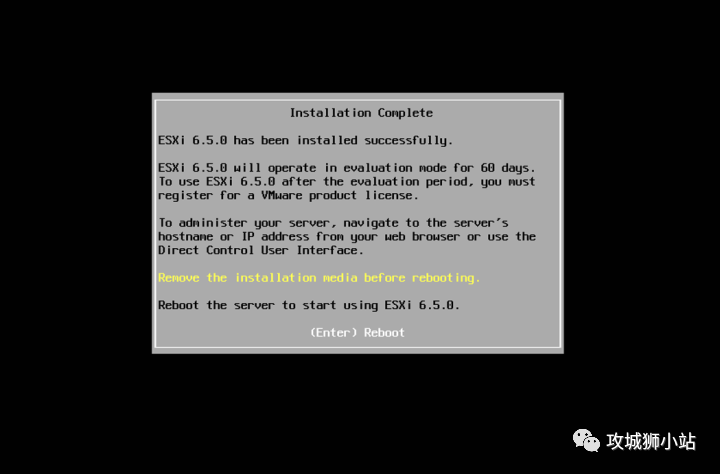
-
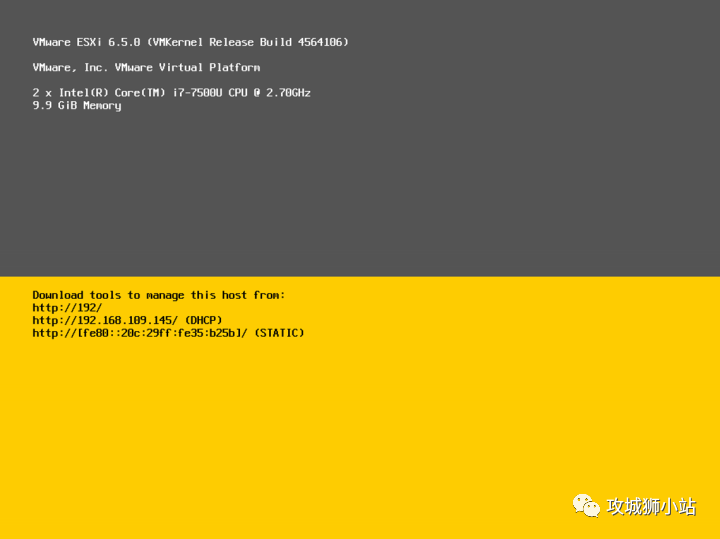
After reboot, you can log in by entering the IP address in the browser
-
Congratulations! Seeing this page means you have completed the installation of vSphere 6.5 (after entering the page, you will need a license, which will provide you with a 60-day trial period by default).