KEIL MDK-ARM software provides a complete development environment for devices based on Cortex-M, Cortex-R4, ARM7, and ARM9 processors. MDK-ARM is designed specifically for microcontroller applications and is powerful enough to meet the demands of most rigorous embedded applications. There are four available versions of MDK-ARM: MDK-Lite (free evaluation version), MDK-Essential, MDK-Plus, and MDK-Professional. All versions offer a comprehensive C/C++ development environment, with MDK-Professional including a large number of middleware libraries. Unlike Keil MDK4 and earlier versions, Keil MDK5 is divided into MDK Core and Software Packs. MDK Core mainly includes the uVision5 IDE integrated development environment and ARM Compiler5, while Software Packs can be managed (downloaded, updated, removed) independently without changing the MDK Core.
1. Downloading KEIL MDK-ARM Software and Chip Support Packs
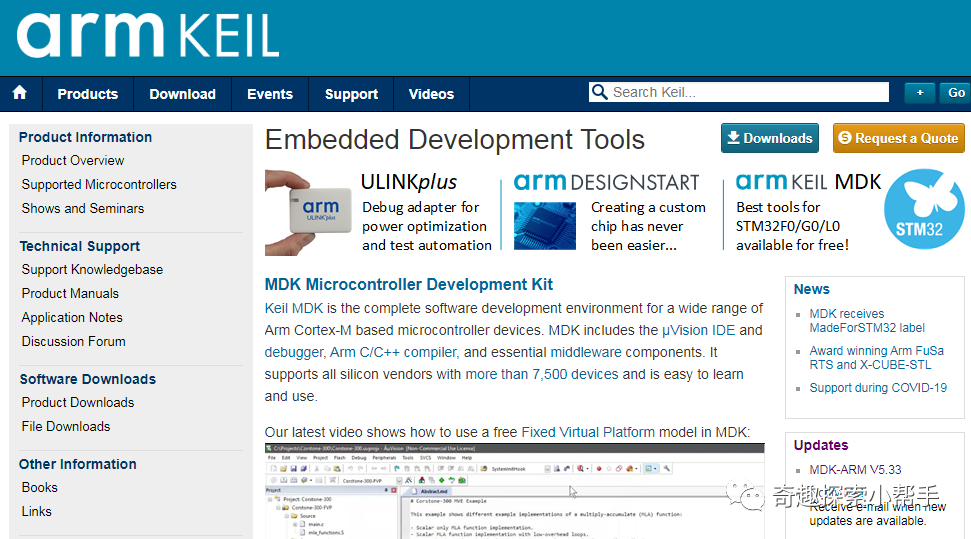
1.1 Download MDK-ARM Software: Log in to the ARM KEIL official website to download the software, https://www.keil.com/, click Download, and select Product Downloads.
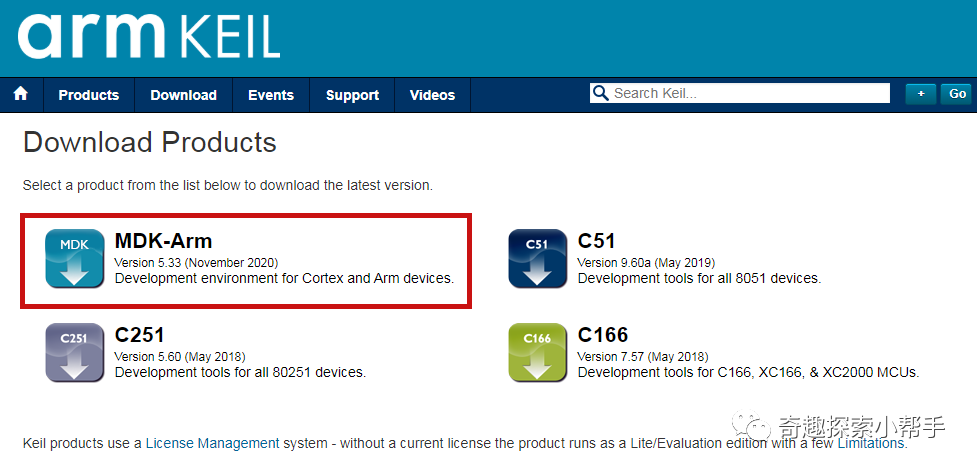
Select MDK-ARM software for download on the Product Downloads page, version Version 5.33 (November 2020).
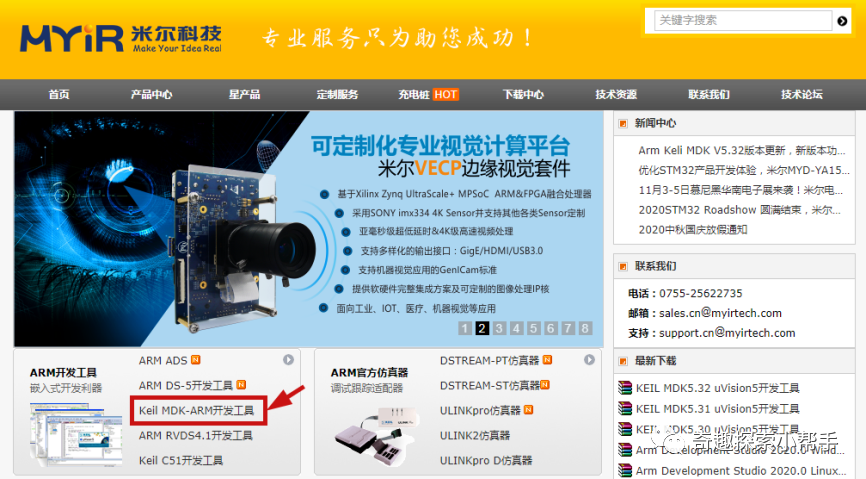
1.2 MDK-ARM software can also be downloaded from the Shenzhen MYIR Technology official website, http://www.myir-tech.com/, click on the Download Center, and enter the development tools download page to select the MDK-ARM software for download.
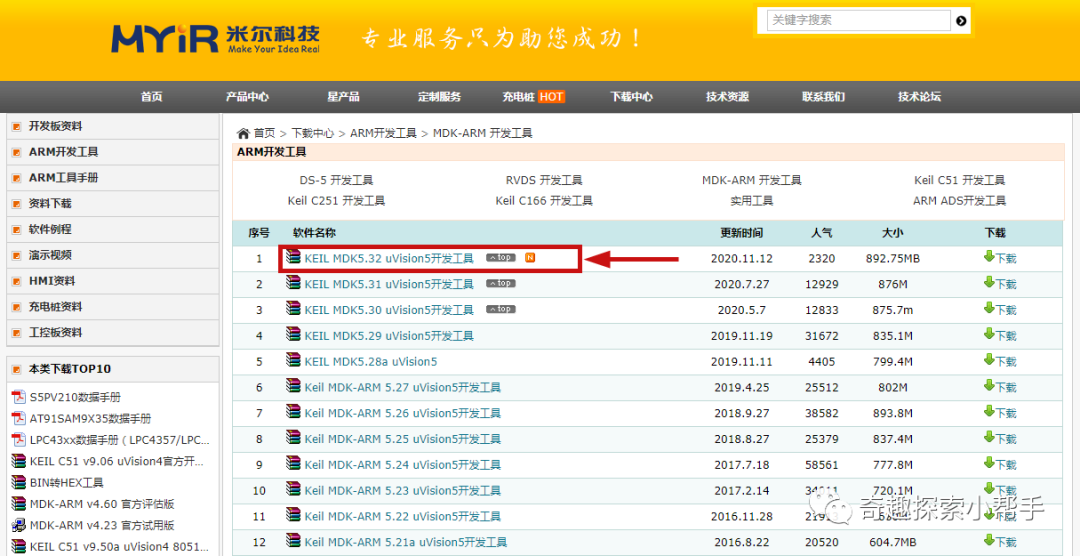
On the MYIR Technology official website’s download page, click on KEIL MDK5.32 uVision5 development tool to download.
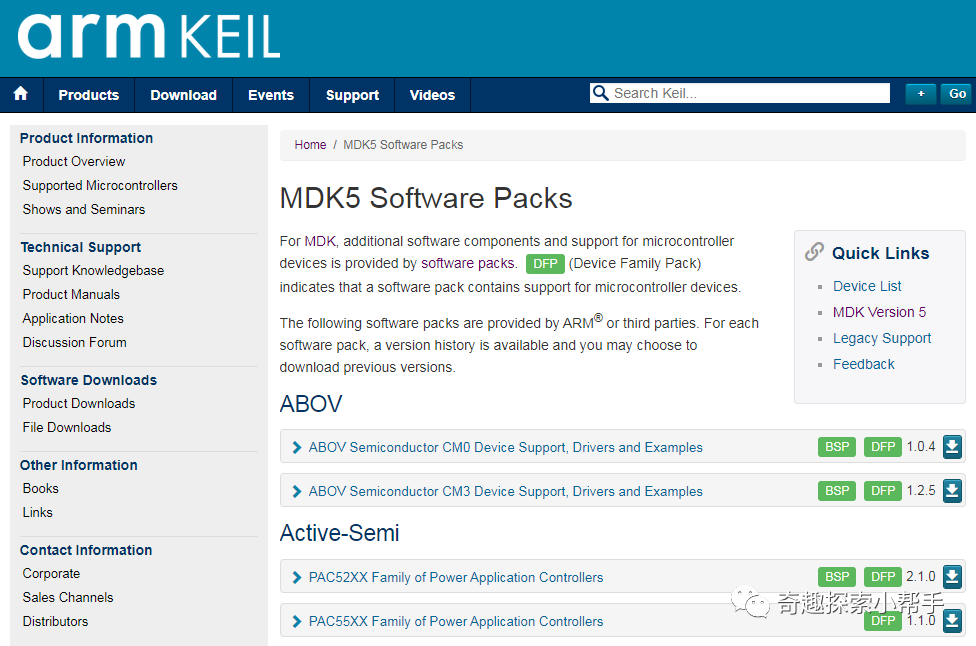
1.3 Chip support packs (keil packs) can be obtained from the ARM KEIL official website, link: https://www.keil.com/dd2/pack/, select the corresponding keil pack to download.
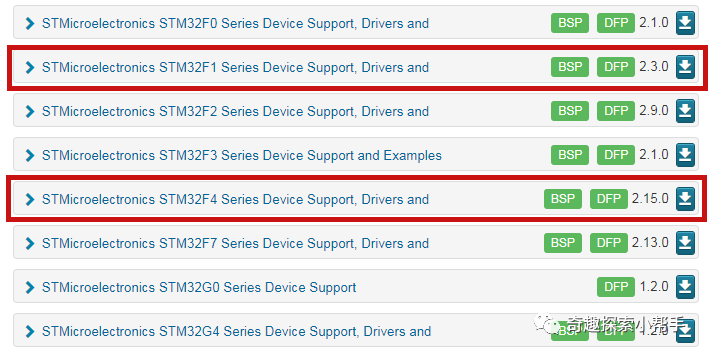
For example, to download the STM32F1 series chip support pack, find STMicroelectronics STM32F2 Series Device Support, Drivers and…, then click to download. If there is an error during download or if it is slow, you can obtain the chip support pack from a third party. The STM32F4 series chip support pack is similar. Keil.STM32F1xx_DFP.2.3.0.pack and Keil.STM32F4xx_DFP.2.15.0.pack are the respective keil pack files for the STM32F1 and STM32F4 series.
2. Installing KEIL MDK-ARM Software
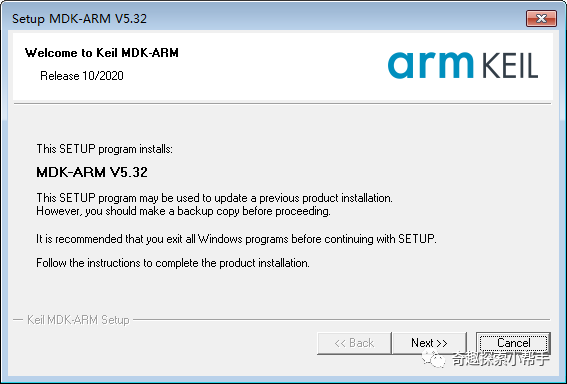
Double-click the MDK532.exe installer to install the MDK-ARM software. In the Welcome to Keil MDK-ARM welcome screen, click Next.
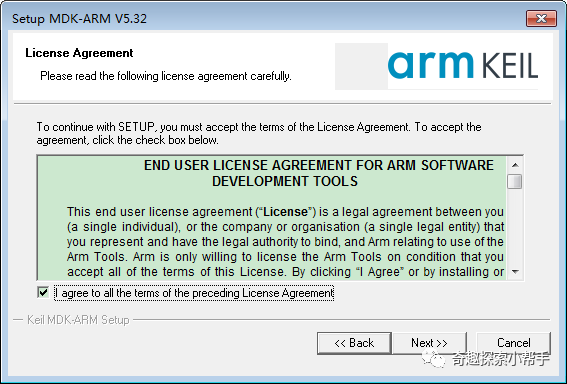
In the License Agreement screen, check I agree to all the terms of the preceding License Agreement, then click Next.
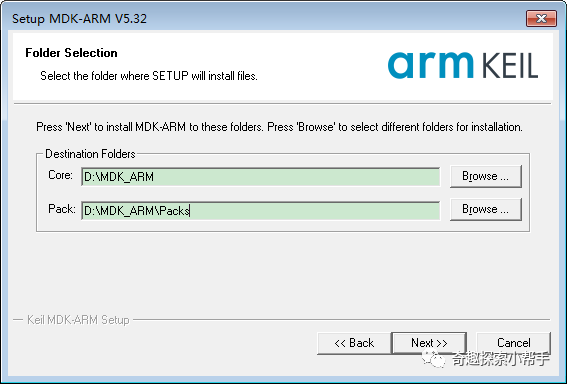
In the Folder Selection screen, choose the installation directory for the MDK-ARM software. The software is installed by default on drive C, but it can be installed in another directory as needed. Note that the installation directory path cannot contain Chinese characters or spaces.
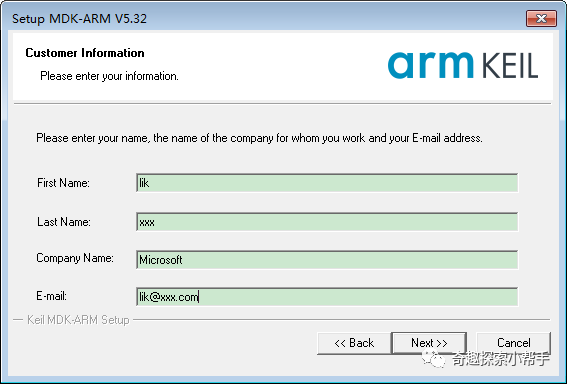
In the Customer Information screen, fill in customer information such as First Name, Last Name, Company Name, and E-mail. After filling out, click Next.
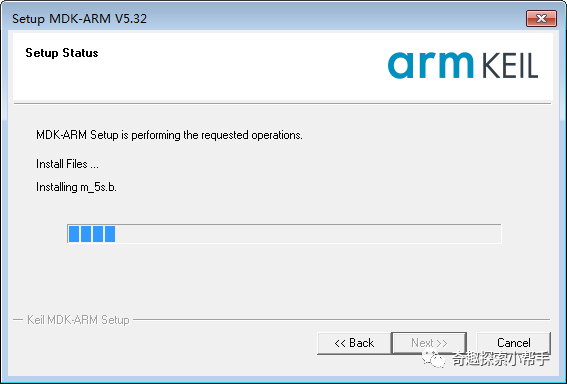
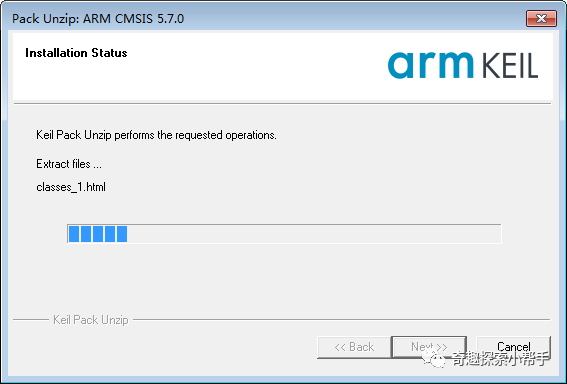
After completing the configuration of the MDK-ARM software, the software will begin to install automatically. No further action is needed on the Setup State and Installation State screens.
During the software installation process, a window will pop up to install the ULINK Drivers.
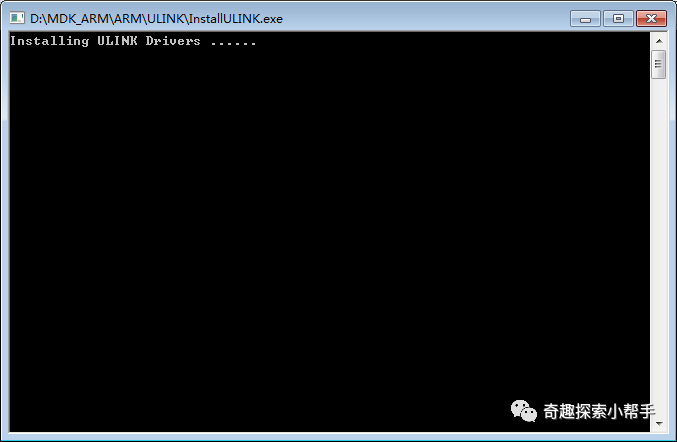
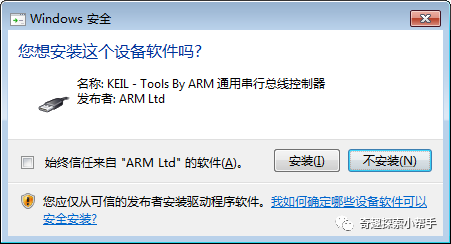
In the Windows security window, it prompts to install KEIL-Tools By ARM Universal Serial Bus controller, click Install.
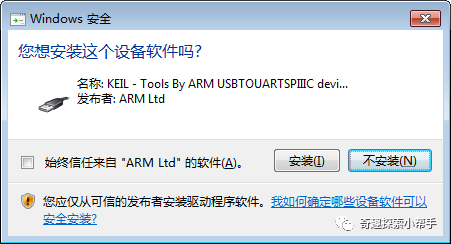
In the Windows security window, it prompts to install KEIL-Tools By ARM USBTOUARTSPIIIC device…, click Install.
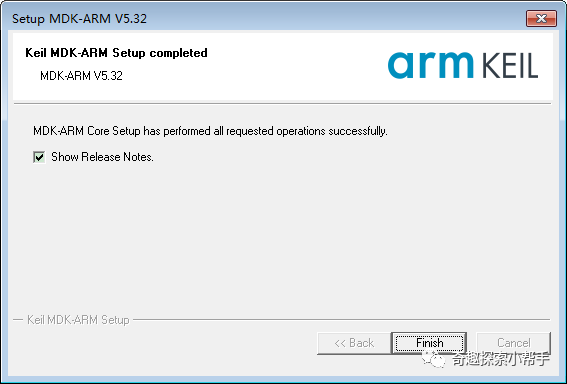
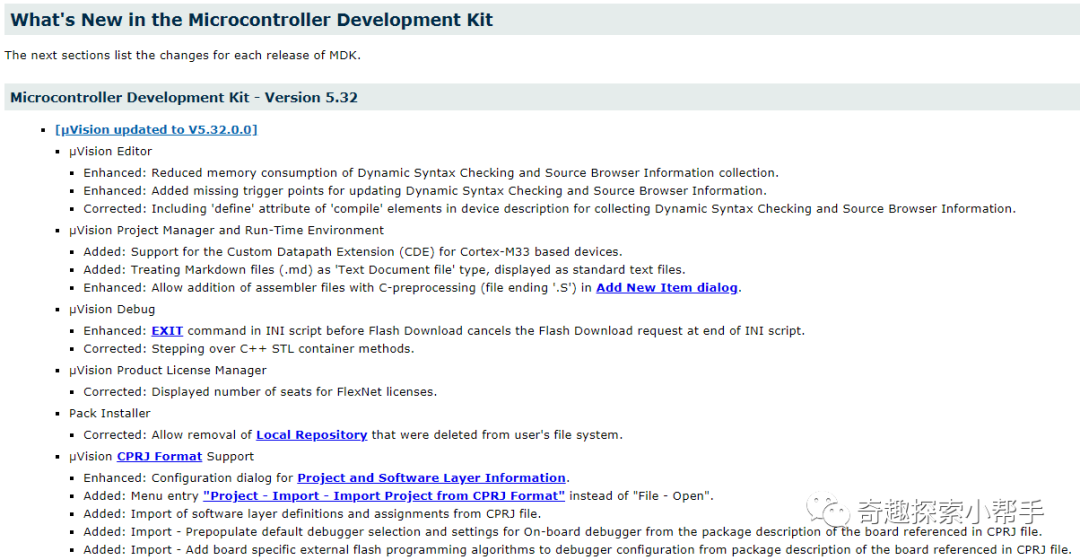
After the MDK-ARM software installation is complete, in the Keil MDK-ARM Setup completed screen, the default option Show Release Notes is checked, click Finish.
The browser will automatically open the version notes for the MDK-ARM software.
3. Installing Chip Support Packs
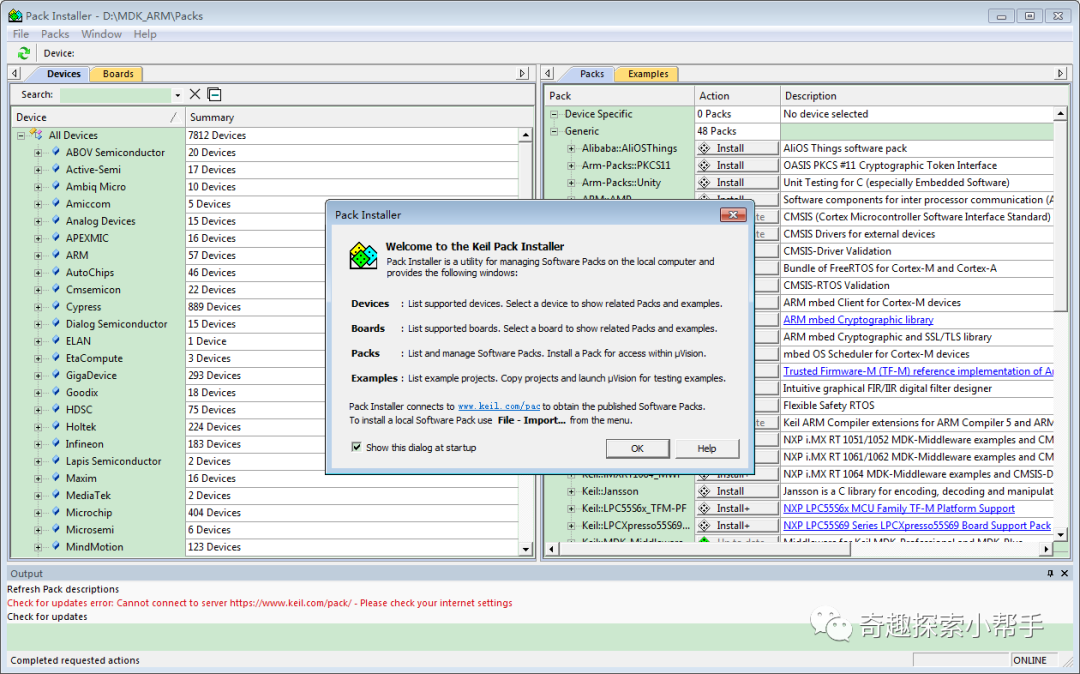
After the MDK-ARM software installation is complete, the software automatically opens the Pack Installer window. Users can select the corresponding chip support pack for installation based on their needs.
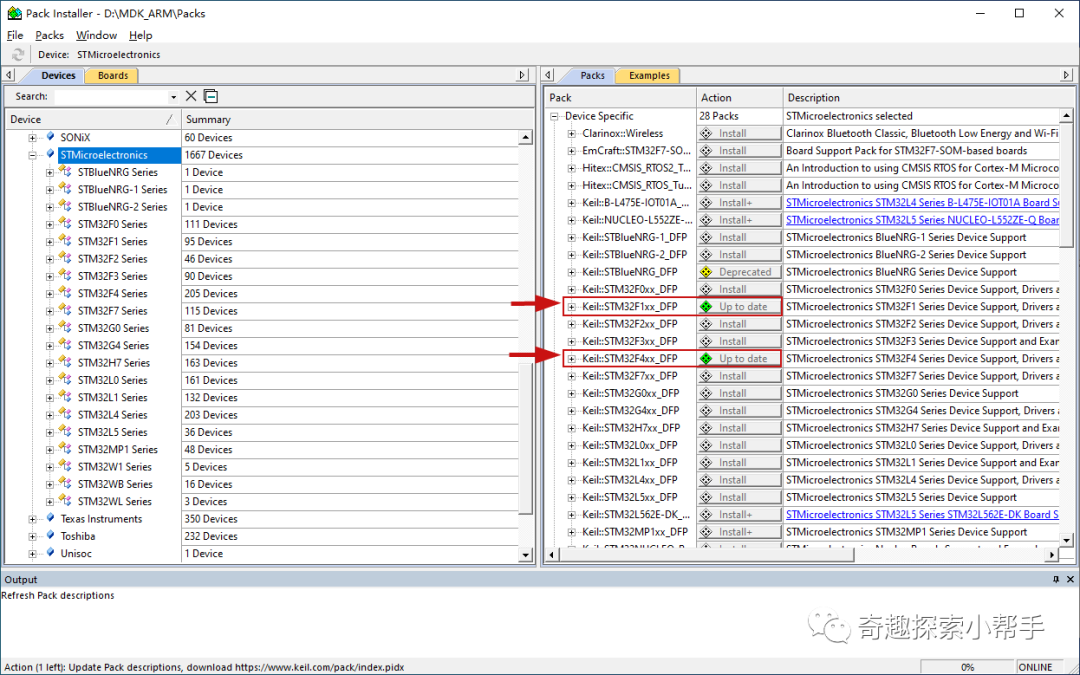
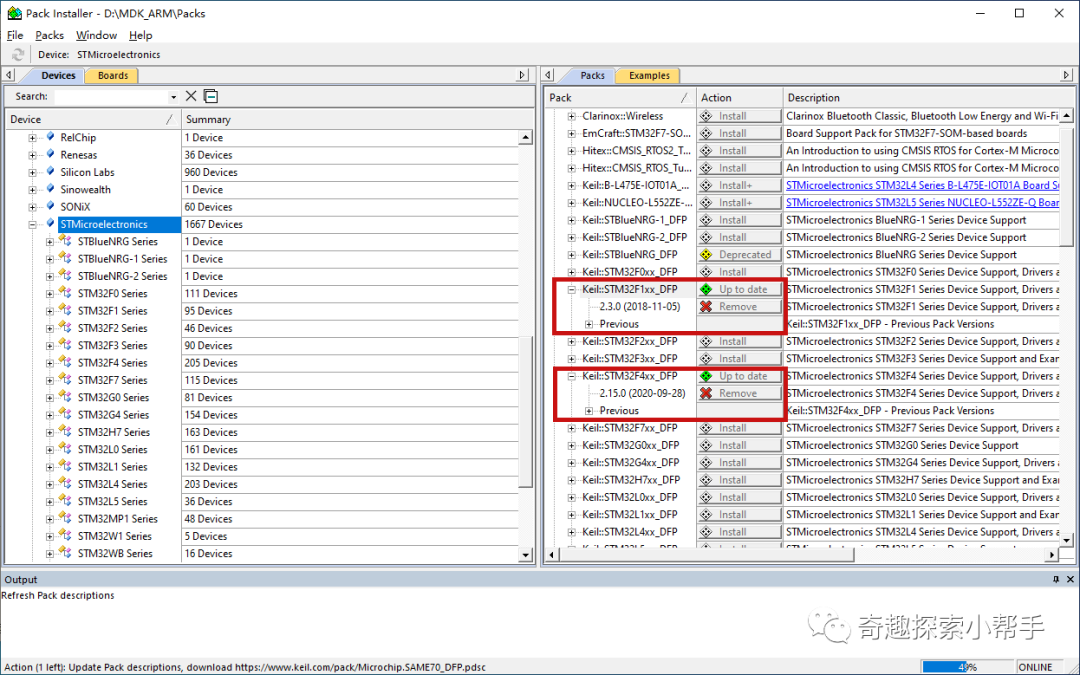
In the left Devices interface of the Pack Installer window, first select the chip manufacturer STMicroelectronics, then on the right Packs select Keil.STM32F1xx_DFP.2.3.0.pack and Keil.STM32F4xx_DFP.2.15.0.pack. If the chip support packs have already been downloaded, simply close the Pack Installer window.
Double-click the Keil.STM32F1xx_DFP.2.3.0.pack file to unzip and install the Pack, and in the Welcome to Keil Pack Unzip window, click Next.
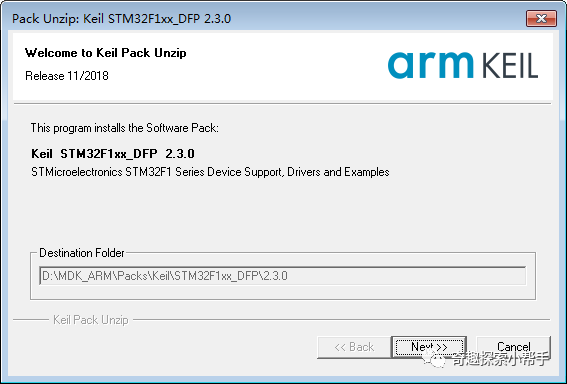
The Keil Pack chip support pack will automatically unzip and install in the Packs directory set in the MDK-ARM software.
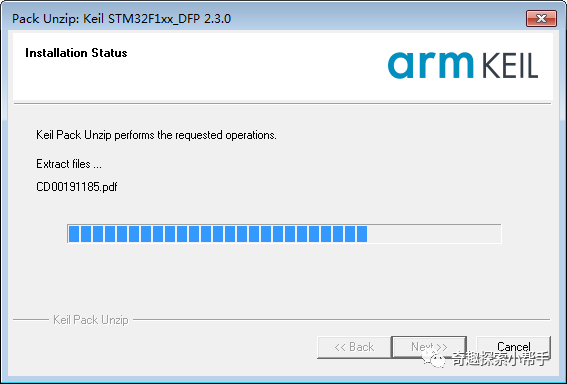
After the Keil Pack chip support pack installation is complete, in the Keil Pack Unzip complete screen, click Finish.
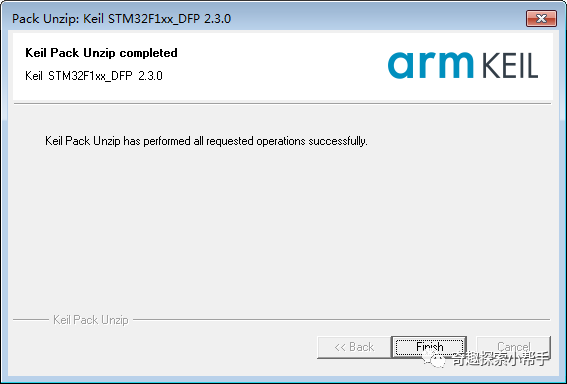
The installation of the Keil.STM32F4xx_DFP.2.15.0.pack file is similar. After the required Keil Packs are installed, you can check the installation results of the chip support packs through the Pack Installer window.
4. Activating KEIL MDK-ARM Software
The activation of MDK-ARM software is recommended to be done by purchasing the official MDK-ARM License. If the code lines of the project are few and the functions implemented are simple, the unactivated MDK-ARM software can also be used normally. If you are using the MDK-ARM software for learning ARM microcontrollers without engaging in other commercial activities, the following method can be used for activation.
Double-click the Keil uVision5 icon to open the MDK-ARM software.

The first time you open the MDK-ARM software, a product usage analysis document will pop up, click Yes.

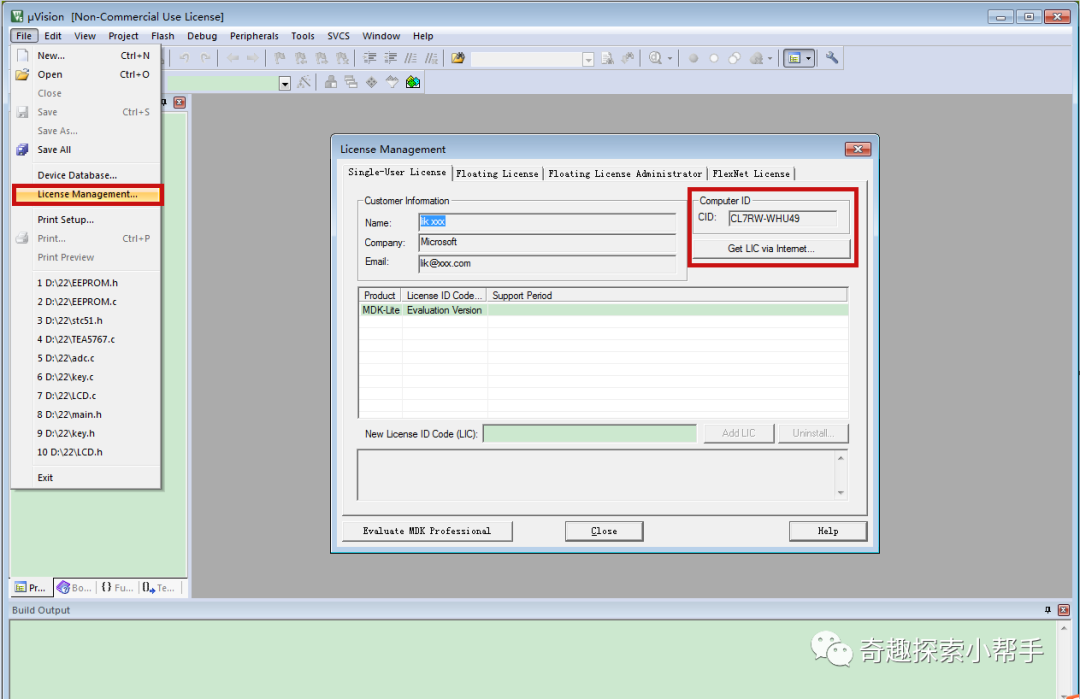
In the software menu bar, click File -> License Management…, in the pop-up License Management window, open the Single-User License interface, and then copy the CID code on the right side of the window.
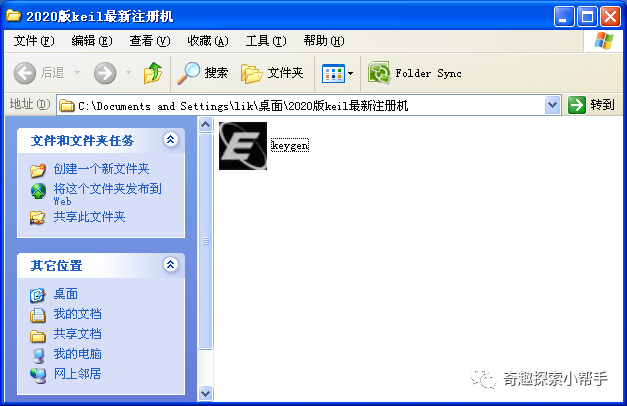
Search and download the latest 2020 version of the keil keygen, double-click to open the keygen software. If you are concerned about the keygen software having a virus, you can run it in a Windows virtual machine.
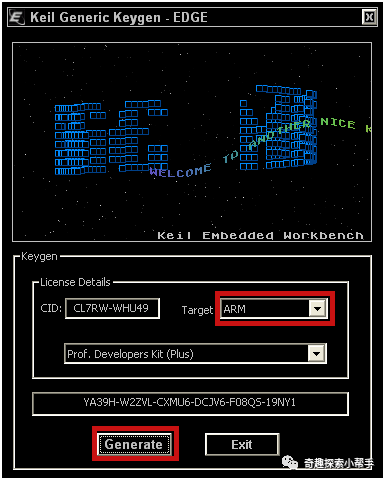
In the keygen software’s CID input box, enter the CID code of the MDK-ARM software, select ARM for Target, keep the others as default, and then click Generate to create the License ID Code and copy it.
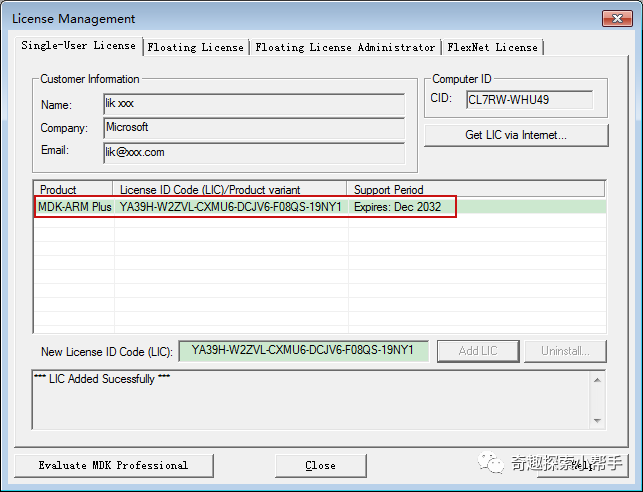
In the License Management window of the MDK-ARM software, paste the License ID Code generated by the keygen software into the New License ID Code input box, then click Add LIC. The License manager will obtain the LIC and output the supported usage time of the software. In the Support Period section, you can see that the expiration date of the software is December 2032, indicating that the MDK-ARM software activation is complete.
Thus, the document on installing and configuring the KEIL MDK-ARM software concludes.