How can I log in to the TP-LINK (TP-Link) wireless router at http://tplogin.cn using my mobile phone? How do I access the settings page?
Answer: The default login URL for the TP-LINK (TP-Link) wireless router is tplogin.cn. By default, you can access the router’s settings page through this domain to enter the backend.
In this article, we will share the detailed steps on how to log in to the TP-LINK router settings page on your mobile phone via tplogin.cn.
Knowledge Expansion: How to solve the issue of not being able to open the TP-LINK router tplogin.cn login URL!
1. Connect your mobile phone to the tplogin.cn router WiFi
The router needs to be powered on and running normally (it takes about 2 minutes), then open your phone’s “Settings — WLAN” and you will see your router’s WiFi in the WLAN WiFi list. Click to connect (if already connected, please skip).
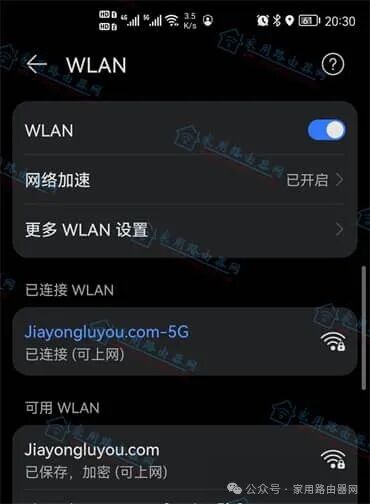
Mobile phone connected to WiFi
2. Turn off mobile data
This is mainly to avoid the situation where, if the TP-LINK router has no network, the phone’s WLAN+ function causes tplogin.cn to automatically switch to mobile data.
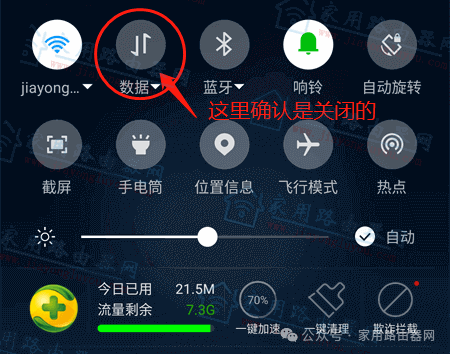
Confirm that mobile 4G/5G data is turned off
3. Enter tplogin.cn in the browser
After turning off mobile data, open the browser on your phone and enter tplogin.cn in the browser’s address bar, then click the “Go” button to open the login page.
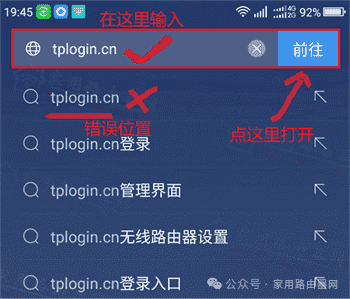
tplogin.cn login page TP-LINK
4. Access the tplogin.cn router backend
Next, enter the TP-LINK router’s login password (the administrator password created during the initial setup of the router) to log into the router’s backend. Modify the router settings according to your needs.

TP-LINK mobile login backend