Since the CPU virtualization feature was enabled, it has effectively blocked and combated DMA cheating. We appreciate the support and recognition from our operators for the anti-cheating security work.
Recently, we have received feedback from some operators regarding the CPU virtualization pop-up prompts. We have compiled an operational guide and common FAQ to help everyone better complete the guidance operations.
If you encounter a prompt to enable virtualization, please visit this link and this video for graphical and video instructions on how to enable this feature.

1. Why does the security team require enabling/disabling the above content:
To maintain a fair and clean gaming environment, the security team needs to implement targeted controls on system mechanisms that may be exploited by cheats. Some cheats may use the protection mechanisms of the computer system or other third-party antivirus software to obtain game data and evade security checks.
These changes only need to be disabled during the gaming process; you can choose to restore them after the game ends if necessary.
Restoration guide: this link.
The security team recommends that, to ensure your computer’s safety, do not run other third-party software during the gaming process.
2. I am not cheating; why am I required to enable/disable the above content?
To prevent cheat programs from exploiting system vulnerabilities and undermining game fairness, the security system will require accounts that may have abnormal login environments or security risks to enable the CPU virtualization feature.
This measure provides preventive protection based on historical account login devices, network environments, and other comprehensive security dimensions. We also recommend that players reduce account lending, change passwords promptly, and avoid frequently changing network environments to minimize risks to their accounts.
3. I followed the guide to enable the feature; why am I still getting pop-ups?
This situation may be due to missing steps in enabling virtualization. If you have followed the guide to enable virtualization and VT-D features but still cannot enter the game, please refer to the following steps to troubleshoot the issue.
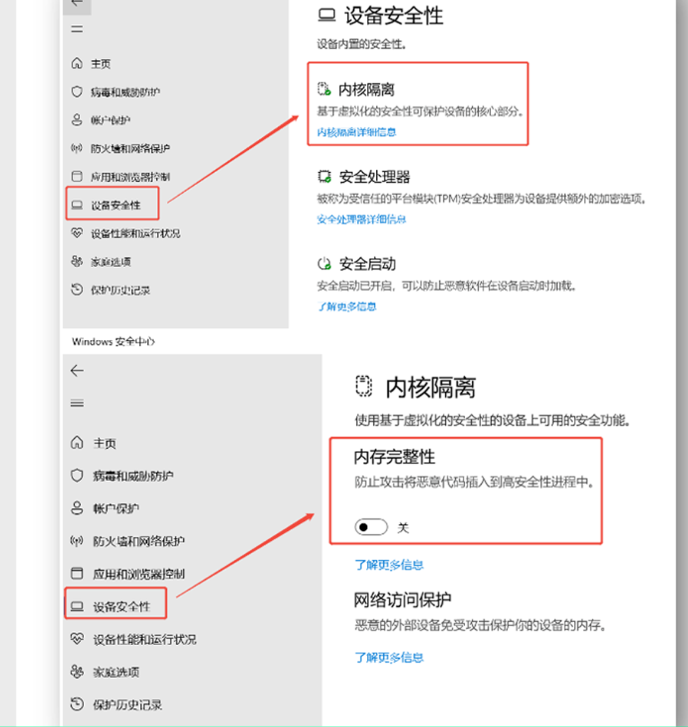
Situation 1: HVCI Impact
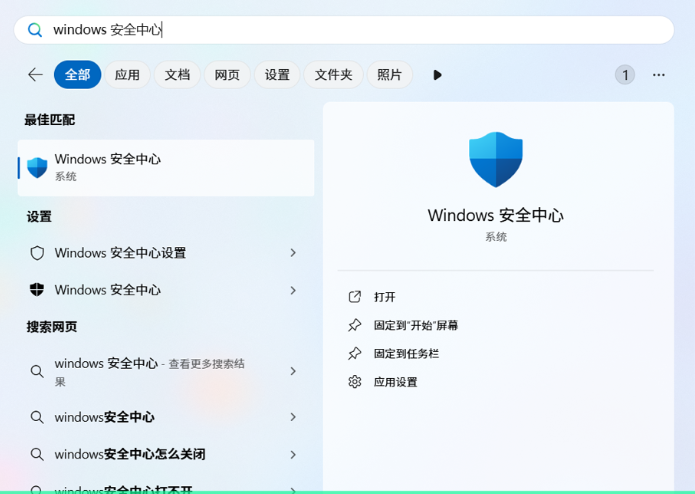
Please search for “Windows Security Center – Device Security – Core Isolation Details” in the “Start Menu Search Bar”, select “Turn off Memory Integrity”, and restart your machine to eliminate the pop-up issue caused by this situation.
Situation 2: VBS Impact
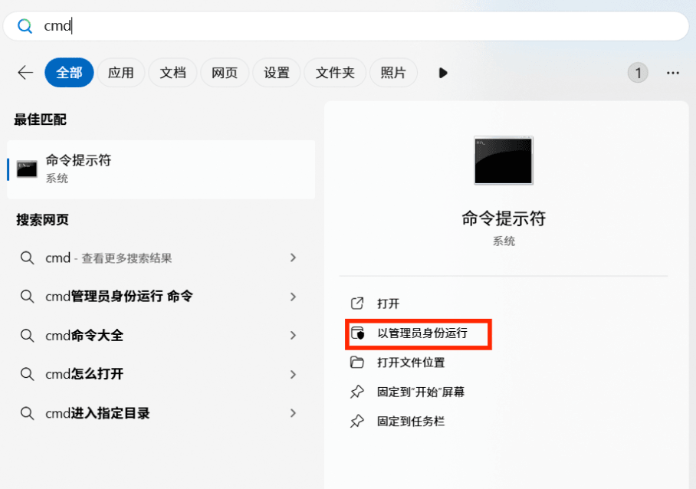
VBS is based on virtualization security, commonly referred to as core isolation. Please search for “cmd” in the “Start Menu Search Bar” and select to run as administrator.
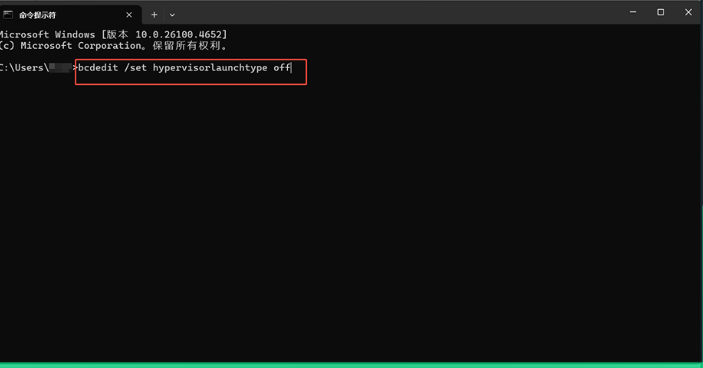
In the pop-up prompt, enter “bcdedit /set hypervisorlaunchtype off” and press Enter to save and restart your computer to eliminate the pop-up issue caused by this situation.
Situation 3: HYPERV Impact
To ensure your normal gaming experience, you may need to disable Hyper-V in the control panel. Please follow these steps:
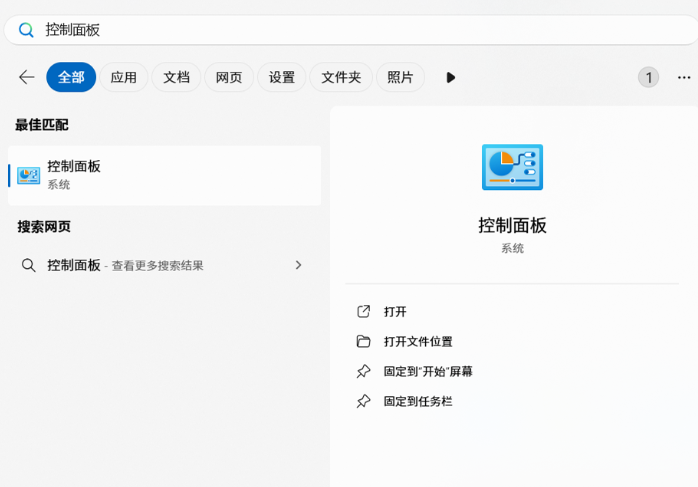
Please search for “Control Panel” in the “Start Menu Search Bar”, enter and open “Programs” – “Programs and Features” – “Turn Windows features on or off”.
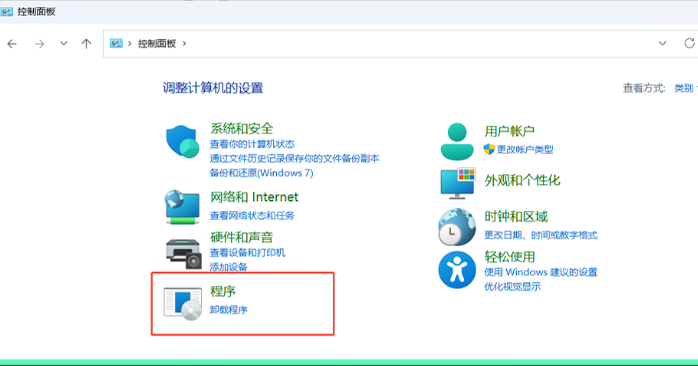
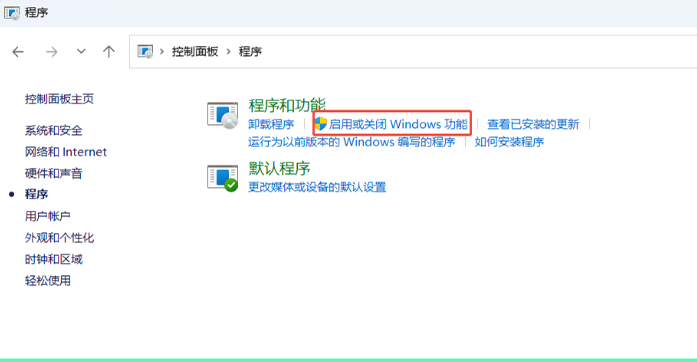
Find and expand Hyper-V, expand Hyper-V Platform, and uncheck “Hyper-V”.
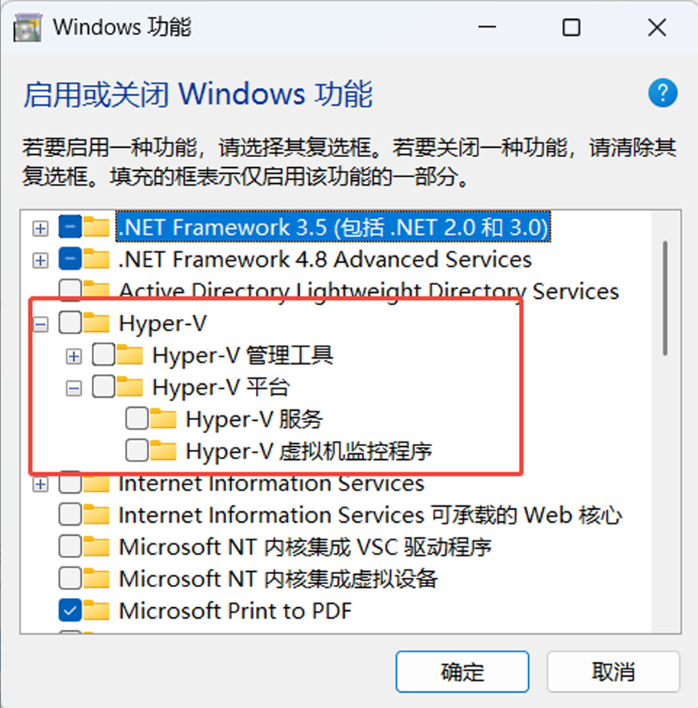
After making the changes, restart your machine to eliminate the pop-up issue caused by this situation.
Other Situations
· Third-party antivirus software that is not Windows Defender may also have an impact. Please exit it and try logging into the game again.
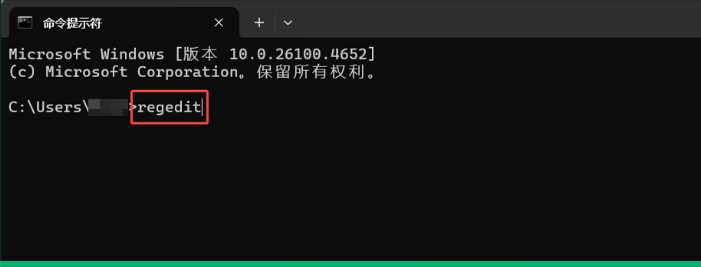
· If the pop-up still occurs after the above operations, it may be due to certain registry entries affecting system behavior. Please search for “cmd” in the “Start Menu Search Bar” and select “Run as administrator”.
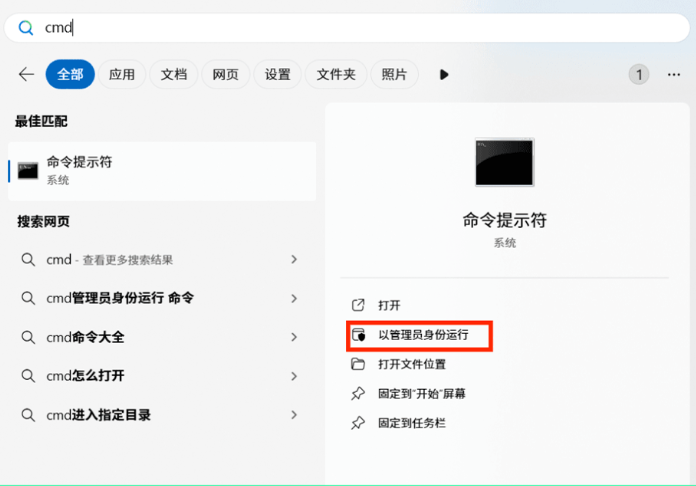
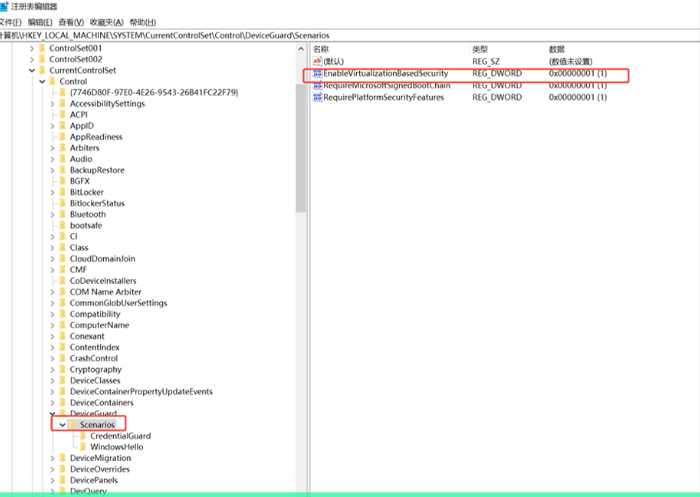
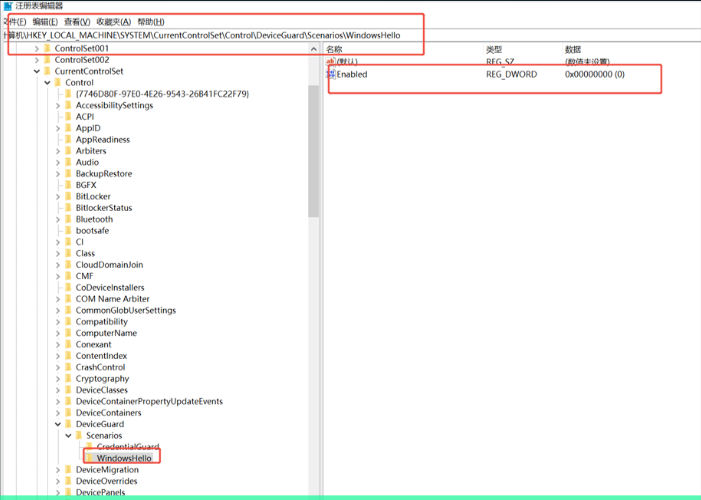
Type “regedit” and press Enter to confirm, open the registry, and ensure that the registry entries shown in the image below do not exist or have a value of 0 (if the entry does not exist, it can be ignored). After making the changes, restart your machine to resolve the issue.
We will continue to optimize the user experience. We welcome operators to help each other, and we thank all operators who uphold justice for their strong support of anti-cheating efforts!
Delta Operation Security Team