Note: This setting is only required when developing Tauri applications. Users of the final application do not need to take any action.
The first step is to install Rust[1] and system dependencies. For Windows and macOS, if you want to learn more about the development environment for different platforms, please refer to the Tauri Official Guide[2].
Windows
1. Microsoft Visual Studio C++ Build Tools
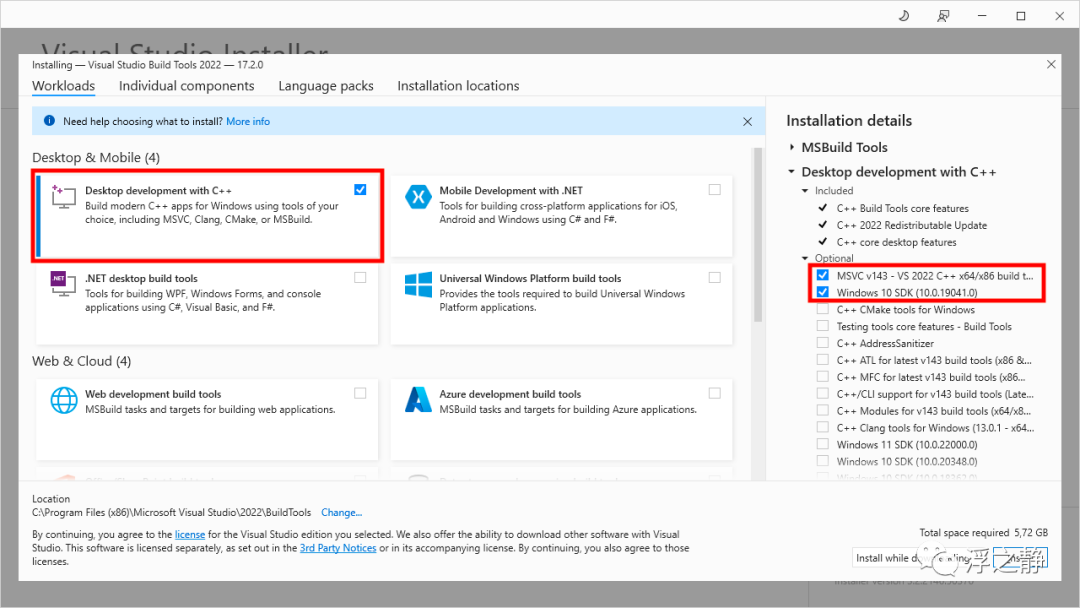
Install Build Tools for Visual Studio 2022[3], ensuring that <strong>C++ Build Tools</strong> and <strong>Windows 10 SDK</strong> are checked.
2. WebView2
Note: WebView2 is built into Windows 11.
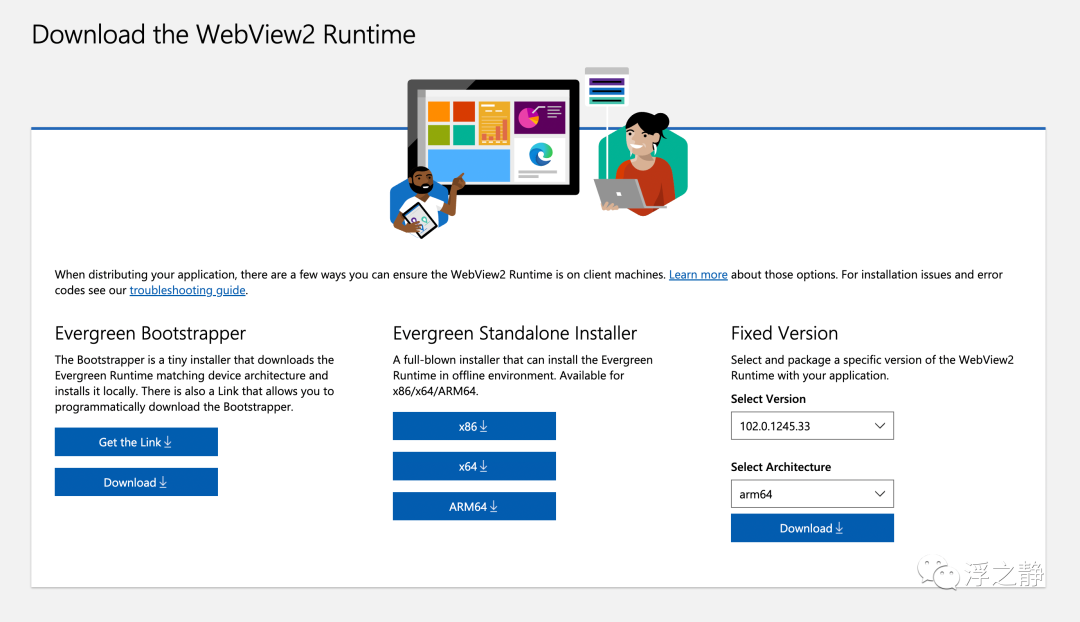
Tauri heavily relies on WebView2 to render web content on Windows, so it must be installed. The simplest way is to download and run the Evergreen Bootstrapper from Microsoft Edge Developer[4]. The bootstrapper will attempt to determine the correct package and version for your system. Note: If you encounter issues (especially on Windows ARM), you may need to manually select the correct installer.
3. Rust
Go to rust-lang.org/tools/install[5] to install <strong>rustup</strong> (the Rust installer).
macOS
1. CLang and macOS Development Dependencies
Execute the following command in the Terminal:
xcode-select --install
2. Rust
Execute the following command in the Terminal:
curl --proto '=https' --tlsv1.2 -sSf https://sh.rustup.rs | sh
The command above will download a script and start installing the rustup tool, which installs the latest stable version of Rust. The system may prompt you to enter a password. If the installation is successful, the following message will appear:
Rust is installed now. Great!
Updating and Uninstalling
Tauri and its components can be manually updated by editing the <strong>Cargo.toml</strong> file or by running the cargo-edit[6] tool’s cargo upgrade[7] command:
cargo upgrade
To update the Rust version using <strong>rustup</strong>, execute the following command in the Terminal:
rustup update
To completely uninstall Rust from your machine using <strong>rustup</strong>:
rustup self uninstall
Troubleshooting
Check if the installed Rust version is correct by entering the following command:
rustc --version
You should see the following information (the version number, commit hash, and commit date of the latest published stable version):
# rustc x.y.z (abcabcabc yyyy-mm-dd)
rustc 1.59.0 (9d1b2106e 2022-02-23)
If you do not see this information, Rust is corrupted. You can refer to the Troubleshooting Rust[8] section to learn how to resolve this issue. If the problem persists, you can also seek help from the official Tauri Discord[9] and GitHub Discussions[10].
References
[1]
Rust: https://www.rust-lang.org/
[2]
Tauri Official Guide: https://tauri.studio/v1/guides/getting-started/prerequisites
[3]
Build Tools for Visual Studio 2022: https://visualstudio.microsoft.com/visual-cpp-build-tools/
[4]
Microsoft Edge Developer: https://developer.microsoft.com/en-us/microsoft-edge/webview2/#download-section
[5]
rust-lang.org/tools/install: https://www.rust-lang.org/tools/install
[6]
cargo-edit: https://github.com/killercup/cargo-edit
[7]
cargo upgrade: https://github.com/killercup/cargo-edit#cargo-upgrade
[8]
Troubleshooting Rust: https://doc.rust-lang.org/book/ch01-01-installation.html#troubleshooting
[9]
Tauri Discord: https://discord.com/invite/tauri
[10]
GitHub Discussions: https://github.com/tauri-apps/tauri/discussions
