The new version of Atmel’s IDE – Atmel Studio 7.0 is based on Microsoft’s Visual Studio 2015 platform, showcasing speed, performance, and code visual style, making it very user-friendly. Below, we will introduce how to use Atmel Studio 7.0 using the SAML22 Xplained Pro as an example.
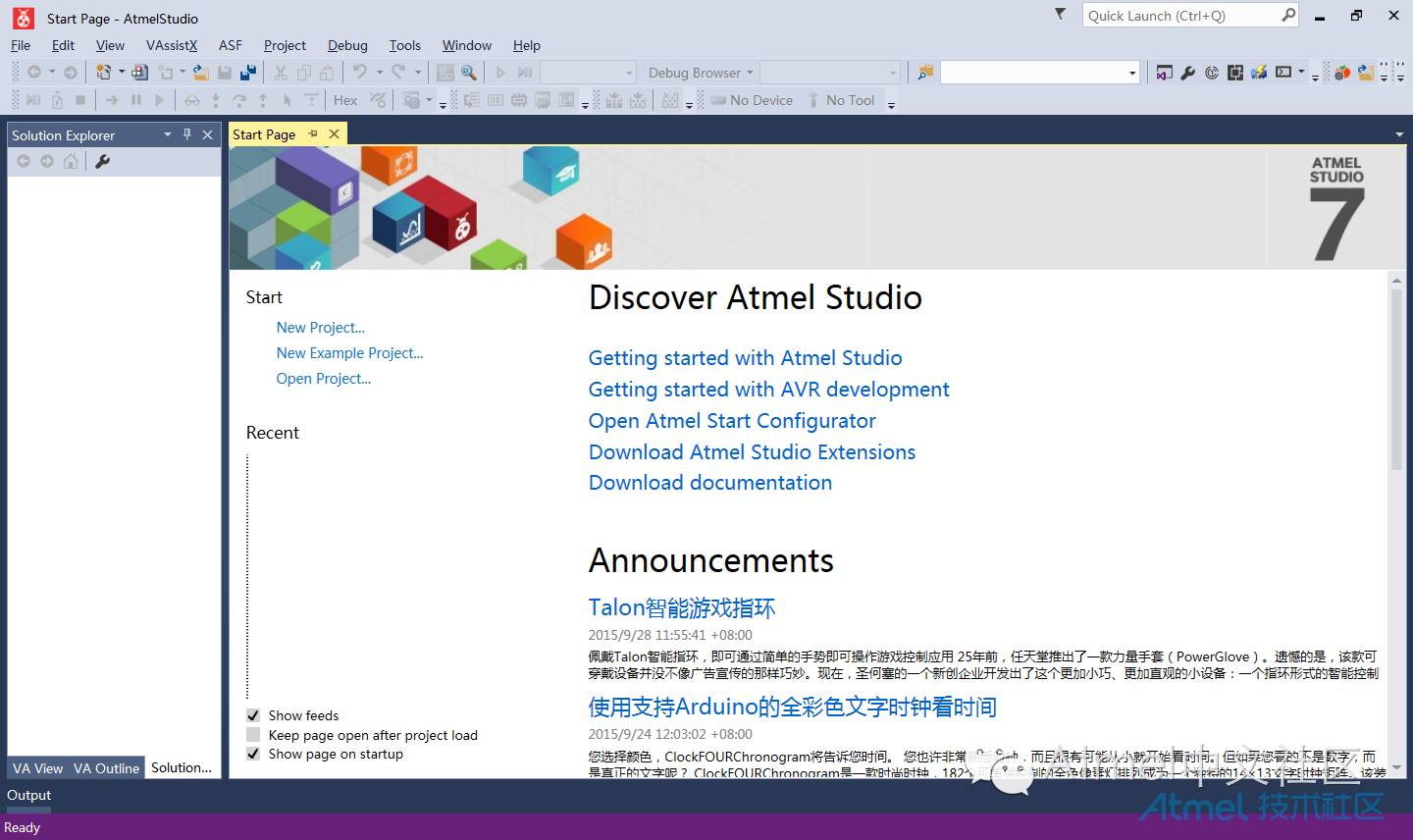
Step 1: Open Atmel Studio 7.0
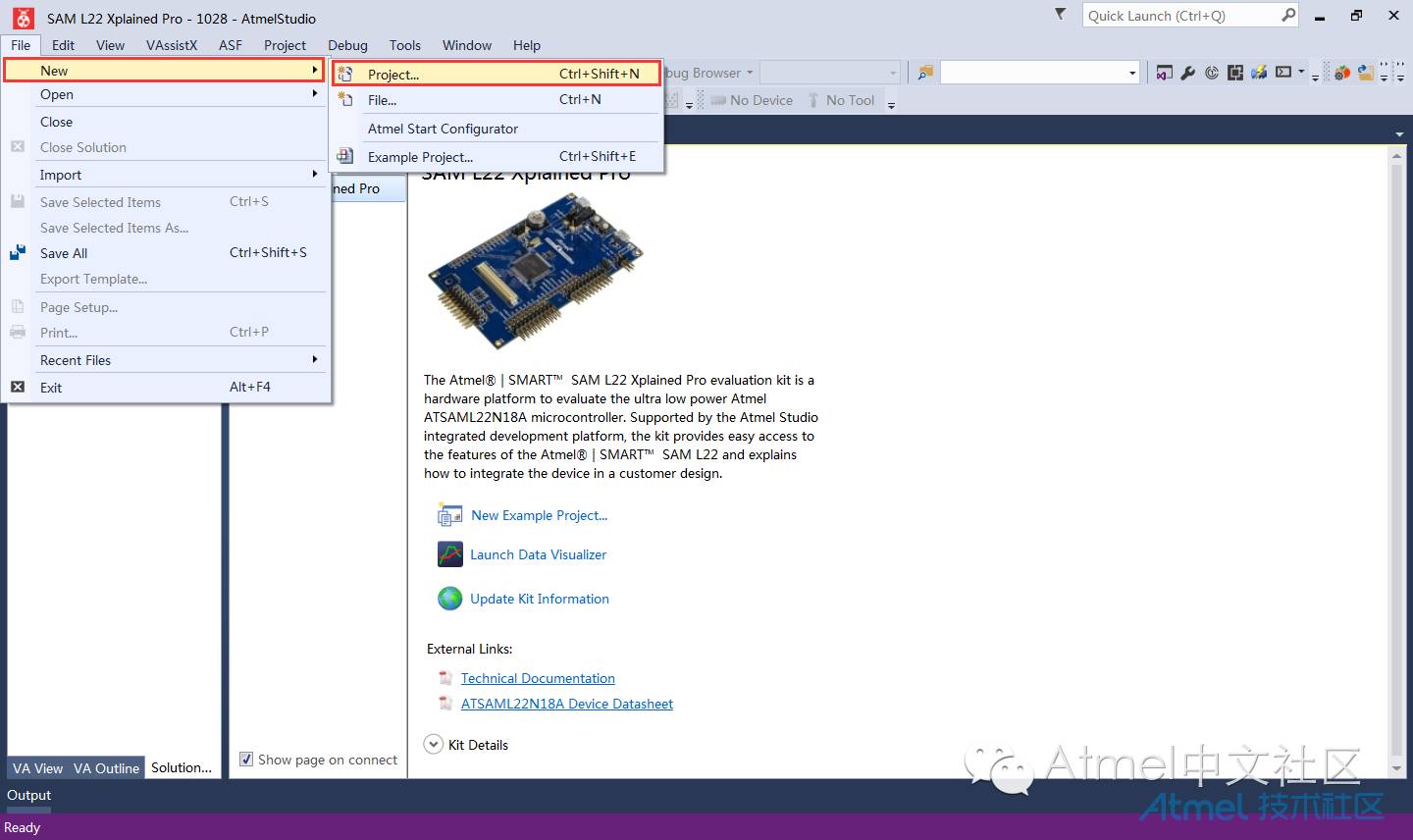
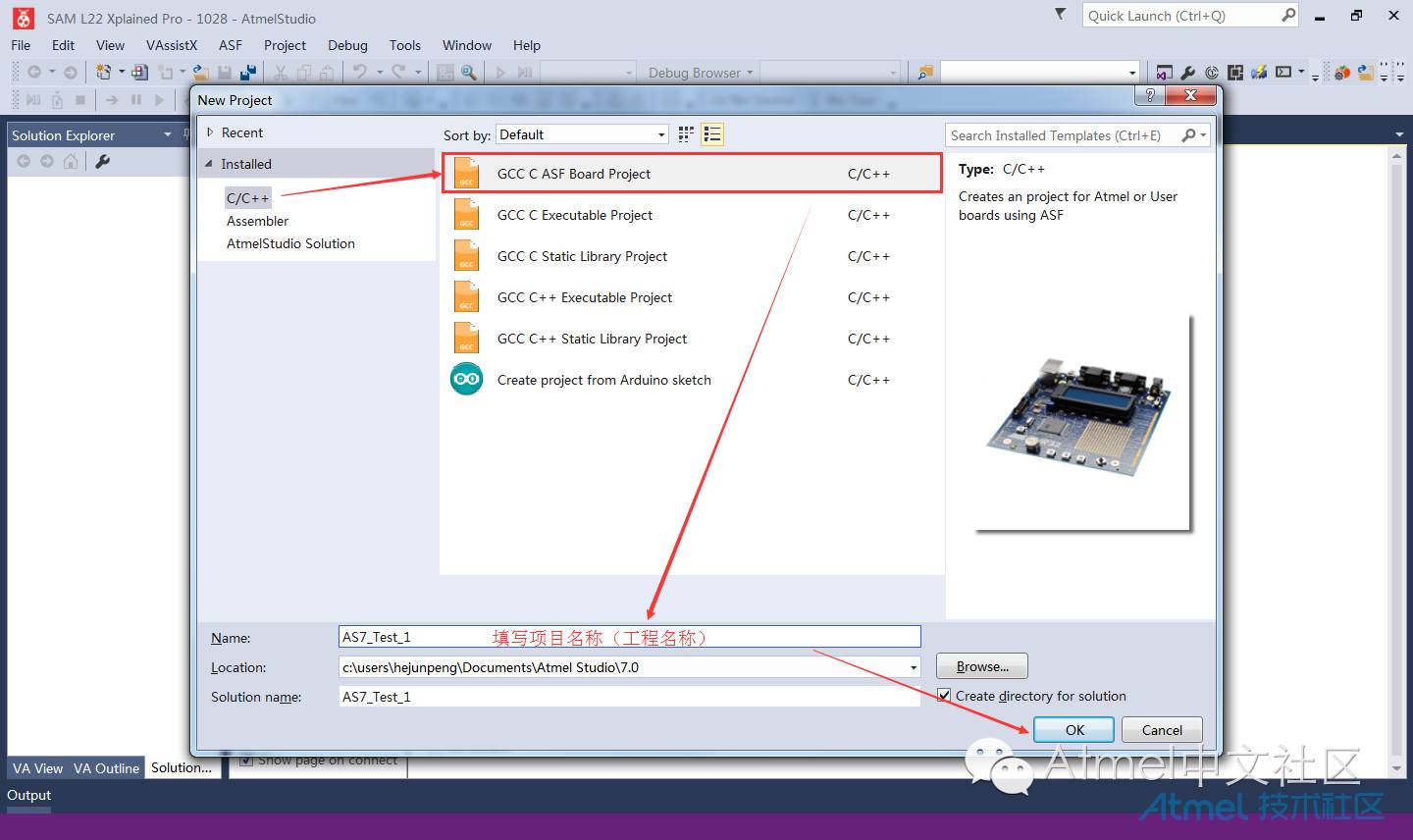
Step 2: Create a New Project
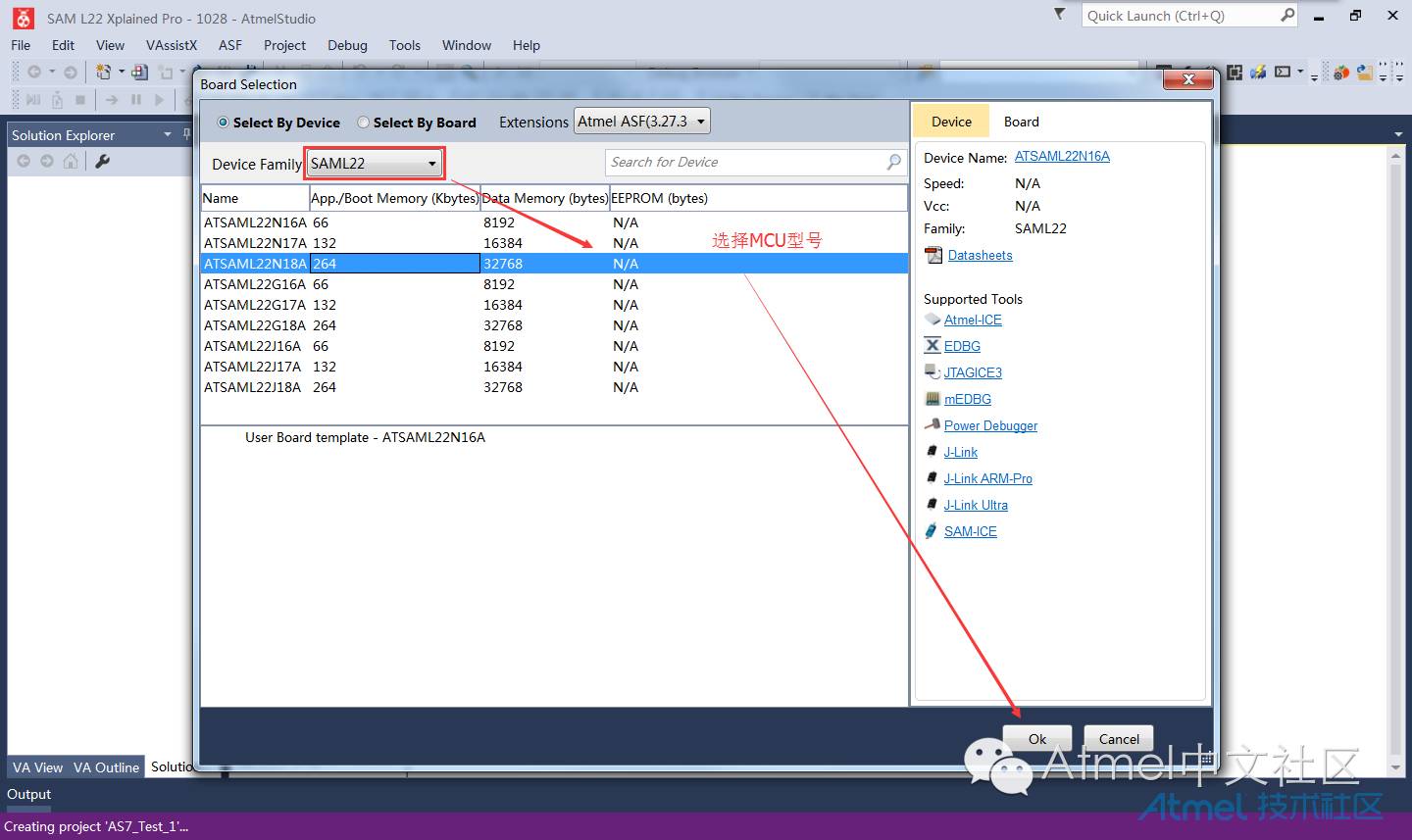
Step 3: Select Chip Model
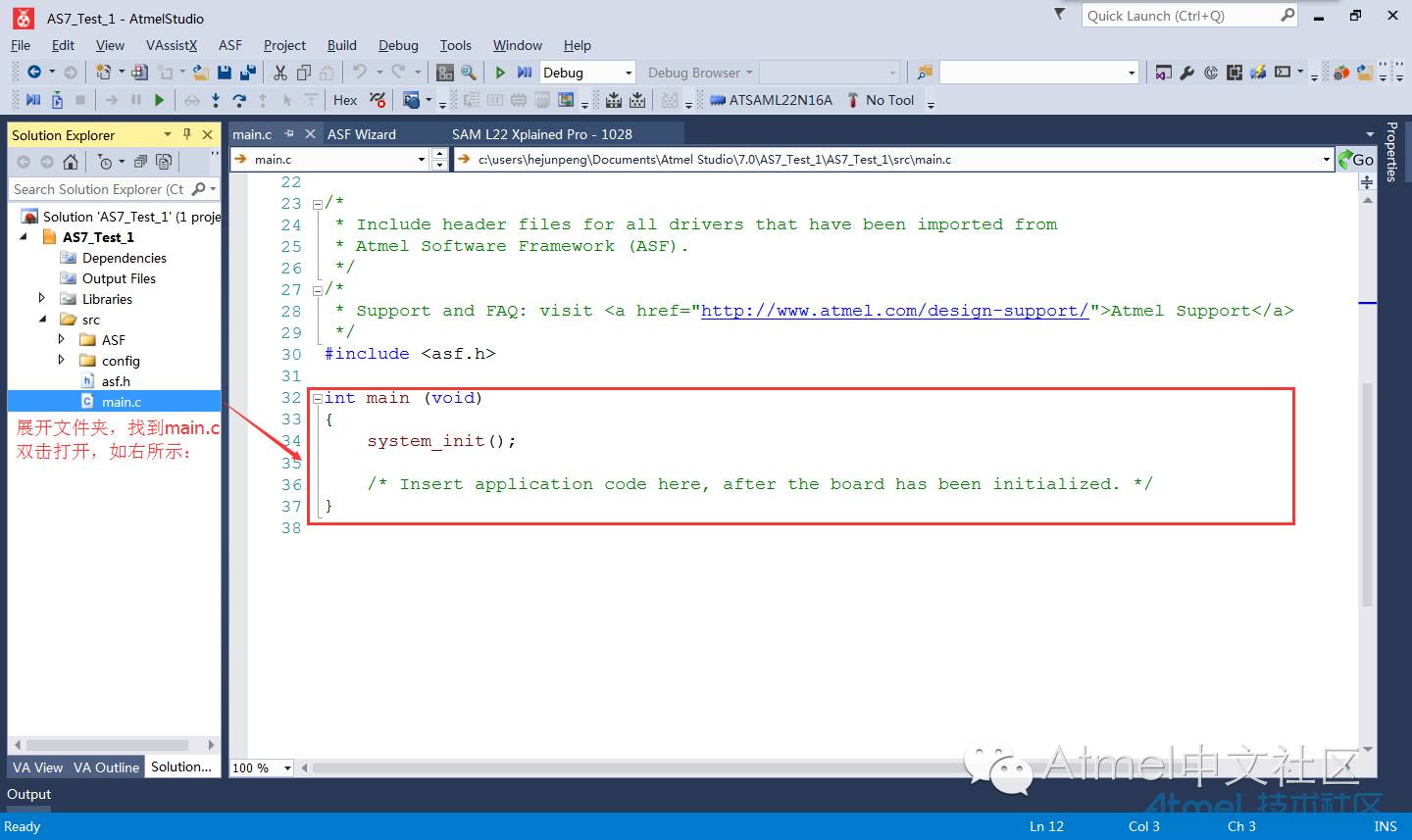
Step 4: Add ASF Driver Library
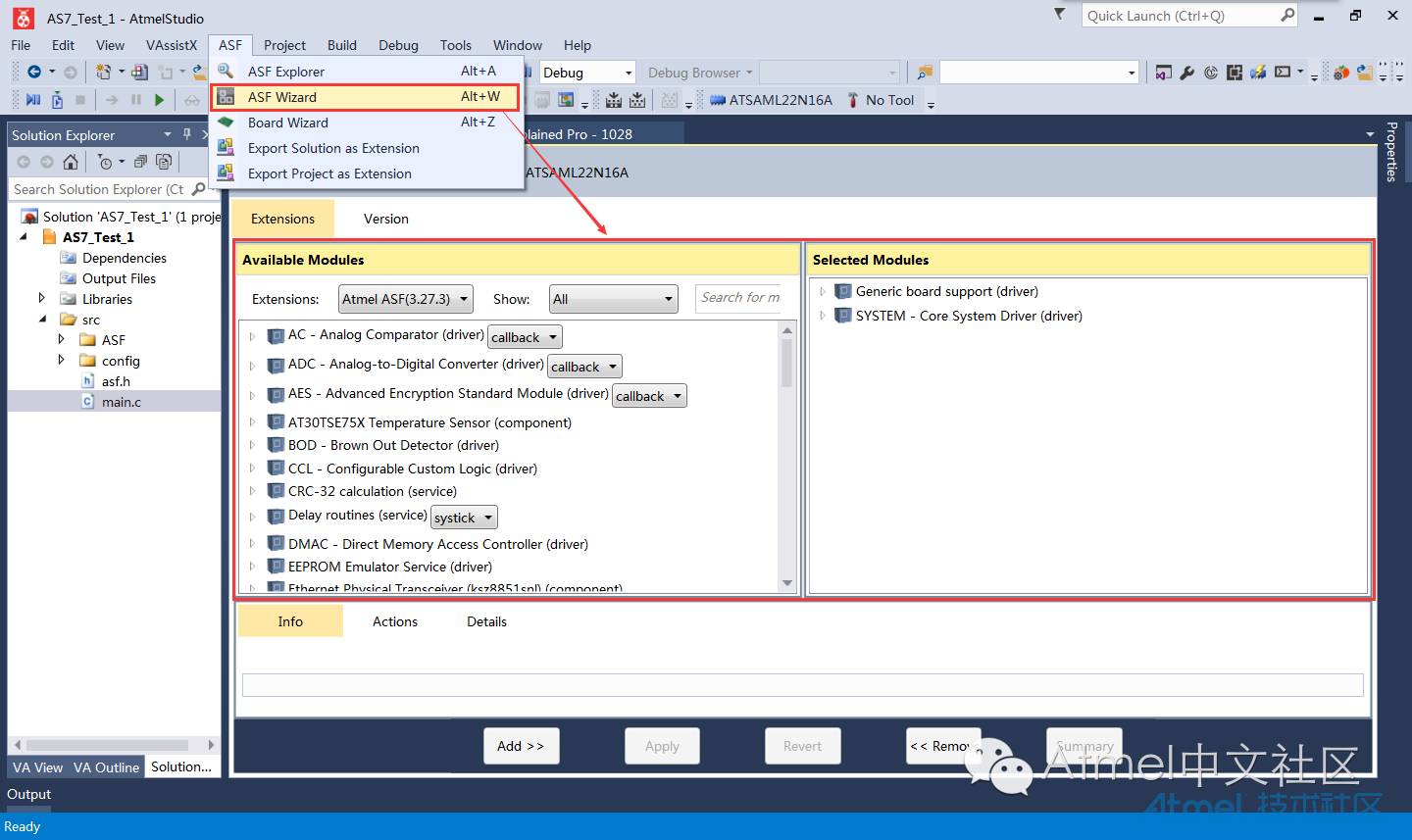
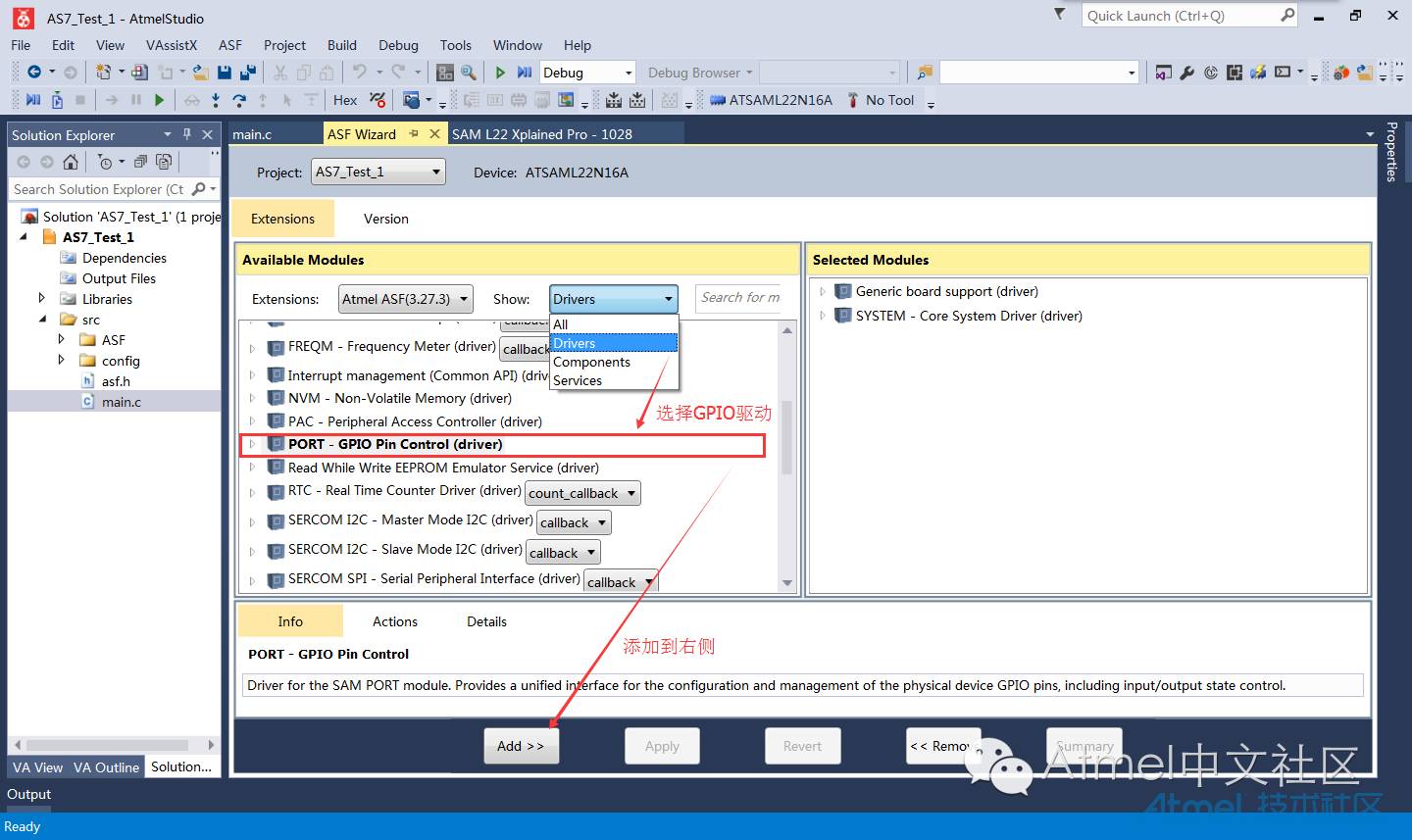
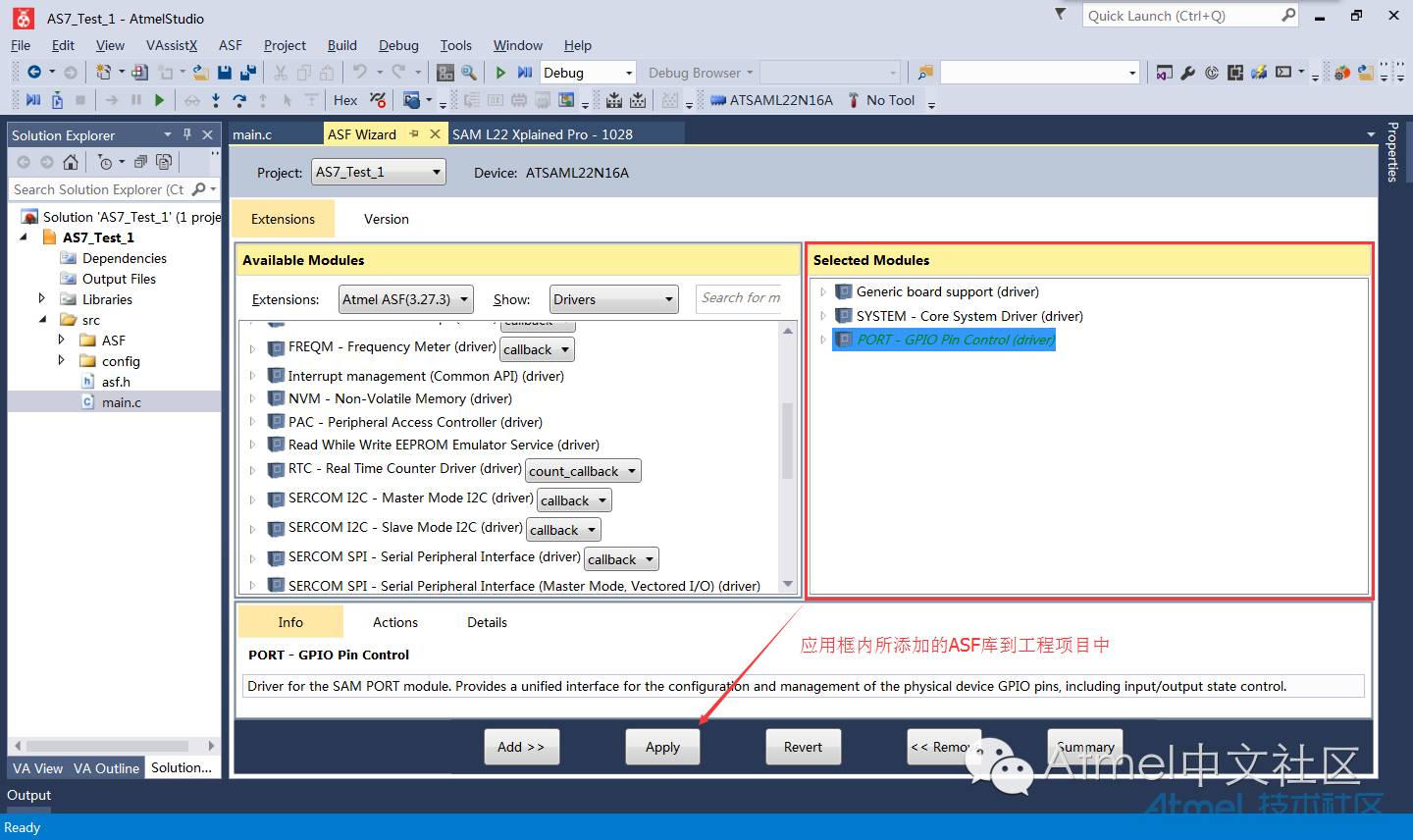
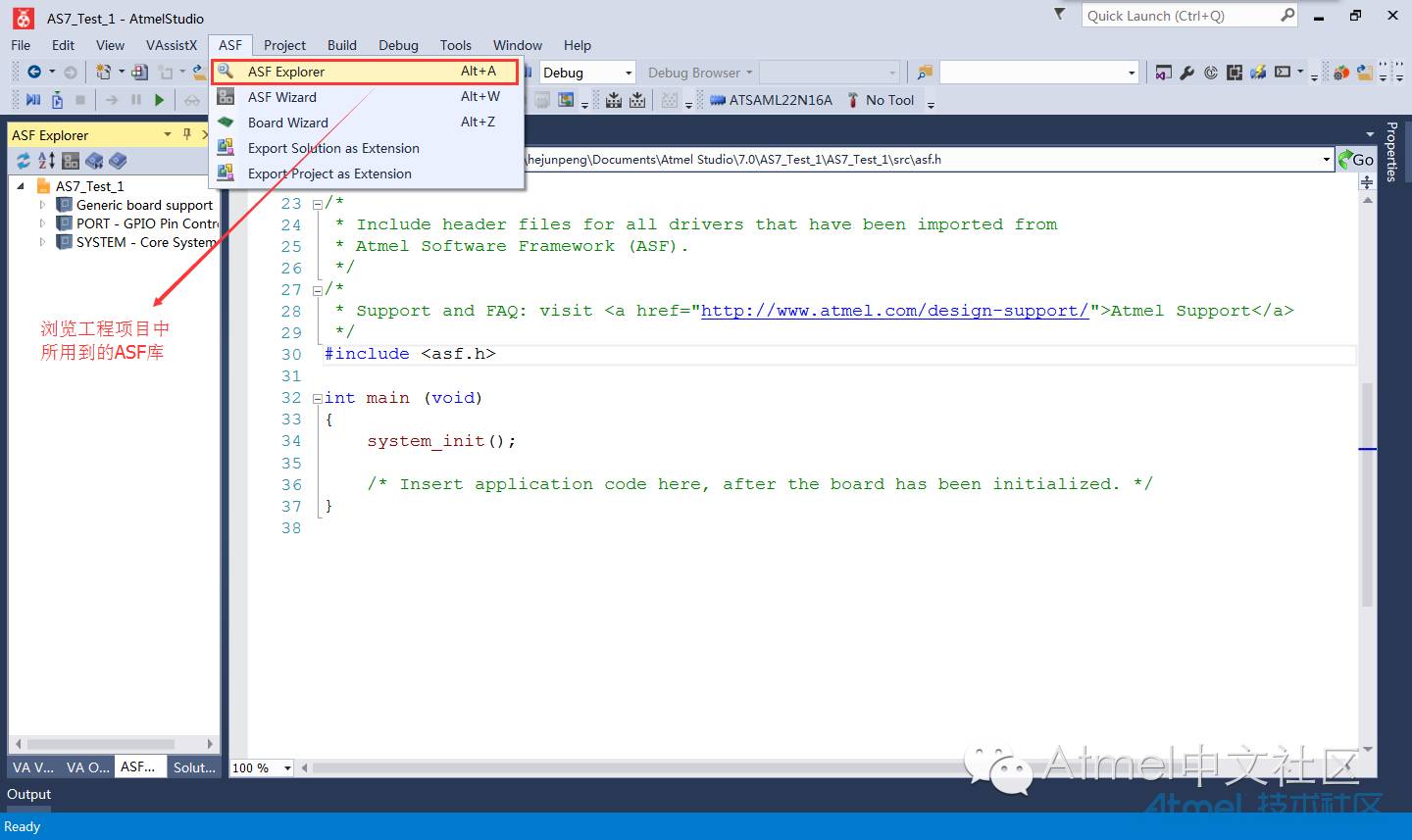
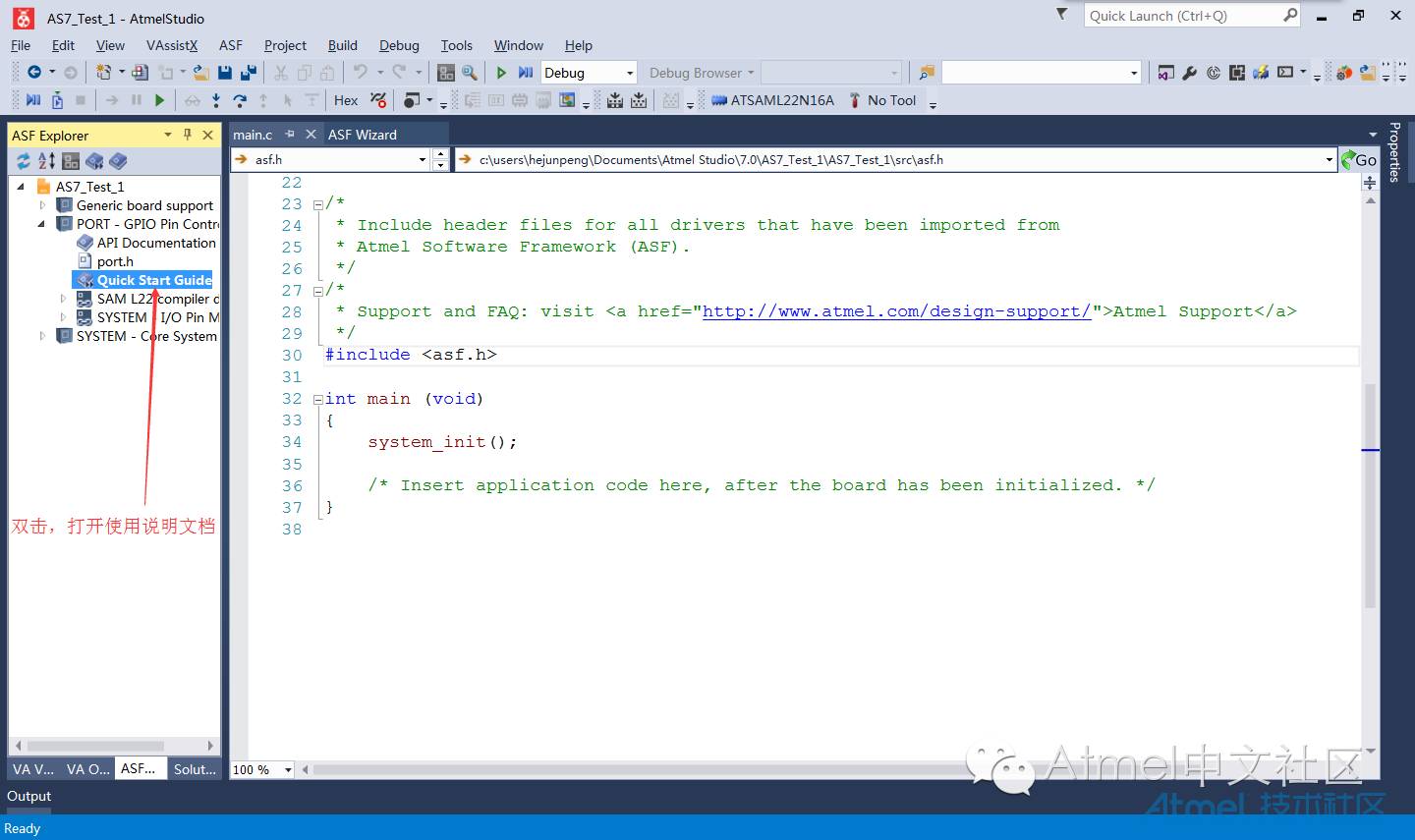
Step 5: Check ASF Driver Usage Instructions
Step 6: Write Code
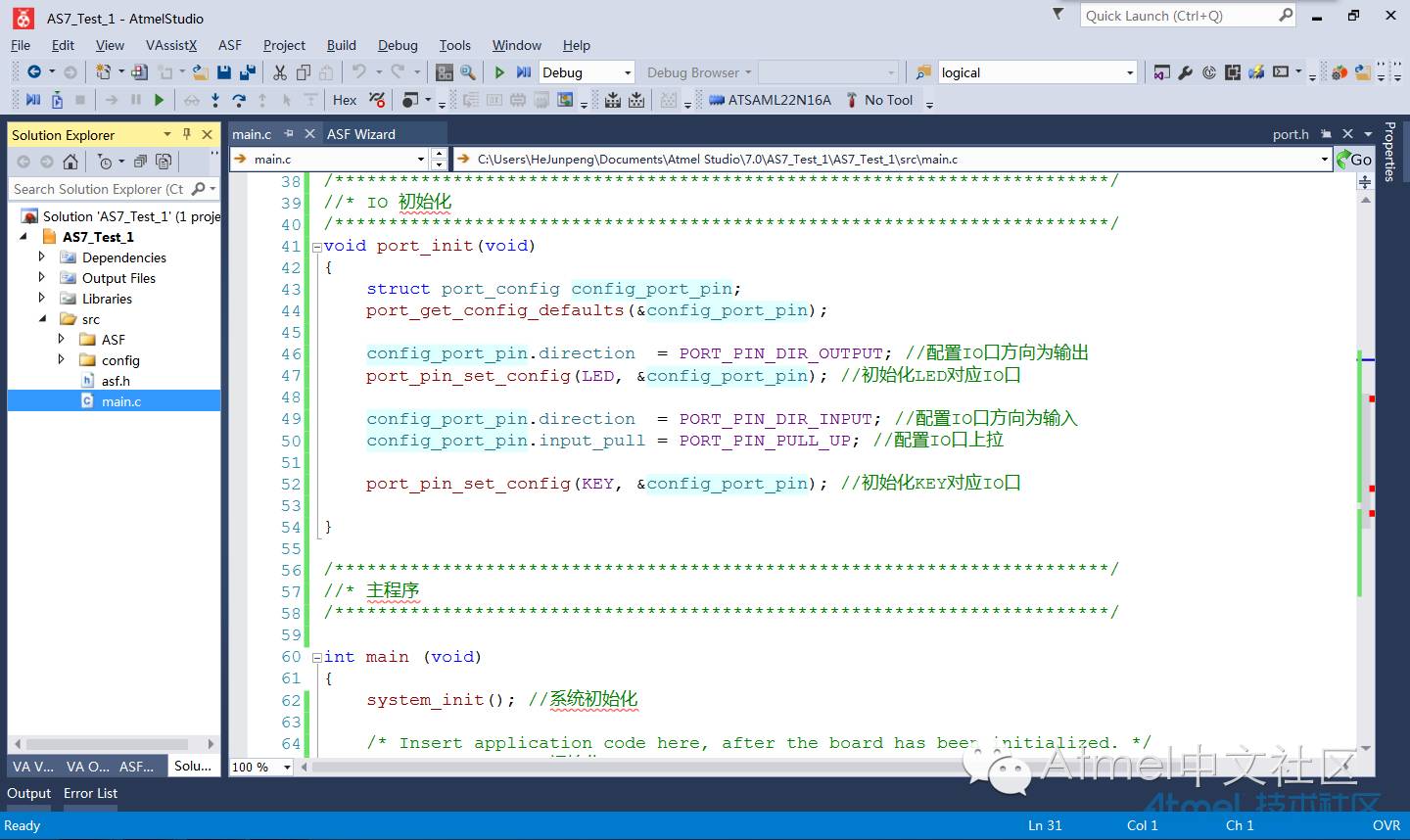
View Source Code in the Original Text
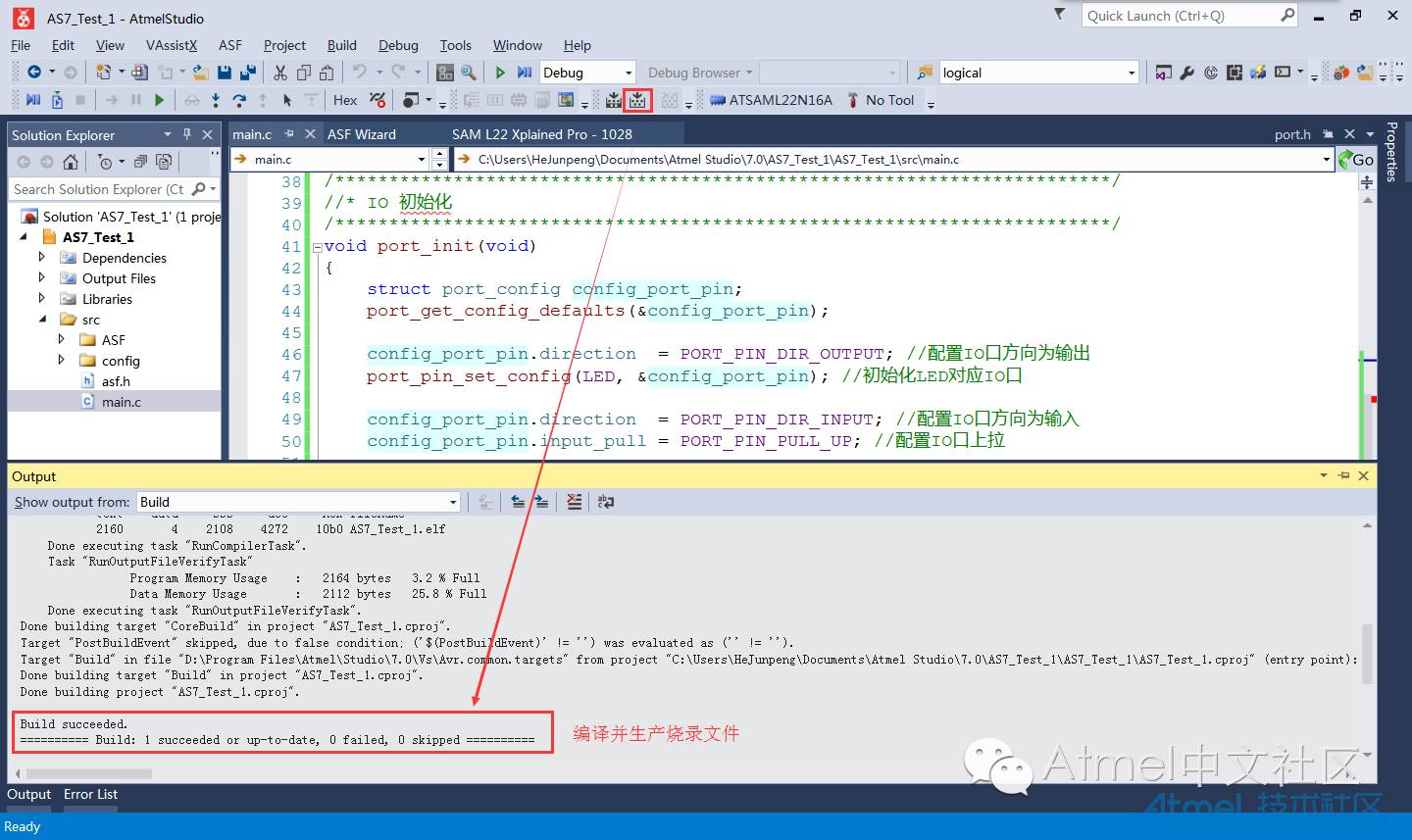
Step 7: Compile and Generate Programming Files
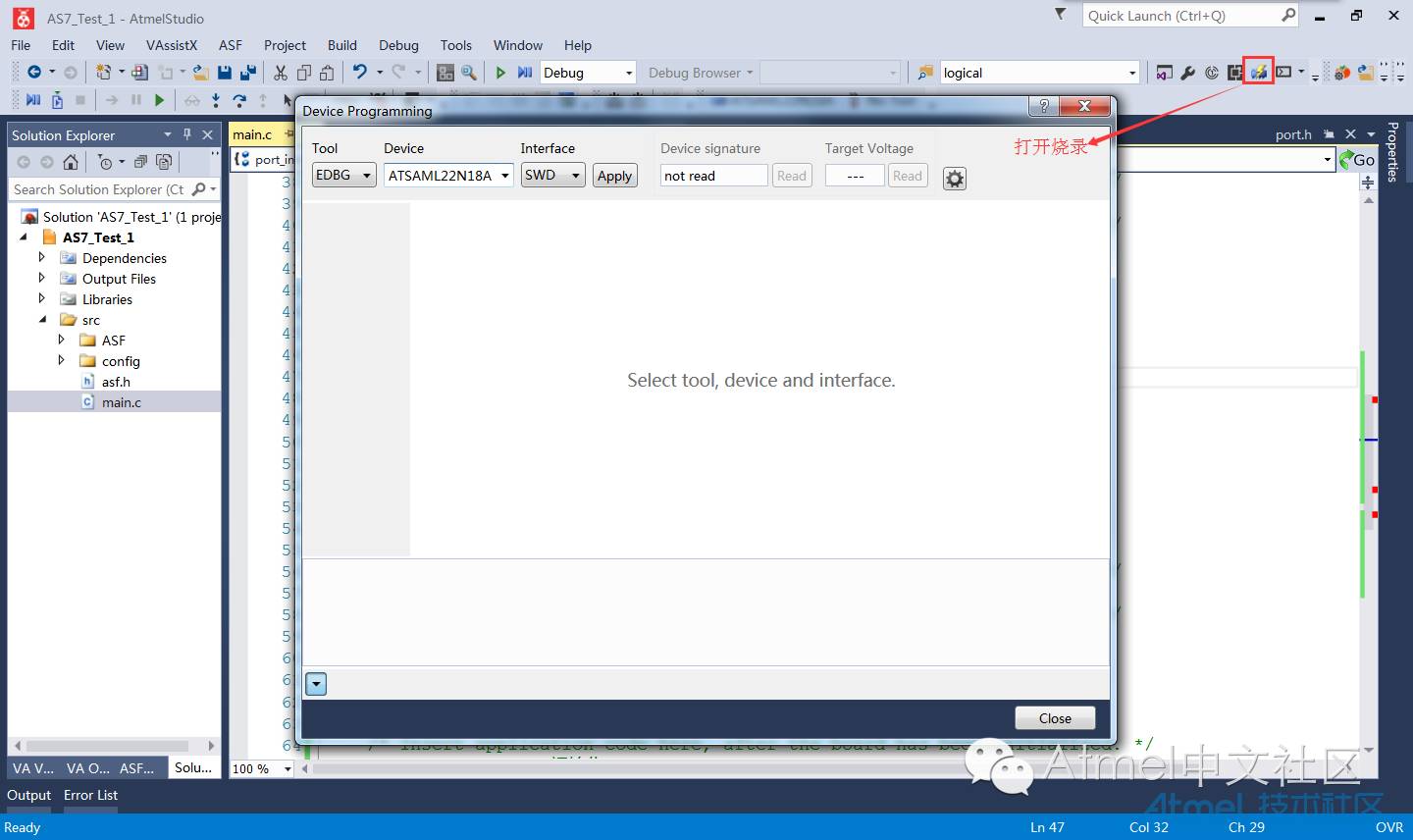
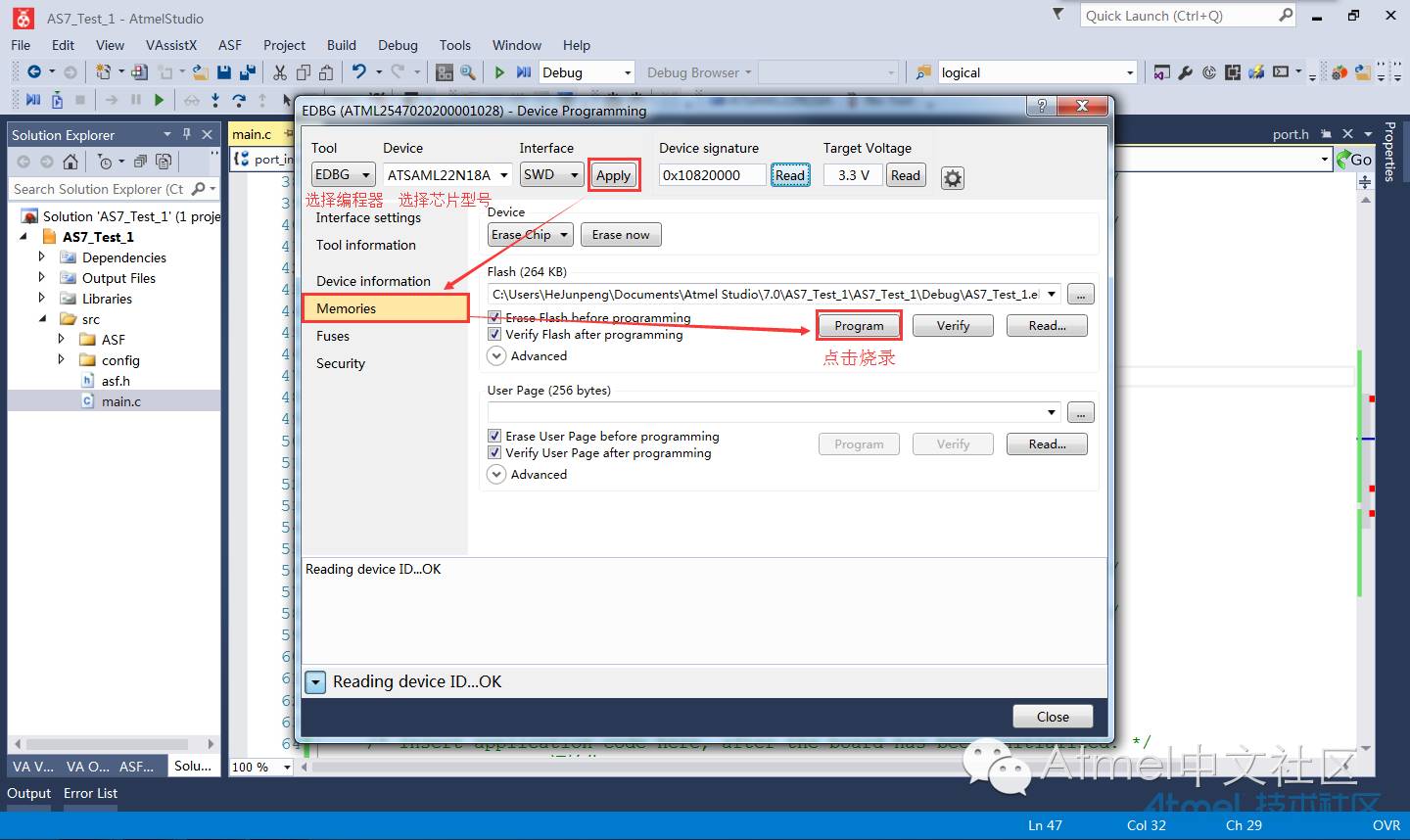
Step 8: Program the Files to the Development Board
 Click “Read Original Text” to view the source code.