One of the reasons for Python’s popularity is its rich computational ecosystem. According to incomplete statistics, there are currently over 130,000 third-party libraries available for Python.
This series will gradually organize and share some interesting and useful third-party libraries.
There are two ways to obtain the accompanying code for this article:
- Available via Baidu Cloud:
Link: https://pan.baidu.com/s/1FSGLd7aI_UQlCQuovVHc_Q?pwd=mnsj Extraction code: mnsj- Available on GitHub:
https://github.com/returu/Python_Ecosystem01Introduction:QRCode is a third-party library in Python used for generating QR codes. It conveniently encodes text, links, and other information into QR code images, supporting various customization options and advanced features.
- Installation:
The standard installation uses pypng to generate PNG files, and it can also render QR Codes directly in the console. The standard installation method is as follows:
pip install qrcodeIf more image features are needed, you can install the qrcode with the pil dependency, which will install the Pillow library for image generation:
pip install "qrcode[pil]"- Usage:
- Command line usage:
After installation, you can use the qr script to generate QR Codes from the command line:
qr "Some text" > test.png- Using in Python:
In Python, you can quickly generate a simple QR code using the make() function:
import qrcode
img = qrcode.make('Some data here')
type(img)  # qrcode.image.pil.PilImage
img.save("some_file.png")02QRCode Object:
-
2.1 QRCode Class:
If you need to customize QR code parameters, you can use the QRCode class.
import qrcode

# Information to encode
data = "https://www.mizhushare.com/"

# Create QRCode object
qr = qrcode.QRCode(
    version=1,  # QR code version
    error_correction=qrcode.constants.ERROR_CORRECT_L,  # Error correction level
    box_size=10,  # Size of each box in pixels
    border=4,  # Width of the border
)

# Add data to QRCode object
qr.add_data(data)
qr.make(fit=True)

# Create QR code image and set foreground and background colors
img = qr.make_image(fill_color="red", back_color="black")

# Save QR code image
img.save("qrcode.png")

print("QR code has been generated and saved as qrcode.png")
# Display QR code image
img.show()
Parameter descriptions:
-
version parameter: An integer from 1 to 40 that controls the size of the QR Code (the minimum version 1 is a 21×21 matrix). You can set version to 1 and set the parameter fit=True to automatically determine the version when generating the QR Code.
- error_correction parameter: Controls the error tolerance of the QR Code. The higher the error tolerance, the larger and more complex the QR code will be. qrcode provides the following four constants: ERROR_CORRECT_L (about 7% error tolerance), ERROR_CORRECT_M (about 15%, default), ERROR_CORRECT_Q (about 25%), ERROR_CORRECT_H (about 30%).
- box_size parameter: Controls the pixel size of each “box” in the QR Code. Increasing this value will make the QR code image larger.
- border parameter: Controls the width of the border around the QR Code, with a default value of 4, measured in box_size. Increasing this value will add more blank space around the QR code.
-
fill_color and back_color parameters: Can set the foreground and background colors of the QR Code.
The add_data() method is used to add data to the current QR object. To replace the previous content in the same object with new data, you must first use the clear() method:
import qrcode
qr = qrcode.QRCode()
qr.add_data('Some data')
img = qr.make_image()
# Clear previously added data
qr.clear()
qr.add_data('New data')
other_img = qr.make_image()
2.2 Output the generated QR code in ASCII characters:
Use the qrcode library to generate a QR code containing specified text and output it in ASCII character form.
# The io module provides tools for handling input and output streams, mainly using the StringIO class, which creates an in-memory file object for temporarily storing text data
import io
import qrcode

qr = qrcode.QRCode()
qr.add_data("Some text")

# Create a StringIO object f
# It acts like a text file in memory, allowing read and write operations, but data is stored in memory instead of on disk
f = io.StringIO()
# Call the QRCode object's print_ascii method, which outputs the generated QR code in ASCII character form
# The out parameter specifies the output target, here the output result is written to the previously created StringIO object f
qr.print_ascii(out=f)
# Move the file pointer to the start of the StringIO object f
f.seek(0)
# Call the read method of the StringIO object f to read the stored ASCII character form of the QR code data and print it to the console using the print function
print(f.read())03Image Factory:
You can encode the QR Code as SVG or use a pure Python image processor to encode it as a PNG image.
- 3.1 SVG:
If high-quality printing is needed, you can generate a QR code in SVG format:
-
Generate SVG from the command line:
qr --factory=svg-path "Some text" > test.svg
qr --factory=svg "Some text" > test.svg
qr --factory=svg-fragment "Some text" > test.svg-
Generate SVG in Python:
The qrcode.image.svg module contains the following five different SVG QR code image factory classes:
-
qrcode.image.svg.SvgImage: This is the most basic SVG image factory, generating a simple SVG image using a set of rectangles to represent the QR Code.
-
qrcode.image.svg.SvgFragmentImage: Generates an SVG fragment instead of a complete SVG file. This is very useful in certain embedding scenarios.
-
qrcode.image.svg.SvgPathImage: This is the recommended SVG image factory, which combines the modules of the QR Code into a path (<path> element), thus avoiding blank issues when scaling.
-
qrcode.image.svg.SvgFillImage: Similar to SvgImage, but fills the background of the SVG with white.
-
qrcode.image.svg.SvgPathFillImage: Similar to SvgPathImage, but fills the background of the SVG with white.
import qrcode
import qrcode.image.svg

# Information to encode
data = "https://www.mizhushare.com/"

# Generate QR code in SVG format and specify the image factory
img = qrcode.make(data , image_factory=factory_Path)

# Save QR code image
img.save('qr.svg')
The QRCode.make_image() method will pass additional keyword arguments to the underlying ElementTree XML library, which helps adjust the root element of the generated SVG:
import qrcode

data = "https://www.mizhushare.com/"

qr = qrcode.QRCode(image_factory=qrcode.image.svg.SvgPathImage)
qr.add_data(data)
qr.make(fit=True)

# Add a CSS class name some-css-class to the generated SVG image
img = qr.make_image(attrib={'class': 'some-css-class'})

# Save QR code image
img.save('qr2.svg')
You can use the to_string() method to convert the SVG image to a string:
img.to_string(encoding='unicode')-
3.2 Pure Python PNG:
If Pillow is not installed, the default image factory will be a pure Python PNG encoder using pypng.
-
Generate PNG from the command line using this factory:
qr --factory=png "Some text" > PyPNGImage_1.png-
Generate PNG in Python:
import qrcode
from qrcode.image.pure import PyPNGImage
img = qrcode.make('Some data here', image_factory=PyPNGImage)
img.save("PyPNGImage_2.png")-
3.3 Custom Style Images:
The custom style feature is only available in versions >=7.2 (SVG style images require 7.4).
You can add styles to the QR Code using StyledPilImage or standard SVG image factories. These factories accept an optional module_drawer parameter to control the shape of the QR Code:
- SquareModuleDrawer();
- GappedsquareModuleDrawer();
- CircleModuleDrawer();
-
RoundedModuleDrawer();
-
VerticalBarsDrawer();
-
HorizontalBarsDrawer().
It is important to note that these QR Codes may not be recognized by all readers, so it is recommended to conduct some experiments and set the error correction level to high (especially when embedding images).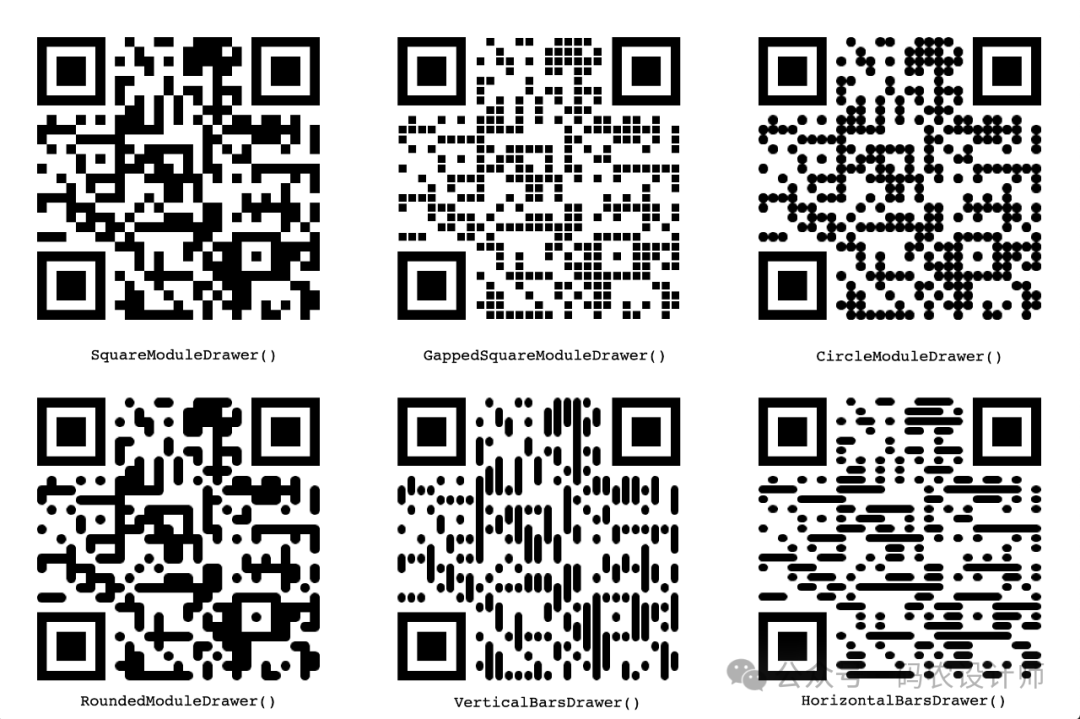
In SVG, you can use the following module drawers:
-
<span>SvgSquareDrawer</span><span>;</span> -
<span>SvgCircleDrawer</span><span>;</span> -
<span>SvgPathSquareDrawer</span><span>;</span> -
<span>SvgPathCircleDrawer</span><span>.</span>
They all accept a size_ratio parameter, which can be set to less than the default Decimal(1) to achieve “gap” squares or circles.
Additionally, StyledPilImage also accepts an optional color_mask parameter to change the color of the QR code:
-
SolidFillColorMask();
-
RadialGradiantColorMask();
-
SquareGradiantColorMask();
- HorizontalGradiantColorMask();
- VerticalGradiantColorMask();
-
ImageColorMask().
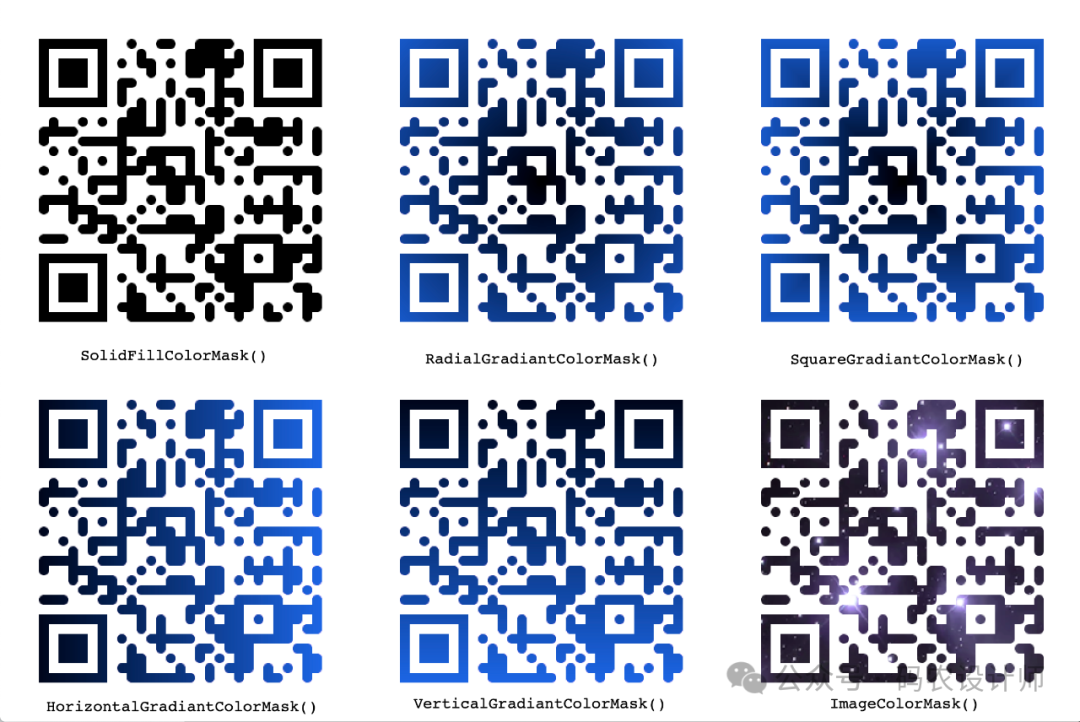
And an optional embeded_image_path parameter for embedding images in the center of the code.
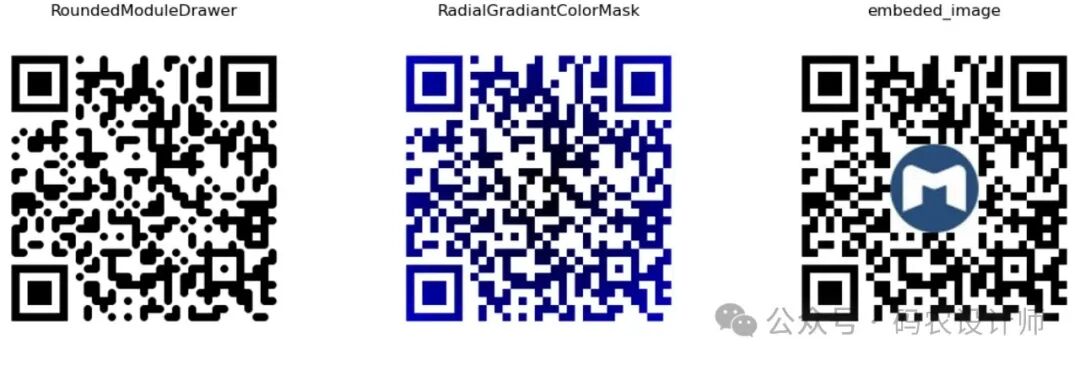
Here is a code example for drawing a QR Code with rounded corners, radial gradient, and embedded image:
import qrcode
from qrcode.image.styledpil import StyledPilImage
from qrcode.image.styles.moduledrawers.pil import RoundedModuleDrawer
from qrcode.image.styles.colormasks import RadialGradiantColorMask

qr = qrcode.QRCode(error_correction=qrcode.constants.ERROR_CORRECT_H)
qr.add_data('Some data')

img_1 = qr.make_image(image_factory=StyledPilImage, module_drawer=RoundedModuleDrawer())
img_2 = qr.make_image(image_factory=StyledPilImage, color_mask=RadialGradiantColorMask())
img_3 = qr.make_image(image_factory=StyledPilImage, embeded_image_path="logo.jpg")

import matplotlib.pyplot as plt

# Create a figure with three subplots
fig, axes = plt.subplots(1, 3, figsize=(15, 5))

# Display the first QR code
axes[0].imshow(img_1)
axes[0].axis('off')
axes[0].set_title("RoundedModuleDrawer", fontsize=12)

# Display the second QR code
axes[1].imshow(img_2)
axes[1].axis('off')
axes[1].set_title("RadialGradiantColorMask", fontsize=12)

# Display the third QR code
axes[2].imshow(img_3)
axes[2].axis('off')
axes[2].set_title("embeded_image", fontsize=12)

# Adjust subplot layout to increase bottom margin for labels
plt.subplots_adjust(bottom=0.15)

# Show the figure
plt.show()
The generated QR code effect is shown in the following image:
For more content, please visit the GitHub page:
https://github.com/lincolnloop/python-qrcode