Hello, Bluetooth enthusiasts and development experts! Today, let’s discuss a super practical skill: using SPP mode to master Bluetooth on the Quecpython platform! Whether you want to achieve wireless serial communication or facilitate data transfer between devices, this guide will turn you into a “Bluetooth expert” in no time, making it easy for beginners to get started!
First, let’s understand: What exactly is Bluetooth SPP?
In fact, SPP (Serial Port Profile) is the “wireless serial port” in classic Bluetooth (Bluetooth BR/EDR)! It allows two devices to communicate as if they were connected by an invisible data cable, simulating traditional RS232 serial communication via Bluetooth. In simple terms: what a wired serial port can do, it can also do wirelessly with Bluetooth. Isn’t that amazing?
What can SPP do?
There are so many applications! You can see its presence everywhere in daily development and life:
👉 Bluetooth serial modules: For example, the familiar HC-05, HC-06, JDY-08, which can wirelessly transmit data using SPP when connected to a microcontroller, eliminating messy wires. 👉 Onboard diagnostics: Car OBD2 code readers connect to smartphones via SPP to read data like speed and fuel consumption in real-time, making them great helpers for mechanics! 👉 Bluetooth printers: Supermarket receipts and shipping label printers use SPP to wirelessly receive print commands, making them convenient to place anywhere. 👉 Industrial equipment: PLCs and microcontrollers in factories can transmit data via SPP without wiring, making maintenance super easy! 👉 Everyday scenarios: For instance, Bluetooth headsets (audio data transmission), transferring images/files between devices, or even customizing device interface logos can all be achieved with it!
Moreover, SPP supports a maximum transmission rate of 3M, which is impressive!
Which modules can use SPP?
On the Quecpython platform, these 4G modules support Bluetooth SPP, so those who have them can get started right away: EC200U, EC600U, EG912U, EG915ULA_AB, EG915UEU_AB (If you don’t have them, don’t worry, just keep this guide handy; you might use it in the future!)
Key Point: How easy is it to develop SPP on Quecpython?
The best part is that using Bluetooth SPP on the Quecpython platform doesn’t require you to tackle complex low-level protocol stacks! It’s as easy as building with blocks; just call a few simple interfaces, and you can connect and transmit data in no time! Isn’t that super convenient?
Step-by-Step Guide: Bluetooth SPP Initialization + Full Communication Process
Let’s go step by step, from initialization to data transmission, and you can follow along to get it done!
Step 1: Preparation — Initialize Bluetooth
First, we need to wake up Bluetooth and assign it a “notification handler” (callback function) that will inform you of any Bluetooth activity (like connecting or receiving data).
Core Interface: bt.init(user_cb)
● Purpose: Initialize Bluetooth and register the callback function
● Callback function (user_cb): The “message center” for Bluetooth events, notifying you of events like “Bluetooth started” or “data received” here!
Step 2: Understanding Bluetooth’s “Little Actions” —
Event ID
Bluetooth will have various “status notifications” while working, and we need to know what these notifications represent, such as:
● BT_START_STATUS_IND (0): Bluetooth has started
● BT_SPP_CONNECT_IND (61): SPP connection successful
● BT_SPP_RECV_DATA_IND (14): Data received
● BT_SPP_DISCONNECT_IND (62): Connection disconnected
These are like Bluetooth’s “emojis”; understanding them will let you know what it’s doing!
Step 3: Code Example — Full Process from Startup to Data Transmission
Let’s jump straight into the code, clearly marking each step so that even beginners can understand!
# Import Bluetooth module for Bluetooth-related operations
import bt
# Import time module for delays and other time operations
import utime
# Import threading module for creating event handling threads
import _thread
# Import Queue from the queue module for storing Bluetooth event messages
from queue import Queue
# Define Bluetooth device name, other devices can search for this name
BT_NAME = 'QuecPython-SPP'
# Define Bluetooth event dictionary, keys are event descriptions, values are event IDs for identifying different Bluetooth events
BT_EVENT = {
    'BT_START_STATUS_IND': 0,         # Bluetooth/ble start status notification
    'BT_STOP_STATUS_IND': 1,          # Bluetooth/ble stop status notification
    'BT_SPP_INQUIRY_IND': 6,          # Bluetooth SPP inquiry device notification
    'BT_SPP_INQUIRY_END_IND': 7,      # Bluetooth SPP inquiry end notification
    'BT_SPP_RECV_DATA_IND': 14,       # Bluetooth SPP receive data notification
    'BT_SPP_CONNECT_IND': 61,         # Bluetooth SPP connection status notification
    'BT_SPP_DISCONNECT_IND': 62,      # Bluetooth SPP disconnect notification
}
# Target device information dictionary, storing the name and Bluetooth address of the device to connect to
DST_DEVICE_INFO = {
    'dev_name':'iQOO Neo7 SE',# The name of the target device to connect to
    'bt_addr': None  # The Bluetooth address of the target device, initially None, assigned after searching
}
# Bluetooth running status flag: 0-not running, 1-running
BT_IS_RUN = 0
# Create a message queue with a maximum capacity of 30 for caching Bluetooth callback function event messages
msg_queue = Queue(30)
# Bluetooth callback function: This function is called when a Bluetooth event occurs
# Parameter args: event-related parameters, including event ID, status, etc.
def bt_callback(args):
    global msg_queue
    # Place event parameters into the message queue for processing by the event handling thread
    msg_queue.put(args)
# Open /usr/test.txt file in append+read mode to store received Bluetooth data
f=open('usr/test.txt','a+')
# Bluetooth event handling thread function: Loop to get events from the message queue and process them
def bt_event_proc_task():
    # Declare global variables
    global msg_queue
    global BT_IS_RUN
    global DST_DEVICE_INFO
    while True:
        print('wait msg...')
        # Get messages from the message queue, blocking if there are no messages
        msg = msg_queue.get()
        # Parse event ID (the first parameter is the event ID)
        event_id = msg[0]
        # Parse status (the second parameter is status: 0-success, non-0-failure)
        status = msg[1]
        # Handle Bluetooth start status notification event
        if event_id == BT_EVENT['BT_START_STATUS_IND']:
            print('event: BT_START_STATUS_IND')
            # If start is successful
            if status == 0:
                print('BT start successfully.')
                # Update Bluetooth running status to running
                BT_IS_RUN = 1
                print('Set BT name to {}'.format(BT_NAME))
                # Set Bluetooth device name
                retval = bt.setLocalName(0, BT_NAME)
                if retval != -1:
                    print('BT name set successfully.')
                else:
                    print('BT name set failed.')
                    # If setting name fails, stop Bluetooth
                    bt.stop()
                    continue
                # Set Bluetooth visible mode (3 means visible)
                retval = bt.setVisibleMode(3)
                if retval == 0:
                    # Get current visible mode and verify
                    mode = bt.getVisibleMode()
                    if mode == 3:
                        print('BT visible mode set successfully.')
                    else:
                        print('BT visible mode set failed.')
                        bt.stop()
                        continue
                else:
                    print('BT visible mode set failed.')
                    bt.stop()
                    continue
                # The following is the code for querying devices (default commented, uncomment to enable)
                # retval = bt.startInquiry(15)
                # if retval != 0:
                #     print('Inquiry error.')
                #     bt.stop()
                #     continue
            # If start fails
            else:
                print('BT start failed.')
                bt.stop()
                continue
        # Handle Bluetooth stop status notification event
        elif event_id == BT_EVENT['BT_STOP_STATUS_IND']:
            print('event: BT_STOP_STATUS_IND')
            if status == 0:
                # Update Bluetooth running status to not running
                BT_IS_RUN = 0
                print('BT stop successfully.')
            else:
                print('BT stop failed.')
            # The following is the code for releasing SPP and Bluetooth resources (default commented)
            # retval = bt.sppRelease()
            # if retval == 0:
            #     print('SPP release successfully.')
            # else:
            #     print('SPP release failed.')
            # retval = bt.release()
            # if retval == 0:
            #     print('BT release successfully.')
            # else:
            #     print('BT release failed.')
            # break
            # Restart Bluetooth after a 5-second delay
            utime.sleep(5)
            bt.start()
            bt.setVisibleMode(3)
        # Handle SPP inquiry device notification event
        elif event_id == BT_EVENT['BT_SPP_INQUIRY_IND']:
            print('event: BT_SPP_INQUIRY_IND')
            if status == 0:
                # Parse signal strength (the third parameter is rssi)
                rssi = msg[2]
                # Parse device name (the fifth parameter is device name)
                name = msg[4]
                # Parse device address (the sixth parameter is device address)
                addr = msg[5]
                # Format MAC address (convert to xx:xx:xx:xx:xx:xx format)
                mac = '{:02x}:{:02x}:{:02x}:{:02x}:{:02x}:{:02x}'.format(addr[5], addr[4], addr[3], addr[2], addr[1], addr[0])
                print('name: {}, addr: {}, rssi: {}'.format(name, mac, rssi))
                # If the target device is found
                if name == DST_DEVICE_INFO['dev_name']:
                    print('The target device is found, device name {}'.format(name))
                    # Record the target device address
                    DST_DEVICE_INFO['bt_addr'] = addr
                    # Cancel inquiry (target device found)
                    retval = bt.cancelInquiry()
                    if retval != 0:
                        print('cancel inquiry failed.')
                        continue
            else:
                print('BT inquiry failed.')
                bt.stop()
                continue
        # Handle SPP receive data notification event
        elif event_id == BT_EVENT['BT_SPP_RECV_DATA_IND']:
            # print('event: BT_SPP_RECV_DATA_IND')
            # If data is received successfully
            if status == 0:
                # Parse received data (the fourth parameter is data)
                data = msg[3]
                # Write data to file
                f.write(data)
                print('recvbytes data: {}'.format(data))
                # The following is the code for sending response data (default commented, uncomment to enable)
                # send_data = 'I have received the data you sent.'
                # print('send data: {}'.format(send_data))
                # retval = bt.sppSend(send_data)
                if retval != 0:
                    print('send data failed.')
            else:
                print('Recv data failed.')
                bt.stop()
                continue
        # Handle SPP connection notification event
        elif event_id == BT_EVENT['BT_SPP_CONNECT_IND']:
            print('event: BT_SPP_CONNECT_IND')
            # If connection is successful
            if status == 0:
                # Parse connection status (the third parameter is connection status)
                conn_sta = msg[2]
                # Parse device address (the fourth parameter is device address)
                addr = msg[3]
                # Format MAC address
                mac = '{:02x}:{:02x}:{:02x}:{:02x}:{:02x}:{:02x}'.format(addr[5], addr[4], addr[3], addr[2], addr[1], addr[0])
                print('SPP connect successful, conn_sta = {}, addr {}'.format(conn_sta, mac))
            else:
                print('Connect failed.')
                bt.stop()
                continue
        # Handle SPP disconnect notification event
        elif event_id == BT_EVENT['BT_SPP_DISCONNECT_IND']:
            print('event: BT_SPP_DISCONNECT_IND')
            # Parse connection status (the third parameter is connection status)
            conn_sta = msg[2]
            # Parse device address (the fourth parameter is device address)
            addr = msg[3]
            # Format MAC address
            mac = '{:02x}:{:02x}:{:02x}:{:02x}:{:02x}:{:02x}'.format(addr[5], addr[4], addr[3], addr[2], addr[1], addr[0])
            print('SPP disconnect successful, conn_sta = {}, addr {}'.format(conn_sta, mac))
            # Close file
            f.close()
            bt.stop()
            continue
# Main function: Initialize and start Bluetooth SPP
def main():
    global BT_IS_RUN
    # Start Bluetooth event handling thread
    _thread.start_new_thread(bt_event_proc_task, ())
    # Initialize Bluetooth (register callback function)
    retval = bt.init(bt_callback)
    if retval == 0:
        print('BT init successful.')
    else:
        print('BT init failed.')
        return -1
    # Initialize SPP
    retval = bt.sppInit()
    if retval == 0:
        print('SPP init successful.')
    else:
        print('SPP init failed.')
        return -1
    # Start Bluetooth
    retval = bt.start()
    if retval == 0:
        print('BT start successful.')
    else:
        print('BT start failed.')
        # If start fails, release SPP resources
        retval = bt.sppRelease()
        if retval == 0:
            print('SPP release successful.')
        else:
            print('SPP release failed.')
        return -1
    # Loop to monitor Bluetooth running status
    count = 0
    while True:
        utime.sleep(1)
        count += 1
        # Get current time
        cur_time = utime.localtime()
        # Format timestamp (hour:minute:second)
        timestamp = "{:02d}:{:02d}:{:02d}".format(cur_time[3], cur_time[4], cur_time[5])
        # Print running status every 5 seconds
        if count % 5 == 0:
            if BT_IS_RUN == 1:
                print('[{}] BT SPP is running, count = {}......'.format(timestamp, count))
                print('')
            else:
                print('BT SPP has stopped running, ready to exit.')
                break
# If the script is run as the main program, execute the main function
if __name__ == '__main__':
    main()
Step 4: Testing with a Mobile Phone — Instant Transformation into
“Bluetooth Data Relay”
Once the code is running, let’s test it with a mobile phone:
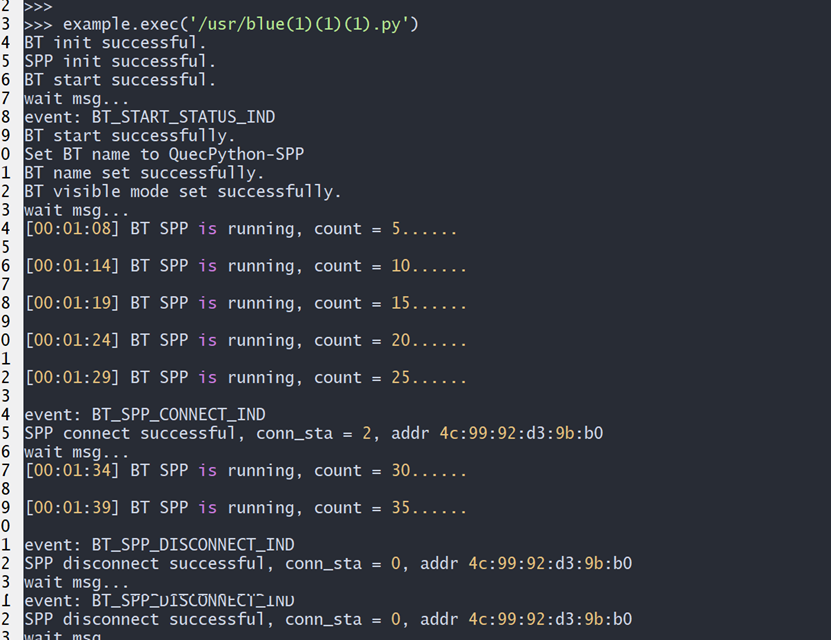
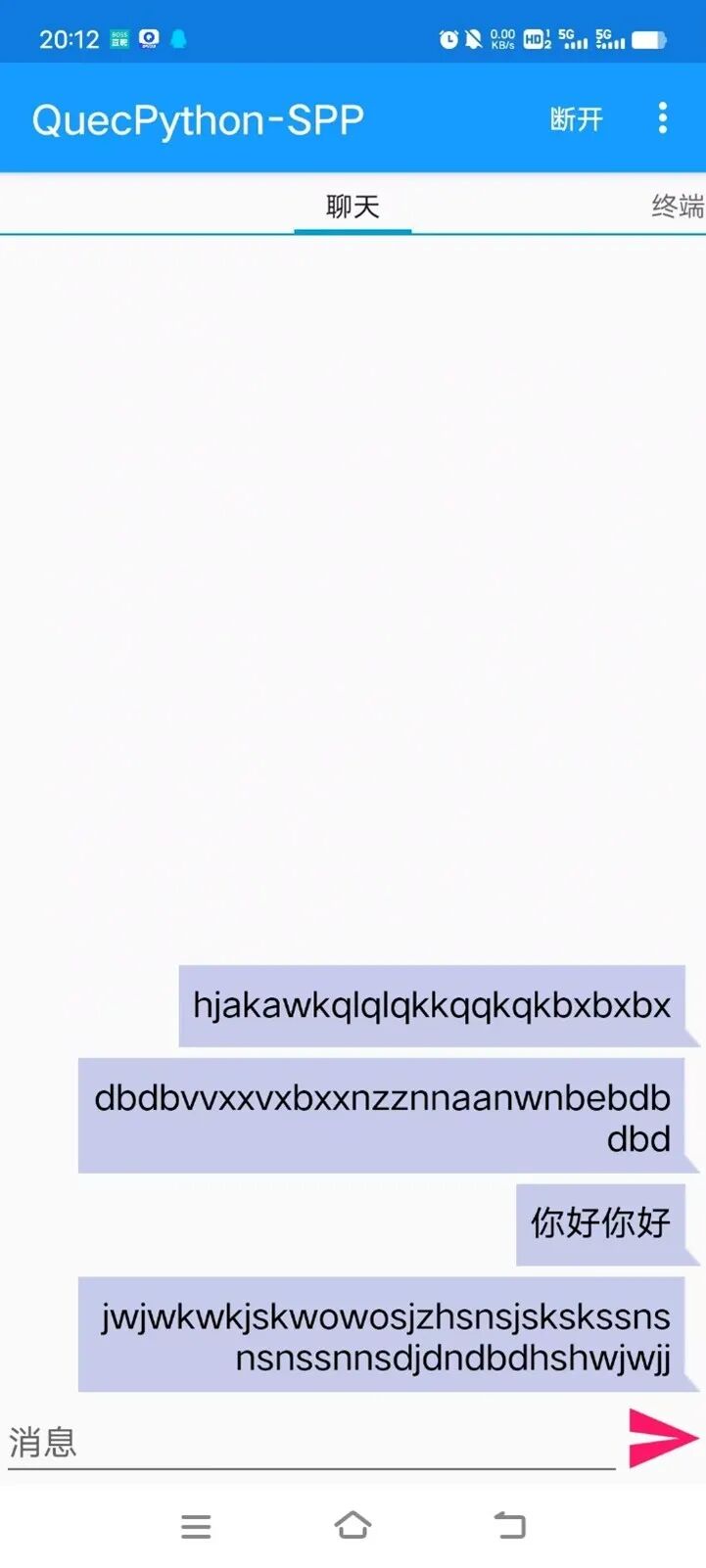
1. Download the “blue-spp” app (a tool specifically for SPP).
2. Open the phone’s Bluetooth and search for the Bluetooth name we set (like “QuecPython-SPP”).
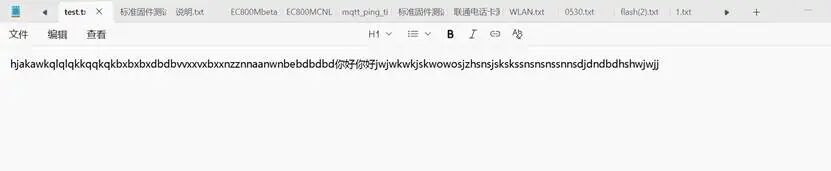
3. After a successful connection, type some text on the phone, and the module will receive it! Conversely, the module can also send data to the phone.
Tested and verified, data transmission is super fast, much more convenient than using wires!
In summary: SPP mode is super practical and easy to get started!
Today’s Bluetooth SPP class ends here! In short:
● SPP is the “wireless serial port” of classic Bluetooth, simulating wired communication, making data transmission super convenient.
● Supports multiple modules like EC200U, EC600U, so those who have them should try it out quickly.
● On the Quecpython platform, just call the interfaces without tackling the low-level stuff, making it accessible for beginners.
Grab your module and try transmitting text, images, or something else via Bluetooth! If you have any questions or fun ways to use it, let me know in the comments! 😉