Software Download
Installation Steps
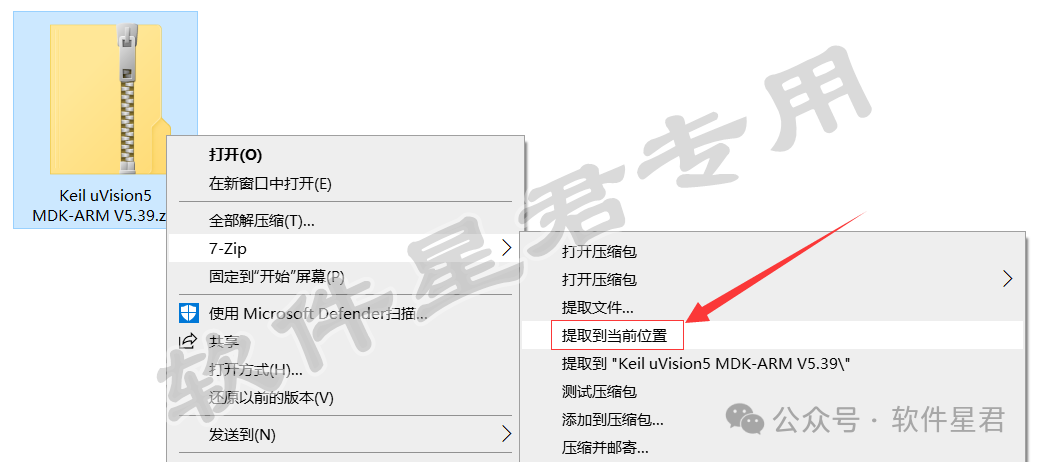
1. Locate the downloaded installation package and extract it to the current location
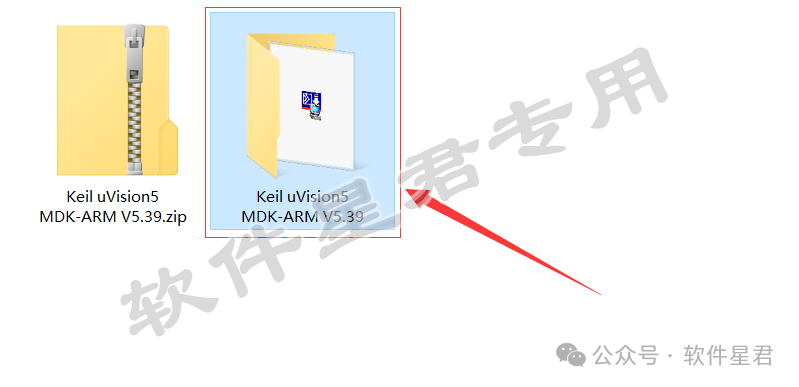
2. Double-click to open the extracted 【Keil uVision5 MDK-ARM V5.39】 folder
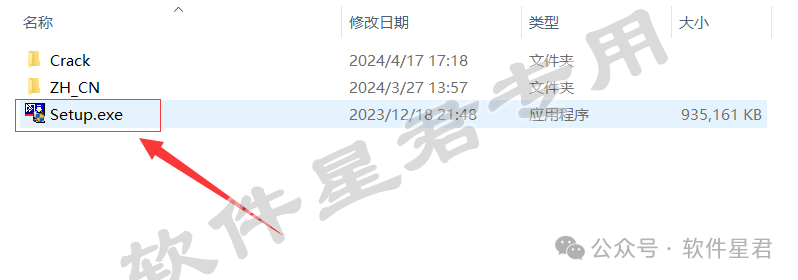
3. Double-click to run the 【Setup.exe】 file
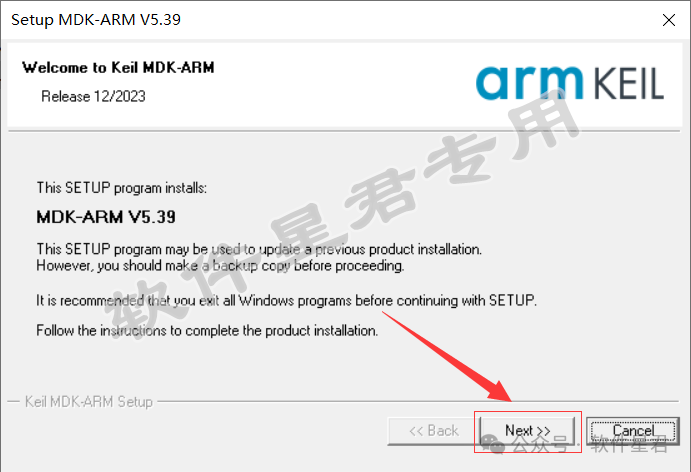
4. Click 【Next】
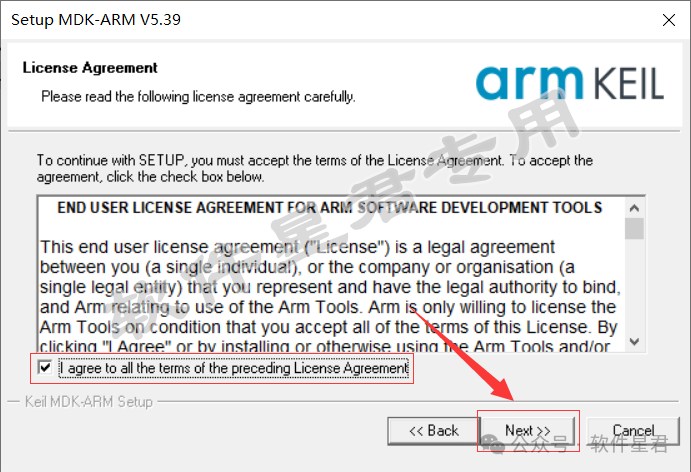
5. Check 【I agree to all the terms……】, then click 【Next】
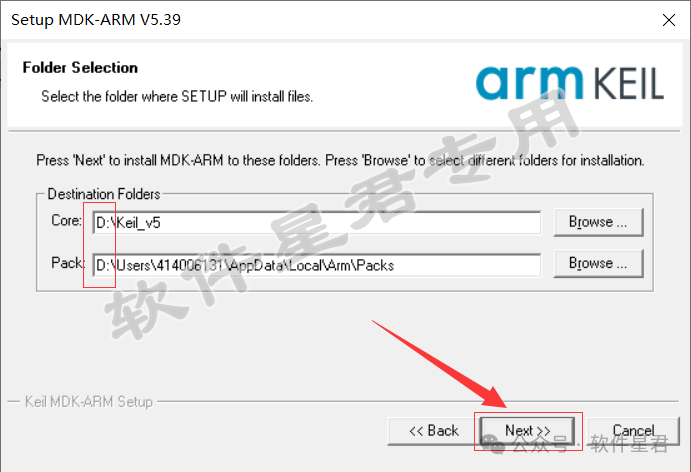
6. Change the first letter C in the installation path to D, indicating installation on drive D, then click 【Next】
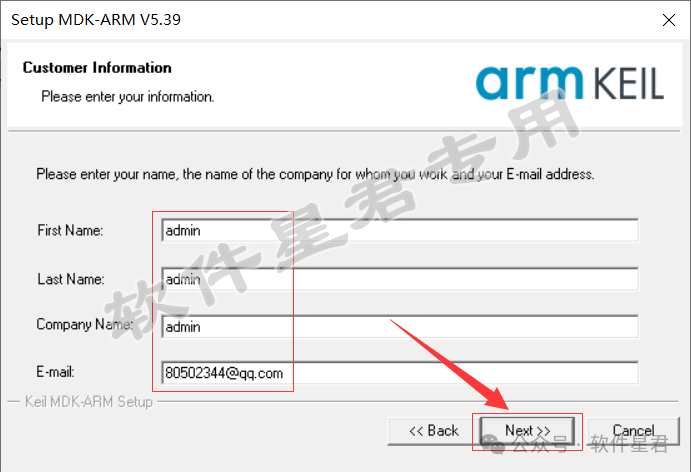
7. Fill in the corresponding content as required (can be filled in freely), then click 【Next】
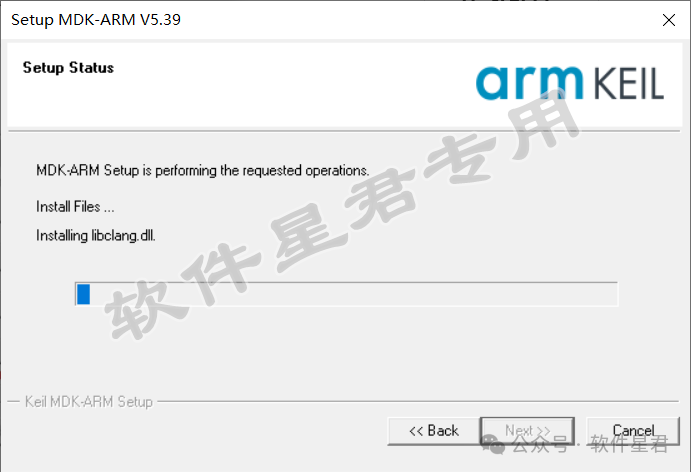
8. Wait for the software installation to complete, which takes about 1 minute
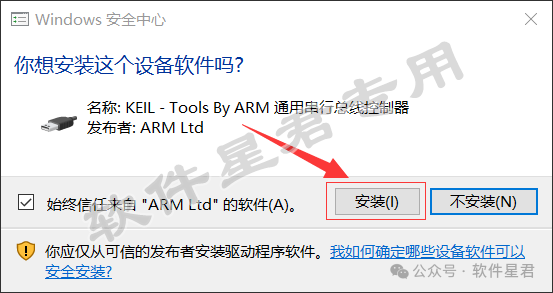
9. When the following window pops up, click 【Install】
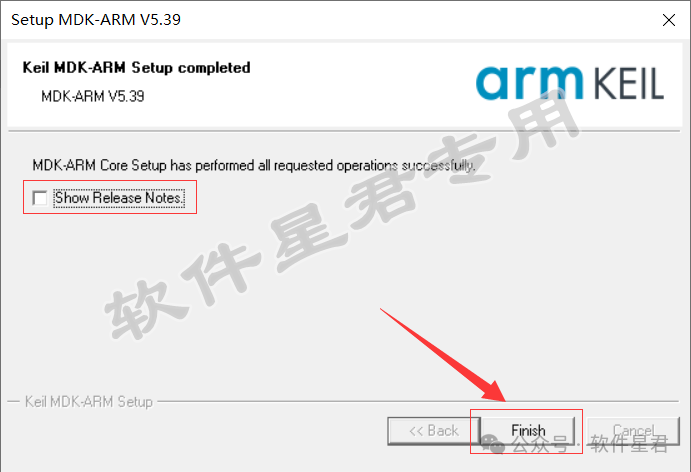
10. After installation is complete, uncheck 【Show Release Notes】, then click 【Finish】
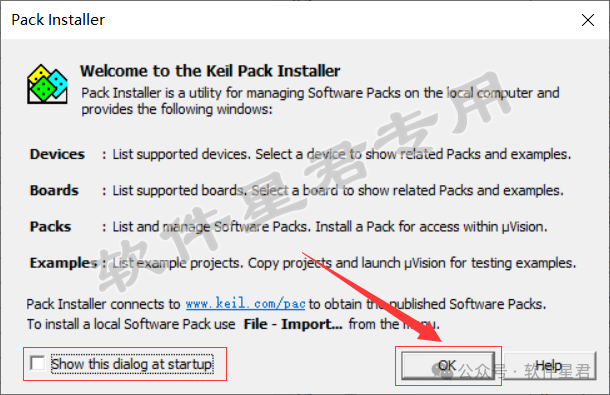
11. Uncheck 【Show this dialog at startup】, then click 【OK】 (if a window pops up to download an upgrade, just cancel it)
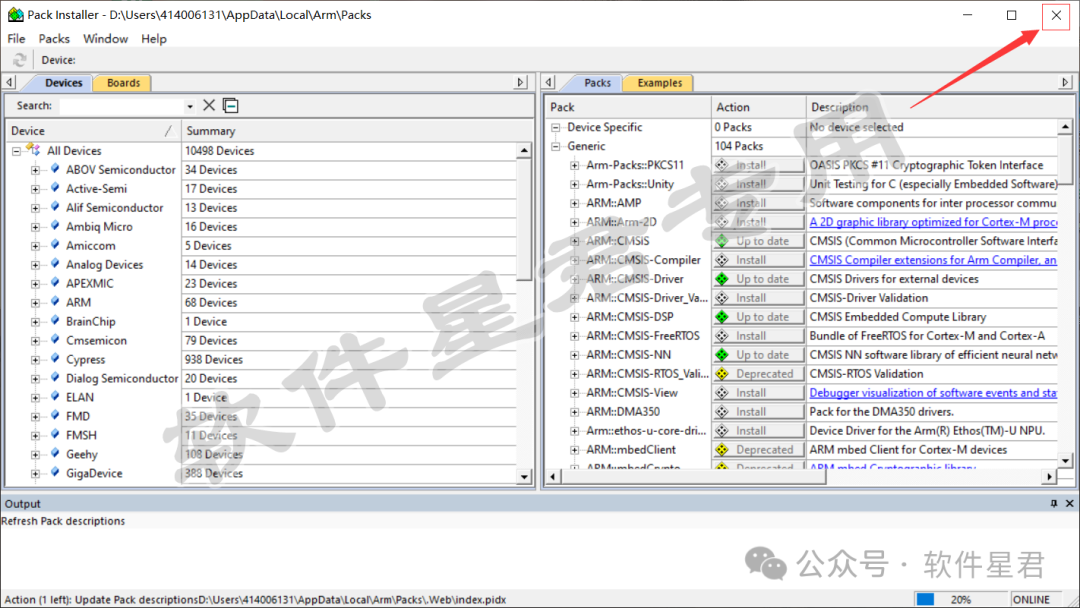
12. Click the 【X】 in the upper right corner to close the window
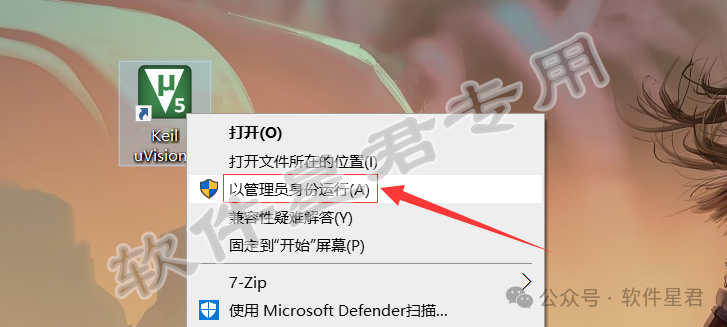
13. Return to the desktop and start the software as an administrator (double-clicking to open will not activate it)
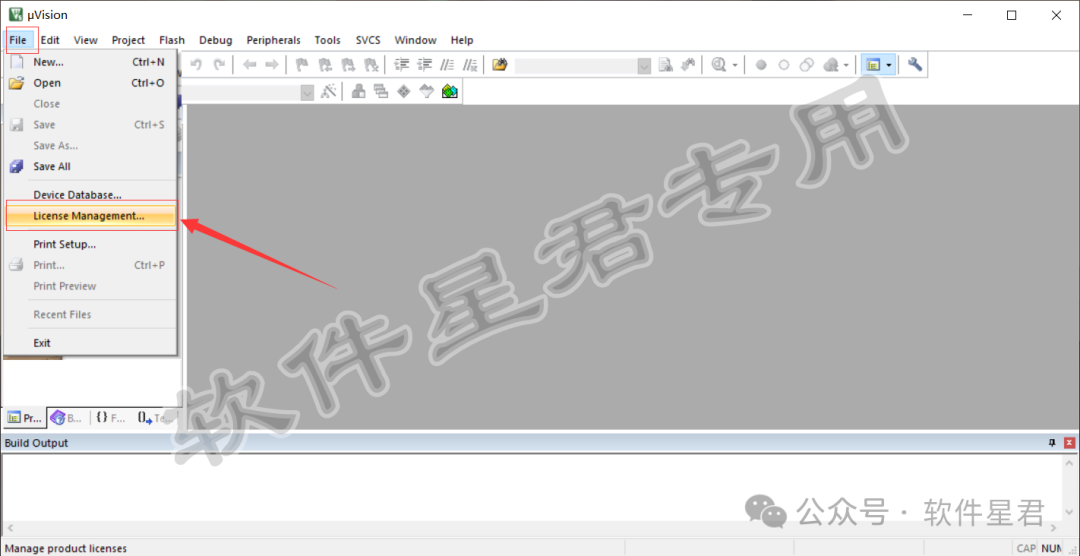
14.Click 【File】, then select 【License Management】
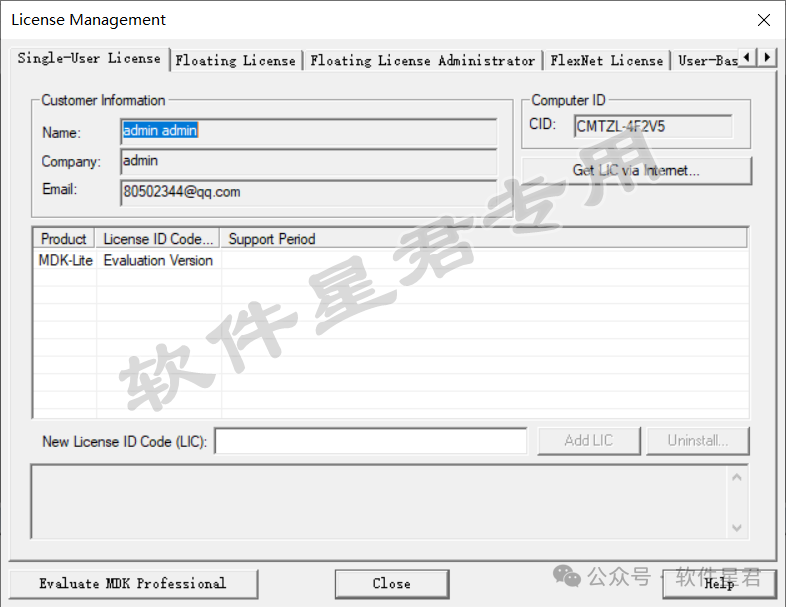
15.Keep this license management window open, and continue to the next step
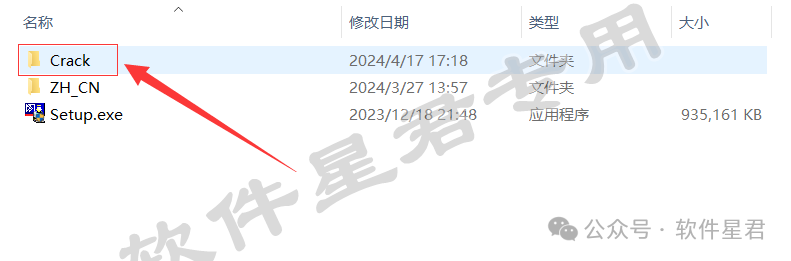
16.Return to the folder opened in step 2, double-click to open the 【Crack】 folder
17.Run the 【crack.exe】 file as an administrator
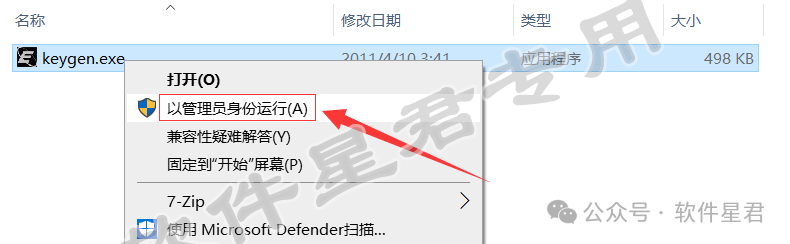
18.Copy and paste the content from the CID in the license management interface into the registration tool’s CID; switch the content in the Target dropdown to 【ARM】, and the middle dropdown to 【Professional】, then click 【Generate】
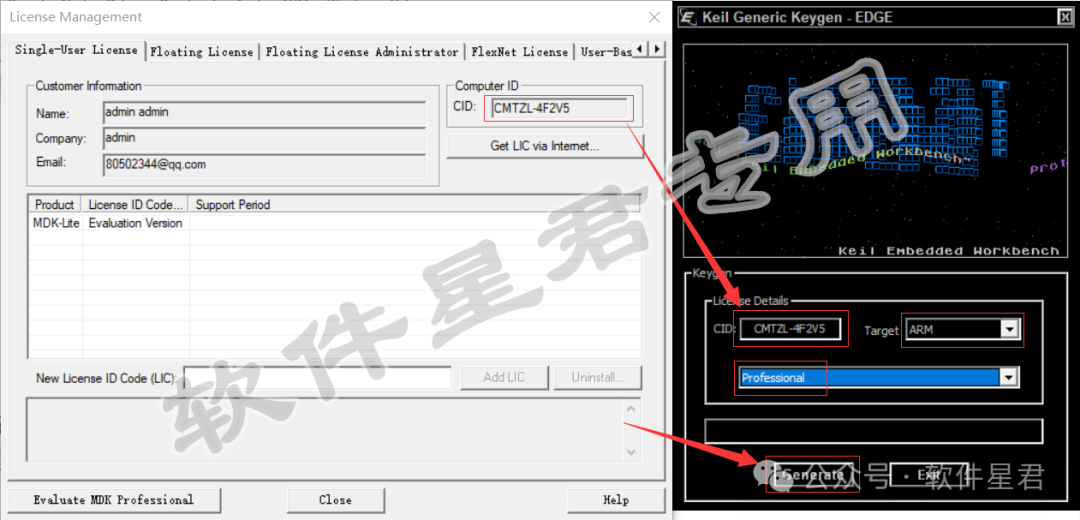
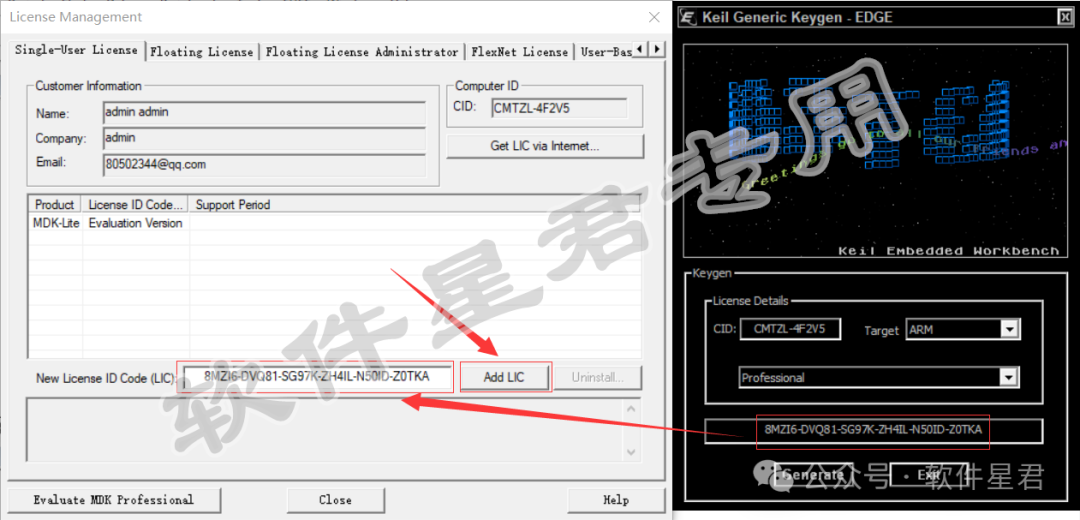
19.Paste the generated serial number into the license management interface’s “New License ID Code (LIC)” field, then click 【Add LIC】
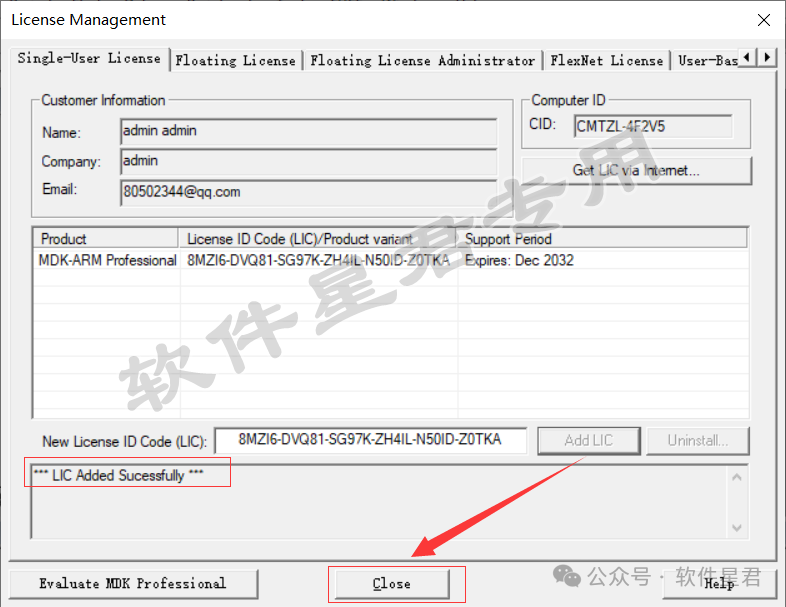
20.After the prompt “LIC Added Successfully”, click 【Close】
21.The software is now installed (if you need to localize it, please exit the software and continue with the next steps)
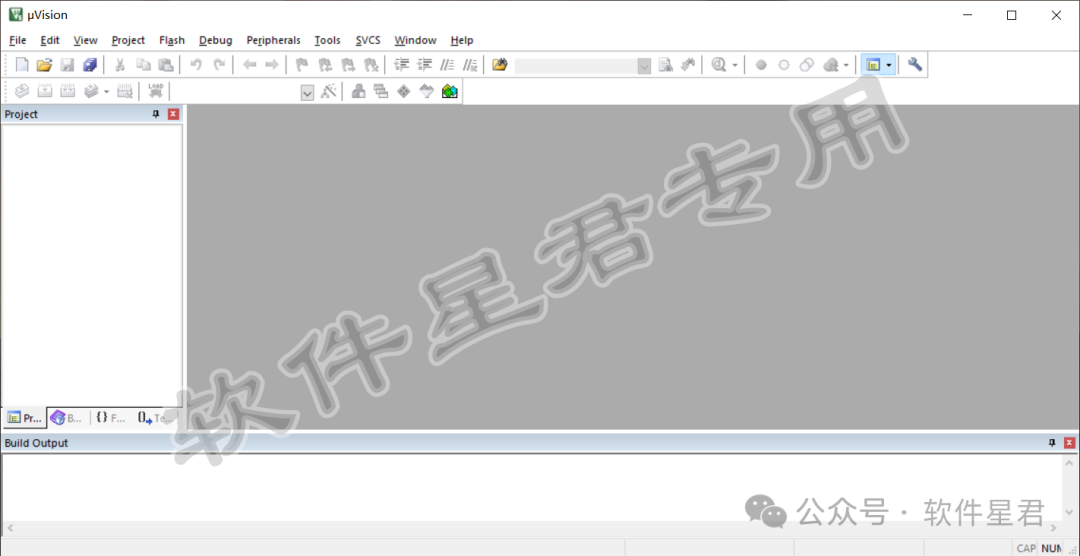
22.Return to the folder opened in step 2, double-click to open the 【ZH_CN】 folder
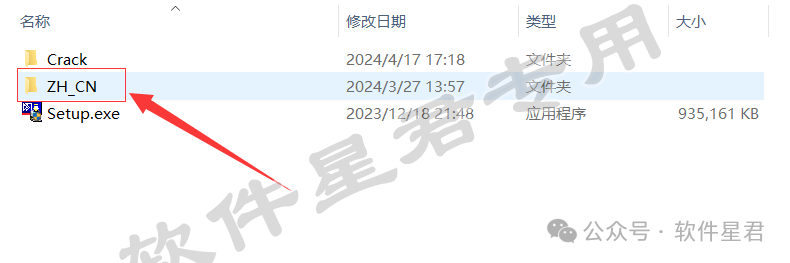
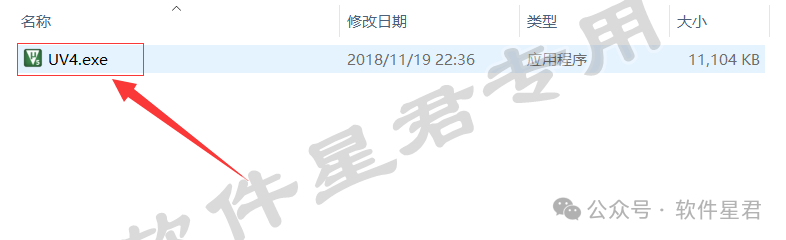
23.Copy 【UV4.exe】
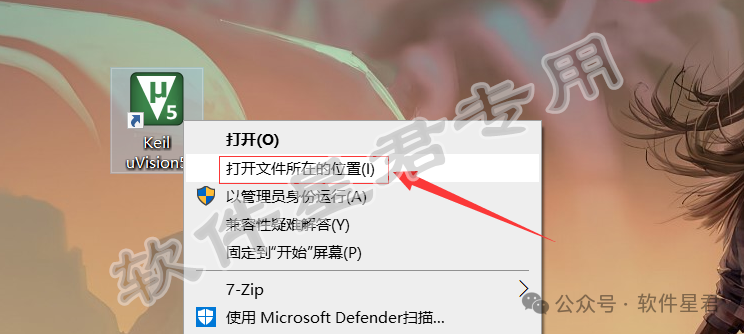
24.Return to the desktop, right-click the software icon, and select 【Open File Location】
25.In the opened folder, right-click in a blank space and paste the file copied from step 24 into this folder
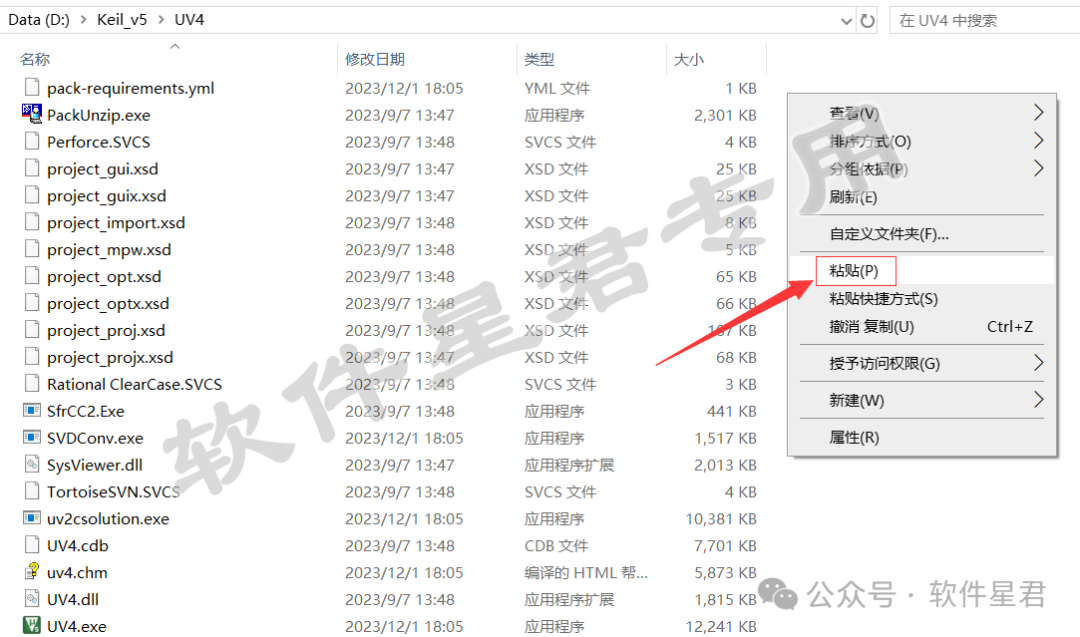
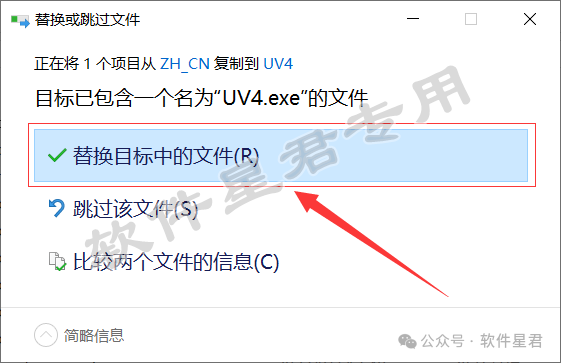
26.Select 【Replace the files in the destination】 in the pop-up window
27.Reopen the software, and it will change to the Chinese version
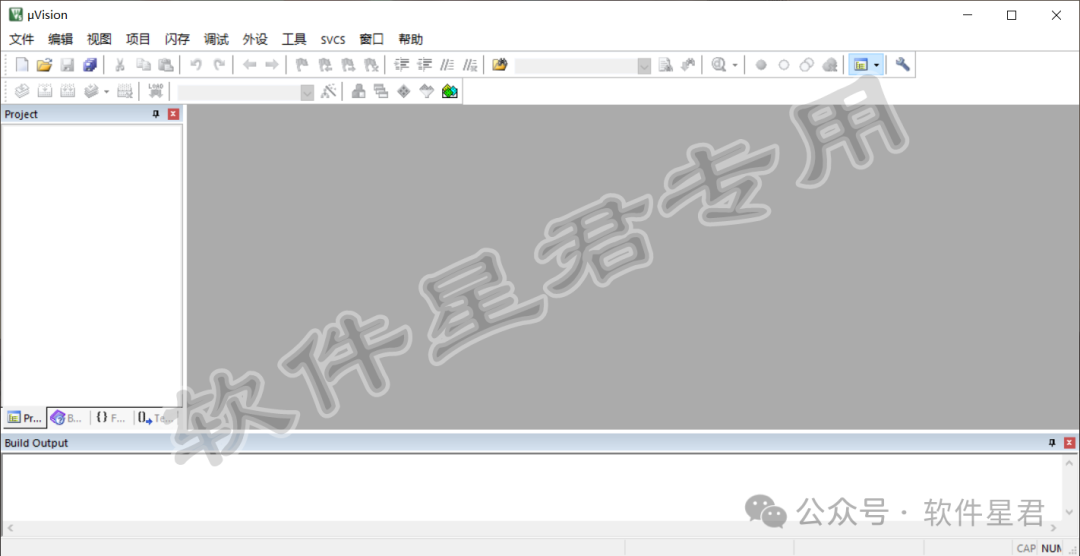
Note: Due to the localization file, the version displayed after localization may be incorrect, but it is actually correct.

Software Star Lord
Focusing on sharing software material resources

Long press the QR code to quickly follow