Hello everyone, I am Liu Deng, a senior automotive engineer,and in the AI era, I hope to move forward together with everyone and make progress!
Recently, due to work requirements, I needed to use Arduino to develop Damon products, but I am not familiar with coding, so I brought in a helper, Trae (I am using the international version; the domestic version is still a bit slow in code generation and debugging, while the international version is much better than Cursor, which is completely sufficient for my microcontroller development).
To develop software based on the Arduino library on the Trae platform, you need to use the PlatformIO IDE. Since Trae only supports the open-vsx mirror, you cannot directly download this plugin and need to implement it through other methods:
Method 1: If you have VScode installed on your computer, you can download and install it from the VScode plugin market, and then import the VScode plugin in Trae’s settings.
Method 2: Copy the link below into your browser to download directly, then drag it into Trae for installation:
https://marketplace.visualstudio.com/_apis/public/gallery/publishers/platformio/vsextensions/platformio-ide/3.3.4/vspackage
Once the plugin is successfully installed, there will be a PlatformIO IDE icon in the left sidebar, and you can click it to start using it.
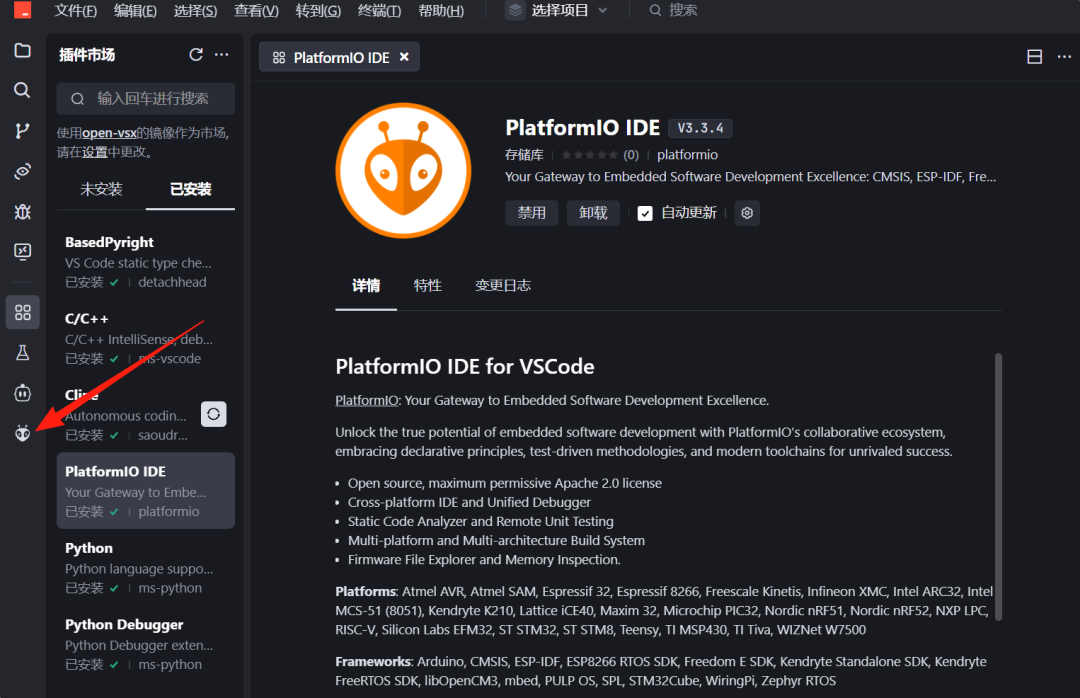
When you first install and use it, it will need to download some support libraries, so it may be a bit slow; just be patient. If it goes quickly, it can be done in a few minutes, but if slowly, it may take about an hour, depending on the network environment of different computers. If the following interface appears, it indicates that the installation was successful.
Click “Create New Project” to start creating a new project. Enter the project name in the Name field and select your development board in the Board field. You can search by keyword; for example, I used ESP32, and this keyword will show up.
After selecting the development board, you can choose whether the framework is based on Arduino or Espidf. We can choose Arduino. The Espidf structure has many pitfalls, the biggest being that it does not support Chinese paths; any comments in Chinese will cause errors. For my usage scenario, using Arduino is more convenient.
After the settings are completed, it will automatically create the relevant directories and files, so please be patient.
After waiting a few minutes, if the following interface appears, it indicates that the project has been successfully established, and you can let Trae start writing code. Generally, you first send the hardware connection definitions to Trae and explain the functions you want to achieve, and then implement and debug the functions step by step; I won’t elaborate on that here.
Once the code is done, we will use the toolbar below. Arrow ① points to compile, arrow ② points to upload (flash), arrow ③ points to clear (always click this before each compilation, otherwise it will report an error), and arrow ④ points to the serial monitor, where you can view the information sent from the serial port. The last icon with a plug is to select the connection channel, which you can choose based on how you connect the microcontroller, such as USB or USB serial; you can also keep the default Auto for normal use.
Alright, that’s it for this sharing. With the rapid development of AI, what we need to do is to keep learning. In the future, there will only be two types of people: those who are eliminated by AI and those who can use AI to improve themselves. If you are still not very familiar with AI, I am offering you a 3-day trial card for the AI Breakthrough Club, where you can learn about the world of AI.