As an international sensor giant, Keyence’s PLC products have a certain market share alongside its reputation, especially the KV-8000 series PLC, which can store device information before and after equipment downtime.
This feature allows for a quick understanding of the cause of faults, which helps shorten repair time; implementing effective solutions contributes to improving equipment utilization rates.
We will not study the pros and cons of its PLC products today; instead, we will focus on the installation method of Keyence’s PLC programming software, KV Studio, using version 12.23 as an example: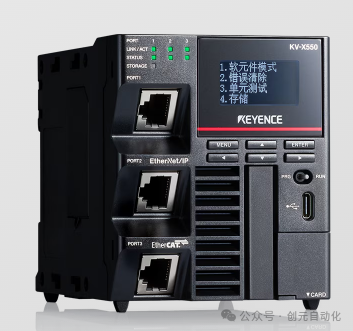 First, extract the following compressed package:
 After extraction, four files will be generated, as shown below:
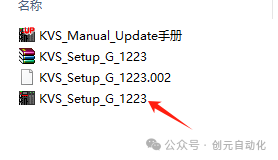 Right-click the file indicated by the arrow in the image above and run it as an administrator; the following interface will appear:
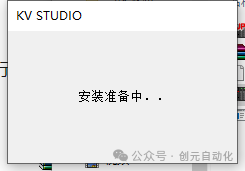 In this interface, wait for a while, and then the following interface will appear; we select Simplified Chinese and click “OK”
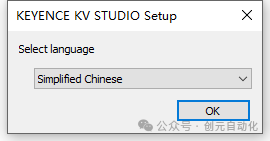 The following interface will appear; we select the installation directory and check “Agree to the terms of the license agreement”; here we choose to install in the default directory:
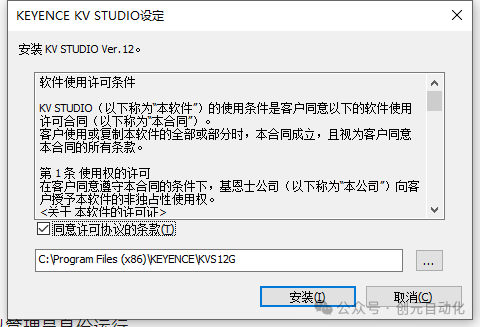 Click “Install”; the following interface will appear; click “OK” to proceed with the installation:
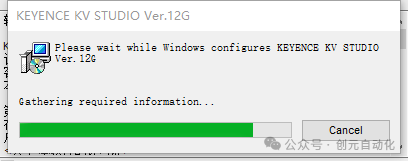
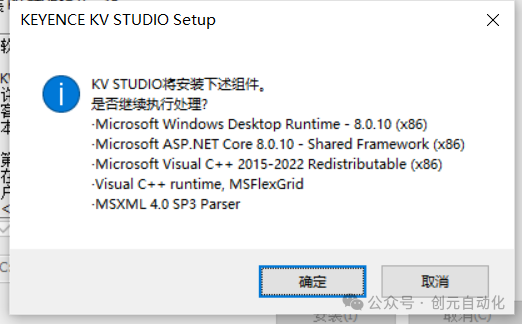 Sometimes, an option to restart the computer to continue the installation will pop up; we click OK and restart the computer. However, after restarting, the installation program does not execute automatically. At this point, we repeat the previous steps and click the installation package to continue the installation, reaching this step where the following installation progress bar will appear:
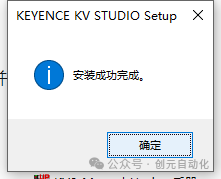
 After the installation is complete, a prompt for the installation manual will appear; we click “OK”:
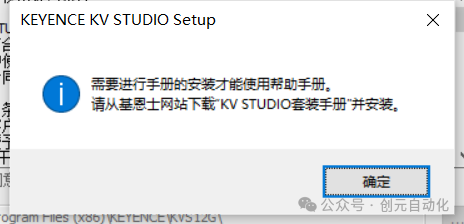 The following interface will appear; the main program installation is complete:
 Next, continue with the installation manual; from the four files in the first step, we select the manual file:
 Right-click to run as administrator; the following interface will pop up; click “OK” to proceed with the installation of the manual:
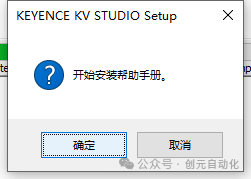 After the manual installation is complete, the following interface will appear:At this point, the program has been fully installed, and programming can begin. Welcome to check it out. If anyone needs the installation package, please message the author privately; a small appreciation will grant you access to the installation package. Providing files is not easy; thank you for your understanding.Previous popular articles:Installation Steps for Huichuan PLC Programming Software AutoShopStepper Motor Selection CaseIntroduction to Stepper Motor Principles – Closed-loop and Open-loop SteppersIntroducing Several Common Panasonic SensorsClassification of Hikvision Industrial Cameras and Detailed Common ParametersMitsubishi FX5U and Host Computer Socket Communication (PLC as Client, with Detailed Program and Annotations)