Upper machine software for uploading Siemens PLC data to MES
This software provides functionality to read data from the Siemens PLC memory, call the API interface provided by MES, and synchronize the data to MES. It can also write data returned from MES back into the Siemens PLC memory.
First, let’s discuss reading data from the Siemens PLC memory.
1. First, define a signal flag (similar to a switch), such as V2.5. When the PLC generates new data, it writes ‘1’ to the flag. After the upper machine retrieves the data, it resets the flag to ‘0’. The PLC reads ‘0’ as a standard, indicating it has been reset, and then writes new data.
2. Define the addresses for each data point, such as detection data, test results, etc. These can all be configured as needed 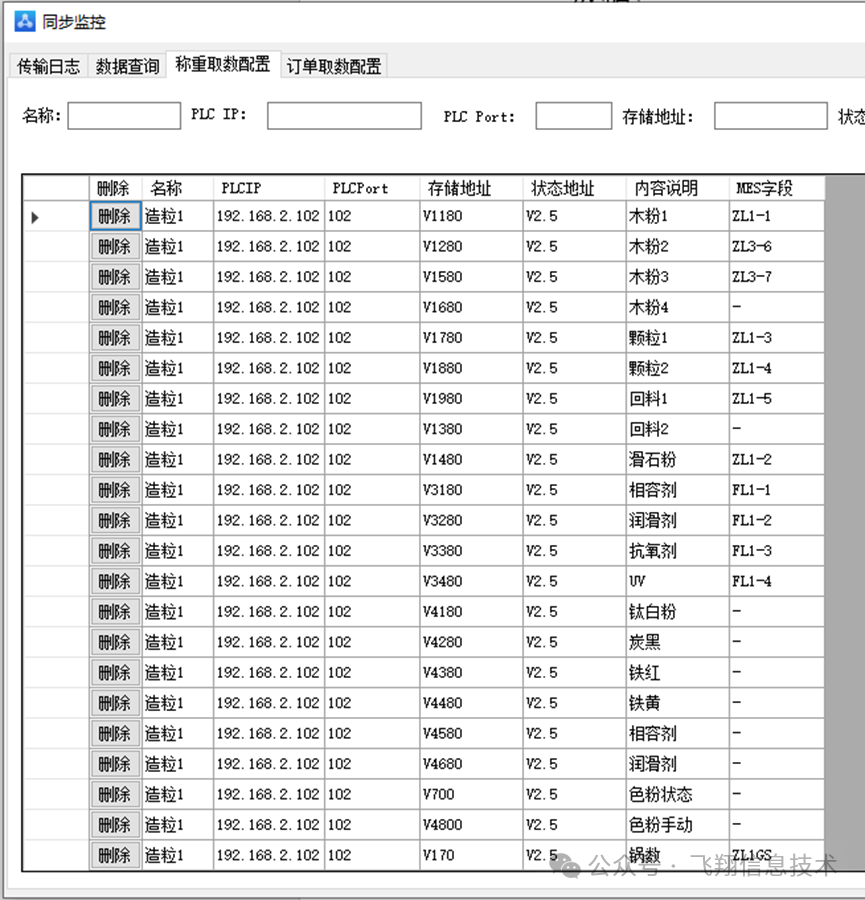
3. Define the relationship between the PLC memory addresses and the MES parameter fields. This allows for flexible adjustments. When the PLC needs to change or add parameters, it can simply be done by adding or modifying them on the page.
4. It is important to note that the TCP connection can be kept open continuously to improve access speed. There is no need to open and close the connection every time data is read, as this would affect speed. 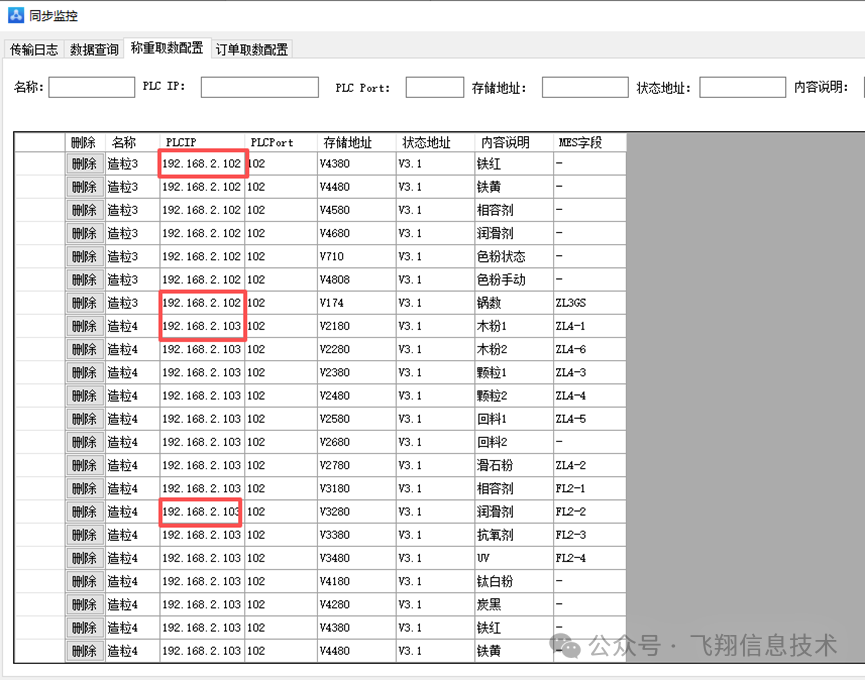
In the software, you configure the relationship by entering the IP and memory addresses line by line. During synchronization, a multi-threaded, multi-clock parallel processing method is used, where each PLC IP uses a separate clock to process, and the clocks do not interfere with each other.
With a network connection, a single industrial computer can install an upper machine to connect with all PLC devices for data synchronization and centralized management.
5. Configuration of other main data information, such as data generated by the PLC that needs to be associated with orders or work orders. Simply put, the test results need to be linked to the order provided by the upstream during testing. 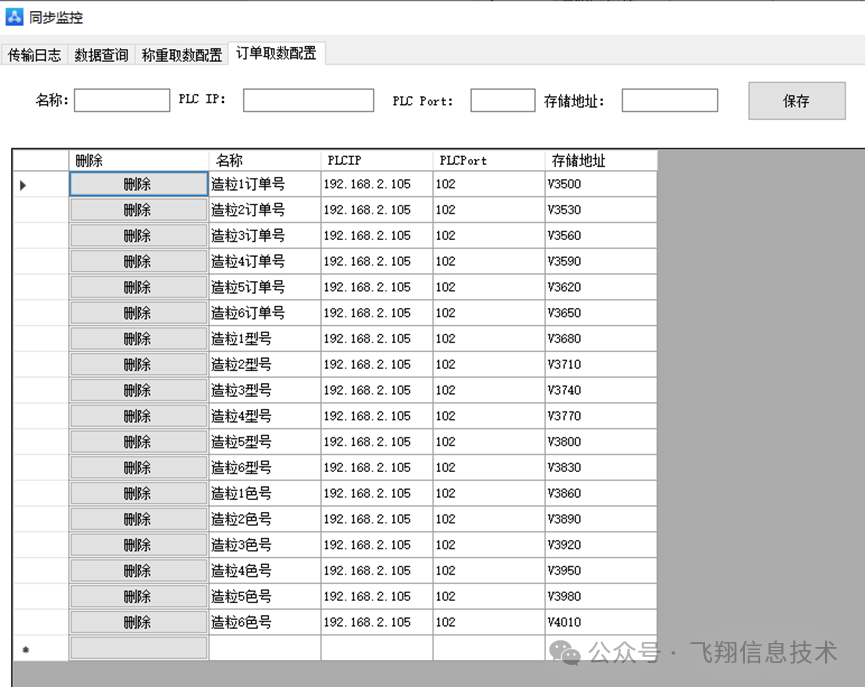
There are three ways to handle this scenario:
The first method is an automated approach, where the upstream system (MES/ERP, etc.) sends the required test orders to me, or informs me of the API address to retrieve the test orders. In the software interface, I can select the order and initiate the test, linking the test results to that order. Additionally, it can be further automated by establishing rules to automatically retrieve the next order for testing based on the PLC’s status.
Automatically obtaining MES orders is not fixed in the software, as different factories provide different API interface formats, most of which require custom development.
The second method is to retrieve it directly from the PLC, as shown below.
The third method is manual processing, which is straightforward, involving manual entry 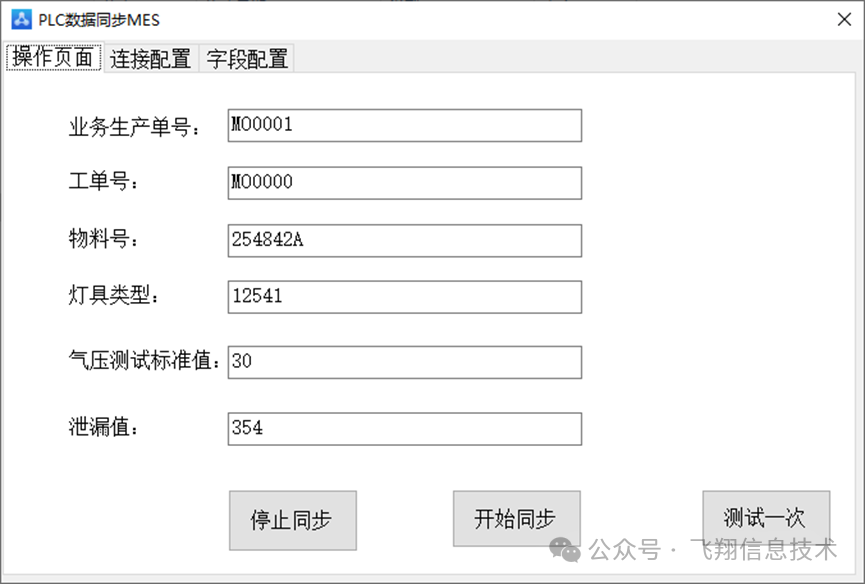
6. Data querying, retrieving the data obtained and the status of the data uploaded to MES 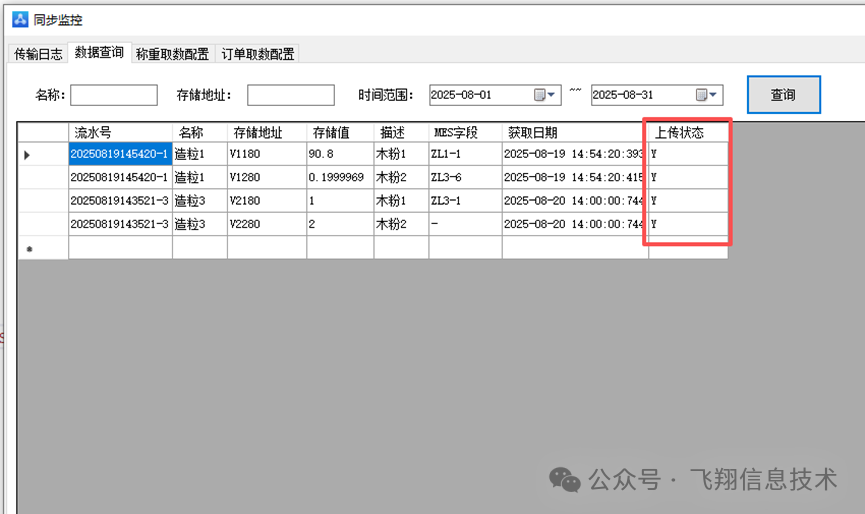
The software operates in a mode where data reading and uploading are separated. If the network status on-site or the MES network is unstable, causing data upload failures, the software first reads the data and stores it, then asynchronously uploads it to MES. If the upload is interrupted, it will continue until successful.
7. In addition to uploading to MES, it also supports providing API interfaces for MES or other systems to call, with standardized API interfaces and documentation 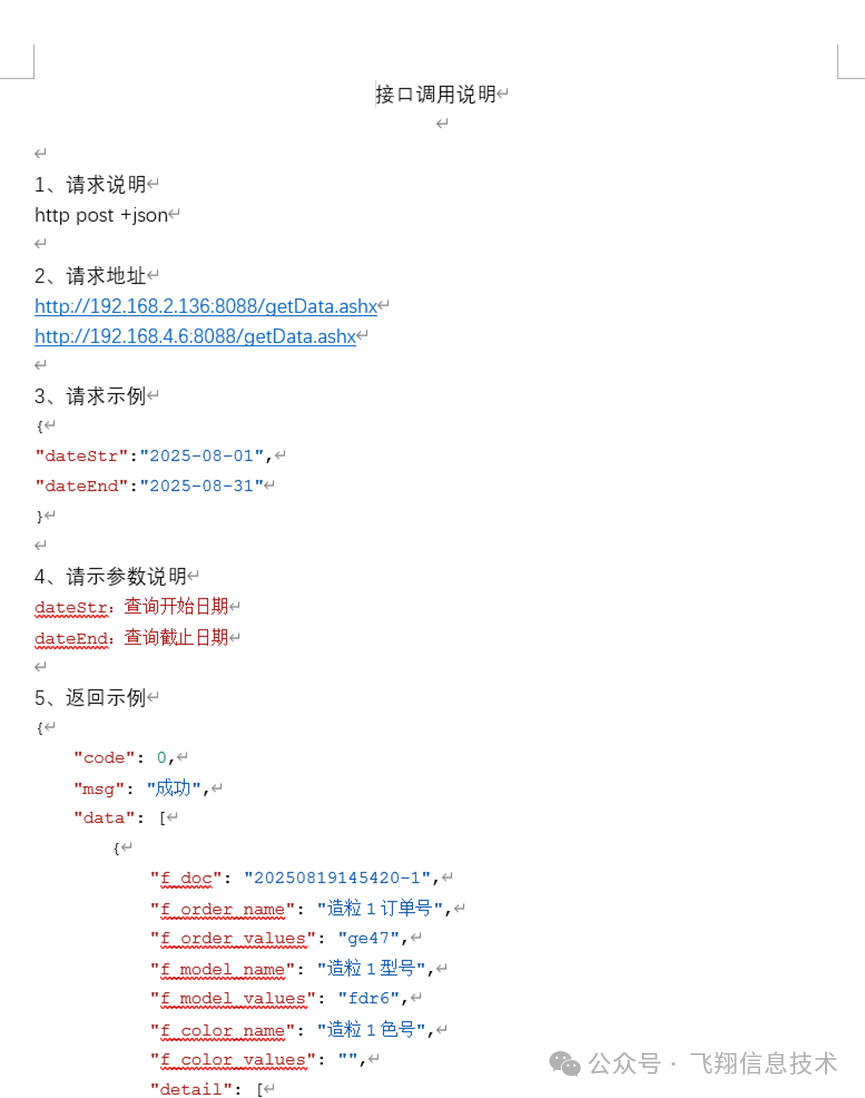
8. Detailed log records are provided, including the original values read from the PLC and upload logs, facilitating analysis in case of data discrepancies.