Hello everyone! Today we will learn an interesting programming project—implementing an animation of a bouncing ball using C++. This project not only has an intuitive visual effect but also includes core concepts of animation programming and physics simulation.First, let’s look at the final effect: in the center of a black window, a small ball falls from above, bounces upon hitting the ground, and due to the effect of resistance, the bounce height gradually decreases until it finally stops on the ground.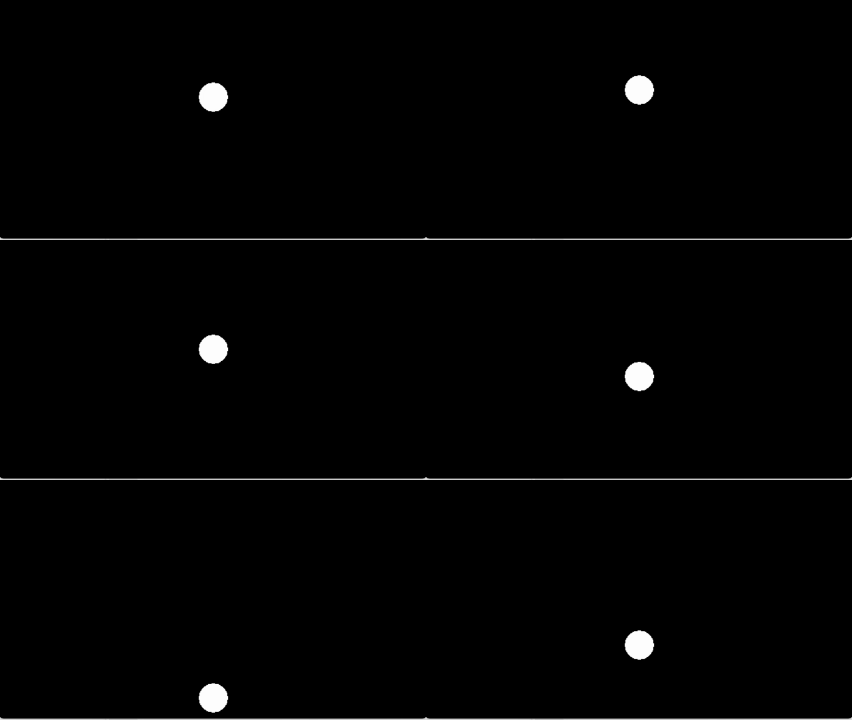 1. Include Header Files
#include <graphics.h>  // Graphics library header file, provides drawing functions
#include <conio.h>     // Console input/output header file
Here we are using the graphics.h library, which is very suitable for beginners to learn graphics programming.
2. Variable Definition and Initialization
float y = 50;   // y-coordinate of the ball (initial position at the top)
float vy = 0;   // y-direction speed of the ball (initial speed is 0)
float g = 0.5; // gravitational acceleration-
Position (y): Represents the vertical position of the ball
-
Speed (vy): Represents the speed and direction of the ball’s vertical movement
-
Acceleration (g): Simulates gravitational acceleration, causing the ball to fall faster
3. Initialize Graphics Window
initgraph(600, 600);initgraph() is a function in C++ used to initialize the graphics environment, creating a 600×600 pixel drawing window.
4. Core Animation Loop
In the bouncing ball program, the while(1) loop is the core engine of the entire animation.
Why use an infinite loop?
-
The animation needs to run continuously until the user actively closes it
-
Each loop represents a frame of animation update
-
Provides a stable update frequency
while (1)  // Infinite loop, continuously updating the animation
{
    // Step 1: Physics calculation: update the ball's state
    vy = vy + g;  // Speed update: change speed based on acceleration
    y = y + vy;   // Position update: change position based on speed

    // Step 2: Collision detection: handle boundary collisions
    if (y >= 580)  // Check if it hits the ground (bottom of the window)
        vy = -vy;   // Reverse speed, simulate bounce
    if (y > 580)   // Prevent the ball from penetrating the ground
        y = 580;

    // Step 3: Graphics drawing: clear screen and redraw
    cleardevice();          // Clear the canvas
    fillcircle(300, y, 20); // Draw a filled circle (x fixed at 300, y changes with animation)

    // Step 4: Delay control: adjust animation speed
    Sleep(10);  // Pause for 10 milliseconds, control animation speed
}
Step 1: Principles of Updating Physical State
- vy = vy + g reflects Newton’s second law: force changes the state of motion. Each frame, the speed increases by the value of gravitational acceleration, simulating the phenomenon of objects accelerating under the influence of gravity.
- y = y + vy is the application of the displacement formula in physics under discrete time. Each frame, the position is updated based on the current speed.
Numerical Simulation Process
| Frame Number | Speed vy | Position y | |
| 1 | 0.5 | 50.5 | Starts falling, speed gradually increases |
| 2 | 1.0 | 51.5 | Speed continues to increase |
| 3 | 1.5 | 53.0 | Falling speed gets faster |
Step 2: Collision Detection and Response
-
Collision detection: y >= 580, when the ball’s y-coordinate is greater than or equal to 580 (considering the ball’s radius is 20, and the window height is 600), it is determined to have collided with the ground.
-
Collision response: vy = -vy, after the collision, the speed direction reverses, achieving a bounce effect. Since it is not multiplied by a bounce coefficient, the bounce height remains unchanged (in reality, energy loss can be added).
-
Correction phase: y > 580, when the ball’s y-coordinate is greater than 580, y = 580, ensuring the ball does not get stuck below the ground.
Step 3: Graphics Rendering
-
cleardevice() clears the screen: eliminates “motion trails” to avoid ghosting effects
- fillcircle() redraws: draws the object at the new position, creating the illusion of continuous motion
Step 4: Time Control Sleep()
-
No Sleep: Animation is too fast, invisible to the naked eye
-
Sleep(10): about 100 frames/second, smooth animation
-
Sleep(100): 10 frames/second, choppy animation
Complete Code DisplayThis simple program actually contains core concepts in game development and animation production:
- Frame animation principle: quickly displaying static images in succession, using visual persistence to form animation
- Physics simulation: simulating real-world physical laws through mathematical models
- Collision detection: a key technology for determining whether objects are in contact
- Real-time rendering: recalculating and redrawing the scene for each frame
#include <graphics.h>
#include <conio.h>
int main(){
float y = 50;  // y-coordinate of the ball
float vy = 0;  // y-direction speed of the ball
float g = 0.5;  // y-direction acceleration of the ball

initgraph(600, 600);  // Initialize window, 600*600
while (1)  // Continuously loop
{
    vy = vy + g;  // Update vy speed using acceleration g
    y = y + vy;  // Update y-coordinate using speed vy
    if (y >= 580)  // y-coordinate >= 580 hits the ground
        vy = -vy;  // y-speed changes direction, affected by resistance, absolute value decreases
    if (y > 580)  // Prevent the ball from passing through the ground
        y = 580;
    cleardevice();  // Clear previous drawing
    fillcircle(300, y, 20);  // Draw a circle with radius 20 at (300, y)
    Sleep(10);  // Pause for 10 milliseconds
}
_getch();  // Wait for key press
closegraph();  // Close window
return 0;
}
If you want to make the animation more realistic, you can try adding energy loss: after the collision, set vy = -vy * 0.8 to simulate the effect of resistance.