Mesh networking has become a popular method for home WiFi networking in recent years. Compared to wireless bridging, it offers more reliable stability for connecting two or more devices. However, various issues often arise during actual use. Home routers have compiled six common networking issues to address the situations encountered in mesh networking.
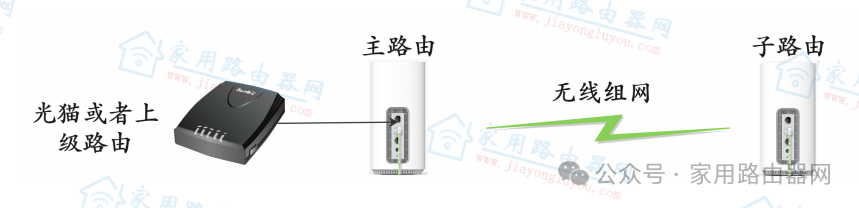
Mesh router wireless networking
1. How to determine the roles in a Mesh network?
In a Mesh network, router devices are divided into two roles: the main router (Controller) and the sub-router (Agent). The main router is responsible for connecting to the external network and serves as the exit for the entire network. The sub-router is responsible for extending network coverage. There is only one Controller in the entire Mesh network, which is the device connected to the WAN port that can access the external network; all others are Agents.
2. How to configure a Mesh network?
a. First, ensure that all devices are in their factory default state, and connect the WAN port of the main router to the Internet;
b. Connect the WAN port of the sub-router to the LAN port of the main router via an Ethernet cable. At this point, the sub-router will operate in bridge mode and automatically synchronize the wireless configuration of the main router.
c. Once the Mesh network is successfully established, the main router and sub-router will save the Mesh-related settings (including role status, wireless parameters, etc.). After the devices are restarted, they will automatically reconfigure based on connection methods and signal strength.
3. What is the default Mesh state of the device?
When the device is shipped, the Mesh function is enabled by default, and the role is set to automatic. The device will determine its role based on the connectivity status of the external network and whether there are other Mesh devices in the internal network. During normal internet usage, the device will continuously detect Mesh devices until the network is successfully established. If the user does not require Mesh networking, it is recommended to manually disable the Mesh function.
4. What to do when the user needs to reconfigure the network?
a. Ensure that the new device is in its default state;
b. Sequentially confirm the main router and sub-router, connecting the main router first to ensure it can access the external network;
c. Reconnect the sub-router one by one using either a wired connection or the wireless button method.
5. How to add a new device to the Mesh network?
a. Ensure that the new device is in its default state;
b. Select one of the already connected Mesh devices to serve as the uplink device for the new device;
c. Connect the WAN port of the new device to the LAN port of the uplink device via an Ethernet cable. After a few minutes, the new device can join the Mesh network as a sub-router. Alternatively, it can be connected wirelessly by pressing the WPS button on both the uplink device and the new device, waiting a few minutes for the new device to complete the networking.
6. What is the recommended configuration method for Mesh networking?
It is recommended to configure the Mesh network using a wired connection for faster and more reliable performance. If environmental constraints prevent the sub-router from connecting via Ethernet, it can be placed anywhere within the wireless coverage of the main router after a successful wired connection. The sub-router can automatically connect to the main router wirelessly to extend the wireless signal.