 SoftwareDescription
[Name]:Visual C++ (VC) 6.0
[Language]: SimplifiedChinese
[Installation Environment]:Windows 7 and above operating systems
[Download LinkBaidu CloudDownload Link]:
https://pan.baidu.com/s/1w6VAUZ1MCPedoWfmKDIeKQ?pwd=cq8p
SoftwareIntroduction
Visual C++ 6.0, abbreviated as VC or VC6.0, is a C++ compiler from Microsoft that translates “high-level language” into “machine language (low-level language)”. Visual C++ is a powerful visual software development tool.
InstallationSteps
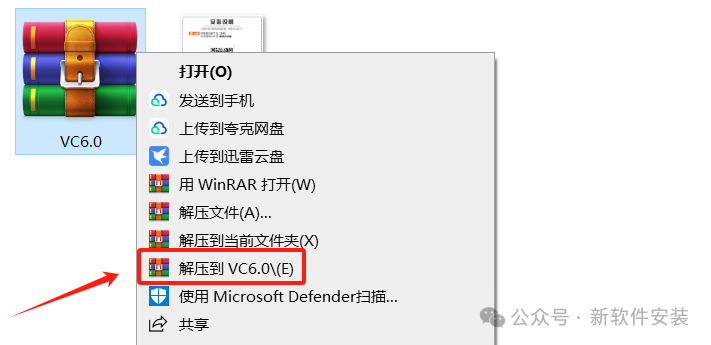
1. Select the 【VC6.0】 compressed package, right-click and choose to extract to 【VC6.0】.
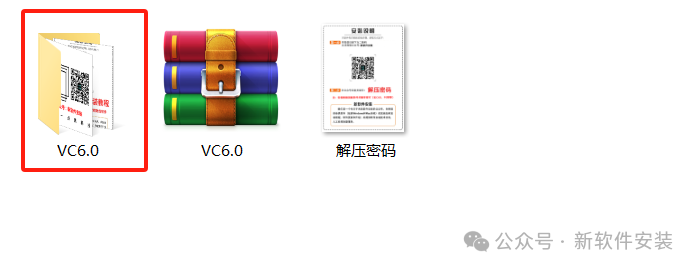
2. Double-click to open the 【VC6.0】 folder.
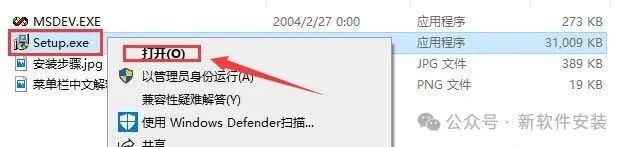
3. Double-click to open the 【Setup】 file.
4. Click 【Next】.
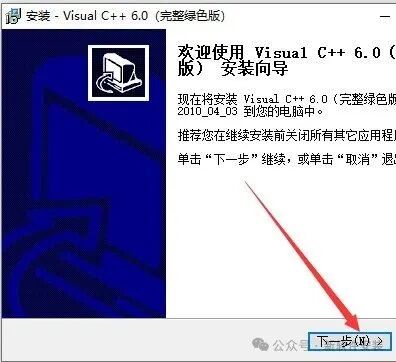
5. Click 【Next】.
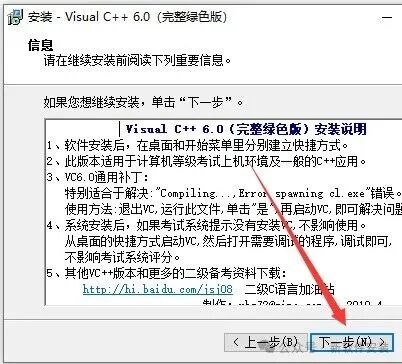
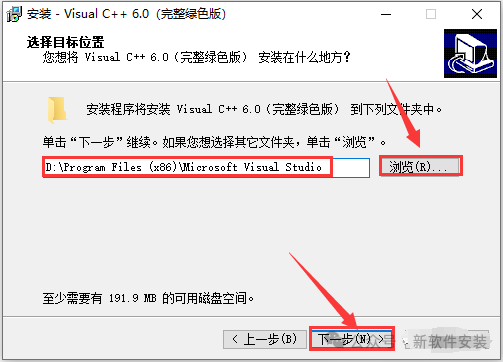
6. Click 【Browse】 to change the software installation location, the default installation is atC:\Program Files (x86)\Microsoft Visual Studio (it is recommended to install on a disk other than C drive), then click 【Next】.
7. Click 【Next】.
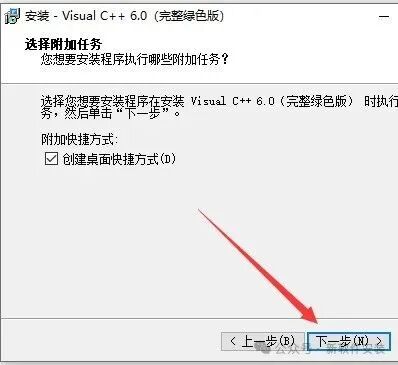
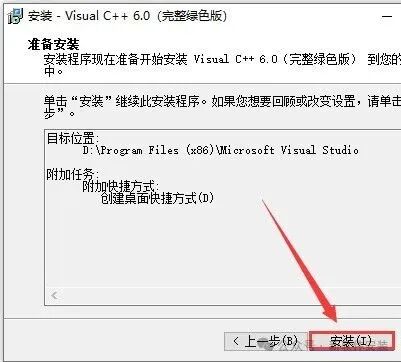
8. Click 【Install】.
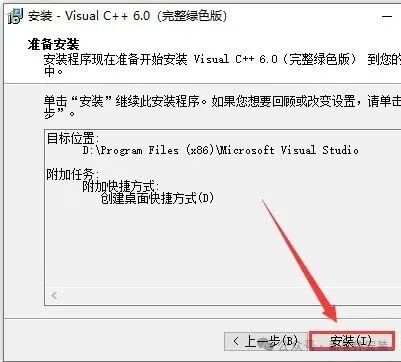
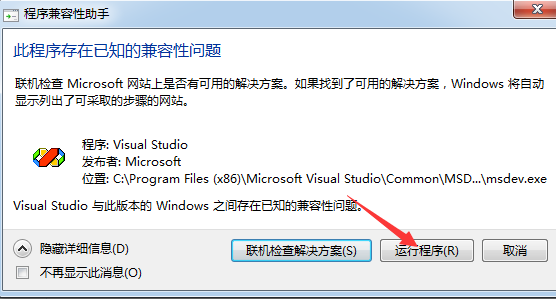
9. If compatibility issues occur, click 【Run Program】.
10. Installation complete, click 【Finish】.
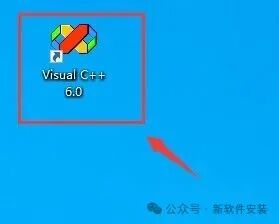
11. Double-click the 【Visual C++ 6.0】 icon on the desktop to run the software.
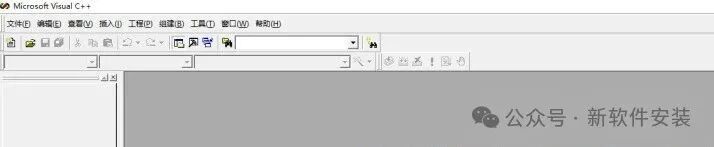
12. The installation is complete, and the Visual C++ 6.0 software opens as shown below.
Solution for Win10 Users Opening Errors:
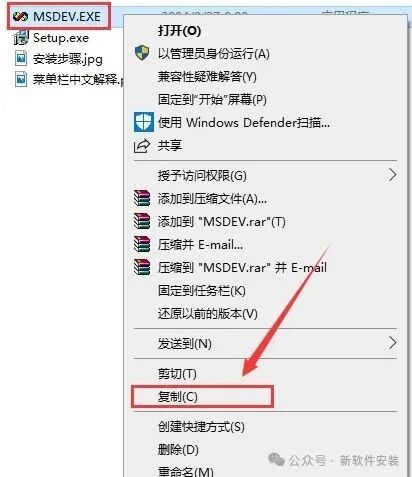
1. Open the extracted folder and find 【MSDEV】 to select 【Copy】.
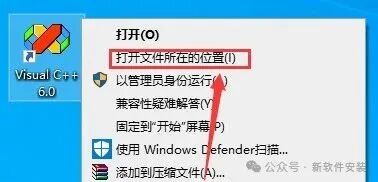
2. Find the 【Visual C++ 6.0】 icon on the desktop, right-click and select 【Open File Location】.
3. Right-click in the blank space and select 【Paste】.
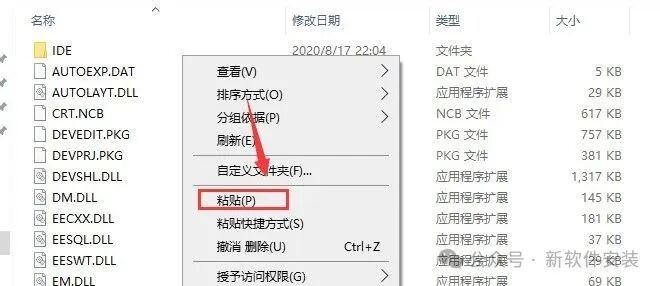
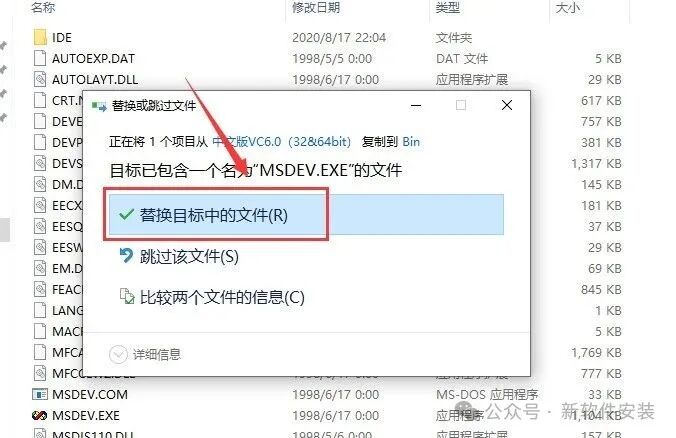
4. Click 【Replace the files in the destination】 to open the software normally.