In the past, Zhihui Dog introduced the evolution of mobile phone screens over the years. Interested friends can click on “Enhancing Aesthetics and Touch Feel! Understand How Mobile Screens Have Changed Over the Years in 4 Images” to take a look. Recently, many friends have left messages for Zhihui Dog, asking for an article on the evolution of laptop screens, as laptops are still the mainstay for work and gaming these days.
To put it simply, compared to the continuous innovation of smartphone screens, the changes in laptop screens have not been as intense. However, as the saying goes, “Nurturing things silently,” in recent years, laptops have continually improved their screens, which has subtly enhanced our user experience and efficiency.

From Standard Screens to Widescreens
In the early days, laptops aimed to showcase themselves as portable PCs, so they maintained the same 4:3 display ratio as desktop monitors for a long time. Did you know? That’s just a resolution of 1024×768 pixels!
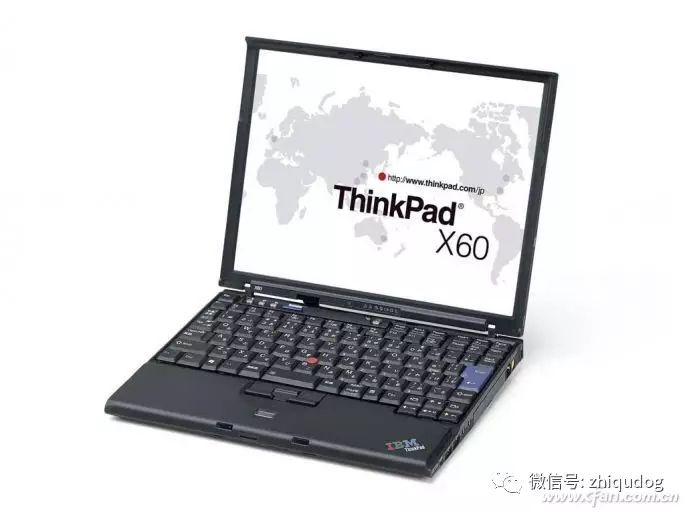
Come on, back then, laptop screens only had 640×480 resolution, which looked quite “pathetic”.
At that time, 1024×768 was considered “high resolution” and was known as the XGA standard. Subsequently, SXGA+(1400×1050), UXGA(1600×1200), and QXGA(2048×1536) were successively adopted by top laptops, resulting in increasingly finer display effects.
With the rise of high-definition video, the 4:3 “standard screen” had significant black borders, leading to low screen utilization. Hence, the concept of “widescreen” gradually became popular in the laptop field.
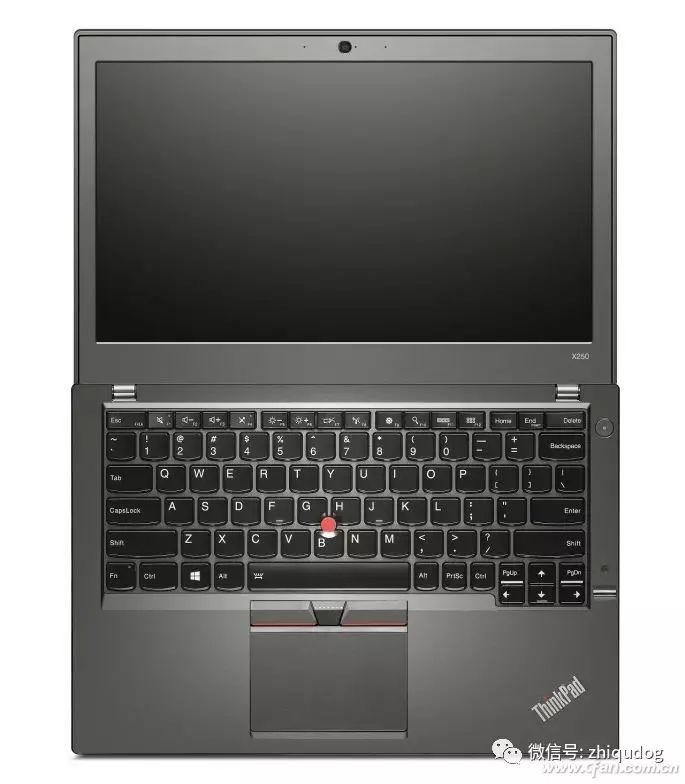
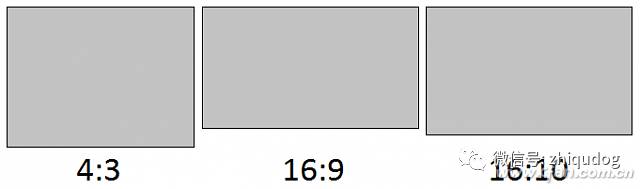
Similar to smartphones, laptops also went through several stages in the evolution towards widescreens: first, the dominance of the 16:10 aspect ratio (1280×800, 1680×1050, or 1920×1200), followed by the rise of the 16:9 aspect ratio (1366×768, 1440×900, or 1920×1080).
The reason 16:9 ultimately prevailed is that this ratio maximizes screen utilization when watching high-definition videos and is regarded as the golden ratio. Additionally, the cutting costs for LCDs in this ratio are the lowest, and finally, the width of a 16:9 screen is smaller than that of a 16:10 screen, aligning better with the current trend of slimmer laptops.
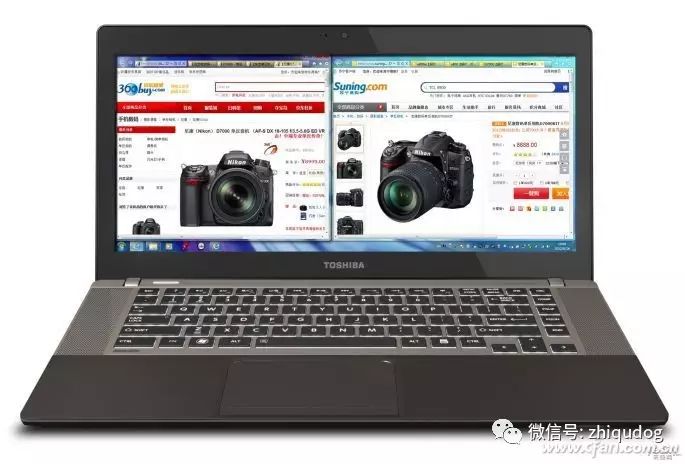
By the way, during the evolution of laptop widescreens, there was also a peculiar product with a 21:9 aspect ratio: the Toshiba U800W. This ultrawide screen product could display more windows and content through its split-screen function, which could enhance efficiency in the office. Unfortunately, the demand for such a feature is too niche, and in reality, most users prefer to connect multiple external monitors for split-screen capabilities.
Full HD Gradually Becomes Common
Compared to the upgrade pace of other hardware, the screen resolution parameter of laptops is quite disappointing. From 11.6 inches to 15.6 inches, 1366×768 pixels has always had the highest market share.
The good news is that the trend of 1080P full HD (1920×1080 pixels) is gradually becoming apparent, and 2K and even 4K resolutions are starting to appear in the mid-to-high-end laptop market. Recently, mid-to-high-end laptops have become the domain of full HD screens.
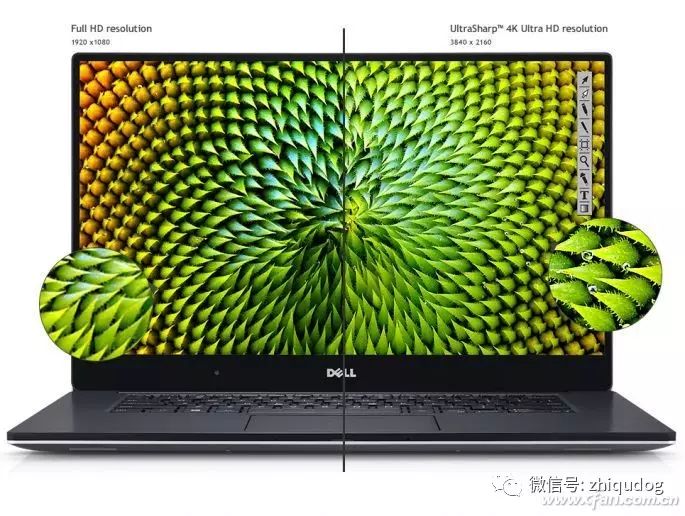
Gaming laptops are the main battlefield for 1080P screens. With the support of GTX1050 Ti or higher-level discrete graphics cards, common 3D gaming masterpieces can run smoothly at 1080P with high-quality settings, providing a more delicate and stunning visual effect. At the same time, various two-in-one devices and ultrabooks across different price ranges are also considering 1080P as standard, while the “unchanging” 1366×768 pixels have gradually become a choice for laptops priced under 4000 yuan.
Question! What to do if the font is too small or blurry?
For laptops with screens smaller than 15.6 inches, 1080P will cause the font and icons to appear too small. If you find that the small text and icons are difficult to see, you can adjust as follows:
For example, in Windows 10, simply go to “Settings → System → Display” and set “Change the size of text, apps, and other items” to 125% or 150%. However, this setting may also cause font display issues due to DPI scaling bugs.
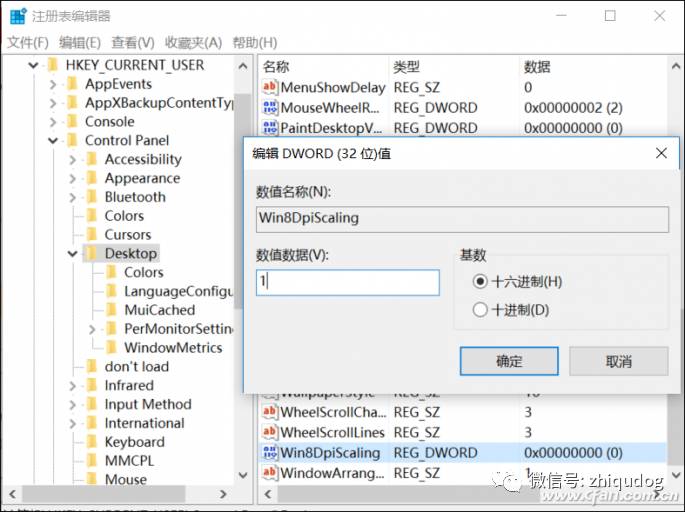
If your laptop exhibits blurry text, you can press “Win + R” to open the Run window, type “regedit” to enter the Registry Editor interface.
At this point, we need to locate HKEY_CURRENT_USER\Control Panel\Desktop, double-click “Win8DpiScaling” and change its corresponding value data from the default “0” to “1”;
Next, find “LogPixels” (if it doesn’t exist, please create a DWORD32 value with the same name) and change the corresponding value of LogPixels to the percentage you want to enlarge. Note that this value needs to be converted between hexadecimal and decimal. For example, to enlarge to 120%, enter 78; for 125%, enter 7D; for 150%, enter 96; and for 200%, enter C8.
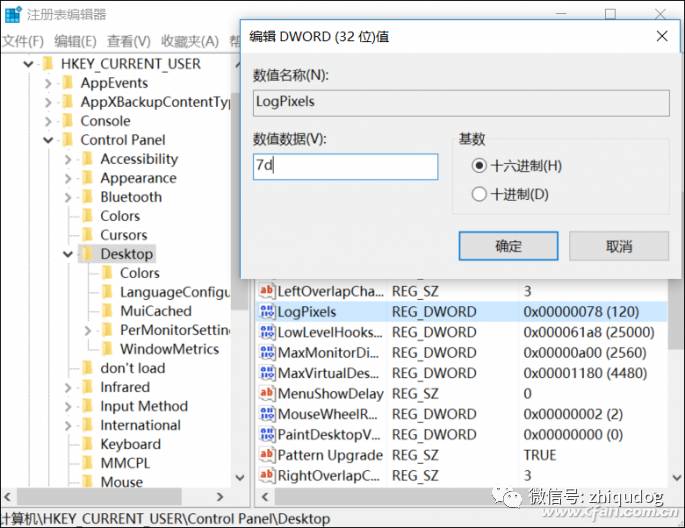
After restarting the system, the font blurriness issue will be resolved.
Question! What to do if there is no 1080P screen?
If your laptop does not have a 1080P screen and you want to experience full HD, there are currently three solutions:
First, add an external monitor connected via HDMI to achieve a full HD visual experience, Netizens: Obvious!
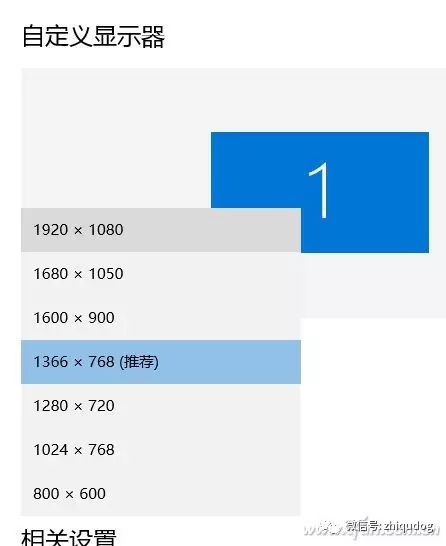
Second, if your laptop is equipped with an AMD APU (new products from 2015 onwards) or the latest AMD M300 series discrete graphics, you can enter the AMD graphics control panel, check “Enable Virtual Super Resolution” (VSR technology) in the “My Built-in Display → Properties (Built-in Display)” interface, and set the preferred scaling mode to “Scale image to entire panel size”.
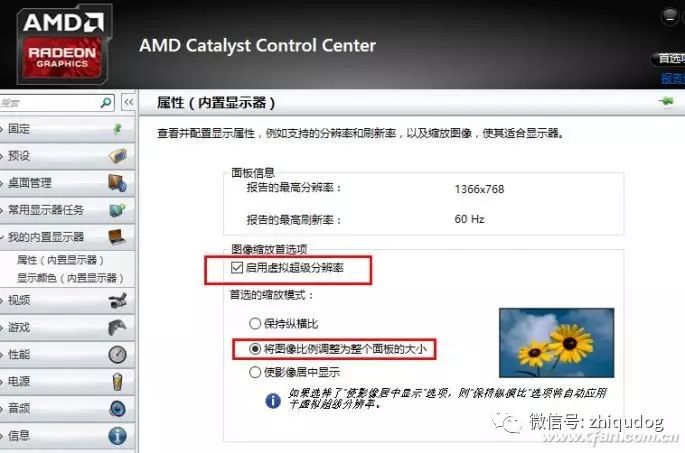
After saving and exiting, go to the display resolution settings interface, and you will find more selectable maximum resolution values, allowing ordinary laptops to enjoy the delicate view of 1080P.
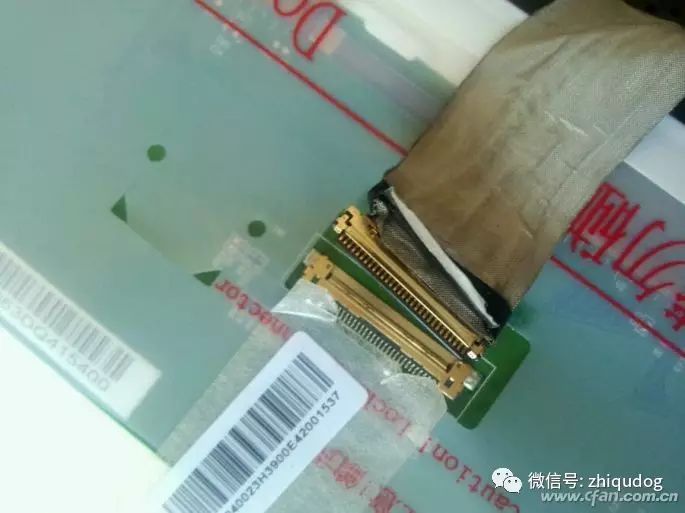
Third, if you have some DIY skills, you can purchase a 1080P LCD screen that matches the size of your laptop’s screen through e-commerce platforms like Taobao and replace it with the original LCD. During this process, be careful about whether the screen cable interface is LVDS or eDP standard to avoid the awkward situation of being unable to drive the new screen.
Who Else Affects Display Quality
For a long time, laptop screens (LCDs) were dominated by TN panels. The advantages of TN panels are fast response speed and low cost, but they have the drawback of low viewing angles. In terms of viewing angles, TN panels typically only ensure display quality when viewed directly; viewing from the side or from above or below can cause significant color distortion.
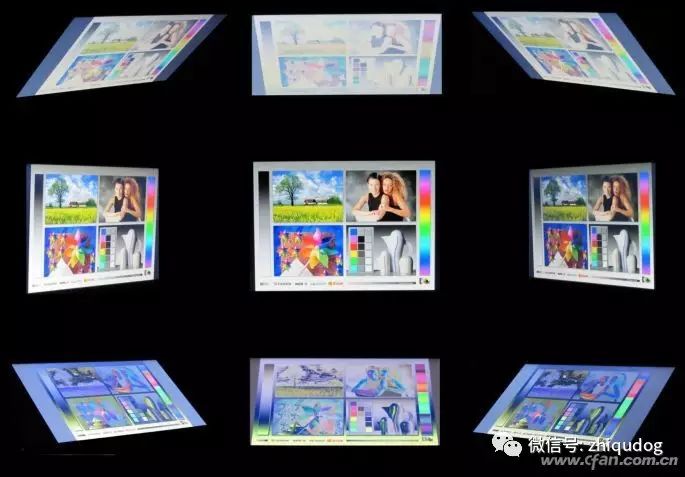
Today, the vast majority of gaming laptops and mid-range laptops have adopted IPS panels, which offer high viewing angles, fast response speeds, and good color reproduction, ensuring no color distortion within a range of 170 degrees. Additionally, Samsung laptops tend to choose their own PLS panels, which are similar to IPS in terms of high viewing angles and color reproduction as their main selling points.
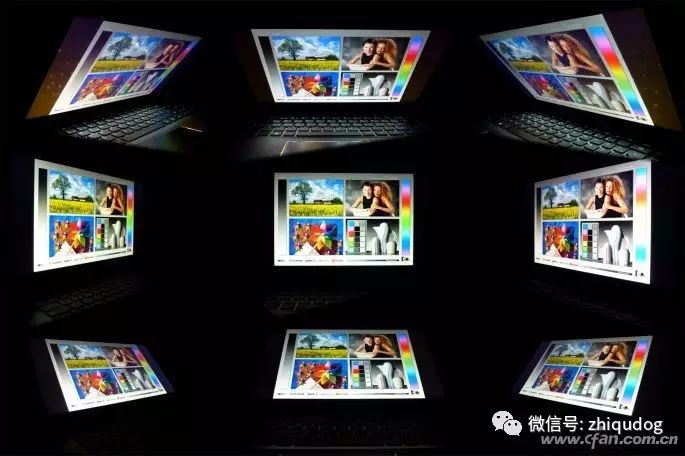
If you are considering buying a new laptop, under similar price and configuration conditions, models with IPS panel screens are undoubtedly more worth choosing. Especially for users who frequently use laptops for watching videos, gaming, or design work, replacing TN with IPS is even more important than having a higher-end processor.
Beware of False Advertising
To create buzz, some merchants or manufacturers may use confusing concepts to mislead consumers. For example, discussing IPS, PLS, and IGZO together and claiming that PLS’s color gamut is absolutely superior to that of IPS.
In fact, TN, IPS, PLS, PVA, and MVA (the latter two are mainly used for monitors or LCD TVs) are all types of display technology, while a-Si (general), IGZO (better), and LTPS (best) are names of materials used to manufacture LCD substrates. Discussing them together is meaningless.
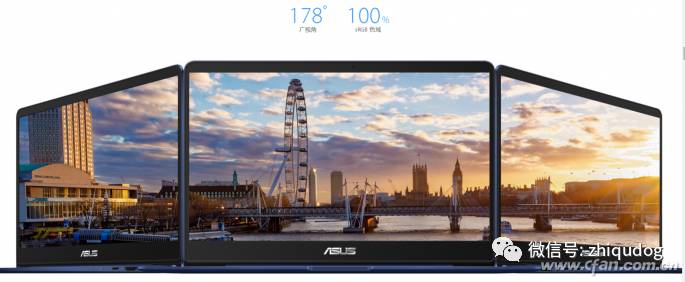
Moreover, parameters related to color gamut mainly include NTSC (the color television broadcast standard set by the National Television Standards Committee of the United States), Adobe RGB (the color gamut standard launched by Adobe), and sRGB (the color gamut standard jointly launched by HP and Microsoft), with no fixed conversion method between them.
The key factors affecting screen color gamut are the quality of the LCD panel itself and the design of the backlight module. As long as the backlight module is powerful, IPS can also achieve 100% Adobe RGB color gamut, so simply judging the color gamut based on panel display technology is unreliable.
Question! How to Know Detailed Screen Parameters?
If you want to know the detailed parameters of your laptop screen, you can first install the “AIDA64” software on your laptop. After running it, you can find the specific model information of the screen in “Display Devices → Monitor”.
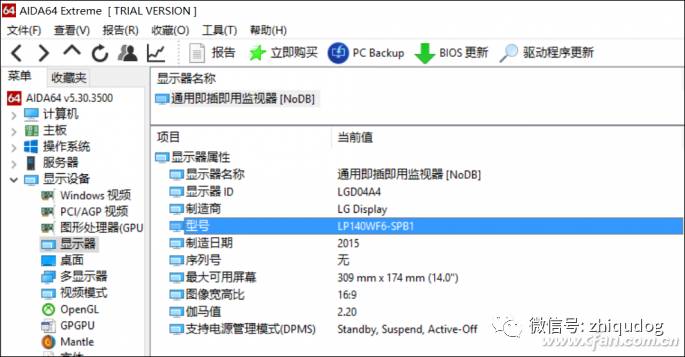
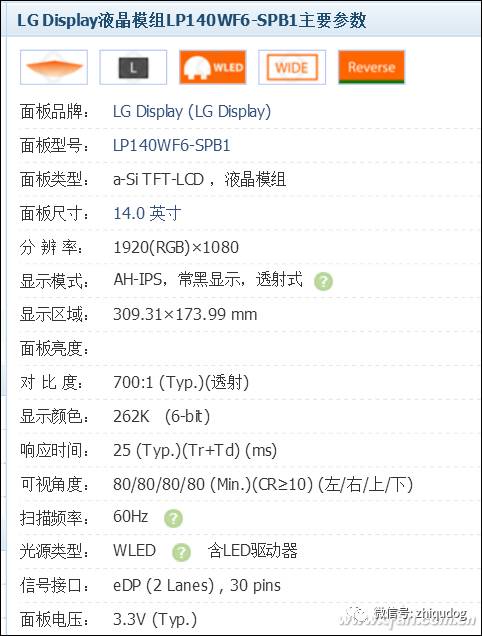
Then, enter this model on the Screen Library website (http://www.panelook.cn/) to find its detailed information, such as whether the LCD panel is IPS, TN, or PLS, and what the maximum brightness and viewing angles are.
How Else Can Laptop Screens Change?
To break free from the homogenization dilemma, many new laptops focus their innovations on screens.
OLED screens have gradually become popular in smartphones, but there are only a few laptops designed with OLED screens, such as the ThinkPad X1 Yoga and Alienware 13 OLED version. The reason is that the cost of OLED screens is relatively high, making it difficult to popularize in mainstream price products.
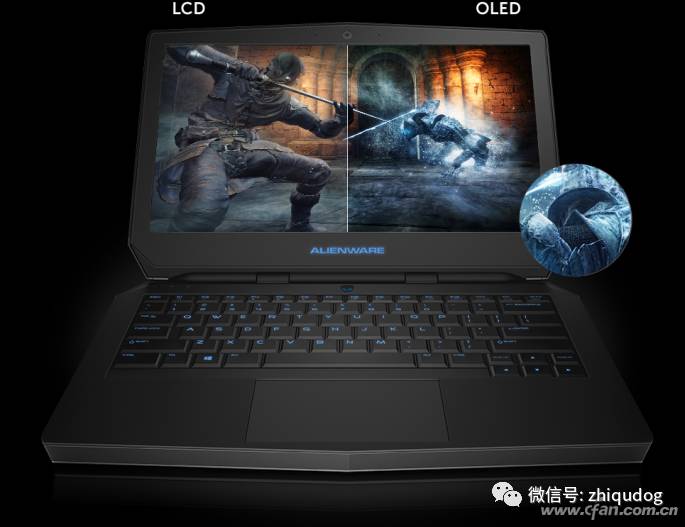
Compared to existing TN or IPS, OLED can provide laptop screens with a wider color gamut and better gamma curve. The good news is that both Samsung and LG have strengthened the research and production capacity of OLED laptop panels, and in 2018, the number of laptops equipped with OLED is expected to show a significant upward trend.
Many people believe that the addition of OLED screens can further enhance laptop battery life because OLED is self-emissive, consuming very little power when displaying dark or black backgrounds.
However, this view is not entirely accurate: for laptops starting from 12 inches, when displaying a white background, each pixel of the OLED display consumes more power than a regular display. Therefore, OLED laptops can save power when watching videos (as videos often contain many low-brightness scenes), but when browsing the web or editing documents, they will consume more power (as web pages and editing interfaces are predominantly white backgrounds).
Micro-Edge Gradually Gains Popularity
Micro-edge is not just a smartphone patent; as early as 2007, Fujitsu launched the “borderless” concept with the LifeBook S6510, where the left and right borders of the screen were only 5.6mm, squeezing a 14.1-inch screen into a 13.3-inch body. Unfortunately, limited by the processor and material technology of that time, although the LifeBook S6510 compressed the width, its thickness remained considerable.
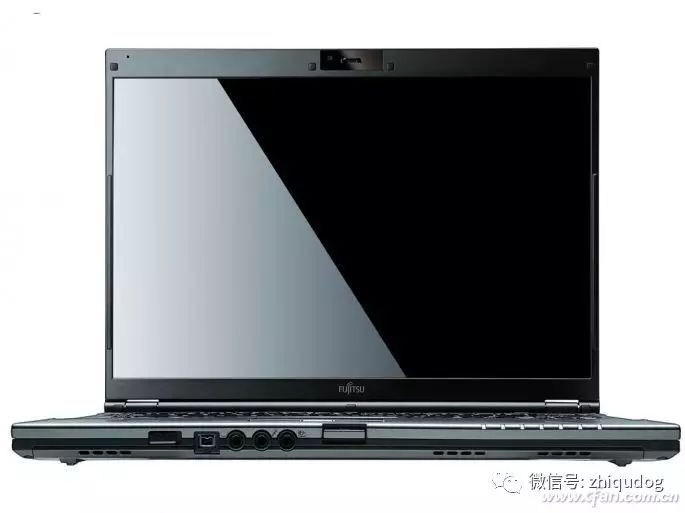
In 2015, Dell further reduced the border width to 5.2mm with the launch of the XPS 13, promoting the micro-edge concept. Today, almost all laptop manufacturers, including Lenovo, ThinkPad, HP, Asus, and Xiaomi, have launched products focusing on the micro-edge concept; these days, it’s almost embarrassing for a laptop not to feature a micro-edge to be called a new product.
Screen Surface “Degradation”?
Have you noticed changes in the surface of laptop screens? The earliest laptop screens were all “matte screens”; many users (including myself) even bought mirror protective films to give their laptop screens a shiny experience.
However, it has been proven that mirror screens are a terrible design for laptops, as reflections during gaming or watching videos can severely affect the user experience. Therefore, after a complete evolution to mirror screens, laptops have recently “degraded” back to matte screens.
However, for those laptops designed with touch screens or with a layer of protective glass embedded in the screen (like Xiaomi laptops, Lenovo Xiaoxin Air 13), the presence of surface glass means they are insulated from matte screens.
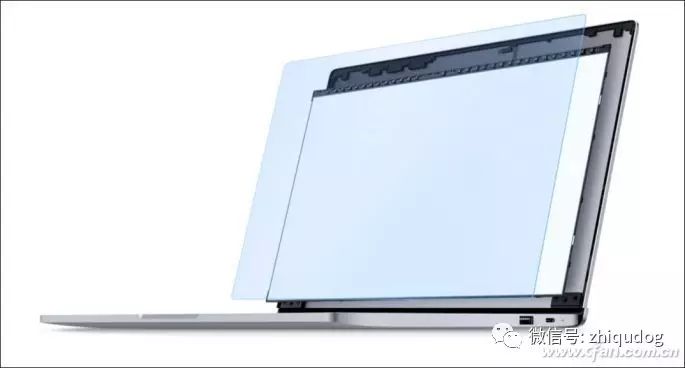
Considering that ultra-thin laptops have become one of the main directions of market development, and to enhance the strength of ultra-thin laptop screens, products using surface glass reinforcement solutions will naturally increase, leading us to face the awkward situation of screens degrading from matte back to mirror.
To avoid this awkwardness, you either need to use the laptop in an environment without light interference or find ways to increase the brightness of the laptop screen. Therefore, in the future, when purchasing ultra-thin mirror laptops, the maximum brightness parameter will also become one of our key considerations.
After reading this article, 99% of readers will also click: